
Layers That Build on Each Other
Ce contenu n’est pas encore disponible dans votre langue.
Module 3 in the chapter Data Transforms, chapter 7 of the Data 360 Architect course. Each module stands on its own. Previous: A Batch Transform, Node by Node · Next: A Key That Holds
The question this module answers: How do you design transforms that feed each other, so each one stays simple?
Module 2 built one transform: one question, one output. Real projects don’t stop at one. You clean the countries, then the regions use the clean countries, then the airports use the clean regions. Now you have a chain, and a chain has its own design questions. Which layer joins to which? What key does each layer carry? What runs first?
I’ll answer them with my own project.
My project: SkyOrbita
Section titled “My project: SkyOrbita”Here’s something I’ve found about learning. You grow the most when you build something real: something tangible, as realistic as you can make it, with hard problems and outcomes you can’t predict. A tidy exercise with a known answer doesn’t force you to learn. A real build does.
Data 360 makes that hard in a particular way. To see what it can do, you need large volumes of data. And not just volume: you need data that’s related, where the connections mean something. Made-up or synthetic data has no meaning of its own, so you won’t find deep patterns in it, because nobody put any there. The usual answer would be data about people, and that’s exactly what you can’t get. Large sets of data about individuals belong to particular companies, and they’re confidential.
So I went looking for something else: large volumes of data with meaning and purpose, that I was free to use. I started with flights. Much of that data is open and free. Once I started looking at airplanes taking off and landing, and the airports they use, more than 80,000 of them, it grew and grew. Airports have runways, regions and countries. Flights have airlines and aircraft. Aircraft have a registry. These are large data sets, they’re related to each other, they mean something, and you can picture them. That makes a great example.
That project is SkyOrbita, and it’s part of SteveTechArc. Sometimes I don’t know where it’s going, because I keep bringing in more data. I started with the sky: flights. I could go to the land, and I may bring in the orbits of satellites and look down at the planet. It gives me real challenges to build, and real data to visualize, in many directions. It’s my vehicle for learning, growing, teaching and demonstrating, and in this course, it’s yours too.
To be clear about what that means: SkyOrbita is my own project, owned by Twinshark LLC. In this course you’ll learn how it’s built and work with the same kinds of data, and you can follow it at skyorbita.com (opens in a new tab). The project itself, its code and its name stay mine. The data you’ll use comes from SkyData (opens in a new tab), where every source is credited and anything synthetic is labeled.
The whole family, in its own words:
SkyOrbita is a platform for learning and growing in technology by taking on real, complex challenges, with data as real as possible and synthetic only when necessary.
- SkyData: the test flight data. Real public data, credited, and synthetic data only where real data can’t exist.
- SteveTechArc: the courses that teach with them.
In my Data 360 org, SkyOrbita runs eight batch transforms. Seven of them build the aviation data (the eighth handles currency rates). Every one of the seven reads lake objects and writes a lake object, and several of them read what another one wrote:
- Geography: countries → regions → airports, and the airports feed the Airport model object.
- Airlines and aircraft: airline accounts → airlines; then aircraft join the airlines.
- Runways: the runway file joins the airport layer.
- Flight events: the raw flight events become clean flight events for the Flight Event model object.
So there are three kinds of objects, and each has one job:
| Layer | Its job |
|---|---|
| Raw lake objects | What the source sent, as it sent it. One per stream (chapter 6). |
| Enriched lake objects | Clean, joined and labeled. This is where the transforms write. |
| Model objects | The shared entities: Airport, Airline, Aircraft, Flight Event, Runway. Mapped from the enriched layer. |
Why an enriched layer: an interface between source and model
Section titled “Why an enriched layer: an interface between source and model”This is a pattern I use, and I want to be clear: it’s an option, not a rule. Plenty of good designs map a stream’s lake object straight to the model. Here’s why I added a layer, and what it costs.
The usual path is tightly bound: a data stream feeds a lake object, and the lake object is mapped to the model objects. Every link in that chain is hard to change once it’s built. You saw the rules in chapters 3 and 6: “After a DLO or DMO is created, you can’t change the data type of any fields.” “You can’t delete the DLO fields.” “You can’t change the category after saving the data stream.” And if you delete a data stream, everything built on it is at risk: the lake object, the transforms, the mappings to the model. Pull one thread and the sweater comes apart.
What I found in practice is that a small change at the source end can cascade all the way to the model. A source adds a column, a type was chosen in a hurry, a feed needs to be rebuilt. With the stream’s lake object mapped straight to the model, fixing that means touching the mappings, and everything that reads the model feels it.
So I separate the two ends:
- The source side stays close to the source. Each data stream and its raw lake object match the original data’s shape, one to one, but still bring in only the fields you need (chapter 3, module 5). The enriched layer separates the source from the model; it isn’t a place to clean up everything you didn’t need to load. If a source changes, or I need to drop and recreate a stream, this is the only side that moves.
- The enriched lake object sits in the middle. Most of the time it’s 90% the same as the source, but its shape is mine: its names, its types, its keys, and as close to the model as I want it.
- The model side maps only from the enriched lake object.
The enriched lake object works like an interface. The model depends on it, not on the source. When I drop and recreate a stream and its raw lake object, I rebuild one transform to fill the same enriched object again, and the mappings to the model never notice. No domino effect all the way to the model.
It also keeps the raw layer honest: what the source sent, as it sent it. That’s what lets you load again, compare with the source, and find where a value came from.
What Salesforce says about it
Section titled “What Salesforce says about it”The pieces are Salesforce’s own. Its architecture guide, Data 360 Architecture (opens in a new tab), says transforms are applied to source lake objects “to produce new, highly curated derived DLOs.” It says model objects are created by mapping lake object fields “from source, derived, and unstructured metadata DLOs.” And it describes the data in stages: “raw ingested data, cleaned and stored data, and data modeled.” An enriched lake object is a derived lake object, and mapping the model from it is a documented path.
What the guide doesn’t do is tell you to add that middle layer, or say how many layers to have. Using a derived lake object as the interface the model depends on is my design choice, built from those documented pieces. That’s why I call it an option.
What it costs
Section titled “What it costs”Be clear about the price before you choose it:
- Credits. Every transform run is processing, and processing uses credits (chapter 21). An enriched layer adds at least one transform for each source, and each run is billed on the rows it reads or writes. A run that finds nothing changed is skipped. After the first run, an incremental run counts only the changed rows. But it isn’t free, and on large, frequently refreshed data it adds up.
- Another object to own. Each enriched lake object is something to name, document, schedule and watch.
- Time. Data reaches the model after one more step, so the model is as fresh as the last transform run, not the last load.
For a sense of size, from Salesforce’s rate cards: on the Data Services card (last updated July 2025), a batch transform is 400 credits per million rows, against 2,000 to bring a million rows in from outside Salesforce. On the Flex Credits card (dated 08.31.2026), a batch transform is Data 360 Prep, at 40 per million rows at the base tier. Small per run, but it’s every run, on every layer.
When it’s worth it
Section titled “When it’s worth it”It’s worth it when sources are likely to change: a feed you don’t control, a source still being designed, data you’ll need to reload or rebuild. And it’s worth it when several things read the same model and you can’t afford to break them. It’s probably not worth it for a small, stable source that maps cleanly to the model: there, the direct path is simpler and cheaper.
Rule 1: join only to the layer above
Section titled “Rule 1: join only to the layer above”Look at the airport transform. An airport needs its region’s name, its country’s name and its continent. The tempting design joins the airports to the regions and to the countries.
SkyOrbita doesn’t. The airport transform joins only to the region layer. The region layer already joined to the country layer, so every region row carries its country’s code, name and continent. The airport gets the country through its region.
Why does this matter? Count the joins. Two joins in one transform are two places to get wrong, two sets of keys to match, and two inputs that must be ready before it runs. One join is one of each. And when a country’s name changes, there’s one place it flows from. Fewer joins, fewer ways to break, a shorter chain of dependencies. That’s the whole rule.
Rule 2: keys that never change, and mean the same in every org
Section titled “Rule 2: keys that never change, and mean the same in every org”Every enriched layer needs a primary key. Two tests decide it.
First: the same in every org. In SkyOrbita, the countries, regions and airports start in the core org, so every row has a Salesforce record ID. But a record ID belongs to one org. Load the same airports into another org, a sandbox, or a new Data 360 tenant, and every ID is different. So the record ID can’t be the key. It gets a smaller job instead: it stays on the row as a bridge back to the core record and as lineage, where the row came from.
Second: it never changes. The airport code looks like the obvious key: KPHX is the same in the source file, in every org and in the flight data. But read OurAirports’ own description of it. The ident “will be the ICAO code if available”, and otherwise a local code. So when a small airport is given an ICAO code, its ident changes, and a key that changes isn’t a key. OurAirports also gives every row a number, and says of the airport’s: it “will stay persistent, even if the airport code changes.”
So each layer keys on the number that never changes, and keeps the codes as fields people can read and search:
| Layer | Key | Kept as a readable field |
|---|---|---|
| Country | OurAirports’ country id | the country code, US |
| Region | OurAirports’ region id | the region code, US-AZ |
| Airport | OurAirports’ airport id | the ident KPHX and the IATA code PHX |
The codes still do one important job: they’re how sources meet. A flight file knows PHX, not OurAirports’ number, so the flights join to the airports on the IATA code (step 5 of the lab). A join can use a code that carries meaning; a primary key shouldn’t, unless that meaning can never change. Compound keys like “this airline on this day” pass that test, and module 4 builds them.
Codes do change, even at large airports. In SkyData’s year of flights, one airport in Florida is coded PBI through July 2026 and DJT from August 2026. OurAirports lists it under the new code, so a join on the IATA code drops the 3,051 flights recorded under the old one. BTS’s own airport number for it, 14027, is the same in every month. That’s the rule in real data: a code is fine for meeting another source, as long as you check the join, and a number that never changes is what you key on.
Rule 3: derive the labels in the transform
Section titled “Rule 3: derive the labels in the transform”The source says what an airport is: a large airport, a heliport, a seaplane base. The business wants to know what it’s for. So in SkyOrbita’s design, and in this module’s lab, the airport transform adds a column, the airport category, from the airport type:
| Airport type (from the source) | Airport category |
|---|---|
large_airport, medium_airport | Commercial |
small_airport | Regional |
heliport, seaplane_base, balloonport | Specialized |
closed | Inactive |
| anything else | Other |
Do it here, once, and every segment, insight and agent uses the same answer. Do it in each report, and you’ll have five slightly different answers by the end of the year.
One thing to check: the values the source really sends, not only the values its documentation lists. OurAirports’ own data dictionary says a closed airport’s type is closed_airport. The file says closed. When I counted the types in the airport file in November 2026, there were seven, exactly the ones in the table above, and 13,659 airports had the type closed. A rule written from the documentation would have sent every one of them quietly into Other. Nothing fails, nothing warns you; the count is just wrong.
So before you write a mapping rule, count the values in the real data. And after the transform runs, count the output: if Other holds thousands of rows, a value isn’t in your rule.
Rule 4: a transform depends on what it reads
Section titled “Rule 4: a transform depends on what it reads”Every transform has inputs. When one of its inputs is another transform’s output, it depends on that transform. SkyOrbita’s runway transform reads the airport layer, which reads the region layer, which reads the country layer. That’s four deep.
Two things follow.
Build in order. The output object of the layer above must exist before you can choose it as an input. Countries first, then regions, then airports, then runways.
Run in order. Each batch transform runs when you start it (Run Now) or on its own schedule. Salesforce’s pages describe those two ways; they don’t describe starting one transform when another finishes. So if the airports run before the regions finish, they join to yesterday’s regions. Schedule each layer after the one above has had time to finish, and watch the run history. Salesforce adds a rule to plan around: “If a scheduled transform doesn’t finish before another run is set to begin, the second instance doesn’t run.”
Two more of Salesforce’s rules help a chain. A run “will be skipped if the source data or transform remains unchanged from the previous run,” so a layer whose input didn’t change costs nothing that day. And an incremental run can pick up changes “from the target of another batch data transform that runs incrementally,” so a small change at the country layer can flow down the chain without reprocessing everything (module 6 covers when a run is incremental).
If timing by the clock isn’t good enough, the run can be started from outside. SkyOrbita does that: a small program runs each layer through Data 360’s API, waits for it to finish, then runs the next. Chapter 14 covers the APIs.
Here’s what reads what in SkyOrbita, laid out in the order the transforms have to run:
Hands-on: build the geography chain
Section titled “Hands-on: build the geography chain”Now build it yourself. The data is public, and the steps are the ones SkyOrbita uses, without the core org in the middle: the files go straight into Data 360.
The data. Download three files from SkyData (opens in a new tab): countries.csv, regions.csv and airports.csv, OurAirports v1.0. (The set’s fourth file, runways.csv, comes in chapter 8.) They’re a dated copy of OurAirports (opens in a new tab)’ public-domain data, taken on 2026-11-09: 249 countries, 3,987 regions, 86,350 airports and 48,412 runways, and every airport’s region and every region’s country is in the files. The data card (opens in a new tab) describes every column. Because this version never changes, your counts will match the course’s. (OurAirports itself publishes fresh files every day, if you want today’s.)
The org. Since March 2025, Salesforce’s free Developer Edition (opens in a new tab) includes Data 360 (then called Data Cloud). Salesforce lists its limits in Developer Edition Limits and Guidelines for Data 360 (opens in a new tab), and two of them shape this lab:
- At most five batch transforms in the org. Module 2’s arrivals and this lab’s four layers (Country, Region, Airport, Flight Enriched) are exactly five. To try anything more, delete a practice transform first.
- Nothing runs on a schedule. In a Developer Edition org, stream refreshes are started with Refresh Now and transforms with Run. So you run the layers by hand, in order, and wait for each to finish: rule 4, done by you instead of a clock.
Transforms use credits in a paid org (chapter 21); the Developer Edition page lists counts, not credits.
I ran this lab in a new Developer Edition org in November 2026. Each run took a couple of minutes (Country Enriched: about two minutes for 249 countries), and the limit I met was the five batch transforms: a test transform had to go before Flight Enriched fit.
Step 1: bring the files in. One data stream for each file, by File Upload or from your bucket (chapter 4 and chapter 6), category Other, each with OurAirports’ id as its primary key. Now you have three raw lake objects.
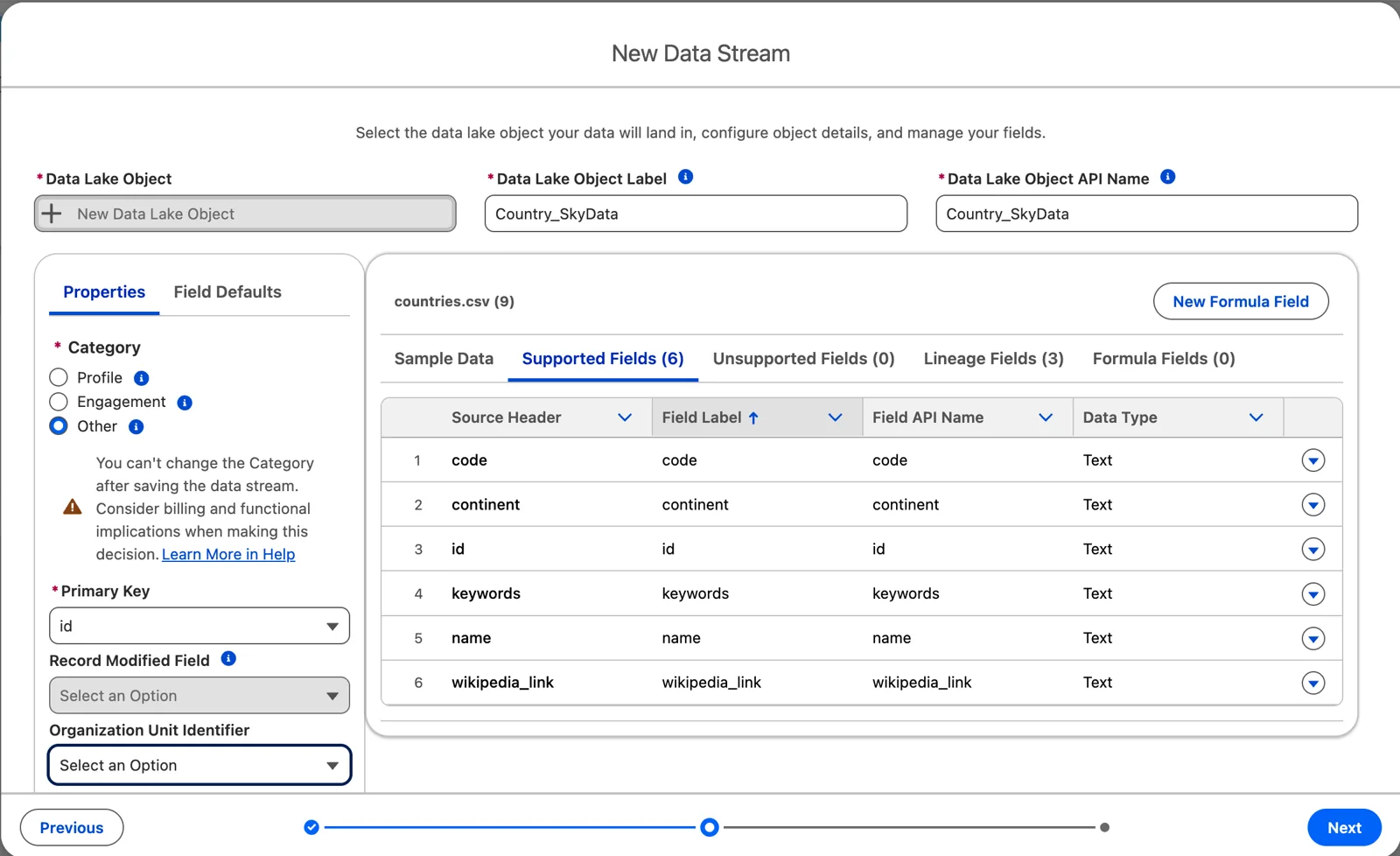
Step 1 in my org: countries, category Other, key id (Salesforce Data 360 in a Developer Edition org, screenshot, November 2026). Full size
Step 2: Country Enriched. Input: the raw countries. When you add the input, untick the KQ_ columns and the cdp_sys_ ones: otherwise they’re copied into the output as ordinary columns (in my org, a second field labelled KQ_id, with the API name id1__c), and they don’t qualify the output’s key. Filter: drop any row without a code. Output: a new lake object, Country Enriched, keyed on the country id. Save it, and if no run starts, click Run Now. Then give the output its own key qualifiers: the same qualifier on its id, and on code, which the next step joins on.
Step 3: Region Enriched. Input: the raw regions (again without the KQ_ and cdp_sys_ columns). Then add a Join from the regions’ node, and give it Country Enriched as its second input: pick it in “Select Input Data to Join”, or connect a Country Enriched input already on the canvas. Keep only the columns you need from it. The join first guesses a key from columns with the same name (name = name), so replace it. Join them: the region’s iso_country to the country’s code. Take the region’s code and name, and the country’s name and continent. The join’s API Name Prefix for Right Columns sets the country columns’ API names (I typed country, and they came out as cou_name__c, cou_continent__c and cou_code__c), but the builder keeps showing their labels, so in the output give them names of their own: country_name, country_continent, country_code. Output: Region Enriched, keyed on the region id. Run it after step 2 finishes.
Step 4: Airport Enriched. Input: the raw airports (again without the KQ_ and cdp_sys_ columns). Add a Join with Region Enriched as its second input, and tick the region’s code and name, and its country_name and country_continent: only what you tick comes through. Check the key the join guesses (in my org it was the airport’s id = the region’s code, wrong again) and replace it: the airport’s iso_region to the region’s code. The country comes through the region (rule 1). The prefix works as in step 3, and prefixes stack: with region, Region Enriched’s cou_name__c came out as reg_cou_name__c. So again, name the columns in the output: region_code, region_name, country_name, country_continent. Then add a Transform node with a custom formula for the airport category (rule 3). Like every batch transform formula, it uses the API name, type__c:
CASE WHEN type__c IN ('large_airport', 'medium_airport') THEN 'Commercial' WHEN type__c = 'small_airport' THEN 'Regional' WHEN type__c IN ('heliport', 'seaplane_base', 'balloonport') THEN 'Specialized' WHEN type__c = 'closed' THEN 'Inactive' ELSE 'Other'ENDGive it the output type Text, and keep it as a new column. In the output’s list view, its source shows as “Derived Field”. If you find a missing column after the first run, as I did with the region’s name, tick it with the input’s Change columns, then map it in the output: the output object already exists, so the builder adds a new field to it, and shows its API name (region_name__c) rather than its label. Run it again with all data.
Output: Airport Enriched, keyed on the airport id, with the category Profile: a model object takes its category from the first lake object mapped to it (chapter 6), and Airport is a Profile object in chapter 8 so airports can be segmented. Run it after step 3. Then add it to your data space, and give it the same key qualifier on its id and on iata_code, which step 5 joins on.
CASE is in Salesforce’s list of formula functions for batch transforms: “Use a case statement to handle if/then logic.”
Two join rules from Salesforce. Both apply to every join in this lab:
- “All data lake object (DLO) fields used in the data transform table join must have an associated key qualifier.” Set up the key qualifiers on the join fields first (chapter 6, module 5).
- Nulls don’t match nulls: “You can’t compare null values with each other. If a null value is present, the table join doesn’t work correctly.” Salesforce’s fix is to replace nulls in the key qualifier column with a value such as
--NULL--on both sides before the join.
Check it. In Data Explorer, look at Airport Enriched. Does every airport have a region name and a country name? Count the airports in each category: if Other holds thousands of rows, a type value isn’t in your rule. In my org, with OurAirports v1.0, Other was empty: every type fell into one of the four. Then pick one airport you know, maybe the one nearest you, and check it from end to end.
Step 5: Flight Enriched, closing the story. Now bring module 2’s flights in. Input: the raw PHX flights and Airport Enriched. Join them: the flight’s origin to the airport’s IATA code (the three-letter code, PHX), not to the airport ident (KPHX). Check the key the join guesses here above all: in my org it guessed the destination, Dest = iata_code. That looks right, and it’s wrong: every flight in this file arrives at or leaves PHX, so the guess would attach PHX to every arrival instead of the airport it came from. Each source names airports its own way, and the join has to use the code both sides share. Keep the flight’s columns and add the origin airport’s name, region, country and category. Output: Flight Enriched. BTS gives a flight no ID of its own, so build the key from what makes a flight unique: the date, the airline’s code, the flight number and the origin, for example 2026-08-14_AA_336_DFW, a real flight from Dallas/Fort Worth that day (unique in this month’s data, but BTS doesn’t promise it in general; module 4 is about keys like this).
Now a flight into PHX knows where it came from: which country, which region, what kind of airport. That’s the whole chain: raw files, three enriched layers, and flights that use them.
In August 2026’s data, that join is clean: every one of the 106 airport codes in the PHX flights, and all 352 in the whole month, matches exactly one airport’s IATA code in OurAirports v1.0. None is missing and none matches two. Check it in your own build anyway: count the flights before and after the join, and the numbers should be the same. In mine, the raw flights and Flight Enriched both have 29,524 rows, and sorting origin_name both ways shows no flight without its airport. Run the same join over a whole year and it isn’t clean any more: the airport that changed from PBI to DJT (rule 2) is why you count.
Where this goes next
Section titled “Where this goes next”Chapter 8 maps Airport Enriched to the Airport model object. SkyOrbita makes it a Profile object, so airports can be segmented; that’s a choice, and chapter 6 explains it. And chapter 8 maps the runways straight from their raw lake object, to show the other path: the enriched layer is a pattern, not a rule. The other branches, airlines and aircraft, follow the same four rules. The aircraft’s age band comes from the year each aircraft was built, in the US government’s public aircraft registry. And Flight Enriched is what chapter 10’s insights read: flights by airport and day, with every airport’s place in the world attached.
What an architect decides here
Section titled “What an architect decides here”- Whether to use an enriched layer at all, source by source: the interface it gives you against the credits and work it costs.
- The layers: raw, enriched, model. What each one is for, and, where you use the pattern, that the model reads only enriched data.
- For each transform, the one layer it joins to. Inherit from the layer above; don’t join around it.
- The key of each layer: one that never changes and means the same in every org; where the codes go (readable fields and joins between sources) and where the Salesforce record IDs go (a bridge and lineage).
- Which labels are derived once, in the transform, and the source values each rule was checked against.
- The build and run order, and how you’ll know a layer ran on stale input.
Explore
Section titled “Explore”All checked 2026-11-14.
- Data 360 Connect API: Data Transforms, run a data transform (opens in a new tab), Salesforce Developers:
POST /ssot/data-transforms/{dataTransformNameOrId}/actions/run, how a program starts each layer. - Data 360 Architecture (opens in a new tab), Salesforce Architects: derived lake objects, and the stages from raw to modeled data (checked 2026-11-14).
- Additional Functions for Formulas (opens in a new tab), Salesforce Help (checked 2026-11-14).
- Flex Credits Rate Card (opens in a new tab), Salesforce, dated 08.31.2026 (checked 2026-11-14).
- Salesforce Customer Data Cloud Rate Card (opens in a new tab) (Data Services credits), Salesforce, last updated July 2025 (checked 2026-11-14).
- Join Objects in a Batch Data Transform (opens in a new tab), Salesforce Help.
- Formula Transformation: Create a Calculated Column Based on an Expression (opens in a new tab), Salesforce Help.
- Schedule a Batch Data Transform (opens in a new tab), Salesforce Help.
- Batch Data Transforms Limitations (opens in a new tab), Salesforce Help.
- SkyData: OurAirports v1.0 (opens in a new tab), the dated copy this lab uses, with its data card (opens in a new tab).
- OurAirports open data (opens in a new tab) and its GitHub copy (opens in a new tab), public domain: the source.
- Developer Edition Limits and Guidelines for Data 360 (opens in a new tab), Salesforce Help, version 264.0.0 (checked 2026-11-14).
- Introducing the New Salesforce Developer Edition, Now with Agentforce and Data Cloud (opens in a new tab), Salesforce Developers Blog, March 2025.
- From the community: Salesforce Data 360 Credit Optimization Guide (opens in a new tab), Jitendra Zaa, updated March 2026 (checked 2026-11-14). A practical guide to what each part of Data 360 costs and how design choices change the bill.
- SkyOrbita (opens in a new tab), the project this course’s hands-on work follows.