
Streaming Transforms
Deze inhoud is nog niet vertaald.
Module 5 in the chapter Data Transforms, chapter 7 of the Data 360 Architect course. Each module stands on its own. Previous: A Key That Holds · Next: Beyond the Builder
The question this module answers: What can a streaming transform do, and how do you write one?
A batch transform works on the whole data set, on a schedule. A streaming transform works on each record as it arrives. Salesforce: it “reads one record in a source object, reshapes the record data, and writes one or more records to a target object,” and it “runs continuously as a streaming process, picking up new or changed data.”
What’s it for? Salesforce puts it simply: “Use a streaming data transform to clean ingested data. Then, map the improved data to the data model.” It sits between the lake object a stream fills and the model you map to (chapter 8).
When do I reach for one? When you can’t wait for the next batch. A batch transform runs on a schedule, and Salesforce’s scheduling page sets that schedule in hours or days. A streaming transform picks up new or changed records “within a few minutes” (module 1). So if your time is measured in seconds or a handful of minutes, streaming is the only way. If an hour is fine, batch is simpler, and it costs less (module 1).
Setting one up
Section titled “Setting one up”There’s no visual builder. A streaming transform is one SQL statement.
- On the Data Transforms tab, click New and choose Streaming Data Transform.
- Choose data lake objects or data model objects. For model objects, you choose a data space, and the transform reads and writes only in that data space.
- Name it, and choose the target object, or Create New.
- Write the SQL in the Expression field: which records to read, and how they map to the target. Click Check Syntax. A statement with errors, such as a wrong API name, can’t be saved.
- For a new target, the SQL decides its columns and their data types. You give it a name and a category, and select the primary key. (For a new data lake object in my org, it didn’t ask for a key qualifier.)
- A review page names the Streaming Object, the source it reads. Save, and it’s live.
Three things Check Syntax taught me, building one in my practice org:
- Every alias ends in
__c. The aliases are the target’s field API names. Mine didn’t, and the target page said “Target field names must end with ‘__c’ suffix. Please update your SQL query.” Salesforce’s own examples are written that way:"Online" as OrderChannel__c. - Fewer functions than a stream formula. A formula field on a stream has
REPLACE; streaming SQL said “Function REPLACE not supported.” - Some names are taken.
as phonewas rejected as invalid SQL;as phone_number__cwas fine.
So test the idea first, and keep the statement simple.
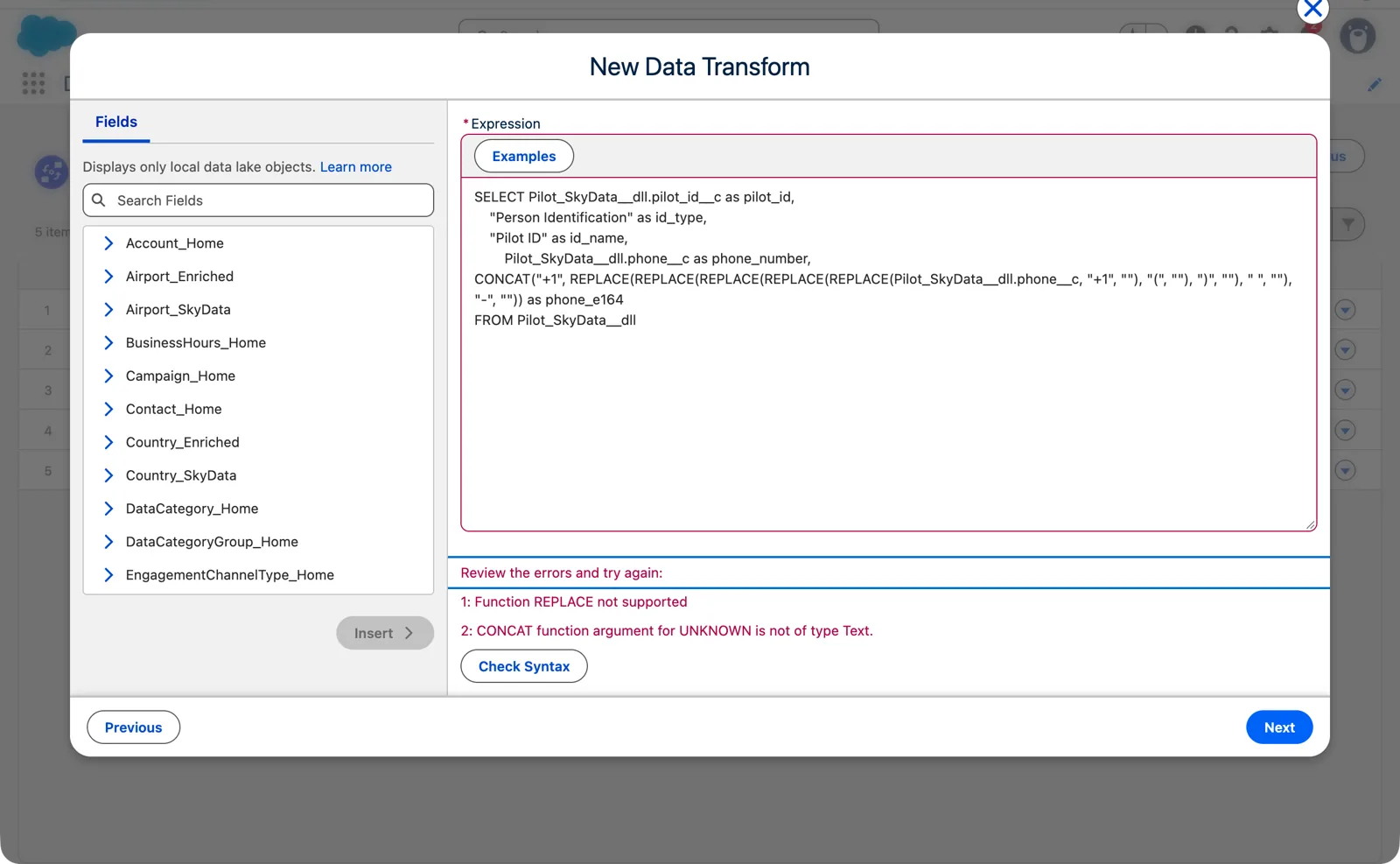
Streaming SQL’s function list is shorter than a stream formula’s (Salesforce Data 360 in a Developer Edition org, screenshot, November 2026). Full size
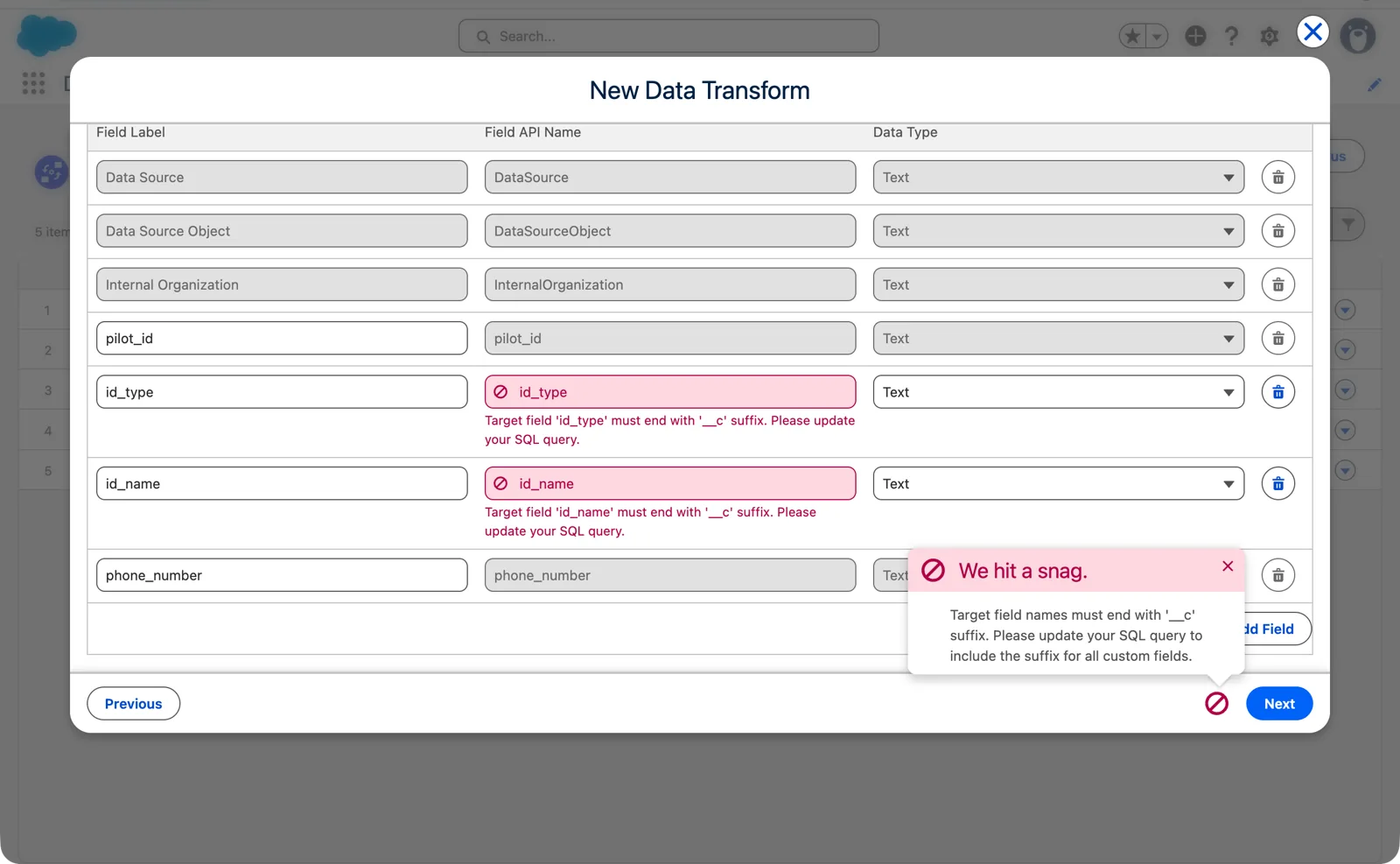
Every alias is the target’s field API name, so it ends in __c (Salesforce Data 360 in a Developer Edition org, screenshot, November 2026). Full size
The one I built: Pilot Identity. I’d mapped the pilots before adding two constants Party Identification needs, and a deployed file stream had nowhere to add them (chapter 6, module 4). So this streaming transform reads the pilots lake object and writes a new Profile lake object, keyed on the pilot ID, with the constants beside it:
SELECT Pilot_SkyData__dll.pilot_id__c as pilot_id__c, "Person Identification" as id_type__c, "Pilot ID" as id_name__c, Pilot_SkyData__dll.phone__c as phone_number__cFROM Pilot_SkyData__dllWithin minutes of saving it, the new lake object held all 1,000 pilots, the rows already in the source included, each with Person Identification and Pilot ID beside it. Its Data Source Object says Pilot_Identity, the transform’s API name. Chapter 8, module 4 maps it. It’s the enriched-layer idea from module 3 again: when the source can’t change, add a layer beside it rather than rebuild it.
Then the two things to remember from module 1. “Streaming data transforms are activated immediately when saved.” And “You can’t change a streaming data transform after saving it.” If it’s wrong, you delete it and create another one. It can take up to 30 minutes to start writing; after that, new or changed records go through within a few minutes. To stop it, you delete it.
That’s a reason to get the logic right before you save: try the query’s idea first in Query Editor against the source, and check the rows it would make.
What changed. In one of my videos on data spaces, I noticed that when I created a streaming transform, my other data space wasn’t offered; streaming transforms didn’t seem to be data-space aware. Today, Salesforce’s setup page has you choose the data space when the transform runs on model objects.
Which targets you can use
Section titled “Which targets you can use”- A target data lake object must be one you created in the UI, from the Data Lake Objects tab or with Create New. “You can’t use a DLO created by data stream as a target.” The lake object a stream fills belongs to that stream.
- A target data model object must be one created with Create New when you set up a transform.
One record in, several out: UNION
Section titled “One record in, several out: UNION”The most useful thing a streaming transform does is turn one record into several, so the data fits the model.
Salesforce’s example is phone numbers: a contact with a column for each phone, written out as one row per phone so every number reaches Contact Point Phone. The same move works on the course’s flights. Each BTS flight is one row, but it’s two events: a departure at its origin airport and an arrival at its destination. If you want one row per airport event, so that every airport’s activity sits in one object, UNION writes two rows from each flight, one SELECT for each, in the same shape.
SELECT CONCAT(Flights.FlightKey, "_DEP") as EventId, Flights.FlightKey as FlightKey, Flights.Origin as Airport, "Departure" as EventType, Flights.CRSDepTime as ScheduledLocalFROM FlightsUNIONSELECT CONCAT(Flights.FlightKey, "_ARR") as EventId, Flights.FlightKey as FlightKey, Flights.Dest as Airport, "Arrival" as EventType, Flights.CRSArrTime as ScheduledLocalFROM FlightsTake the real flight from chapter 3, AA 336 on 2026-08-14. It becomes two rows: 2026-08-14_AA_336_DFW_DEP, a departure at DFW scheduled at 1231, and 2026-08-14_AA_336_DFW_ARR, an arrival at PHX scheduled at 1259 (both local times, in different time zones). (In a real org, object names end in __dll and field names in __c; they’re shortened here. FlightKey is the formula field from chapter 6.)
Look at the key. It’s module 4 again: the flight’s key and the event type, joined with an underscore. Salesforce’s rules for UNION make the same point:
- Every
SELECTreads the same source lake object. - Every
SELECThas the same schema: the same target fields. - Every
SELECTmakes a unique primary key. If it doesn’t, “one of the non-unique values is selected randomly.” No error; one row just wins. - At most five
SELECTstatements.
Adding data from another stream: joins
Section titled “Adding data from another stream: joins”In module 1 we saw what changed since my early videos: a streaming transform can now combine “two distinct streams,” with INNER JOIN and LEFT JOIN.
Each flight carries its destination’s code, Dest, and we want the airport’s name on the flight as it arrives. The names are in the airports from SkyData’s OurAirports files:
SELECT Flights.FlightKey as FlightKey, Flights.FlightDate as FlightDate, Flights.Dest as Dest, Airports.name as DestNameFROM Flights LEFT JOIN AirportsON Flights.Dest = Airports.iata_codeFor AA 336, Dest is PHX, and DestName comes back as “Phoenix Sky Harbor International Airport”. The join uses the IATA code because that’s the code both files share (module 3).
A LEFT JOIN keeps the flight even when the airport isn’t found; an INNER JOIN would drop it. The target is other data, like the flights themselves (chapter 6, module 3), so there’s no event time to map.
The rules, from Salesforce’s page:
- The
ONclause is one column from each side,column = column, of the same data type. - Up to 5 objects can be joined in one statement.
- A join must include a primary key from one of the objects.
And one rule that changes how you think about it: only one side triggers the transform. When you save, you choose the streaming source object. Choose the flights, and each new or changed flight runs the transform and looks up its airport. On the other side, Salesforce’s page says new records “don’t trigger the streaming transform.” So treat a streaming join as a lookup at the moment the record passes through. If the reference data changes and the old rows must follow, that’s a batch job.
Several transforms, one object
Section titled “Several transforms, one object”Here streaming differs from batch. Module 2’s rule was that batch “can’t write multiple transforms to the same object.” Streaming transforms can share:
- Merge: several streaming transforms write to the same target. Salesforce’s example is a connector with two profile streams that carry the same keys; mapped straight to Individual, they make duplicate records. Merge them into one lake object first, then map.
- Split: several streaming transforms read the same source and write to different targets. Salesforce’s example is guest checkout data that holds profile and engagement data in one row: one transform writes the profile part, another the engagement part, and each maps to its own kind of model object.
Sharing a target needs care with keys. If two transforms write the same primary key, and they write different fields, the record ends up the same whatever the order. If they write the same fields, “the state of the record in the target object is indeterminate”: whichever transform runs last wins.
The rules to plan around
Section titled “The rules to plan around”From Salesforce’s considerations page:
- “All SQL statements require a primary key.” For an engagement target, the statement maps the event time too.
- “Subqueries are not supported.” One statement, no queries inside it.
- A
WHEREclause is optional; use it to read only the records you need. - A key qualifier field can’t be used in a transform, as source or target: “the streaming data transform fails validation.”
- While a stream is connected to a lake object, no streaming transform can write to it.
- If the status is Error, click Retry. The Last Run Time shows when it last finished.
What an architect decides here
Section titled “What an architect decides here”- Which reshaping happens record by record as data arrives (streaming), and which needs the whole data set (batch).
- The SQL, tested before it’s saved, since it can’t be changed afterward.
- For each join, which object triggers it, and whether a change on the other side needs a batch job.
- For each shared target, which transform owns which fields, and how its keys stay unique.
Explore
Section titled “Explore”All checked 2026-11-14.
- Schedule a Batch Data Transform (opens in a new tab), Salesforce Help, checked 2026-11-14: batch schedules in hours or days.
- Set Up a Streaming Data Transform (opens in a new tab), Salesforce Help.
- Normalize Data with UNION Use Case (opens in a new tab), Salesforce Help.
- Join Data in a Streaming Transform (opens in a new tab), Salesforce Help.
- Considerations for Working with Streaming Data Transforms (opens in a new tab), Salesforce Help.