
a Filter, Not a Lock
Esta página aún no está disponible en tu idioma.
Module 6 of 7 in the chapter Taking Access Away: Restriction and Scoping Rules, chapter 16 of Securing Salesforce: Sharing and Visibility. Each module stands on its own.
The question this module answers: A scoping rule is built like a restriction rule. What does it actually do, and when is it the right tool?
In my video I put the difference in four words: restriction rules are strict, scoping rules are soft. They’re set up on the same screen with the same two filters, the user and the record, and underneath they’re the same metadata type (module 3). But they do very different jobs. A restriction rule takes access away. A scoping rule decides what people see first.
A filter, not a lock
Section titled “A filter, not a lock”“Scoping rules let you control the records that your users see in list views, reports, and SOQL queries based on criteria that you select.” They help people focus on the records that matter to them, and users can switch the set they see (Scoping Rules (opens in a new tab), Salesforce Help, checked 2026-11-26).
And the sentence that matters most: “they don’t restrict the access that your users have to records. Your users can still open and report on all the records that they can access according to your org’s sharing settings” (same page).
Here’s where each one applies (same page):
- List views: “Applied in Lightning Experience if Filter by scope is selected.”
- Reports: “Applied in Lightning Experience if Filter by scope is selected.”
- SOQL: “Applied, unless a scope other than scopingrule is specified.”
In my demo, a scoping rule on accounts shows a user who wants hot accounts only the hot ones. In the list view they get an extra choice, Filter by scope. Pick it and they see their hot accounts; pick the standard view and they see all of them again. The users can turn it off. That’s the design, not a flaw. And it’s why I call scoping rules a nice to have, and restriction rules the security tool.
One more place it doesn’t reach: “In related lists, all associated records that a user can access are visible, regardless of scope, except in the contact role related list” (Scoping Rule Considerations (opens in a new tab), Salesforce Help, checked 2026-11-26).
Salesforce draws it the same way on the page where you’d create one:
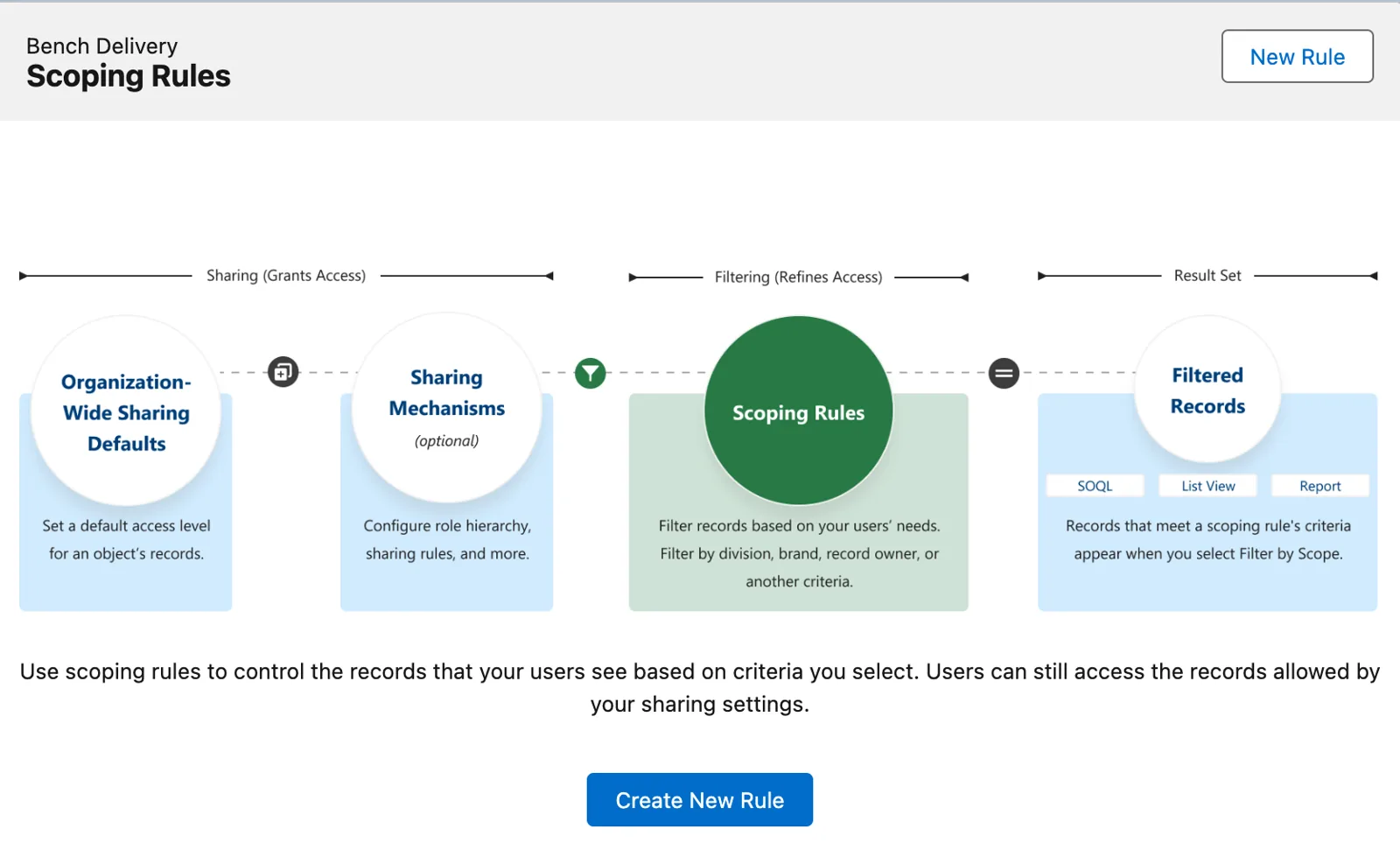
Sharing grants, scoping refines, and the records are still there (Salesforce, Setup in a Partner Developer Edition org, screenshot, November 2026). Full size
When it helps
Section titled “When it helps”Used for what it’s for, a scoping rule saves people real time. Salesforce’s example: users who each support one of several agencies see their own agency’s records in list views and reports, yet “they still have access to the other agencies’ records if they need them” (Scoping Rules).
That last part is the test. Scoping rules fit when people may see the other records, but mostly don’t need to. Say the kitchen equipment maker’s account managers can all read every restaurant account, because they cover for each other on holidays. Day to day, each one works their own region. A scoping rule on accounts, the account’s region equals the user’s region, opens every list view and report on their own region, and the rest is one click away when they’re covering for someone.
Salesforce’s example scenarios show the same idea (Scoping Rule Example Scenarios (opens in a new tab), Salesforce Help, checked 2026-11-26): a bank branch’s tasks by default, a department’s contacts, a division’s tasks, all matched to the user.
Notice the objects, too. “Scoping rules are available for custom objects, accounts, cases, contacts, events, leads, opportunities, and tasks” (Scoping Rules). Accounts, cases, contacts, leads and opportunities aren’t on the restriction rule list. So on those objects, a scoping rule is the only one of the two you can use, and that’s exactly where someone will ask whether it keeps records private. It doesn’t. If a requirement says “must not see,” a scoping rule isn’t the answer; go back to the sharing model.
Letting users choose their scope
Section titled “Letting users choose their scope”Salesforce goes one step further: “You can also use scoping rules with Flow Builder to set scope according to a choice your user makes” (Scoping Rules). Its walkthrough (Create a Flow That Applies a Scoping Rule (opens in a new tab), Salesforce Help, checked 2026-11-26):
- A scoping rule matches the record’s division to the current user’s division.
- A screen flow lets the user pick a division and uses “an Update Records element to update the division on the current user’s record.”
- The flow sits on the utility bar, so users can switch: “users click the utility bar to update the division on their user record.”
- “Make sure that users who want to run your flow have the Run Flows permission.”
It’s a nice pattern for people who move between divisions all day. But look at what it does: users change a field on their own user record. That’s fine for a scoping rule, which hides nothing. Never let that same field drive a restriction rule’s user or record criteria. If a field users can change for themselves decides what a restriction rule shows them, the restriction rule is only a scoping rule with extra steps. Keep the two rules’ fields apart, or use a custom permission for the restriction rule (module 2).
The details
Section titled “The details”- Editions. “Available in: Performance, Unlimited, and Developer Editions” (Scoping Rules). Not Enterprise, unlike restriction rules.
- How many, and how many per user. Two active per object in Developer, five in Performance and Unlimited, and only one restriction or scoping rule per object should apply to a user (module 3).
- Who can see them. In class I couldn’t see them at first, because you need the permission: to view scoping rules, “View Setup & Configuration AND View Restriction and Scoping Rules”; to create them, Manage Sharing (Create a Scoping Rule (opens in a new tab), Salesforce Help, checked 2026-11-26).
- Criteria. The same form as restriction rules, with these differences (Scoping Rule Considerations): “You can use only one ‘dot’ (one lookup level from the target entity). For example, Owner.UserRoleId”; “Including a null or blank value in record criteria isn’t supported”; and “Unless you use SOQL, scoping rules support only the EQUALS operator.”
- A SOQL operator, through the API. “You can use a SOQL operator in record criteria only when creating scoping rules via the API,” with USING SCOPE EVERYTHING in the query, and $User.Id as the only user value (same page). Not for activities: the operator doesn’t support Task, Event and the activity history objects.
- Reports across objects. “In reports that contain data for multiple objects, all relevant scoping rules are applied when Filter by scope is selected” (same page).
- Activities. “Scoping rules on Open Activity or Activity History related lists aren’t supported. Instead use the Activity Timeline” (same page), as with restriction rules in module 4.
- Person accounts. “Scoping rules don’t support IsPersonAccount fields on the account object” (same page).
Turning one off
Section titled “Turning one off”This one catches people. “To disable a scoping rule, first delete the list views and reports that have Filter by scope selected. After a scoping rule is disabled, the list views and reports aren’t functional nor modifiable” (Scoping Rule Considerations). And “Deleting custom fields that are referenced in scoping rules results in an error” (same page). So list the list views and reports that use the scope before you retire a rule, and tell their owners.
Watch it on video
Section titled “Watch it on video”The second half of my 2023 video on these two rules is the scoping rule: the hot accounts, the Filter by scope choice in the list view, and switching back to see them all. The first half is the restriction rule, in module 1. The note under the video says what’s still right and what’s changed since.
Test knowledge. Know that scoping rules filter list views and reports when Filter by scope is selected, and SOQL unless another scope is specified, and that they don’t restrict access: users can open and report on everything sharing gives them. Know the objects (custom objects, accounts, cases, contacts, events, leads, opportunities, tasks) and the editions (Performance, Unlimited and Developer, not Enterprise). Know that a flow can update a field on the user’s own record to change their scope; that scoping rules support only EQUALS except through the SOQL operator in the API; and that to disable one, you first delete the list views and reports that use Filter by scope. A likely area, not a known question.
What an architect decides here
Section titled “What an architect decides here”- Whether the requirement is “mostly don’t need to see” (a scoping rule) or “must not see” (the sharing model or a restriction rule), and saying so in the design.
- On accounts, cases, contacts, leads and opportunities, that nobody mistakes a scoping rule for security.
- Whether users choose their own scope with a flow, and that the field it changes never drives a restriction rule.
- Whether the org’s edition has scoping rules at all.
- Which list views and reports depend on each scoping rule, before it’s ever disabled.
Beyond the exam: what AI changes. A scoping rule is no guardrail for an agent. It changes what a person sees first in a list view; an agent’s queries and searches still reach everything the sharing model opened. If anyone suggests a scoping rule to keep an agent focused or out of certain records, the answer is a restriction rule, the sharing model, or the agent’s own instructions and actions, never a scope. Chapter 20 covers agents.
Explore
Section titled “Explore”- Scoping Rules (opens in a new tab), Salesforce Help (checked 2026-11-26)
- Create a Scoping Rule (opens in a new tab), Salesforce Help (checked 2026-11-26)
- Create a Flow That Applies a Scoping Rule (opens in a new tab), Salesforce Help (checked 2026-11-26)
- Scoping Rule Considerations (opens in a new tab), Salesforce Help (checked 2026-11-26)
- Scoping Rule Example Scenarios (opens in a new tab), Salesforce Help (checked 2026-11-26)