
One Rule per User, Two to Five per Object
תוכן זה אינו זמין עדיין בשפה שלך.
Module 3 of 7 in the chapter Taking Access Away: Restriction and Scoping Rules, chapter 16 of Securing Salesforce: Sharing and Visibility. Each module stands on its own.
The question this module answers: You can have two, or five, restriction rules on an object, but only one should ever apply to a user. What happens when two do, and how do you design rules so they can’t?
Every time I teach restriction rules, I say two things in the same breath. You only get two of them per object. And for any given user, only one can kick in at a time. Two barrels in the shotgun, and only one fires at each person. This module is about both halves.
Two shots, or five
Section titled “Two shots, or five”“You can create up to two active restriction rules per object in Enterprise and Developer editions and up to five active restriction rules per object in Performance and Unlimited editions” (Restriction Rules (opens in a new tab), Salesforce Help, checked 2026-11-26).
Scoping rules have their own counts: “Create up to two active scoping rules per object in Developer editions and up to five active scoping rules per object in Performance and Unlimited editions” (Scoping Rule Considerations (opens in a new tab), Salesforce Help, checked 2026-11-26).
Two isn’t many. In Enterprise Edition, that’s one rule for the people you’re narrowing today and one spare. So before you write the first rule on an object, ask what the second one will be for. If you spend both on the first requirement, the next requirement on that object has nowhere to go.
Salesforce doesn’t check
Section titled “Salesforce doesn’t check”Here’s the part that catches people. “Salesforce doesn’t validate that only one active rule applies for a given user. If you create two active rules, and both rules apply to a given user, only one of the active rules is observed” (Restriction Rules).
And the Create page finishes the thought: “In this case, records that the user shouldn’t have access to could be accessible” (Create a Restriction Rule (opens in a new tab), Salesforce Help, checked 2026-11-26).
Read that slowly. Two rules don’t combine. You don’t get the narrower of the two. Salesforce picks one, and in my video I said it plainly: you won’t be able to control which one. So you, as the designer, have to decide and control who each rule applies to.
The rule covers both kinds, too. “Create only one restriction or scoping rule per object per user. In other words, for a given object, only one restriction or scoping rule at most can have the User Criteria field evaluate to true for a given user” (Restriction Rule Considerations (opens in a new tab), Salesforce Help, checked 2026-11-26). A scoping rule and a restriction rule on the same object, both matching the same person, is the same problem. That’s no surprise once you know they’re one thing underneath: a single metadata type, RestrictionRule, where “a restriction rule has enforcementType set to Restrict” and “a scoping rule has enforcementType set to Scoping” (Metadata API Reference (opens in a new tab), Restriction Rules Developer Guide, checked 2026-11-26).
Salesforce does say it, once, on the rule’s own page. It just doesn’t check it:
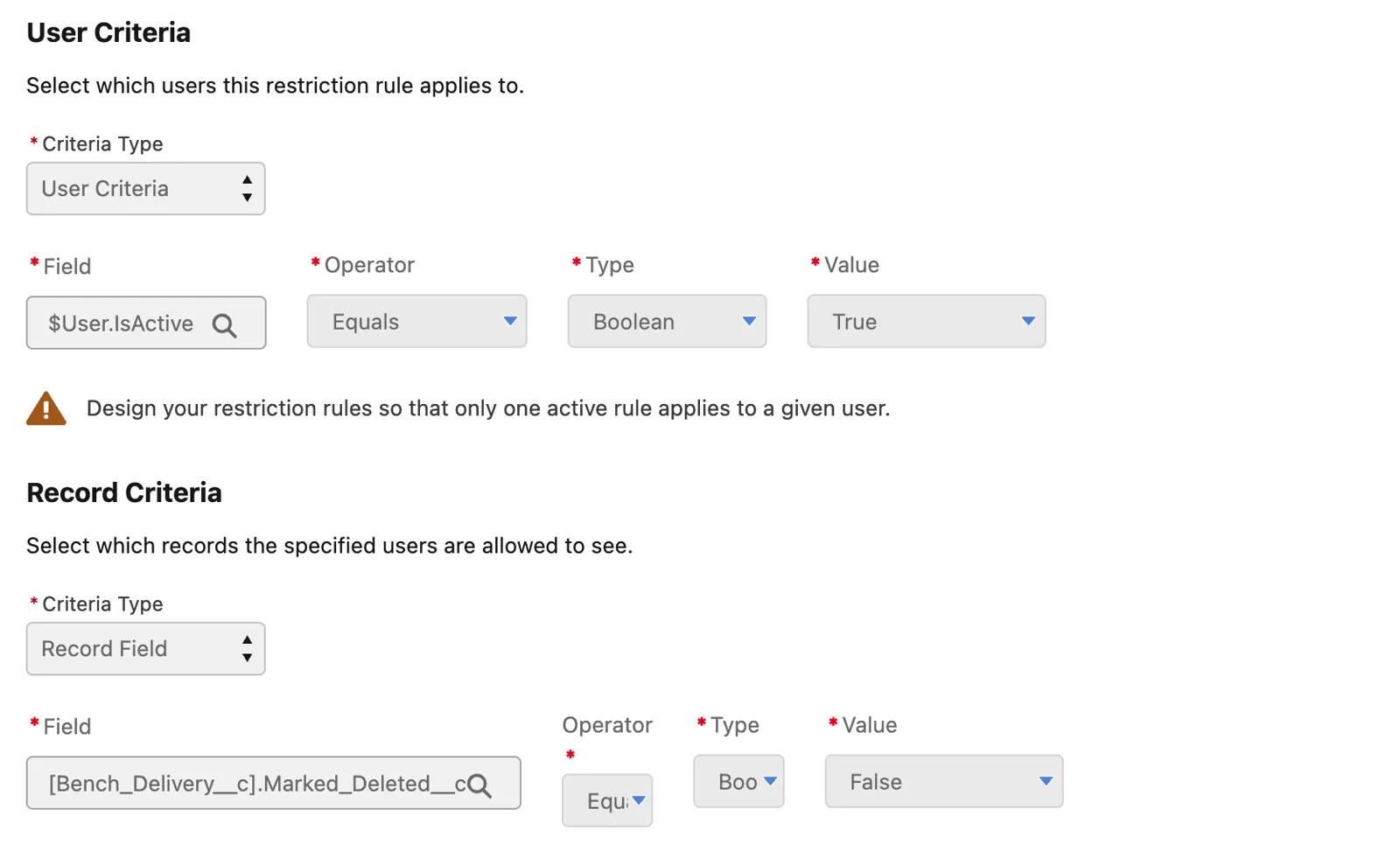
The warning sits between the user criteria and the record criteria, and nothing enforces it (Salesforce, Setup in a Partner Developer Edition org, screenshot, November 2026). Full size
Designing so only one can match
Section titled “Designing so only one can match”Salesforce won’t stop an overlap, so the design has to make one impossible. Three habits do most of the work.
One field, one value. If you need more than one rule on an object, drive them from a single field on the user that holds one value at a time: a picklist such as “Contract Access,” with values like Region Only and Own Only. Rule one matches Region Only, rule two matches Own Only. A user can’t hold both values, so they can’t match both rules. The field does the checking that Salesforce doesn’t.
Be careful with custom permissions here. They’re the better choice for one rule (module 2), but a user can hold any number of them. Two rules on two permissions can both match the same person the day someone gets a second permission set. If you use permissions for more than one rule on an object, design the permission sets so nobody can hold both, and check it.
One rule instead of many. Often you don’t need a rule per group at all. A rule per region (“Region West sees West, Region East sees East”) spends a shot on every region and invites overlaps. One rule that compares the record with the user (“the contract’s region equals the current user’s region,” module 2) covers every region with one shot, and can’t overlap with itself.
Know who matches nothing. The other side of “only one” is “none.” A user who matches no rule sees everything the sharing model opened. Sometimes that’s right: the contracts team in module 2 held the “See All Contracts” permission precisely so the rule wouldn’t apply to them. Sometimes it’s a hole: someone whose region field is empty, or an integration user nobody thought about. For every rule, write down who is meant to be outside it.
Checking it
Section titled “Checking it”Because Salesforce won’t check, you do. Before a second rule goes live on an object, list the users each rule’s user criteria matches, with a report or a query on the User object (and on permission set assignments, for permission criteria), and confirm the lists don’t share a single person. Then do it again whenever the criteria fields change: a new picklist value, a reorganization, a new permission set group. Module 7 makes this part of the test.
Moving rules between orgs
Section titled “Moving rules between orgs”Rules are metadata, and they move like metadata. “You can use a change set or unlocked package to move restriction rules from one org to another” (Restriction Rule Considerations), and you can build them “through the Tooling or Metadata API” (Restriction Rules (opens in a new tab), Restriction Rules Developer Guide, checked 2026-11-26). Build them in a sandbox, test them there, and deploy them like any other change.
Two things to watch on the way:
- IDs that belong to one org. Role, record type and profile IDs belong to one org, so “You must modify these IDs in the target org if the restriction rules were originally created somewhere else” (Restriction Rule Considerations). Where you can, compare by something that travels: Salesforce’s own record type example uses the record type’s name, not its ID (Restriction Rule Example Scenarios (opens in a new tab), Salesforce Help, checked 2026-11-26).
- Active on arrival. A rule takes effect when it’s active: “To have the rule take effect upon saving, select Active” (Create a Restriction Rule). A rule deployed active narrows real users the moment the deployment finishes. Deploy it when you’re ready for that, and run the overlap check against production’s users, not only the sandbox’s.
Test knowledge. Know the limits: two active restriction rules per object in Enterprise and Developer editions, five in Performance and Unlimited; scoping rules two in Developer, five in Performance and Unlimited. Know that only one restriction or scoping rule should apply to a user on an object, that Salesforce doesn’t validate it, and that if two apply, only one is observed, so a user could see records they shouldn’t. Know that restriction and scoping rules are one metadata type, RestrictionRule, told apart by enforcementType, and move by change set or unlocked package, with org-specific IDs changed in the target org. A likely area, not a known question.
What an architect decides here
Section titled “What an architect decides here”- What each of the two (or five) rules on an object is for, before the first one is written.
- How the rules on one object are kept apart: one single-valued field on the user, or permission sets that can’t be held together.
- Where one rule comparing the record with the user can replace a rule per group.
- Who is meant to match no rule, written down, and who matches none by accident.
- How rules move: built in a sandbox, IDs that travel, deployed active only when the overlap check passes against production’s users.
Beyond the exam: what AI changes. Agent users and integration users are the ones people forget when they list who a rule applies to. An agent’s user that matches no rule sees everything the sharing model opened; one that matches two gets whichever Salesforce observes. Put every agent and integration user on the overlap check, by name. Chapter 20 covers agents.
Explore
Section titled “Explore”- Restriction Rules (opens in a new tab), Salesforce Help (checked 2026-11-26)
- Restriction Rule Considerations (opens in a new tab), Salesforce Help (checked 2026-11-26)
- Scoping Rule Considerations (opens in a new tab), Salesforce Help (checked 2026-11-26)
- Restriction Rules Developer Guide: Metadata API Reference (opens in a new tab), Salesforce Developers (checked 2026-11-26)
- Create a Restriction Rule (opens in a new tab), Salesforce Help (checked 2026-11-26)
- Restriction Rules (opens in a new tab), Restriction Rules Developer Guide (checked 2026-11-26)
- Restriction Rule Example Scenarios (opens in a new tab), Salesforce Help (checked 2026-11-26)