
Setup Audit Trail, Field History and Field Audit Trail Show Who Changed What
यह कंटेंट अभी तक आपकी भाषा में उपलब्ध नहीं है।
Module 5 of 6 in the chapter Monitoring: Real-Time Events, Log Files and Transaction Security, chapter 19 of Securing Salesforce: Sharing and Visibility. Each module stands on its own.
The question this module answers: An auditor asks who changed this, and when. Where does Salesforce write it down, for how long, and what doesn’t it write down?
Three questions an auditor asks
Section titled “Three questions an auditor asks”The first four modules were about what people do with data: who looked, who exported, who downloaded. This one is about what changed. An auditor, or the person running the incident call, asks three different questions:
- Who changed the setup? Someone switched the org-wide default for accounts to Public Read/Write. Who, and when?
- Who changed the data? The owner of a big account changed last month, and with it, who can see it. Who did that?
- Who can see it now? After all those changes, what does this user have access to today?
Each one has its own place in Salesforce. The third one, today’s access, is the User Access Summary, and earlier chapters cover it: chapter 3 module 6 for a user’s access, and chapter 13 module 4 for the evidence you keep. This module is about the first two.
Who changed the setup: the Setup Audit Trail
Section titled “Who changed the setup: the Setup Audit Trail”“Setup Audit Trail tracks the recent setup changes that you and other admins make.” It shows “the date of the change, who made it, and what the change was” (Monitor Setup Changes with Setup Audit Trail (opens in a new tab), Salesforce Help, checked 2026-11-26). It’s in every edition Salesforce lists, with no add-on.
For a sharing architect, here’s what’s on Salesforce’s list (same page):
- The sharing model itself: “Public groups, sharing rules, and org-wide sharing, including the Grant Access Using Hierarchies option.”
- The people: “Users, portal users, roles, permission sets, and profiles.”
- Profiles, in detail: object permissions, field-level security, and “View, or modify, all data enabled for this profile.”
- Permission sets and groups: created, cloned or deleted; assigned to or removed from a user; and changes to the assignment’s expiration date (beta).
- Moving and taking data in bulk: “Mass transfer use,” “Data export requests” and mass delete.
- Delegated administration: the groups, and what delegated admins can manage; their changes are tracked too.
Now notice what isn’t on the list: manual shares. A user sharing one record with a colleague is a change to data, not to setup, so the Setup Audit Trail doesn’t record it. The share table shows who has access today, with the reason in its row cause (chapter 13 module 4). It doesn’t keep a history of who shared what and when.
Two columns and a 180-day clock
Section titled “Two columns and a 180-day clock”Two columns answer “who, really?” The Delegate User column shows when an admin made the change while logged in as someone else. The AI Agent column shows when an admin made it “using an AI agent via Setup with Agentforce (Beta),” with the admin in the User column (same page). Either way, a person is accountable for the change.
Then the clock. The page shows “the 20 most recent setup changes.” Click Download for “your org’s complete setup history for the past 180 days.” And then: “After 180 days, setup entity records are deleted.” If your audit asks about last year, the Setup Audit Trail can’t answer, unless someone saved it. So decide who downloads it, how often, and where it goes, the same way module 1 asked where your event logs go.
For the identity side of the trail, the changes that open or close the door (single sign-on, certificates, session settings), the Identity and Access course covers it (Who Did What).
Here’s the trail for a small build in a lab org, newest first:
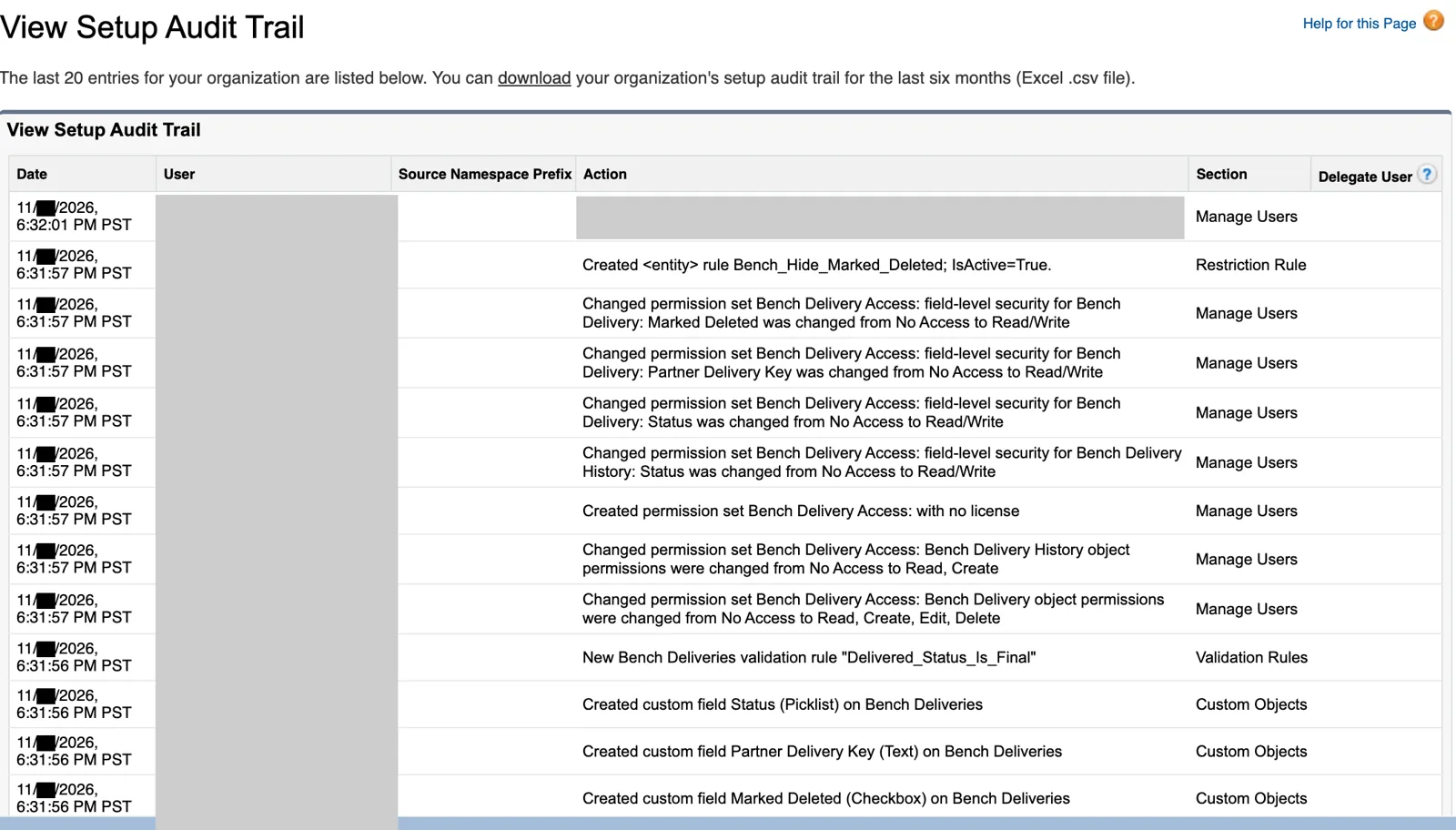
Who changed what, and when, in Setup (Salesforce, Setup in a Partner Developer Edition org, screenshot, November 2026). Full size
Who may read the trail
Section titled “Who may read the trail”Today, the page says you need View Setup and Configuration to view the trail. That’s a broad permission for someone whose job is only to audit. Salesforce is changing it. A release update enforced in Spring ‘27 adds a dedicated View Setup Audit Trail permission, so “admins can provide access without granting the broader View Setup permission, supporting the principle of least privilege.” Existing access is kept: Salesforce “automatically enables View Setup Audit Trail on every profile and permission set that already has View Setup.” New profiles, permission sets and users need it turned on explicitly (View Setup Audit Trail Permission to Access Setup Audit Trail (opens in a new tab), Salesforce Winter ‘27 release notes, checked 2026-11-26).
That’s the least privilege idea this whole course is built on, applied to the auditor. Give them a permission set with that permission, not View Setup.
Who changed the data: field history tracking
Section titled “Who changed the data: field history tracking”The Setup Audit Trail doesn’t see record values. For those, you turn on field history tracking: “Select certain fields to track and show field history in an object history list.” Each entry has “the date, time, nature of the change, and who made the change” (Field History Tracking Overview (opens in a new tab), Salesforce Help, checked 2026-11-26).
For sharing, track the fields that decide access: the owner, and any field a criteria-based sharing rule or a restriction rule reads. If a record’s owner changes, its sharing changes with it, and the history is how you show when.
Know the limits before you promise an auditor anything (same page, checked 2026-11-26):
- It starts when you turn it on. “Salesforce excludes changes made before this date and time.” You can’t turn it on after the incident and see the incident.
- 18 months, then 24 through the API. Without Field Audit Trail, Salesforce keeps field history “for up to 18 months, and up to 24 months via the API.” Use Data Loader or
queryAll()for the 18 to 24 months. - Long text keeps no values. For long text fields, “Salesforce records only that the field was edited,” not the before and after.
- Automation can slip past it. On most objects, “Salesforce tracks field changes from processes, triggers, and flows only if the current user has permission to edit the modified fields.” Test that your automation’s changes show up before you rely on them.
Field history is set object by object, on this page:
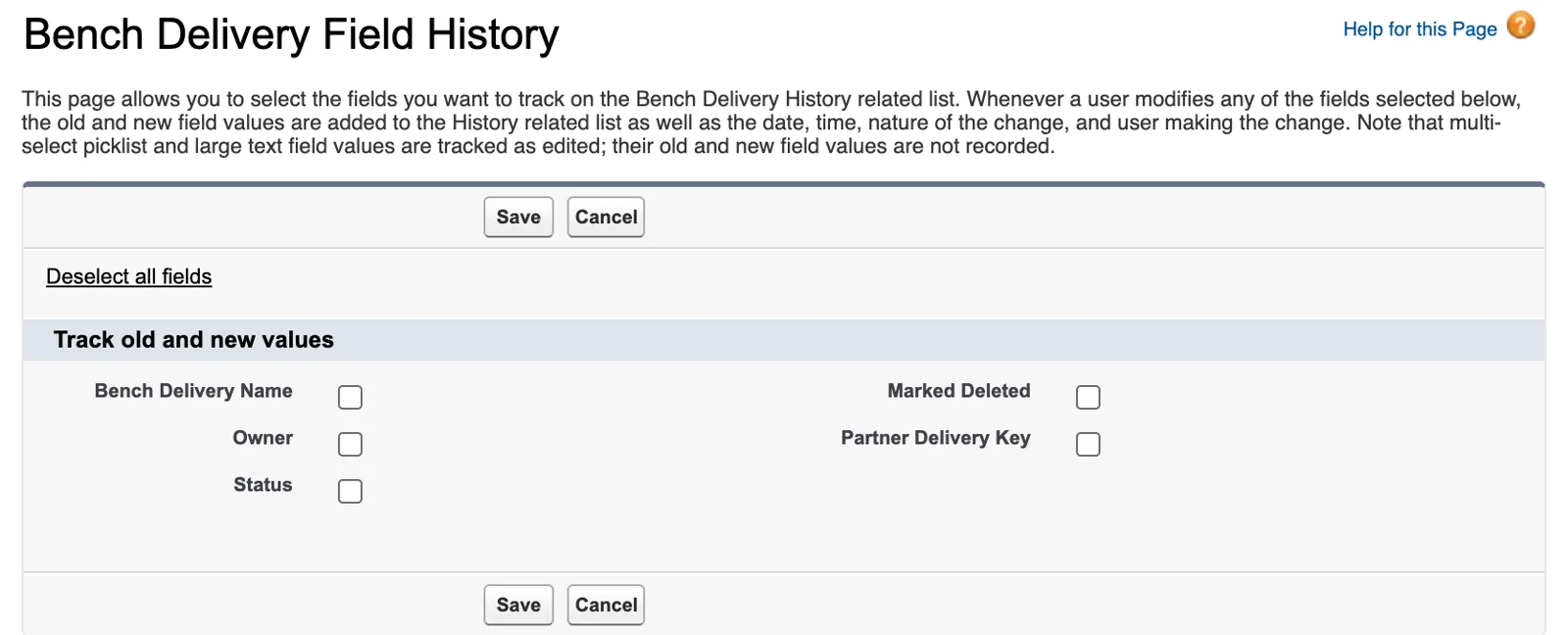
Which fields keep their history, chosen one by one (Salesforce, Setup in a Partner Developer Edition org, screenshot, November 2026). Full size
The user record: role and profile changes
Section titled “The user record: role and profile changes”Here’s the one I’d turn on for a sharing review. User field history tracking (beta as of 2026-11-23) can follow up to 20 fields on the user, including Role, Profile, Manager and Is Active. Those decide what a person can see. And “after you enable user field history tracking, view the tracking data on the user’s access summary page,” the same page chapters 3 and 13 use.
Read the fine print, though: “When you assign a role on the Roles Setup page, the change isn’t tracked. When you edit the user directly to update their role, the role change is tracked.” Two ways to make the same change, and only one leaves a record. And it’s “enabled for internal users only” (same page).
Who made the change?
Section titled “Who made the change?”Every history entry says who made the change. That’s only useful if the user is a person. If every integration writes as one integration user, the history says “Integration User” on every row, and the auditor learns nothing.
When an outside system updates Salesforce for people, and you control both systems, a flow like OAuth JWT bearer lets the update be made as the person, so any updates and changes are flagged as that person’s user, not one integration user, and the audit trail traces it to them. The Identity and Access course covers those flows and their risks (Acting as Someone).
Keep it longer: Field Audit Trail
Section titled “Keep it longer: Field Audit Trail”When 18 to 24 months isn’t enough, there’s Field Audit Trail. It “extends the capabilities of Field History Tracking, so you can keep field history data indefinitely,” for “up to 200 tracked fields per object.” It needs Salesforce Shield or Field Audit Trail licenses (Field Audit Trail (opens in a new tab), Salesforce Help, checked 2026-11-26).
Here’s Salesforce’s own comparison, from the same page:
| Field history tracking | Field Audit Trail | |
|---|---|---|
| Fields tracked | Up to 20 per object | Up to 200 per object |
| Kept for | 18 to 24 months | Until deleted |
| Stored in | The object’s history object | FieldHistoryArchive |
| Read through | The UI and the API | The API only |
How it works: you still turn on field history tracking first. Then you deploy a retention policy, and Salesforce copies the history into FieldHistoryArchive, a big object. By default, it “archives data after 18 months in production and after one month in sandboxes, and stores all archived data until you delete it.” And one detail auditors like: if you delete a record, “the delete cascades to the related history tracking records, but Salesforce doesn’t delete the history copied into the FieldHistoryArchive big object.”
I explain big objects like this. Your main office and your file cabinets are your regular objects. A big object is like storing data in the garage: you can’t put it on a screen or a page layout, but you can go get it with code. That’s Field Audit Trail. The history is safe and kept for years, but nobody browses it in a related list. Someone has to build the query or the report that reads it, and you should know who, before the auditor asks (chapter 12 module 8 covers big objects and their access).
How long to keep it, and when to delete it, is a data governance decision. The Data Architect course covers retention (Protect, Retain and Prove).
Test knowledge. Know which tool answers which question: the Setup Audit Trail for setup changes (org-wide defaults, Grant Access Using Hierarchies, sharing rules, public groups, users, roles, profiles, permission sets and their assignment), field history tracking for record values, Field Audit Trail to keep field history longer, and the User Access Summary for a user’s access today. Know the numbers: the Setup Audit Trail shows 20 changes on the page and 180 days in the download, then deletes them; field history tracks up to 20 fields per object for 18 months, 24 through the API; Field Audit Trail tracks up to 200 fields per object, kept until deleted in FieldHistoryArchive, read through the API only, with Shield or a Field Audit Trail license. Know that the Delegate User column shows changes made while logged in as another user, and that from Spring ‘27 the trail has its own permission, View Setup Audit Trail. A likely area, not a known question.
What an architect decides here
Section titled “What an architect decides here”- Which of the three questions each audit will ask, and where each answer lives.
- Who downloads the Setup Audit Trail, how often, and where it’s kept past 180 days.
- Who reads the trail, and whether they get View Setup Audit Trail instead of View Setup.
- Which fields to track on each object, starting with the ones that decide access, and on the user: role, profile, manager, active.
- Whether 18 to 24 months is enough, or the regulation needs Field Audit Trail, and who builds the way to read the archive.
- Whether integrations write as one user or as the person, so the history can name someone.
Beyond the exam: what AI changes. Agents change things too. In Setup, the Setup Audit Trail already has an AI Agent column for changes made through Setup with Agentforce, with the admin beside it. In the data, an agent’s update is recorded as whichever user the agent runs as. Decide that on purpose, the same way you’d decide it for an integration, so the history names someone who can answer for the change. Chapter 20 covers agents.
Explore
Section titled “Explore”- Monitor Setup Changes with Setup Audit Trail (opens in a new tab), Salesforce Help (checked 2026-11-26)
- View Setup Audit Trail Permission to Access Setup Audit Trail (Release Update) (opens in a new tab), Salesforce Winter ‘27 release notes (checked 2026-11-26)
- Field History Tracking Overview (opens in a new tab), Salesforce Help (checked 2026-11-26)
- Field Audit Trail (opens in a new tab), Salesforce Help (checked 2026-11-26)
- For the door’s changes: Who Did What, Securing Salesforce: Identity and Access
- For retention: Protect, Retain and Prove, Data Architect