
The Pull Door: Amazon S3
Este conteúdo não está disponível em sua língua ainda.
Module 3 in the chapter The Doors In, chapter 4 of the Data 360 Architect course. Each module stands on its own. Previous: Connectors Hold the Credentials · Next: The Push Door: the Ingestion API
The question this module answers: What do you decide when Data 360 pulls a file from Amazon S3?
Amazon S3 was one of the earliest ways of bringing data into Data 360, and it’s still the clearest way to see the pull door. Somebody’s job drops a file in a bucket. Data 360 reaches out on a schedule, grabs the file and brings it in. Simple. But inside “simple” are three decisions that are easy to make by accident: which files, how they replace what’s there, and how often.
We’ll use the pilots file from chapter 1: pilots-synthetic.csv from SkyData (opens in a new tab), 1,000 synthetic pilots in one flat CSV, with a pilot ID, name, email, phone, home airport, flying role, highest certificate and years flying.
Start here: File Upload
Section titled “Start here: File Upload”Before you set up a bucket, there’s a simpler way in, and every Data 360 org has it. In Data Streams, click New, and under Other Sources choose File Upload: “Upload file from your local drive.” Salesforce’s page calls it bringing in data “from a local CSV file,” available in every edition that has Data 360.
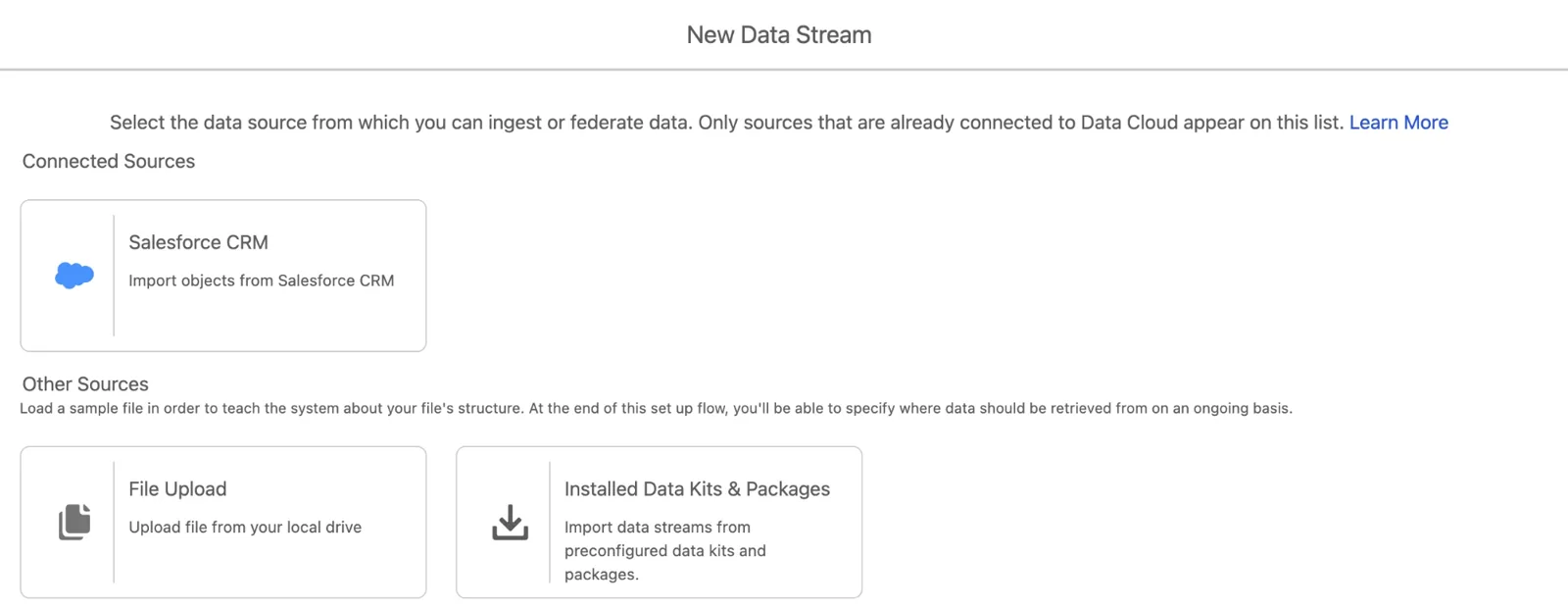
New Data Stream in a new Developer Edition org: Salesforce CRM is already connected, and File Upload is there with no setup (screenshot, November 2026). Full size
The steps are short. Pick the CSV, name the data lake object, choose its category and primary key, and deploy. For the pilots file, that’s profile (one person per row) and pilot_id. A few rules from Salesforce’s page:
- The file must be under 2 GB, with at most 1,050 columns.
- An org can have at most 100 data streams and data lake objects from file uploads.
- If the primary key column has empty values, no rows show up. Check it before you upload.
- Write dates with four-digit years.
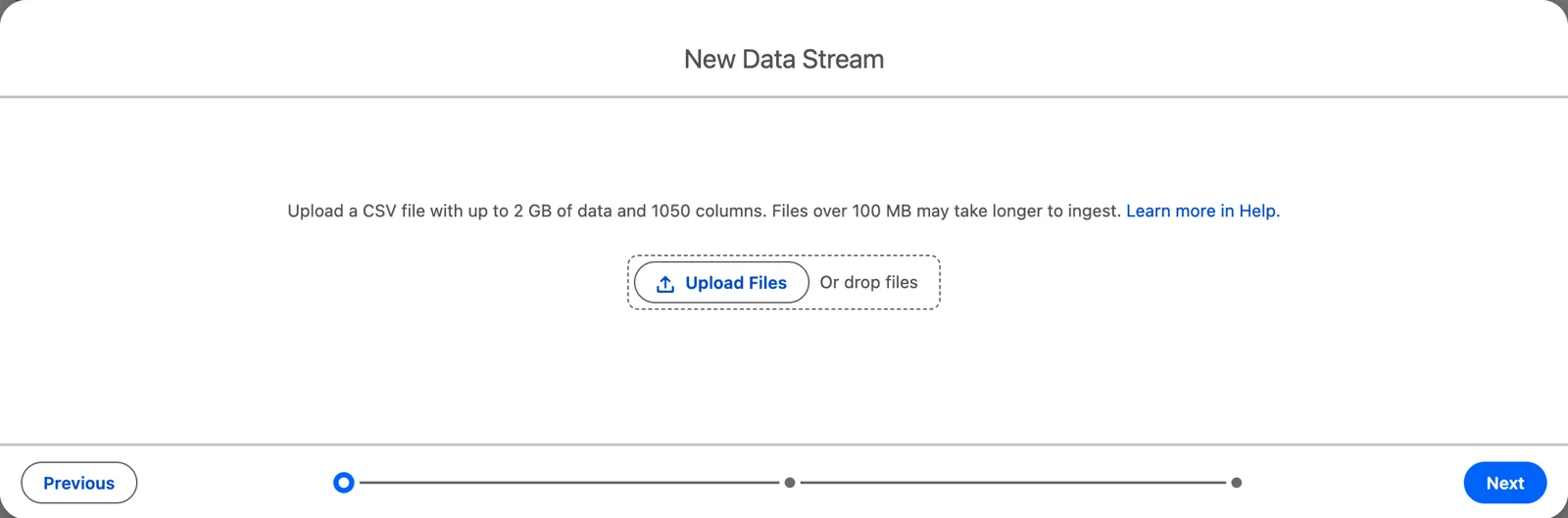
Salesforce’s limits, on the upload screen (Salesforce Data 360 in a Developer Edition org, screenshot, November 2026). Full size
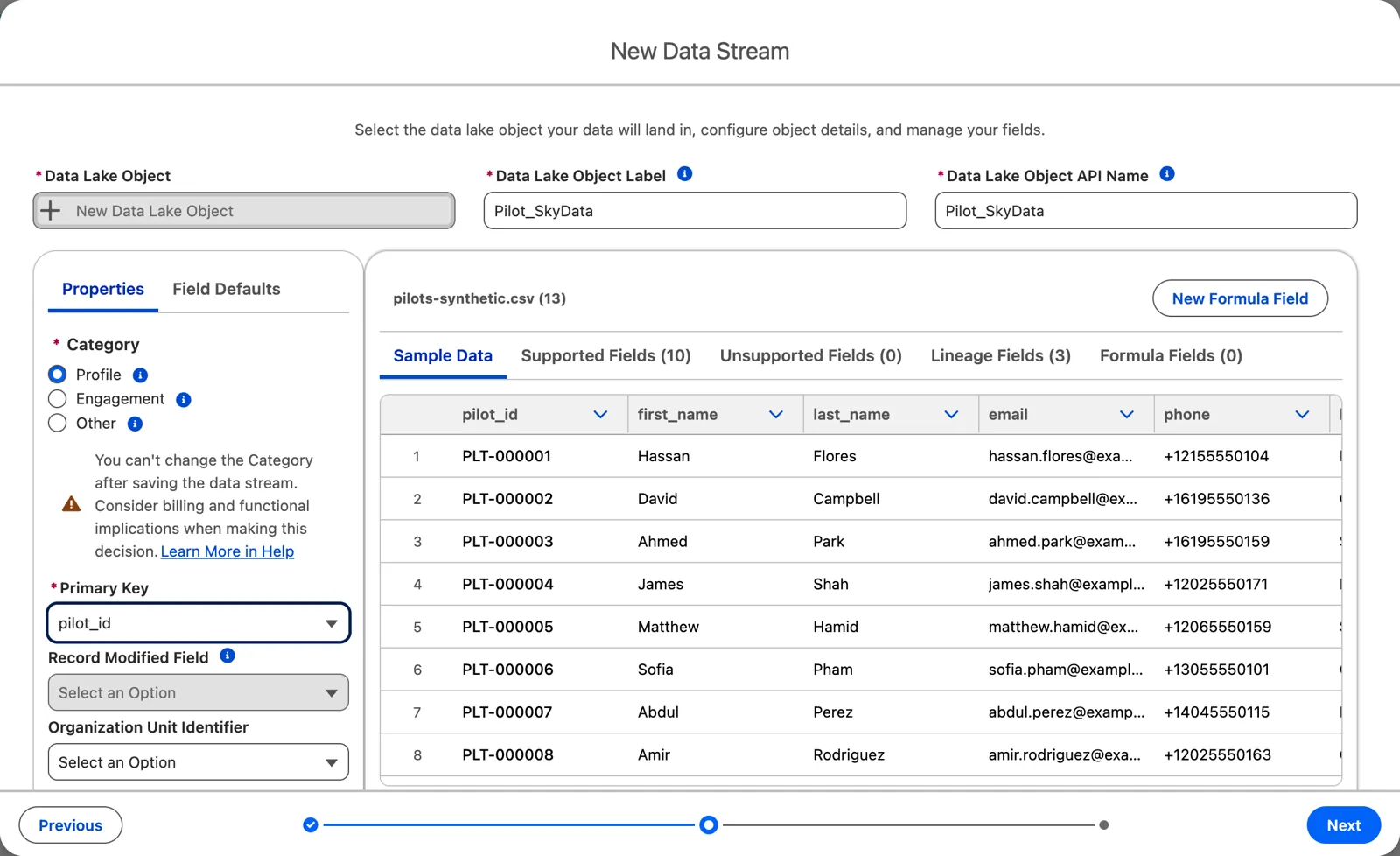
Name it, choose the category and the key (Salesforce Data 360 in a Developer Edition org, screenshot, November 2026). Full size
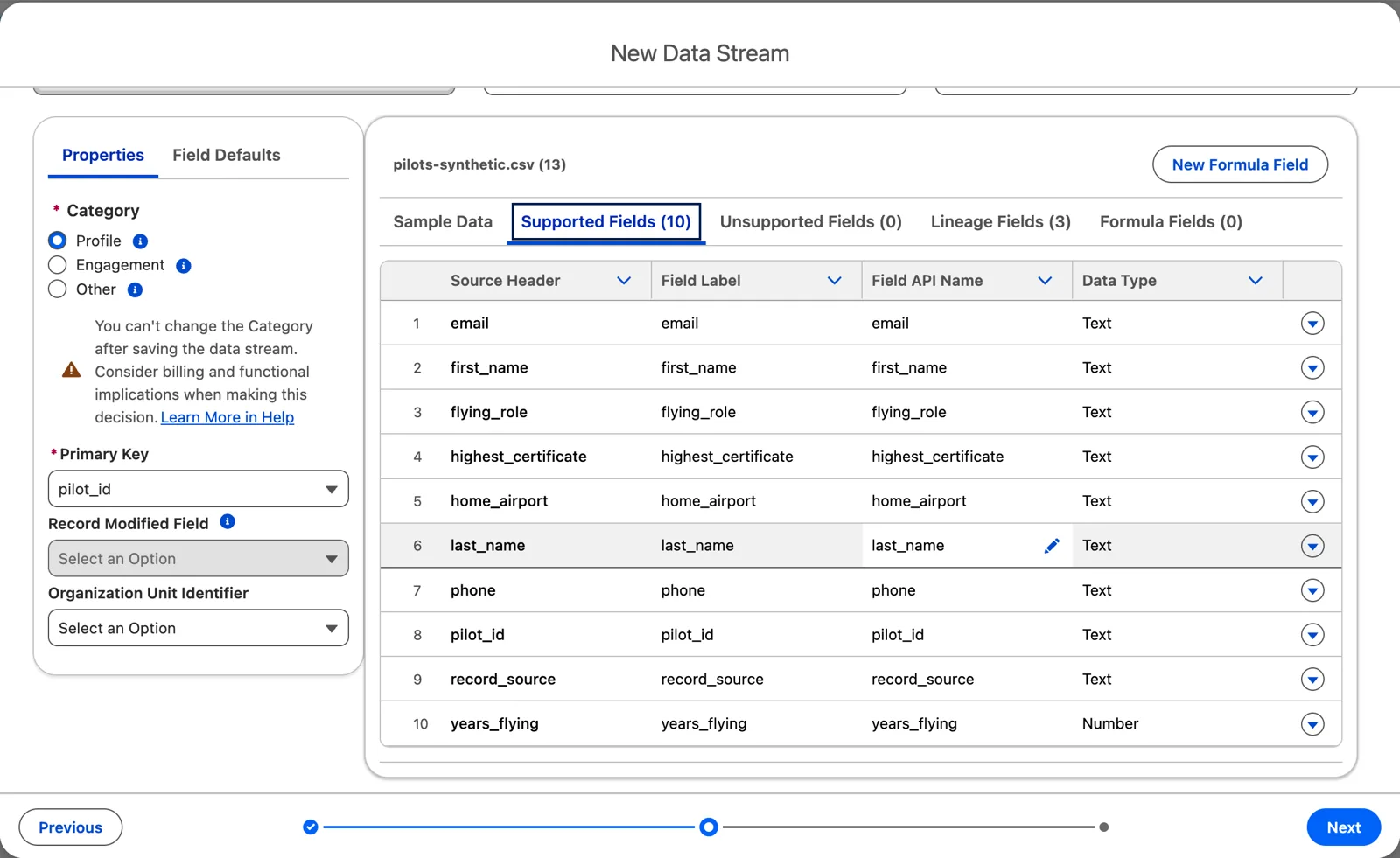
The types Data 360 detected: check them, don’t trust them (Salesforce Data 360 in a Developer Edition org, screenshot, November 2026). Full size
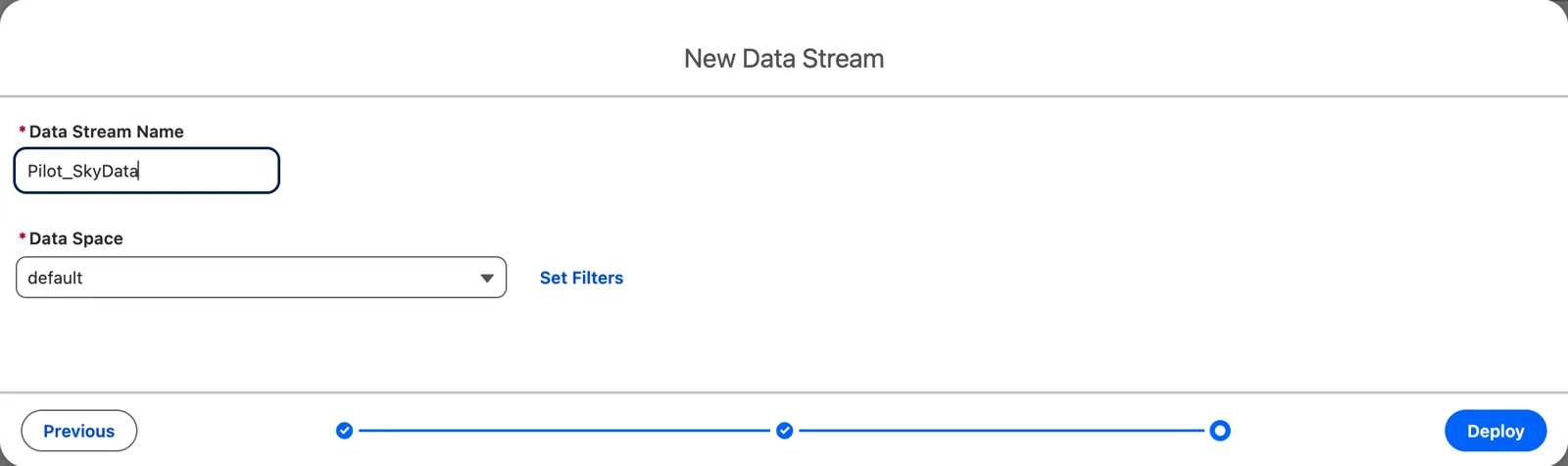
The data space, then Deploy (Salesforce Data 360 in a Developer Edition org, screenshot, November 2026). Full size
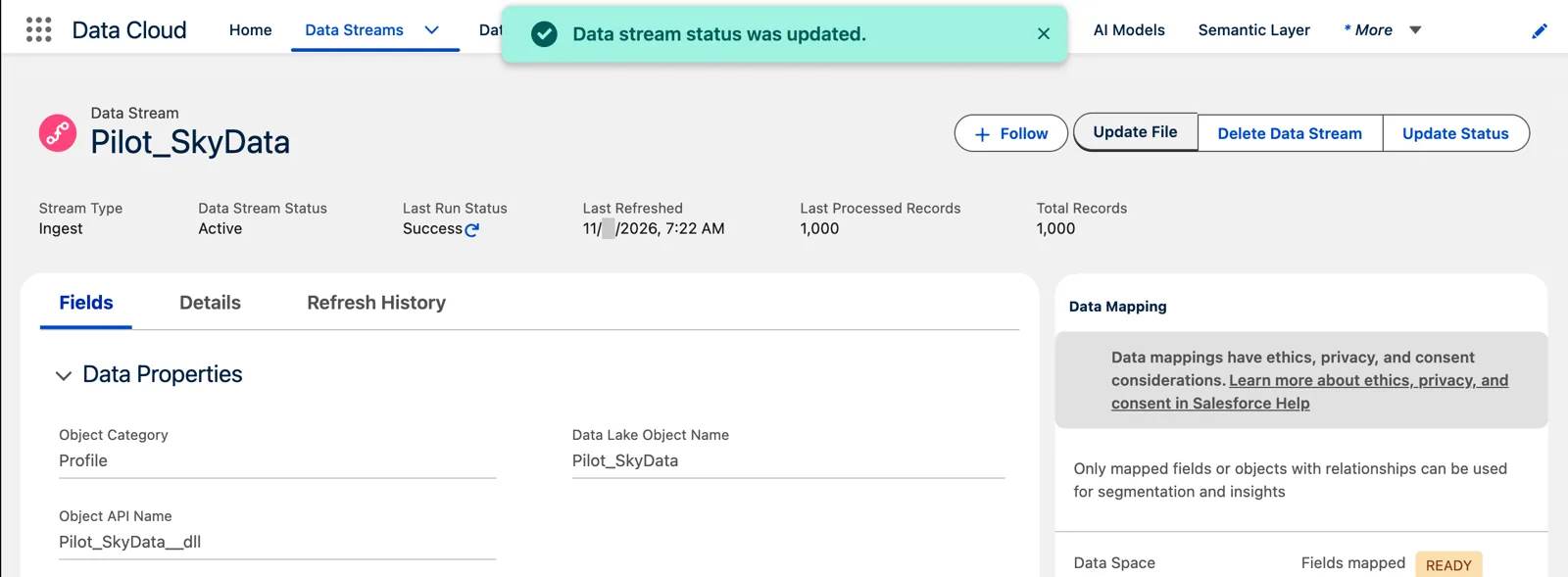
The pilots in: 1,000 of them, about a minute after Deploy (Salesforce Data 360 in a Developer Edition org, screenshot, November 2026). Full size
Now notice what File Upload isn’t. It’s you, by hand, once. To change the data, you upload a revised file, and Salesforce says that “replaces the data that was previously stored” in the data lake object. There’s no schedule, and no place for another system to drop tomorrow’s file. That’s fine for a lab, a one-time reference file or a quick test. A file that changes every day, delivered by someone else’s job, needs a door that goes and gets it on its own. That’s the pull door, and the rest of this module.
In my org, though, the stream’s Update File button asks how. Upsert: “Insert new and update existing data.” Or Full Refresh: “Delete existing data and insert new data with each refresh.” So a revised file doesn’t have to replace everything. It’s the same choice as the refresh mode on the S3 door, below, made by hand each time.
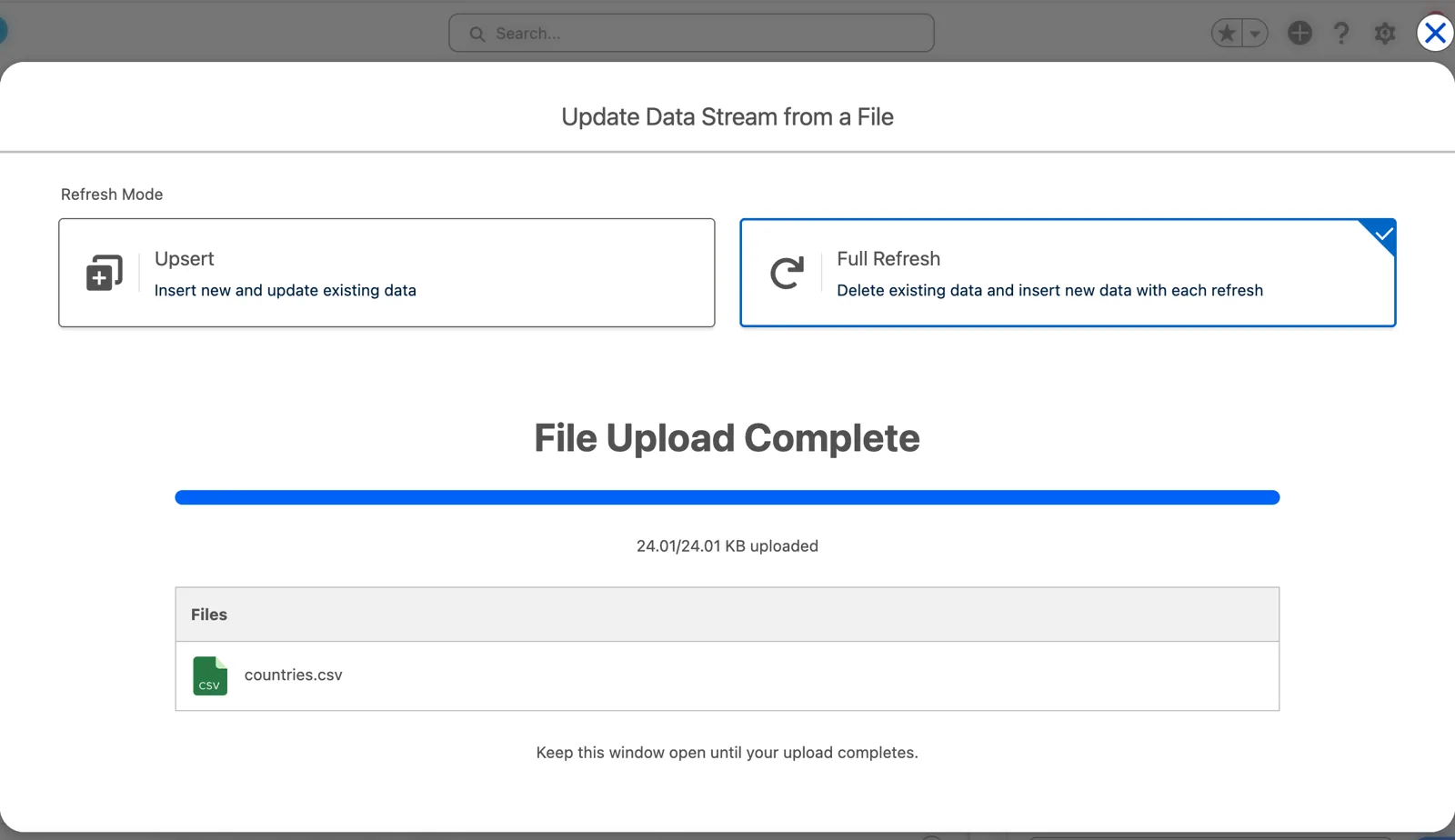
Updating a file stream: upsert or full refresh (Salesforce Data 360 in a Developer Edition org, screenshot, November 2026). Full size
The real door: your own bucket
Section titled “The real door: your own bucket”For the S3 door, put the pilots file in a bucket of your own. The connector to the bucket comes first (module 2).
One rule for this course: use your own bucket. The course never shares an AWS key or a bucket. Use an AWS account of your own, ideally one just for the course, upload the file to a bucket there, and connect with the identity provider option from module 2: an IAM role that can read only that bucket, with no long-lived key to leak. That setup is the lesson: it’s exactly what you’ll do for a real source. A shared key would leak, couldn’t be taken back from one person, and would bill its owner for everyone’s downloads. If you don’t have an AWS account yet, keep going with File Upload and follow the S3 steps in my recording; the decisions below apply either way.
If you do open one, read AWS’s terms for new accounts first. AWS’s Free Tier page says a new account on the Free plan gets $100 in credits at once and can earn up to $100 more, “up to $200 over 6 months,” and Amazon S3 is one of the services it covers. It also says: “The account closes on its own 6 months after you open it or when your credits run out, whichever comes first.” So treat that bucket as a place to practice, not a place to keep anything.
The walk-through
Section titled “The walk-through”Salesforce’s page for creating an S3 data stream lays out the steps. In short:
- On the Data Streams tab, click New, choose Amazon S3, and pick the connector.
- Choose the file type, CSV or Parquet (chapter 3).
- Say where the files are and which ones to take.
- Name the data lake object, review the fields and their types, and choose the category and the primary key (chapter 3 for the key; chapter 6 for the category).
- Pick the data space, set the refresh mode and schedule, and deploy.
- Then map the data lake object to the data model, which is chapter 8.
You need the Data Cloud Architect permission set to create a stream. Most of these steps are decisions you already made in chapter 3’s dictionary. Three are new here.
Which files
Section titled “Which files”You point the stream at a folder in the bucket, and optionally a file name. Two details from Salesforce’s page catch people:
- Subfolders are ignored. “It’s best to flatten your file structure, as any file in a subdirectory is ignored.” If the job that writes the files puts each day in its own folder, the stream won’t see them.
- Wildcards bring in every match. The file name can include a wildcard, and “each time the stream runs, all files satisfying the wildcard are imported.” That’s how a daily file with the date in its name gets picked up, day after day.
One more, if you ever move the folder: Data 360 “only ingests files modified after the last modification date of the previously ingested file.” Files already sitting in the new folder can be skipped, unless you run a one-time refresh of all the files.
So agree on the folder and the file names with whoever writes the files, before either side builds anything. And agree on one more thing: with a wildcard, many files feed one stream, so ask the producer to write the file name and a batch ID into every row. Then any record can be traced to its file (chapter 3, module 4).
When the file doesn’t come
Section titled “When the file doesn’t come”Now think about the day the file isn’t there. The job that writes it failed overnight, or someone renamed the folder. What does Data 360 do?
By default, nothing that looks wrong. Salesforce: “When this setting isn’t enabled and a file isn’t found during the data stream run, the refresh history shows 0 records but with a success status.” A success, with nothing in it. The stream looks fine, and the data quietly stops changing.
The setting is Log an error if no file is found, on the stream’s settings. I turn it on for every file stream. With it on, “the line item in the refresh history for that run shows a failure status,” and “a notification is triggered if you subscribe to data stream failure notifications.” A missing file becomes something somebody hears about. Chapter 6, module 4 covers who hears about it.
How it replaces what’s there: the refresh mode
Section titled “How it replaces what’s there: the refresh mode”Now this becomes important. You choose whether the file will always contain a complete data set.
- Full refresh will actually wipe and rebuild. Use it when every file is complete: the whole list, every time. A pilot who isn’t in today’s file is gone from Data 360 after today’s load.
- Upsert is more of an additive process. Rows with a key Data 360 has seen are updated; new keys are added; nothing is removed just because it’s missing. Use it when a file may be partial. If we got a partial file, upsert wouldn’t delete anything.
Here’s the question to ask the business. Take the airports list: if an airport were removed from the list, do you want it to stay in Data 360, or disappear? Stay: upsert. Disappear: full refresh.
And remember chapter 1: deleting specific records through a delete file needs a stream in upsert mode. If you’ll ever need to remove one pilot on request, that’s a vote for upsert.
How often: the schedule
Section titled “How often: the schedule”Salesforce’s settings page lists the choices: hourly, daily, weekly or monthly, at a time you set (in UTC), and for Amazon S3, Azure Blob Storage and Google Cloud Storage streams also every 5, 15 or 30 minutes. Pick the slowest one the use case allows. If the file lands once a night, pulling every 5 minutes does nothing but look.
In a practice org, I set no frequency at all and refresh by hand. I don’t want my sandboxes constantly burning credits. In production you would most likely have a scheduled frequency. In a sandbox, I don’t want to consume credits unnecessarily. And remember from chapter 1: a Data 360 sandbox uses the production org’s credits.
Watch it on video
Section titled “Watch it on video”I filmed the S3 door twice: the first episode of the series in 2023, and again in 2024, after the connection had moved to its own place. The notes under the videos say what’s still right and what’s changed since.
What an architect decides here
Section titled “What an architect decides here”- The folder and file naming the source and the stream agree on, flat, with wildcards where files repeat.
- Full refresh or upsert for each stream, from the business’s answer to “if it’s missing from the file, should it disappear?”
- The slowest schedule the use case allows, and no schedule at all in practice orgs.
- “Log an error if no file is found” on every file stream, so a missing file is a failure, not a quiet zero.
Explore
Section titled “Explore”All checked 2026-11-14.
- AWS Free Tier (opens in a new tab), Amazon Web Services: the Free plan’s credits, the services it covers (Amazon S3 among them), and when a Free plan account closes.
- Data Stream Settings and Refresh Modes (opens in a new tab), Salesforce Help (checked 2026-11-14).
- Create an Amazon S3 Data Stream in Data 360 (opens in a new tab), Salesforce Developers.
- Data Stream Settings and Refresh Modes (opens in a new tab), Salesforce Help, checked 2026-11-14: “Log an error if no file is found”.
- Data Stream Schedule in Data 360 (opens in a new tab), Salesforce Help: schedules by source.
- Ingest Data by Uploading a File (opens in a new tab), Salesforce Help, checked 2026-11-14: File Upload’s steps and limits.
- SkyData: The Doors In (opens in a new tab), this chapter’s data files.