
One Long Flow
Este conteúdo não está disponível em sua língua ainda.
Module 1 in the chapter Data 360 in One Picture, chapter 1 of the Data 360 Architect course. Each module stands on its own. Next: Their Verbs and Ours
The question this module answers: What happens to one record, from the moment it comes into Data 360 to the moment something useful goes back to core?
If you’re going to show somebody a long journey through a forest, sometimes you take them down the happy path all the way in. Then you come back and start working the derivatives: the side trails, the places it gets hard. That’s what this module is: one record’s walk through Salesforce Data 360, from a file outside Salesforce all the way back to a contact in core. One simple path, end to end, with nothing going wrong. We’ll name what Data 360 did at the end, once you’ve seen it do it.
Here’s the setup. The home org, our core Salesforce org, has airports as Accounts, and some pilots as contacts at their home airport. Somewhere else, in an Amazon S3 bucket, there’s a pilots file. It knows things the org doesn’t: how many years each pilot has been flying, and what kind of flying they do.
Do we want that whole file in core? No. It’s data we would never bring into core, and don’t need to bring into core. But core would like one or two facts from it on the pilot’s contact record. So the question for this module is: how does Data 360 get those facts home without bringing the file with them?
The data is real files you can download from SkyData (opens in a new tab): a pilots file of 1,000 pilots, and a file of 150 contacts from a pretend home org. We’ll follow six pilots, all based at PHX. Four of them are also contacts in the org:
| Pilot | Pilot ID | Years flying | Flying role | Contact in the home org? |
|---|---|---|---|---|
| Kevin Bailey | PLT-000238 | 22 | Airline pilot | yes |
| Diana Nwosu | PLT-000349 | 25 | Cargo | yes |
| Alexander Lewis | PLT-000462 | 14 | Airline pilot | yes |
| Michelle Reddy | PLT-000412 | 8 | Regional airline pilot | yes |
| Wei Rossi | PLT-000030 | 12 | Regional airline pilot | no |
| Laura Das | PLT-000032 | 9 | Flight instructor | no |
Every pilot in SkyData’s files is synthetic: invented by its generator, and labeled that way in every row. They work for no real company; the file says what kind of flying each one does, not who employs them. Emails are on example domains, such as kevin.bailey@example.com, the same in the file and on the contact.
In this module you only watch the walk. You’ll build it yourself later, with the same two files going in by two different doors: the contacts go into your practice org’s core side, and come in through the CRM connector (chapter 5, module 2); the pilots file comes in straight to Data 360, never touching core: first by uploading it from your own computer, then from an Amazon S3 bucket, the way a real source delivers it (chapter 4, module 3).
Connect and ingest: two doors
Section titled “Connect and ingest: two doors”Step 1 of 6: two doors. One connector for core, one for S3.
The first thing I want you to notice is that there are two doors, not one. Right from the beginning, we’re showing data coming from your core org, which is key, and data coming from an external source. The core side comes in through the Salesforce CRM connector; the S3 side through the Amazon S3 connector. Connect is attaching to the source. Ingest is bringing the data in. The two go together, and chapters 4 to 6 take them apart.
Why bother bringing the core contacts in at all, if the point is to send something back to core? Hold that question. The answer is the most important idea in this module, and it shows up at the end.
And notice what we’re not doing. We’re not copying all of S3 into Data 360 because we can. You don’t always need to bring all your data in; you need to bring in the data to make good decisions. One file, a few fields.
Streams and the lake
Section titled “Streams and the lake”Step 2 of 6: each source gets a data stream, and each stream lands in a data lake object.
Each source gets a data stream. The data streams are the feeds in from the data sources. Each stream lands its data in a data lake object, a DLO: the pool of data that’s come in, in its original format. Nothing has been renamed or reshaped yet. The pilots file’s DLO looks like the pilots file.
On my diagrams, the stream’s side is the DSO, the data source object: the source’s shape, wired into the original source. Salesforce Help doesn’t define “data source object” as a term, so read DSO as my shorthand for the stream’s side.
There are two kinds of DLO, and the words matter later:
- A stream-based DLO belongs to its data stream. Salesforce Help says a DLO “is automatically created from data brought into Data 360, but can also be created manually,” and if a DLO is associated with a data stream, you change its fields on the Data Streams tab, not on the DLO. The stream owns it.
- A standalone DLO has no stream. You make it by hand, or a transform writes it. We’ll meet it in chapter 7.
Don’t think of the DLO as a temporary stop. It’s the stored raw layer, and you can query it. But on the happy path there’s very little to configure on it. The design work happens at the stream and at the next step, the mapping.
Prepare is the verb that would come next: transforming the data before it’s modeled. On the happy path, we transform nothing. That’s a choice, not a gap. The file arrives in a usable shape, so we leave it alone. Chapter 7 is where data shows up with the wrong shape.
Model: the Individual
Section titled “Model: the Individual”Step 3 of 6: both sources map to the same data model object.
Now the two DLOs, which still look like their sources, map to a data model object, a DMO. This is the more abstracted, standardized model the rest of Data 360 works on. For people, that’s the standard Individual DMO, with the email going to Contact Point Email.
Here’s the line I want you to remember: in Data 360, the person is the individual, not a contact. The org’s contacts become Individuals. The file’s pilots become Individuals. Same object, two sources.
I walked this path in my own Developer Edition org, with every pilot in the file and the org’s 150 contacts, not just the ten. The screenshots in the next four steps are from that run, so the numbers are bigger than the story’s, and the steps are the same.
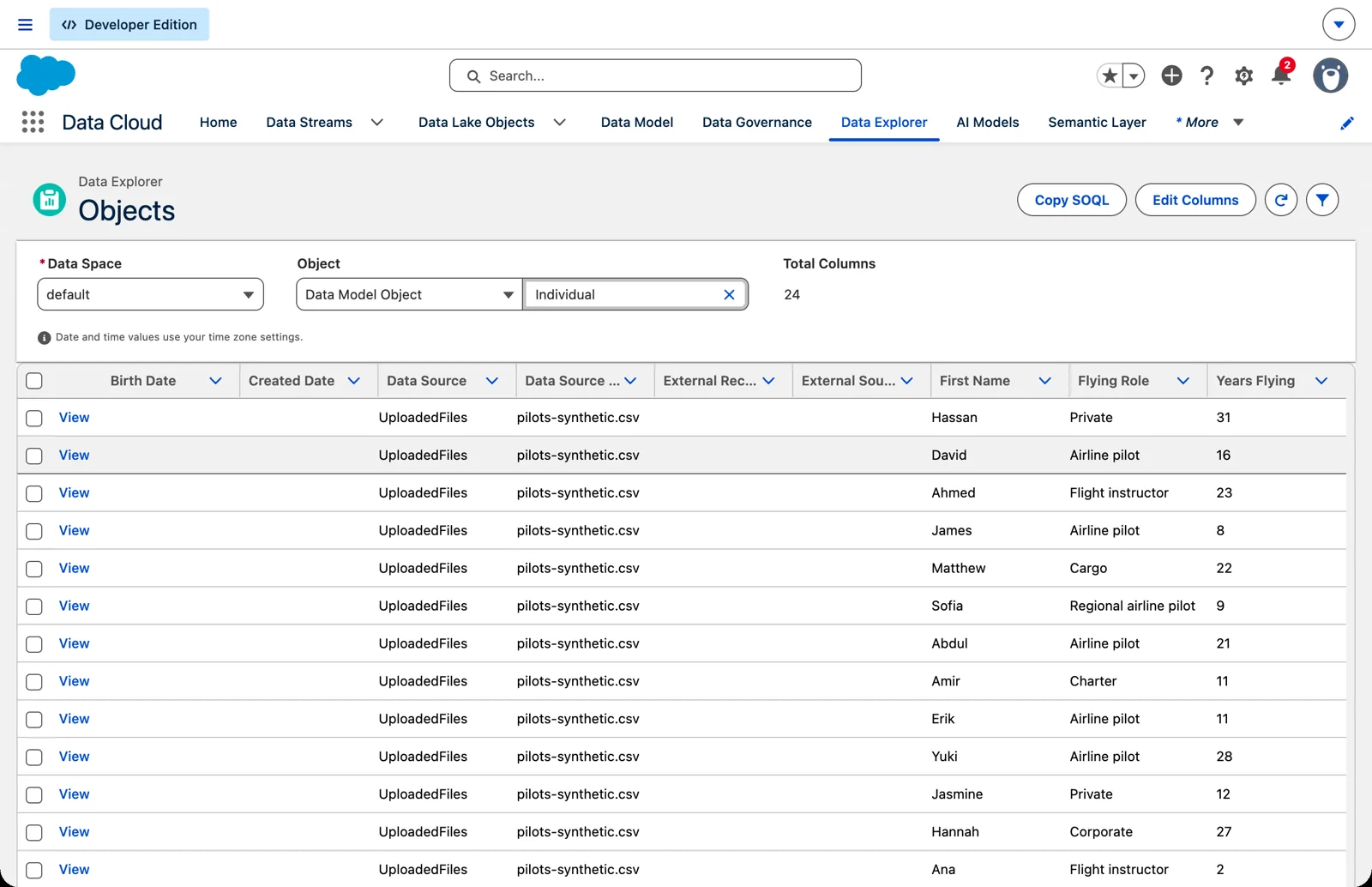
The pilots from the file, now Individuals (Salesforce Data 360 in a Developer Edition org, screenshot, November 2026). Full size
Years flying and flying role aren’t standard fields on the Individual, so the mapping adds them as custom fields. Salesforce’s mapping guidance says to “extend standard objects by adding custom fields” where the standard model has gaps, and the mapping screen lets you add a new field to the data model object when the source has one it lacks.
When I review a mapping, I like tracing it from right back to left, so I get to trace the keys and the mappings. Start at the DMO field and ask: where did this come from? If you can’t answer, the mapping isn’t done.
That trace, written down field by field before you build, is a data dictionary. You’ll start one in chapter 3, and it grows with every chapter after.
This is the Model verb, and chapter 8 goes deep on it. Chapter 3 is where the planning for it happens, before anything comes in.
Unify: one pilot, unified once
Section titled “Unify: one pilot, unified once”Step 4 of 6: identity resolution joins the pilot from the file to the pilot in core.
We now have ten Individuals: six from the file, four from the org. But we don’t have ten pilots. Kevin is in both places. So are Diana, Alexander and Michelle.
Identity resolution is the step that finds them. On the happy path, the rule is simple: same email, same pilot. The result is a unified individual, one per real person. Ten Individuals become six unified individuals. Four are in both sources; Wei and Laura are only in the file.
I always unify on the individual, and I put it on the happy path on purpose. It’s a core idea of the platform, and we don’t try to paste it on later. For the match to work, each stream has to map to the Individual’s ID and a contact point, here the email.
One more thing that surprises people: the originals stay. We still have the original Individual records and all that original data, so we can see where each value came from. Unifying links the records; it doesn’t overwrite them. If you’ve taken the Data Architect course, this is “a map is not a decision” from the platform side. Chapter 9 is all about this verb, Unify.
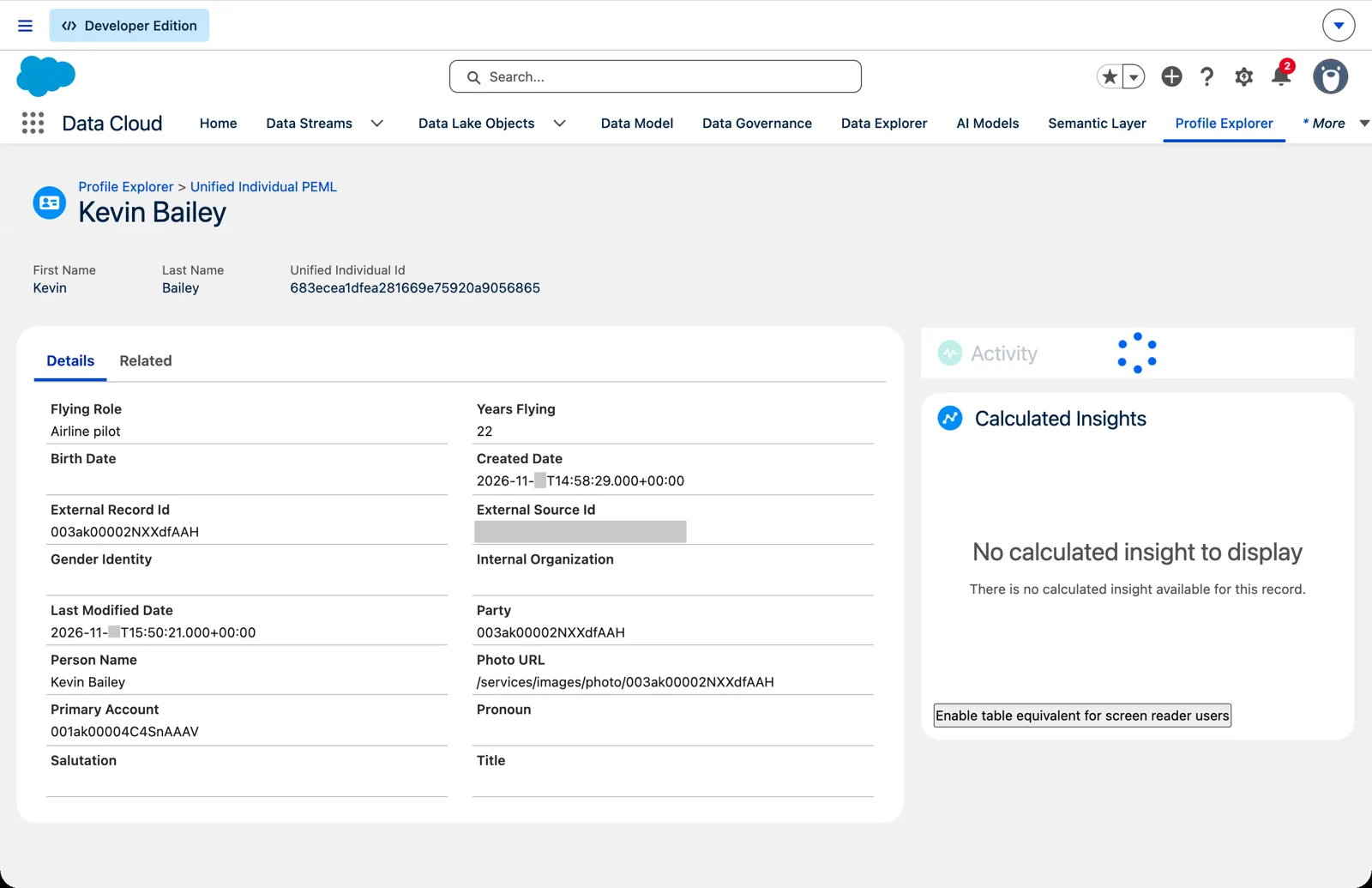
Kevin, unified once: the file’s fields and the org’s IDs on one profile (Salesforce Data 360 in a Developer Edition org, screenshot, November 2026). Full size
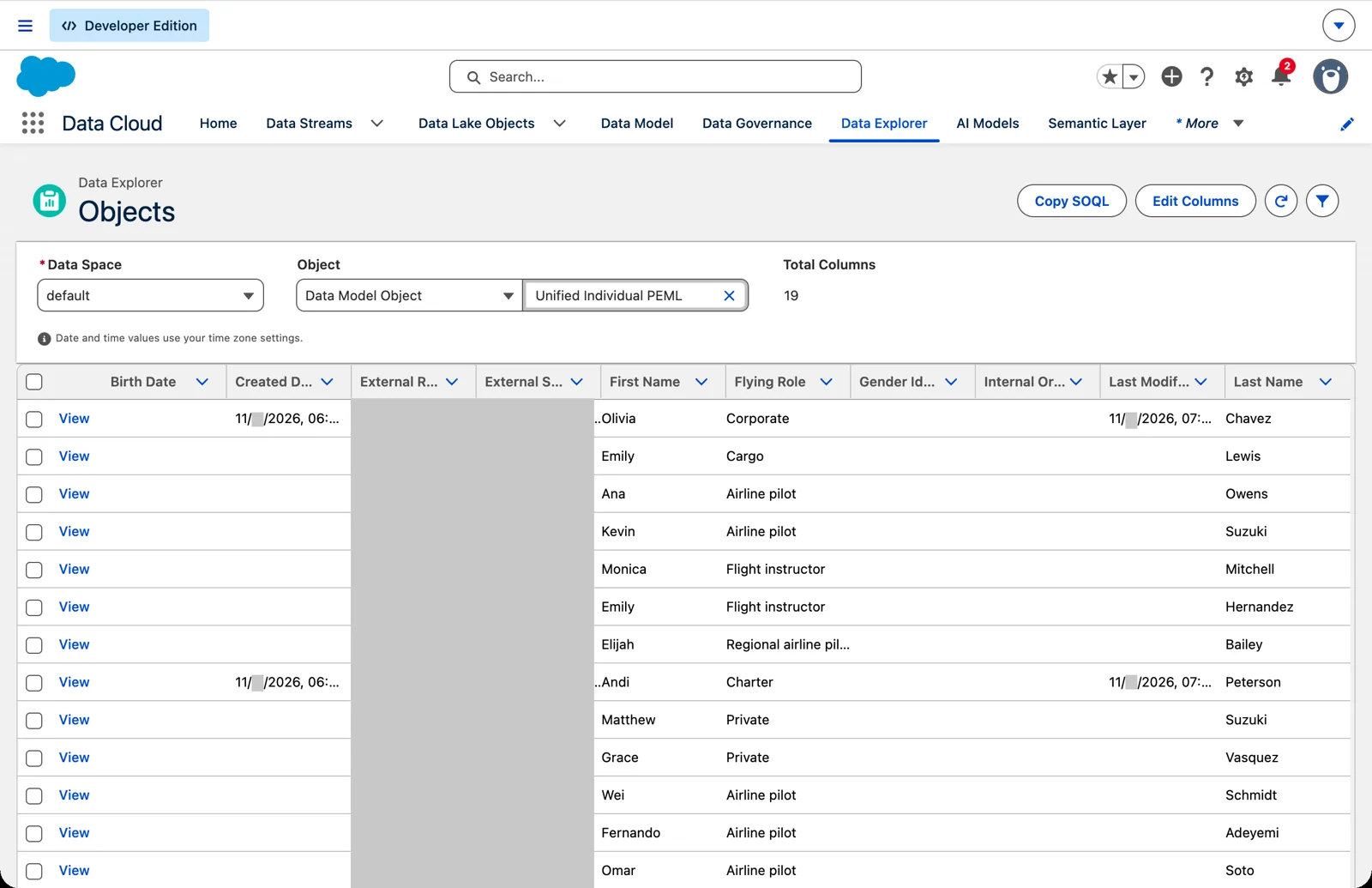
Unified individuals: a merged person carries both sources in one row (Salesforce Data 360 in a Developer Edition org, screenshot, November 2026). Full size
Analyze and activate: a segment
Section titled “Analyze and activate: a segment”Step 5 of 6: a segment of experienced pilots.
Now we can ask a question across both sources: which pilots have flown for ten years or more? That’s a segment: a set of unified individuals that meets a rule. Ours holds Kevin (22), Diana (25), Alexander (14) and Wei (12). Salesforce Help recommends the Unified Individual as the segment target when data comes from more than one source, and warns that segmenting on the Individual instead “can result in duplicate or skipped entities in your count.” Ten Individuals aren’t ten pilots; six unified individuals are.
Look at Wei. Wei is in the segment, but the home org has never had a record of Wei. The segment is built on data core never held. That’s the second door paying off.
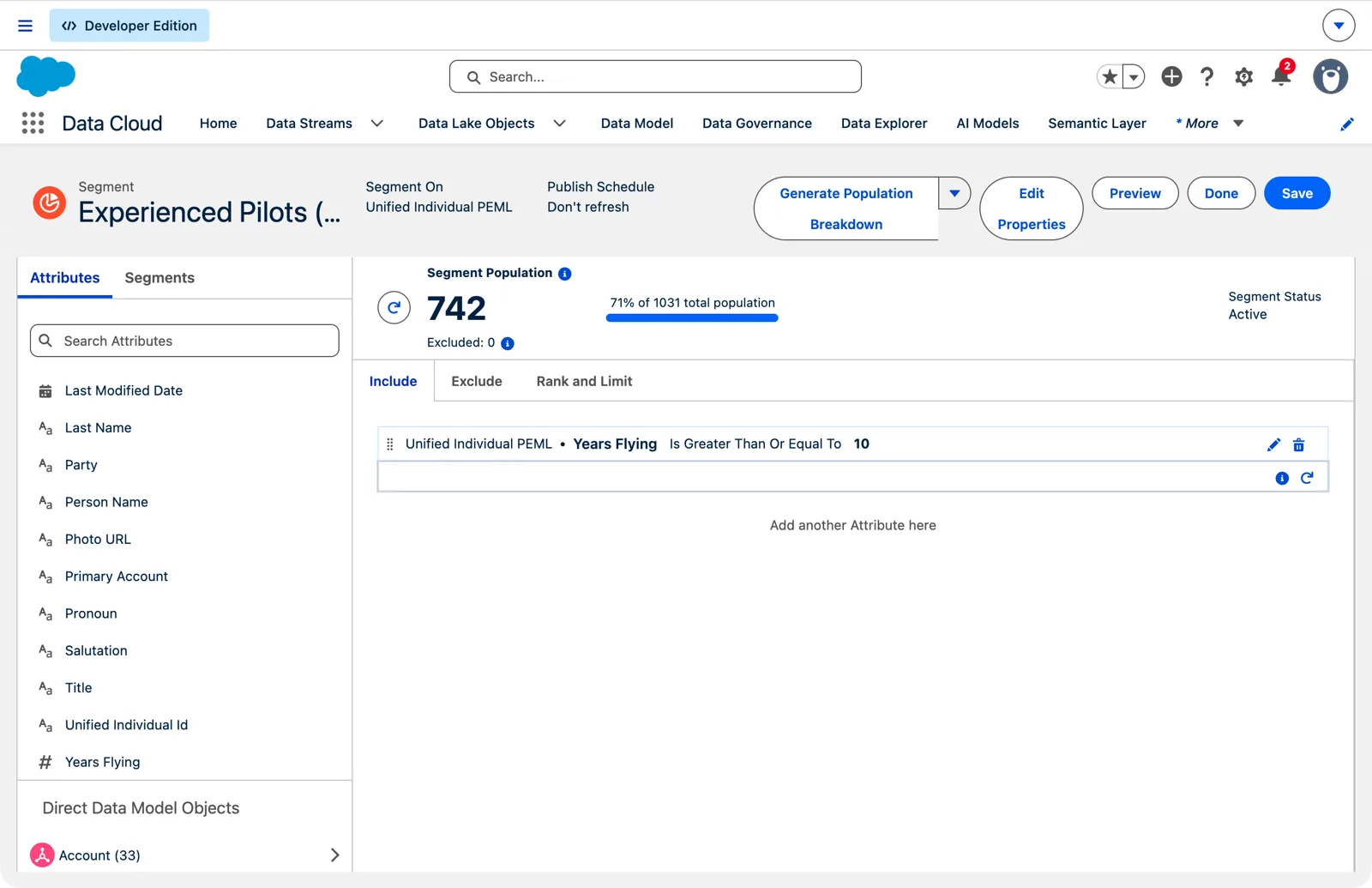
The segment in my org: 742 of 1,031 unified individuals (Salesforce Data 360 in a Developer Edition org, screenshot, November 2026). Full size
On the happy path, the segment doesn’t go anywhere yet. Sending a segment somewhere is activation, and it gets two chapters of its own (10 and 11). Chapter 10 covers Analyze: insights and the numbers you build segments from.
Back to core: a copy field enrichment
Section titled “Back to core: a copy field enrichment”Step 6 of 6: years flying and flying role go back to the pilot’s contact in the home org.
Last step. Years flying and flying role go back to the pilot’s contact record in the home org. Salesforce calls this a copy field enrichment.
I want to be exact about who does what here, because it’s easy to draw this arrow wrong. Identity resolution doesn’t push anything to core. The enrichment is set up in the org, on the object that receives the fields: in Setup, open the Object Manager, choose Contact, then Data 360 Copy Field, and New. Its source is a Data 360 object, here the Individual DMO. The data space needs “at least one unified object,” and a matching method called Unified Individual Lookup finds the right contact. So identity resolution makes the match possible; the enrichment does the sending.
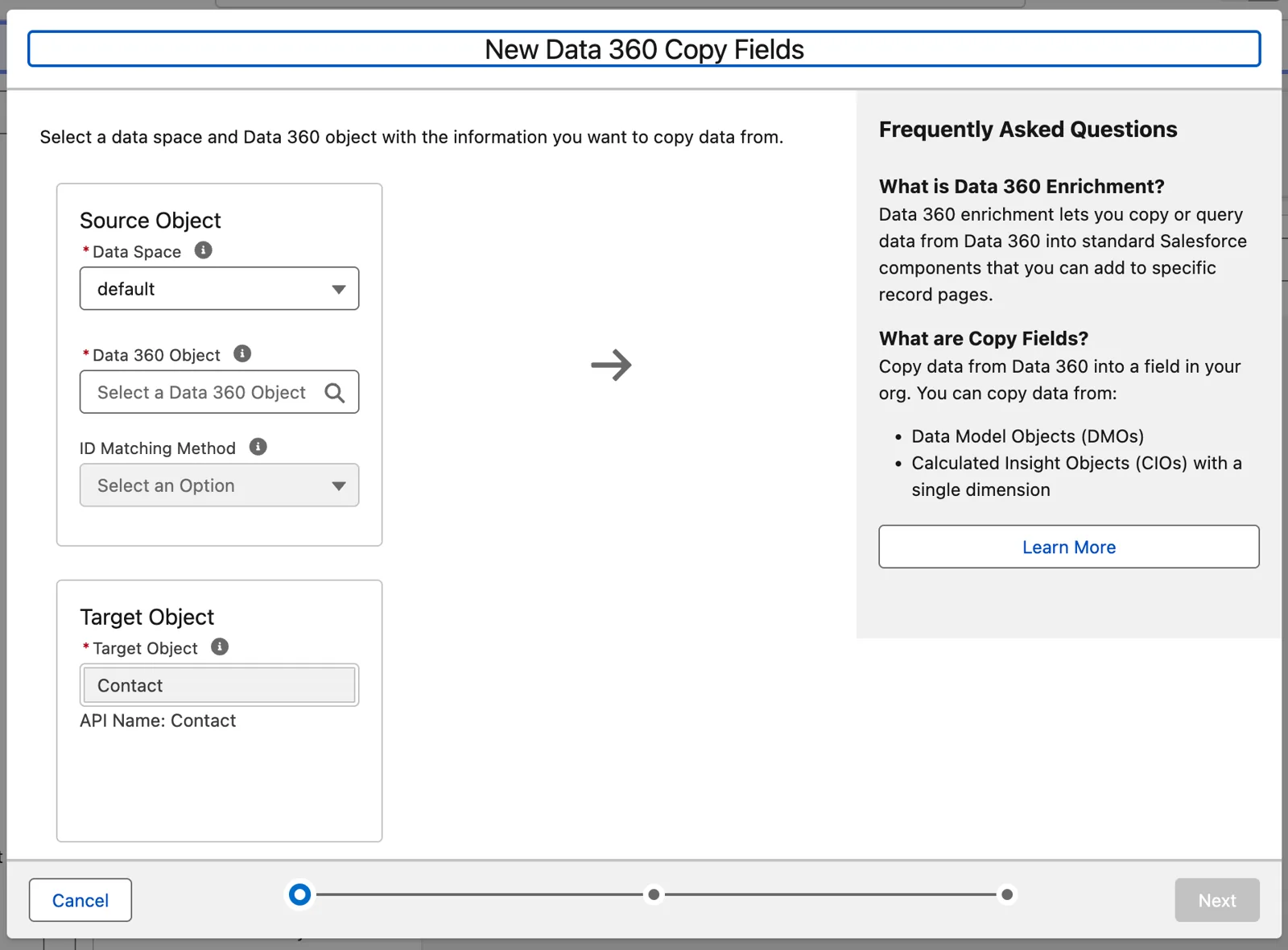
Setting up a copy field: a Data 360 object in, a core object out (Salesforce Data 360 in a Developer Edition org, screenshot, November 2026). Full size
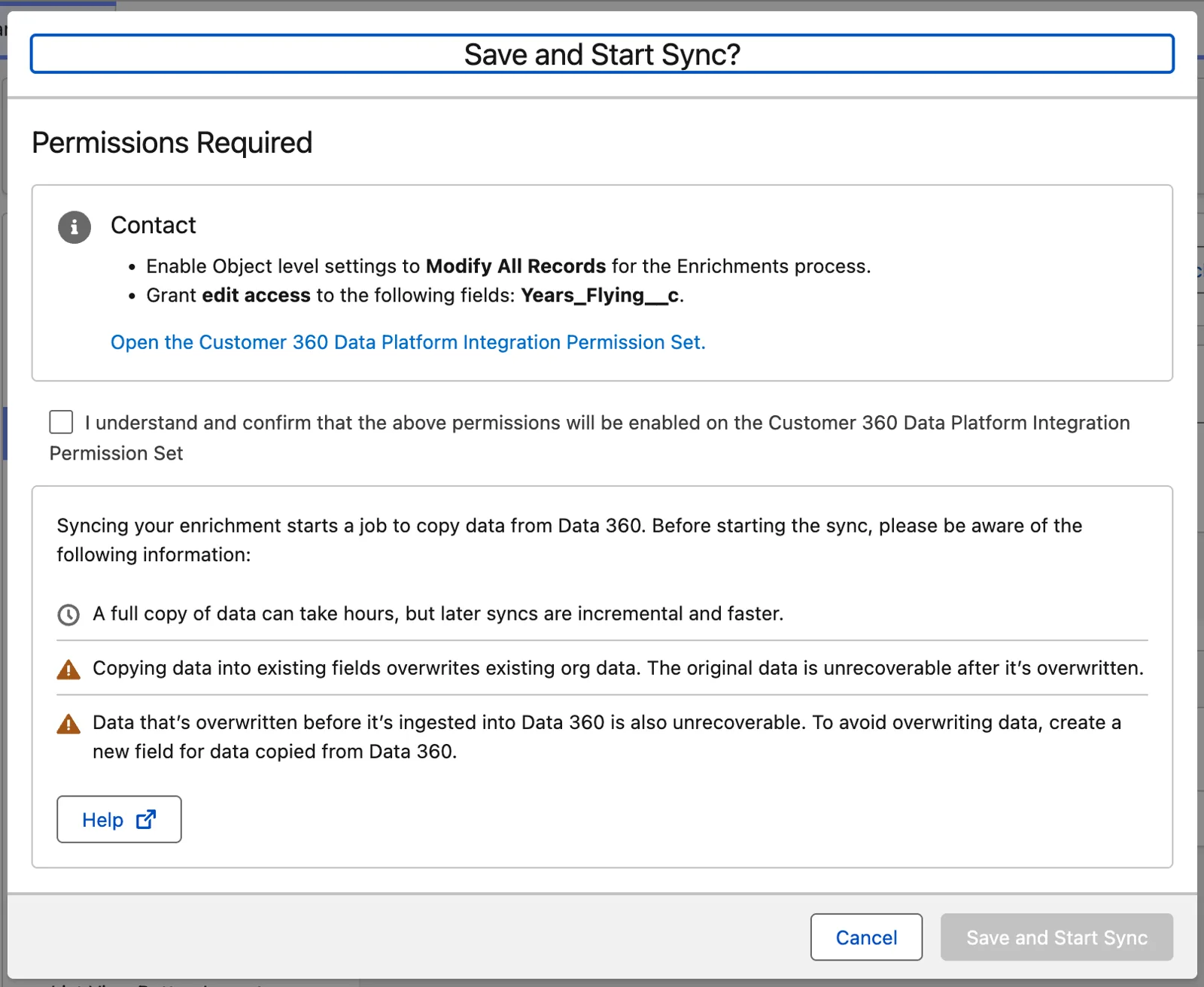
Before the sync: Salesforce asks to grant its own process the access it needs (Salesforce Data 360 in a Developer Edition org, screenshot, November 2026). Full size
Who gets the fields? Kevin, Diana, Alexander and Michelle: every pilot who is also a contact. Michelle gets the fields too, despite not being in the segment, because the enrichment doesn’t depend on the segment. Wei and Laura get nothing, because there’s no contact to land on.
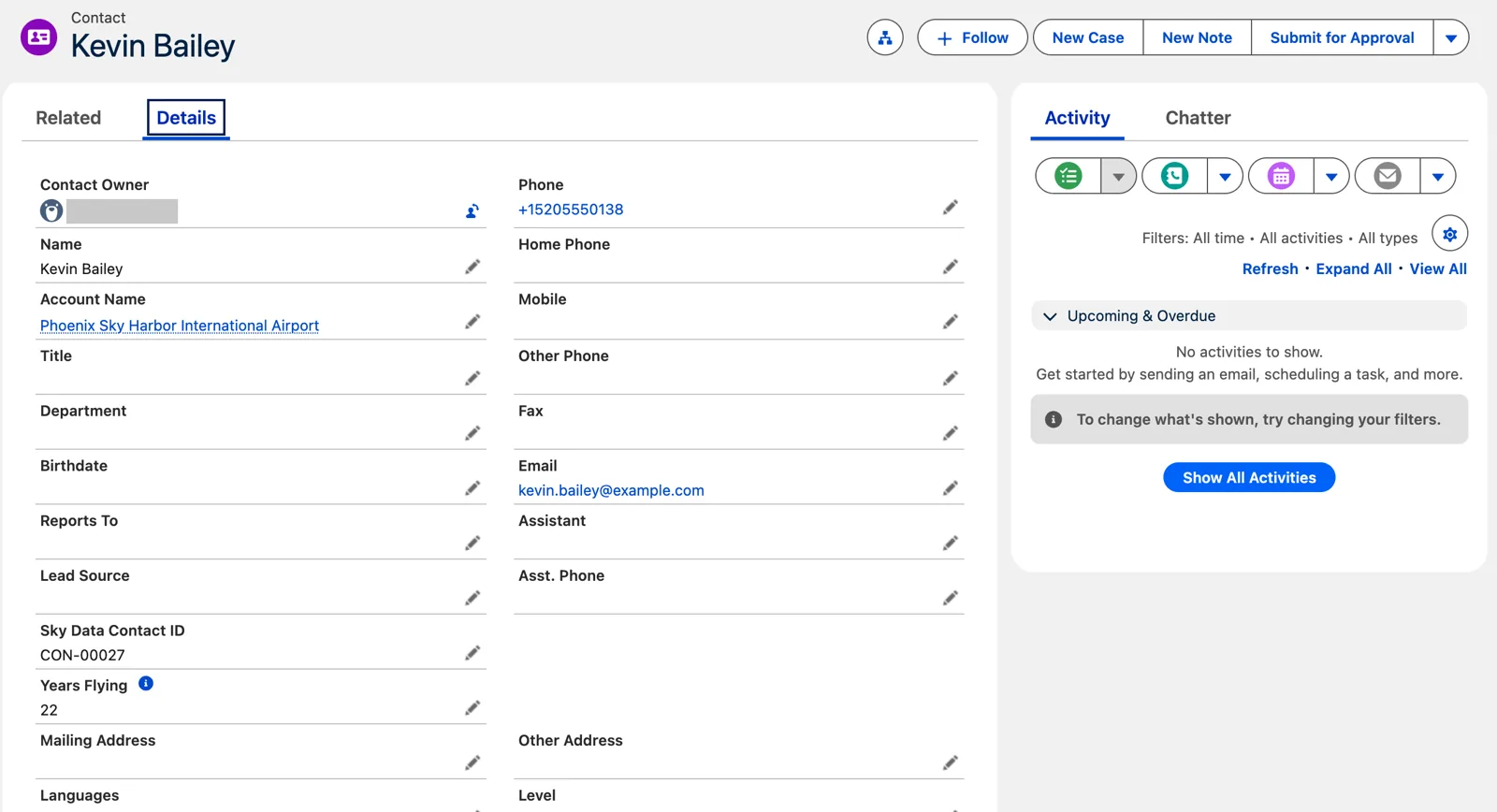
Back in core: Kevin’s contact now shows Years Flying (Salesforce Data 360 in a Developer Edition org, screenshot, November 2026). Full size
And now the answer to the question from the first step: why bring the core contacts in at all? Because an enrichment can only land on a core record that Data 360 has already joined. Without the core door, a pilot from the file has nowhere to go. Unification is the reason the enrichment works.
The walk, and what comes next
Section titled “The walk, and what comes next”Step back and look at what happened. The pilots file never went into core. Data 360 joined it to core’s own contacts, off core, and core got back only the two fields it needed.
That walk is Data 360 in small. It connected to two sources, one outside Salesforce and one inside, and brought their data in. It kept that data in its own lake, as it arrived. It mapped both to one standard data model, the Individual, and unified the records that belong to the same pilot. It segmented them, and it sent two useful facts back to core. Put that at the size of a real company, with many sources and millions of records, and you have what makes Data 360 a powerful tool for managing your data.
We used seven of the course’s nine verbs: Connect, Ingest, Prepare (by doing nothing), Model, Unify, Analyze and Activate, the last two only lightly. The other two come later: Access, the APIs that give other systems a way in (chapter 14), and Deploy, moving all of this between orgs (chapter 22).
Everything else in the course is a derivative of this walk: other sources, data that needs transforming, other DMOs, insights, activations, live queries from core. And here’s the part I like: when we draw them, every box keeps the same place.
The whole picture. The happy path used some of these boxes; the rest of the course fills in the others.
What an architect decides here
Section titled “What an architect decides here”- Which data has a reason to live in core, and which only needs to send one or two facts back.
- Which sources come in, and which fields from each: bring in the data you need to make good decisions, not everything.
- What makes two records the same person (here, email), and whether that rule is strict enough for what you’ll do with the result.
- Whether a fact belongs on the core record (a copy) or only needs to be seen there; chapter 12 compares the two.
Explore
Section titled “Explore”All checked 2026-11-14.
- Data Mapping Best Practices (opens in a new tab), Salesforce Help (checked 2026-11-14).
- Data 360 Architecture (opens in a new tab), Salesforce Architects: the lifecycle (ingest, prepare, model, unify, analyze, activate).
- About Salesforce Data 360 (opens in a new tab), Salesforce Help.
- Data Objects in Data 360 (opens in a new tab), Salesforce Help: data lake objects and data streams.
- Map Data Model Objects (opens in a new tab), Salesforce Help.
- Unify Your Data (opens in a new tab), Trailhead.
- Segment On (opens in a new tab), Salesforce Help: the Unified Individual as the segment target.
- Create a Copy Field Enrichment (opens in a new tab), Salesforce Help.
- SkyData: Data 360 in One Picture (opens in a new tab), this chapter’s data files.