Their Verbs and Ours
Det här innehållet är inte tillgängligt på ditt språk än.
Module 2 in the chapter Data 360 in One Picture, chapter 1 of the Data 360 Architect course. Each module stands on its own. Previous: One Long Flow · Next: A Different Space
The question this module answers: Salesforce describes Data 360 in more than one way. Which words does this course use, why, and where do you look things up?
Open three Salesforce pages about Data 360 and you’ll get three ways of describing it. That isn’t a problem. Each page is written for a different reader. But if you’re learning the platform, you need one set of words to hang everything on, and you need to know how those words line up with what you’ll find when you search. That’s what this module gives you.
How Salesforce describes it
Section titled “How Salesforce describes it”The one line. Salesforce Help opens with four words: “Ingest, harmonize, unify, and analyze.” Then, under “How Does It Work?”, it lists thirteen steps: connect, ingest, zero copy federation, prepare, harmonize, unify, query and analyze with insights, predict with AI, segment and activate, analyze with analytic tools, output data to act, ground for Agentforce, and review and optimize.
The lifecycle. The Salesforce Architects guide to Data 360’s architecture describes a lifecycle: “ingest, prepare, model, unify, analyze, and activate.” This is the one closest to how an architect thinks about it, because it follows the data from left to right.
The feature areas. Salesforce Help also groups Data 360 into sixteen feature areas, from Get Started and Connect Data to Govern and Secure Data 360. This is the one you’ll use most once you’re building, because it’s how the documentation is organized.
Three framings, cut for three readers: someone deciding whether they need it, someone designing with it, and someone looking up how to do a task. They agree with each other. They just stop at different levels of detail.
The course’s nine verbs
Section titled “The course’s nine verbs”For this course I took Salesforce’s own words where they fit, and added my own only where Salesforce doesn’t have one. Here are the nine, with the chapters that go deep on each:
| Verb | What it means here | Chapters |
|---|---|---|
| Connect | Attaching to a source | 3, 4, 14 |
| Ingest | Bringing the data in | 3, 4, 5 |
| Prepare | Transforming the data before it’s modeled | 6 |
| Model | Mapping the data to the data model, and planning that model | 7 (planning in 2) |
| Unify | Joining the records that are the same person | 8 |
| Analyze | Insights and the numbers you build on | 9, 19 |
| Activate | Segments, and sending them somewhere | 10, 11 |
| Access | The APIs: giving other systems a way in and out | 13 |
| Deploy | Moving Data 360 work from one org to another | 21 |
A few of these deserve a sentence.
Connect and ingest go together, but they’re not the same thing. Connect is where you’re attaching. Ingest is where you’re bringing the data in. You can connect to a source and bring in only part of it, or nothing at all, as you’ll see with zero copy in chapter 15.
Model includes the planning. The mapping happens in chapter 8, but the decisions behind it happen in chapter 3, before anything comes in. Doing your modeling is the planning.
Unify is always on the individual. That’s why module 1 put identity resolution on the happy path instead of saving it for later.
Analyze is analyze. No twist there.
Seven of the nine are Salesforce’s words: connect, ingest, prepare, model, unify, analyze and activate all appear in the Help’s steps or the Architects lifecycle. Access and Deploy are the course’s. Salesforce’s framings don’t give the APIs or deployment a verb of their own, and an architect spends real time on both.
Why not “harmonize”?
Section titled “Why not “harmonize”?”You’ll notice one Salesforce word is missing. The Help’s one line says “harmonize”, and my own earlier talks used it too. In this course I’m letting it go.
Here’s why. In practice, the harmonize step is the mapping: taking data that still looks like its source and fitting it to the data model. That’s our Model. The Architects lifecycle already says “prepare” and “model” for that part of the work, and those two words tell you more about what you’re actually doing. So when you see “harmonize” in the Help, read it as prepare and model together.
The same reasoning applies to a verb from my own talks, Act. Salesforce says “activate”, so the course says activate. When a learner searches the Help, I want them using the same word Salesforce does.
What no verb covers
Section titled “What no verb covers”Line the verbs up against the course and some chapters don’t fit under any of them:
- Chapter 3, the data before it comes in: what it is, where it lives, what makes it unique.
- Chapter 13, real time, which cuts across every verb.
- Chapter 16, where Data 360 lives: the home org, companion orgs, and Data Cloud One.
- Chapter 17, governance and security.
- Chapter 19, Data 360 for agents.
- Chapter 21, credits: what all of this costs to run.
This is the architect’s view. The verbs describe what the platform does with data. These chapters are about the decisions around it: where it runs, who can see it, what it costs, and whether it’s ready for an agent to use. You won’t find them as a step in a lifecycle, and that’s exactly why they get chapters of their own.
The nine verbs, each on its box. Deploy and the architect’s chapters sit around the whole picture.
Where to look it up
Section titled “Where to look it up”When you need the how-to, go to Salesforce Help and use the feature areas. Each chapter of this course names its feature area at the top, so you always know where to look. For the verbs:
| Verb | Salesforce Help feature area |
|---|---|
| Connect, Ingest | Connect Data |
| Prepare, Model | Prepare and Model Data |
| Unify | Unify Data |
| Analyze | Enhance Data with Insights; Analyze Data; Use and Build AI Models; Build a Semantic Model |
| Activate | Create Segments; Act on Data |
| Access | Develop with Data 360 |
| Deploy | Build and Share Functionality |
The other feature areas line up with the architect’s chapters: Get Started and Plan Data Strategy (chapters 1, 3 and 16), Govern and Secure Data 360 (chapter 17), and Process Content and Use Search in Data 360 (chapter 18).
One more name
Section titled “One more name”You’ll find older material, including my own Data 360 Diaries videos, that says Data Cloud. It’s the same platform. Tableau Help puts it plainly: “As of October 14, 2025, Data Cloud has been rebranded to Data 360.” When a search for “Data 360” comes up short, try “Data Cloud” too.
The screens haven’t all caught up either. In the orgs I checked in November 2026, including a brand-new Developer Edition org, the Setup menu still says Data Cloud Setup, and the App Launcher still opens an app called Data Cloud, with its tabs for Data Streams, Data Lake Objects, Data Model, Data Explorer and the rest. Inside that app, the home page’s welcome panel has said both: “Welcome to Data 360” in my sandbox, and “Welcome to Data Cloud” in the new Developer Edition org, which two days later didn’t show the panel at all, until I turned on the new navigation below and it said “Welcome to Data 360” too. Two names, sometimes on one screen. So in this course, the platform is Data 360, and a menu or an app is called what your screen shows. If your org says Data 360 there, it has caught up.

The Data Cloud app and its first tabs, in a sandbox org (Salesforce Data 360, screenshot, November 2026). That day, the app’s home page below these tabs said “Welcome to Data 360”. Full size
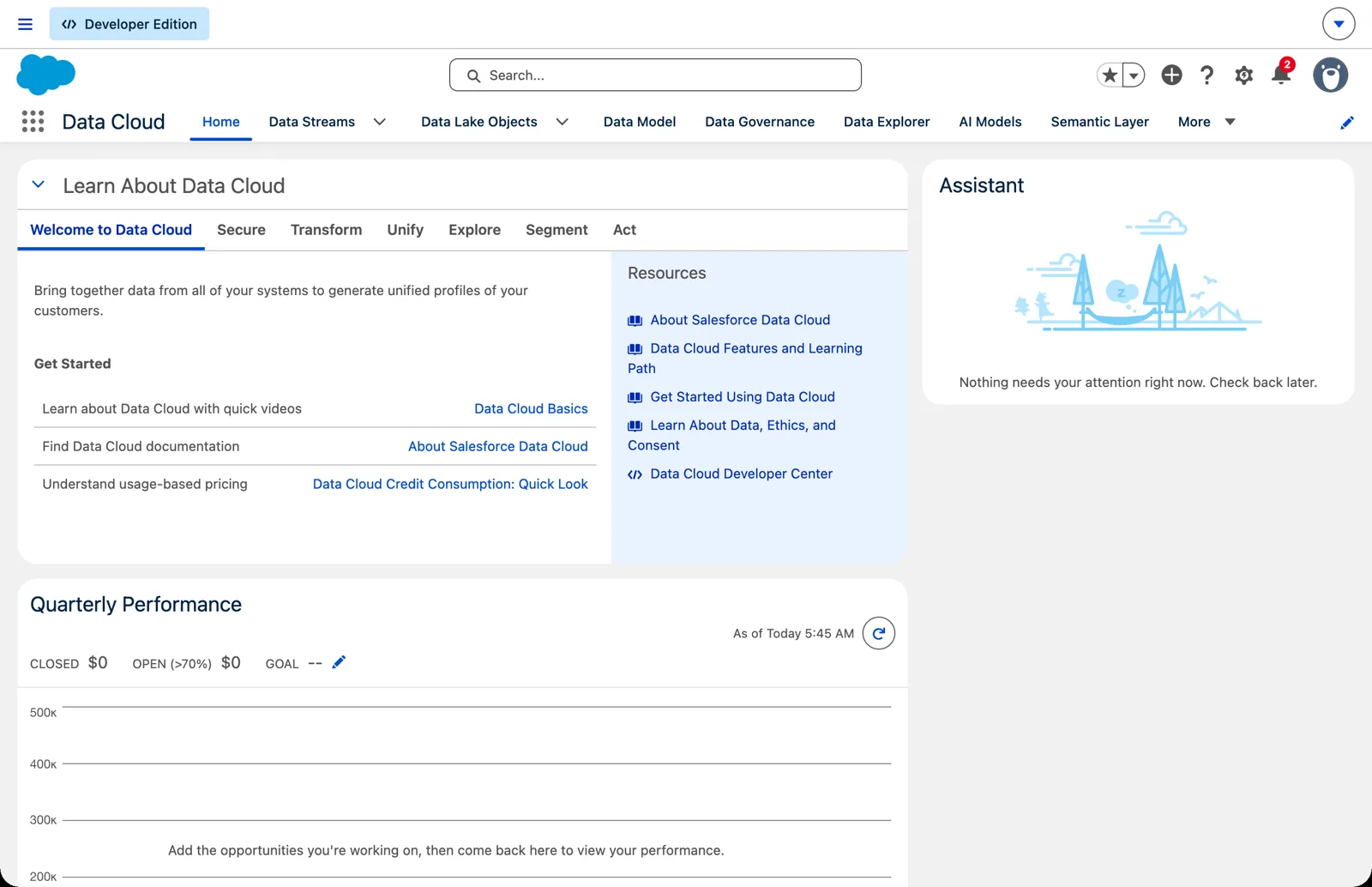
The Data Cloud app’s home page in a new Developer Edition org (Salesforce Data 360 in a Developer Edition org, screenshot, November 2026). Full size
And the screens are moving. From November 2026, Salesforce has a new left-side navigation for Data 360, which “groups related features together.” The release note says new orgs get it, and an existing org turns it on in Feature Manager, under Data Cloud Setup, as “Data 360 Left Side Navigation.” But a new Developer Edition org I created in November 2026 still showed the tabs, so if you want the menu, look in Feature Manager. When I turned it on there, Salesforce said: “You can disable this feature at any time. After enabling this feature, each user must reset their default navigation for Data 360 to hide the standard top tab menu.” The tabs gave way to six groups on the left, in the order of the journey: Connect & Unify, Govern & Secure, Process & Enrich, Explore & Optimize, Analyze & Predict, Segment & Act, with Quick Find above them. And the home page changed with it, to “Learn About Data 360”.
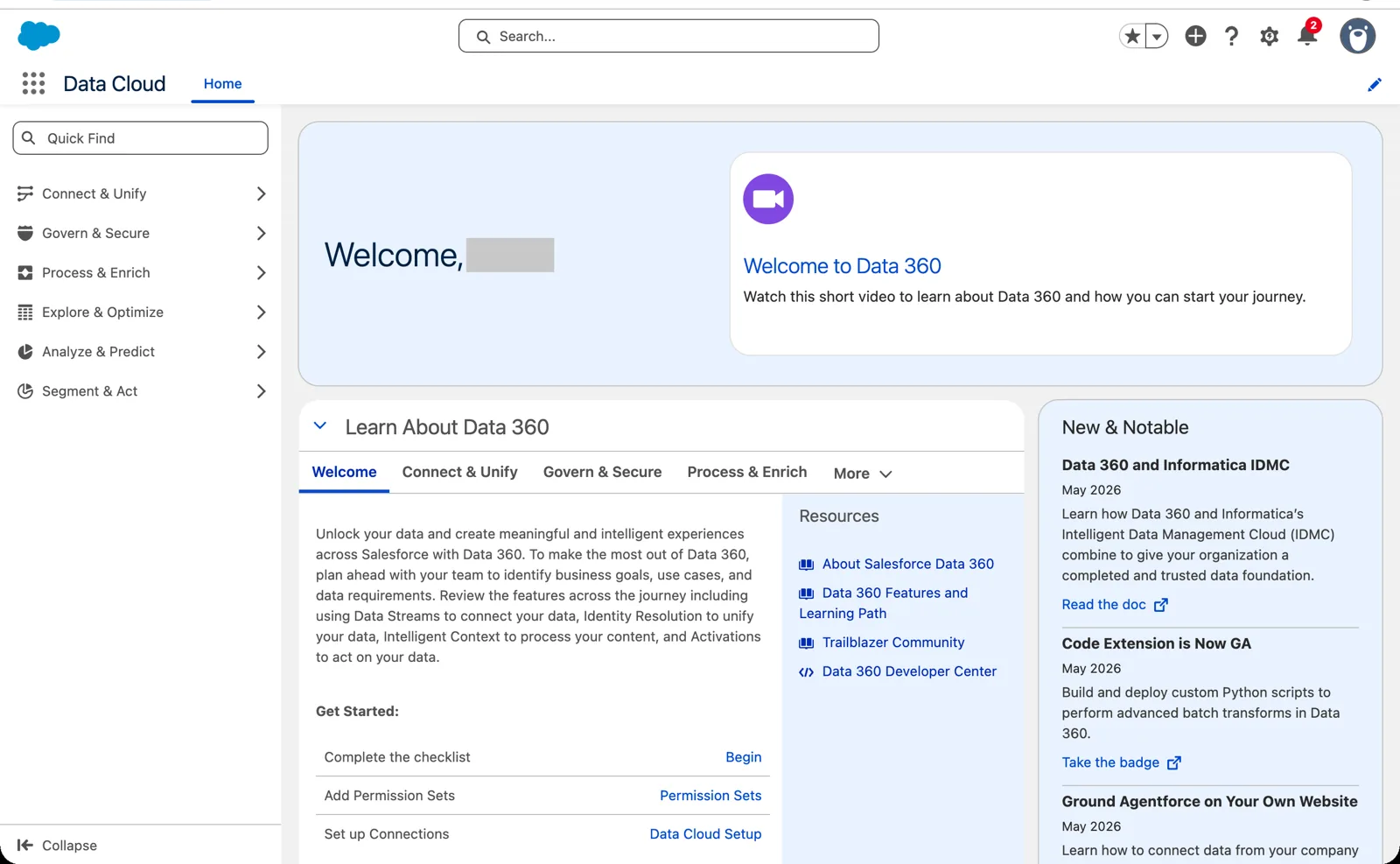
The same app after turning on the left-side navigation. The screenshots in this course were taken with the tabs; the pages are the same (Salesforce Data 360 in a Developer Edition org, screenshot, November 2026). Full size So where this course says “the Data Streams tab,” your org may show Data Streams in a menu on the left instead. It’s the same page. Look for its name, not for where it sits.
What an architect decides here
Section titled “What an architect decides here”- Which words your team will use, and making sure they match the words in Salesforce Help, so everyone searches for the same thing.
- Which verbs a project actually needs: not every project activates, and not every project needs transforms.
- Which of the architect’s questions (where it lives, governance, cost, agents) must be answered before the first stream is built, not after.
Explore
Section titled “Explore”All checked 2026-11-14.
- Simplify Your Navigation with the Updated Data 360 Menu (opens in a new tab), Salesforce release notes, Winter ‘27, checked 2026-11-14: the left-side navigation.
- About Salesforce Data 360 (opens in a new tab), Salesforce Help: the one-line description and “How Does It Work?”
- Data 360 Architecture (opens in a new tab), Salesforce Architects: the lifecycle.
- Data 360 release notes, Summer ‘26 (opens in a new tab), Salesforce Help: organized by the sixteen feature areas.
- Salesforce Data 360 (opens in a new tab), Tableau Help: the rename date.