
Data Bundles: the Fast Start
Nội dung này hiện chưa có sẵn bằng ngôn ngữ của bạn.
Module 2 in the chapter Bringing In CRM Data, chapter 5 of the Data 360 Architect course. Each module stands on its own. Previous: Your Orgs Are Sources Too · Next: Custom Objects: From Core to Data 360
The question this module answers: What does a standard data bundle bring in for you, and what does it leave to you?
Your org is connected (module 1). Now you could build a stream for Account, then one for Contact, then map each field to the data model by hand. Or you could let Salesforce do most of it. That’s what a standard data bundle is: Salesforce’s prebuilt set of streams and mappings for the objects everyone has.
Two steps: install, then stream
Section titled “Two steps: install, then stream”A bundle is used in two steps, and Salesforce’s pages keep them apart.
- Install the bundle. In Data Cloud Setup, under Salesforce Integrations, select Salesforce CRM, and install a bundle from the list of Standard Data Bundles. A bundle is a data kit underneath (chapter 22), and the ones you see are “available based on your current licensing and products.” Sales Cloud and Service Cloud bundles appear once your CRM connection is set up.
- Create the streams from it. On the Data Streams tab, click New, choose Salesforce CRM, pick the org, and choose the bundle on the Data Bundles tab. You review the objects and fields, deploy, and then click Review Mappings to see how the lake objects map to the model.
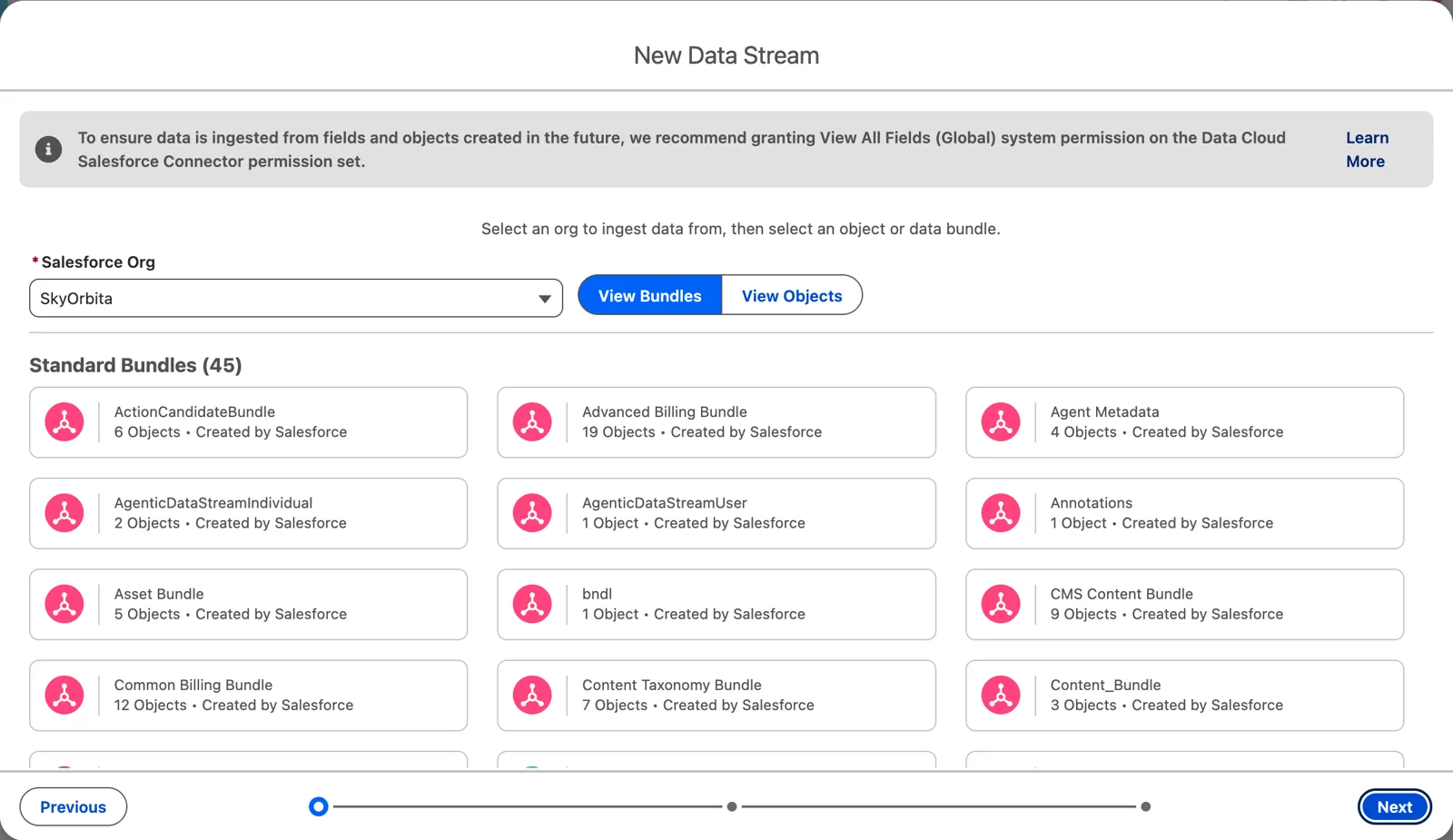
Choosing a bundle when you create the streams (Salesforce Data 360 in a Developer Edition org, screenshot, November 2026). Full size
Two limits from Salesforce’s page: you configure one starter bundle at a time, and the Phone, URL, Email and Percent data source objects aren’t supported in a starter bundle.
What I saw: the Sales Cloud bundle
Section titled “What I saw: the Sales Cloud bundle”When I did this, I chose the Sales Cloud standard data bundle, coming from my home org. It had three objects in it: Account, Contact and Lead. And it did a lot. It created the data streams, which map to the data lake objects, and it even mapped them forward onto the standard data model objects. I drove them into my own data space (chapter 1), so they sat next to the airport and pilot data from earlier.
Then the interesting part: reading the mappings.
Account maps to two objects. One is the Account. The other is a Contact Point Address. In the data model, that’s a one-to-many child, so a person or an account can have not just billing and shipping but any number of addresses. But look at what the bundle actually maps: it’s not tapping into the shipping address. It’s pulling off the billing address and creating a single Contact Point Address.
Contact maps to the Individual. That’s what I consider the top-level object for people: it’s going to represent who this human is. In Data 360, there is no contact object for the person; there’s the individual, plus contact points for the email, phone and address. (For business-to-business work there’s also an Account Contact object, the person’s role at an account.) And it’s not yet the unified person. That’s done through identity resolution, in chapter 9.
Lead maps to an Individual and an address too, with a lot of crisscrossing.
Read it right to left
Section titled “Read it right to left”With all those lines, how do you read a mapping? I like tracing it from right back to left. Start at the data model object, find its primary key, and follow the line back to the source field. On Contact Point Address, the key leads back to the Account ID. On the Individual, it leads back to the Contact ID. The keys tell you what each record really is (chapter 3).
Then check it. In Data Explorer, pick the data space and the data model object, and look at the rows. My org had one account and a handful of contacts, so I could see the one Account and the Individuals arrive, and know the stream, the lake and the model were all working.
Try it with the course’s data. Your org needs some accounts and contacts first. SkyData has them ready for the Data Import Wizard: the Salesforce import files (opens in a new tab), 150 contacts of a pretend home org at 107 airport accounts, 33 of them at Phoenix Sky Harbor. Every person is synthetic; every account is a real airport. Load them in two runs, in this order:
- Accounts and Contacts, Add new records, with
core-org-accounts-only.csv: the 107 airports. - Accounts and Contacts, Add new records, with
core-org-accounts-and-contacts.csv, and set Match Account by to Name & Site.
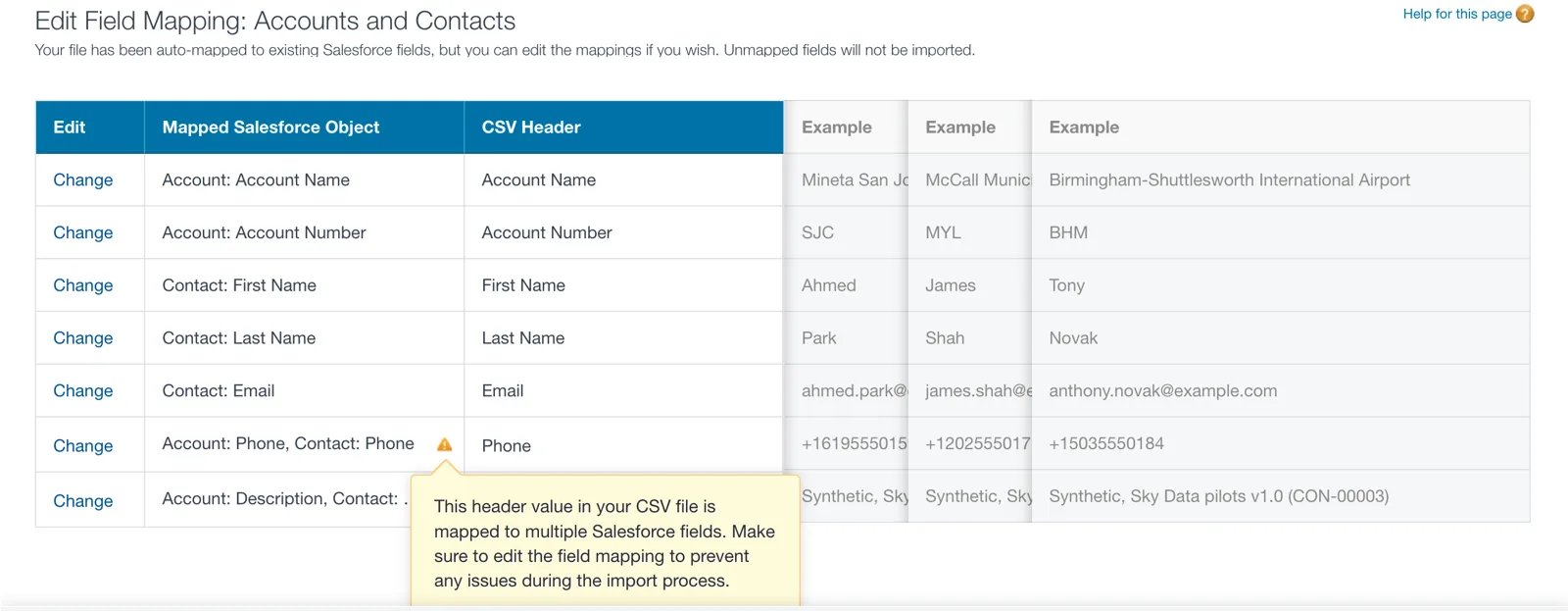
Watch the automatic mapping: one column mapped twice (Salesforce Data 360 in a Developer Edition org, screenshot, November 2026). Full size
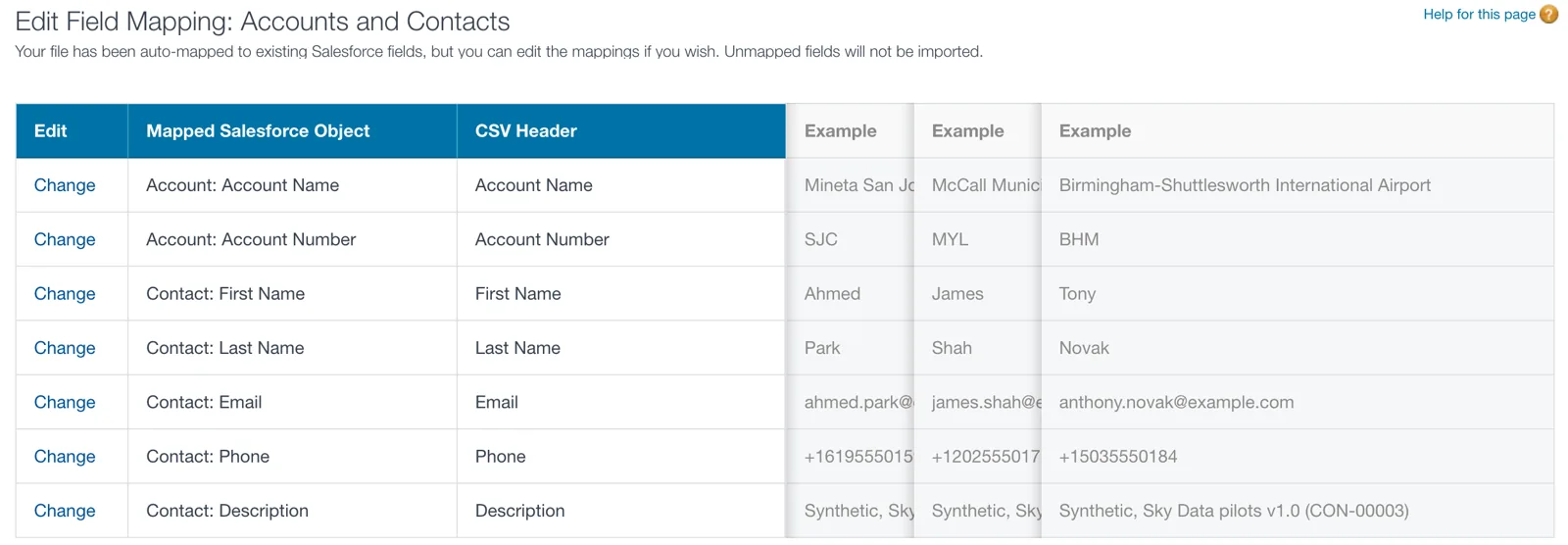
The mapping fixed: one column, one field (Salesforce Data 360 in a Developer Edition org, screenshot, November 2026). Full size
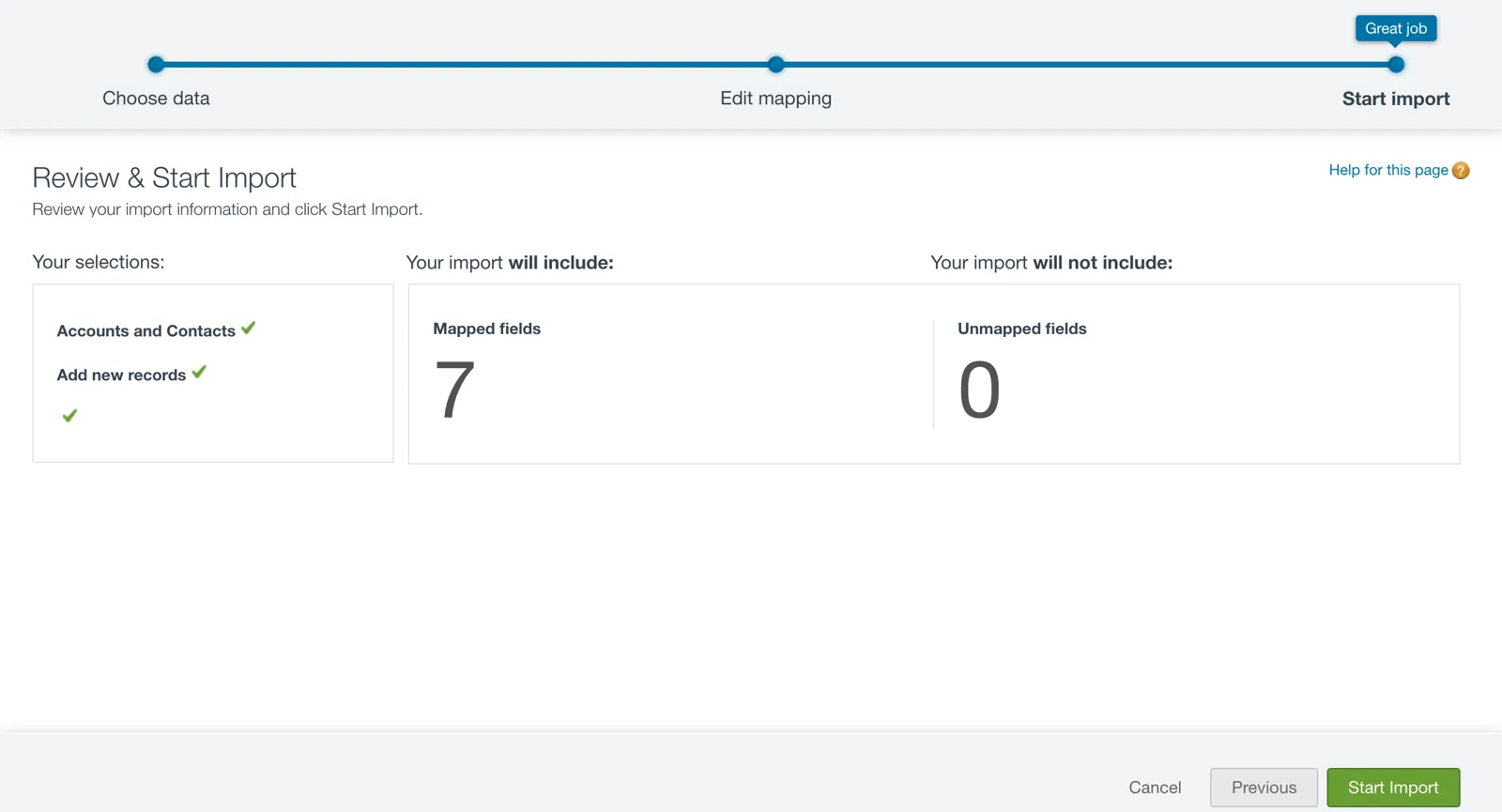
Review, then Start Import (Salesforce Data 360 in a Developer Edition org, screenshot, November 2026). Full size
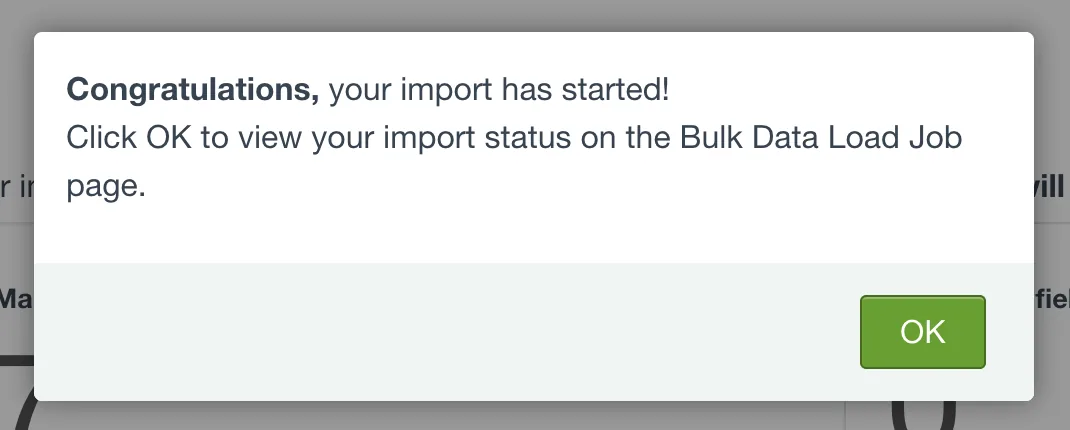
The import starts, as a job that runs after (Salesforce Data 360 in a Developer Edition org, screenshot, November 2026). Full size
Two settings on the first screen matter more than they look. Set Character Code to Unicode (UTF-8): the wizard’s default garbles the dash in Seattle–Tacoma. And don’t leave Match Account by at its default, None. When I did, every row made its own account, and Phoenix Sky Harbor became 33 accounts with one contact each. The account page even told me “We found no potential duplicates.” The wizard did exactly what it was told; it’s on us to tell it how to match.
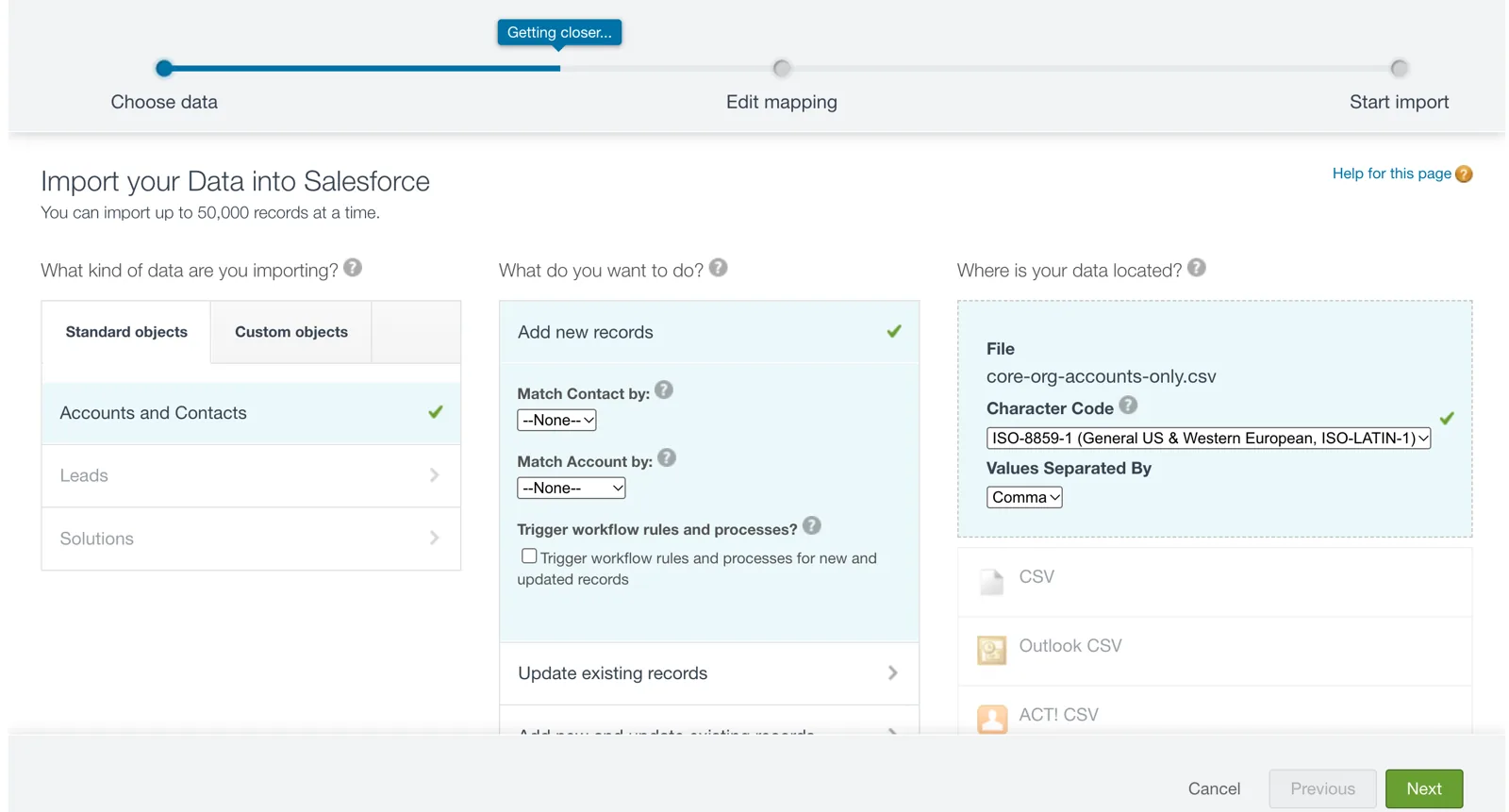
The wizard’s defaults: no matching, and not UTF-8 (Salesforce Data 360 in a Developer Edition org, screenshot, November 2026). Full size
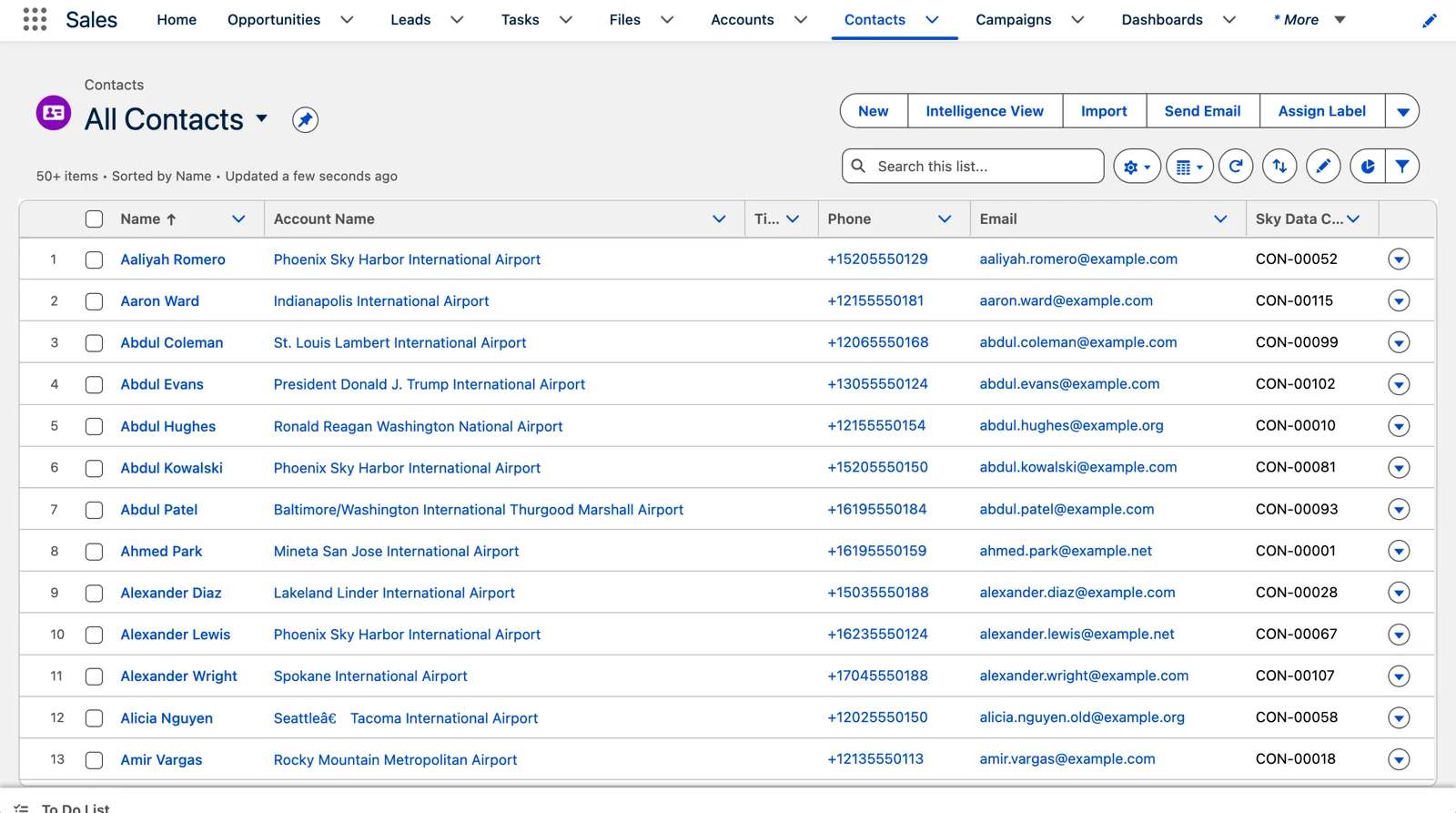
What the wrong character code does to a dash (Salesforce Data 360 in a Developer Edition org, screenshot, November 2026). Full size
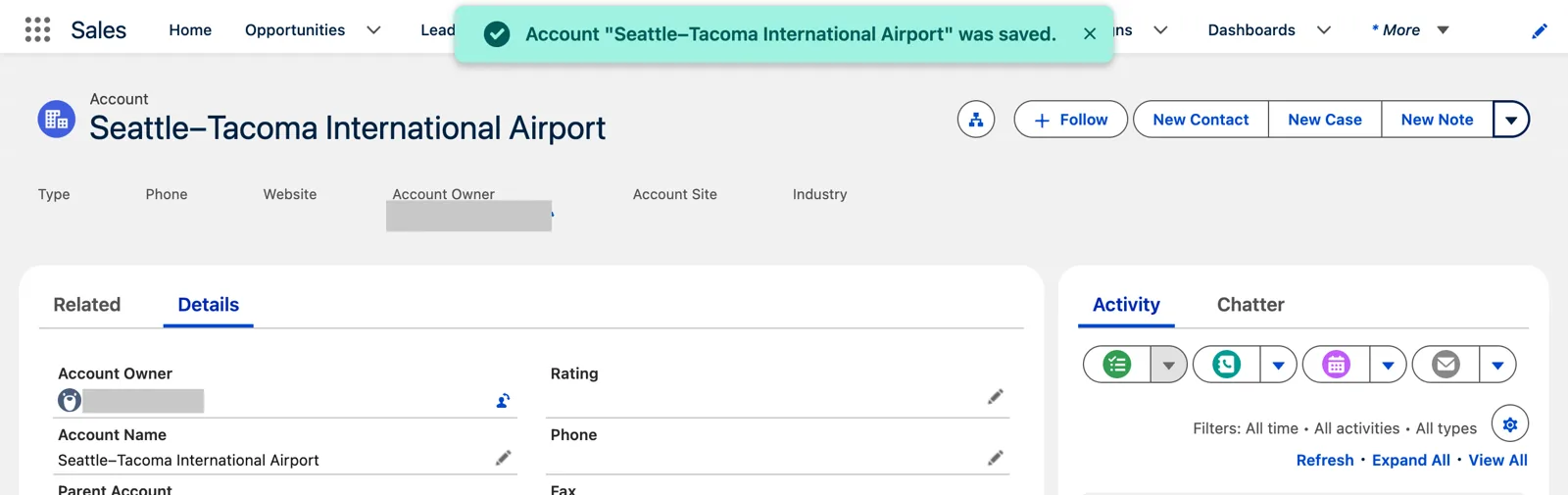
Fixed by hand: the en dash, as the file has it (Salesforce Data 360 in a Developer Edition org, screenshot, November 2026). Full size
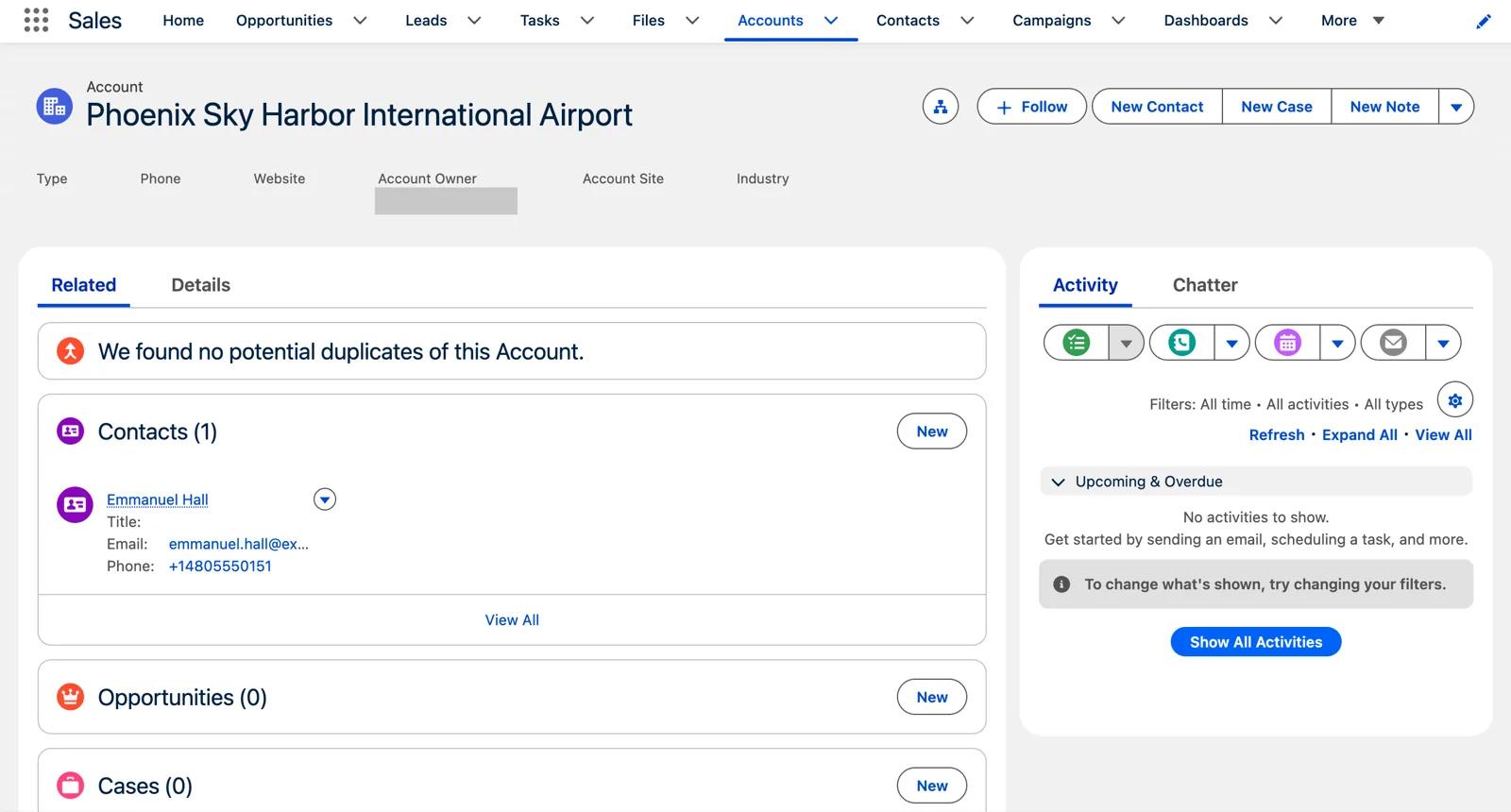
Phoenix Sky Harbor with one contact, though the file had 33 (Salesforce Data 360 in a Developer Edition org, screenshot, November 2026). Full size
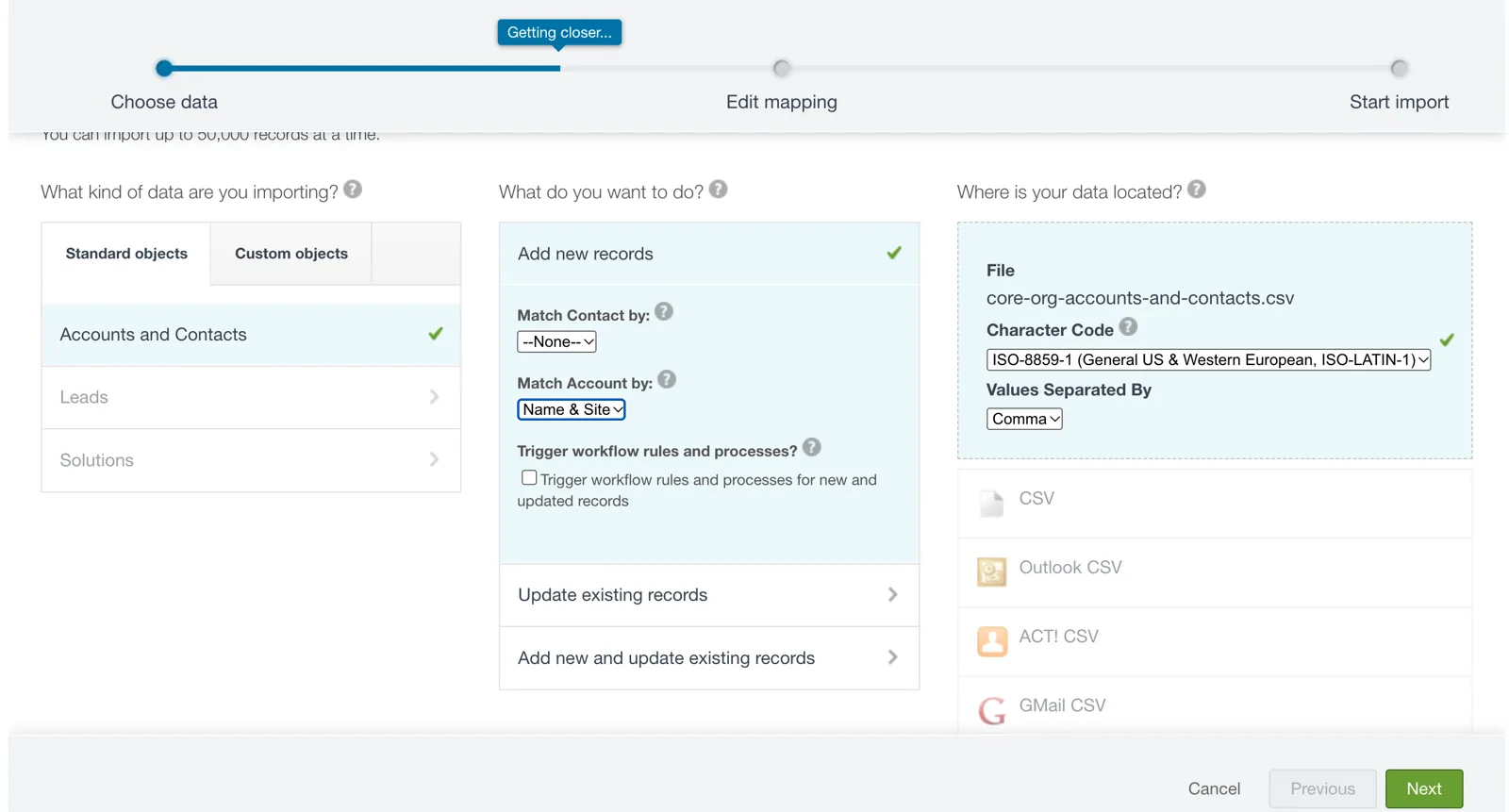
The fix: Match Account by Name & Site (Salesforce Data 360 in a Developer Edition org, screenshot, November 2026). Full size
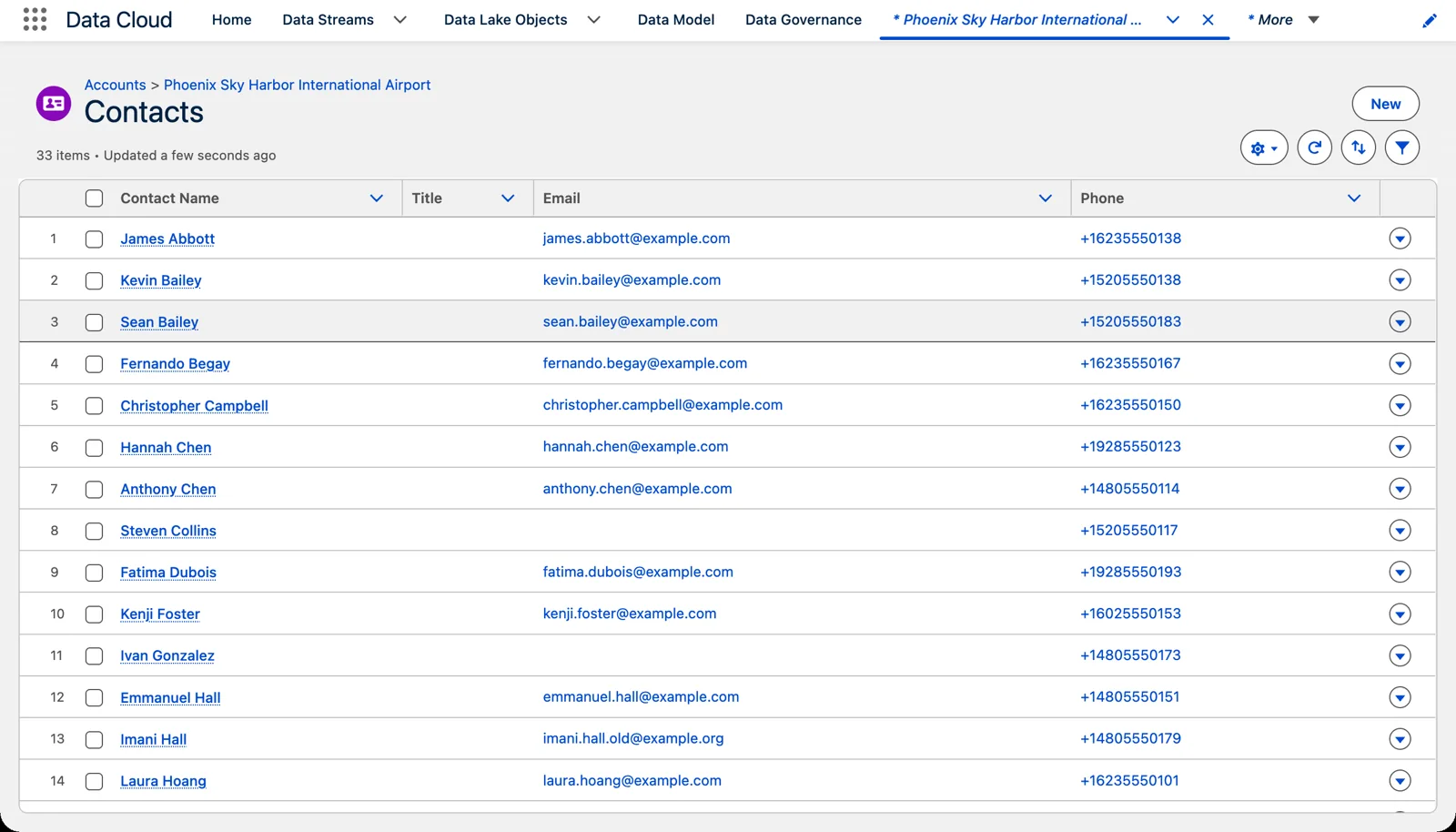
After the fix: 33 contacts on one airport (Salesforce Data 360 in a Developer Edition org, screenshot, November 2026). Full size
Then turn on the bundle and watch 150 Individuals arrive. These are the same contacts chapter 1 matched against the pilots file.
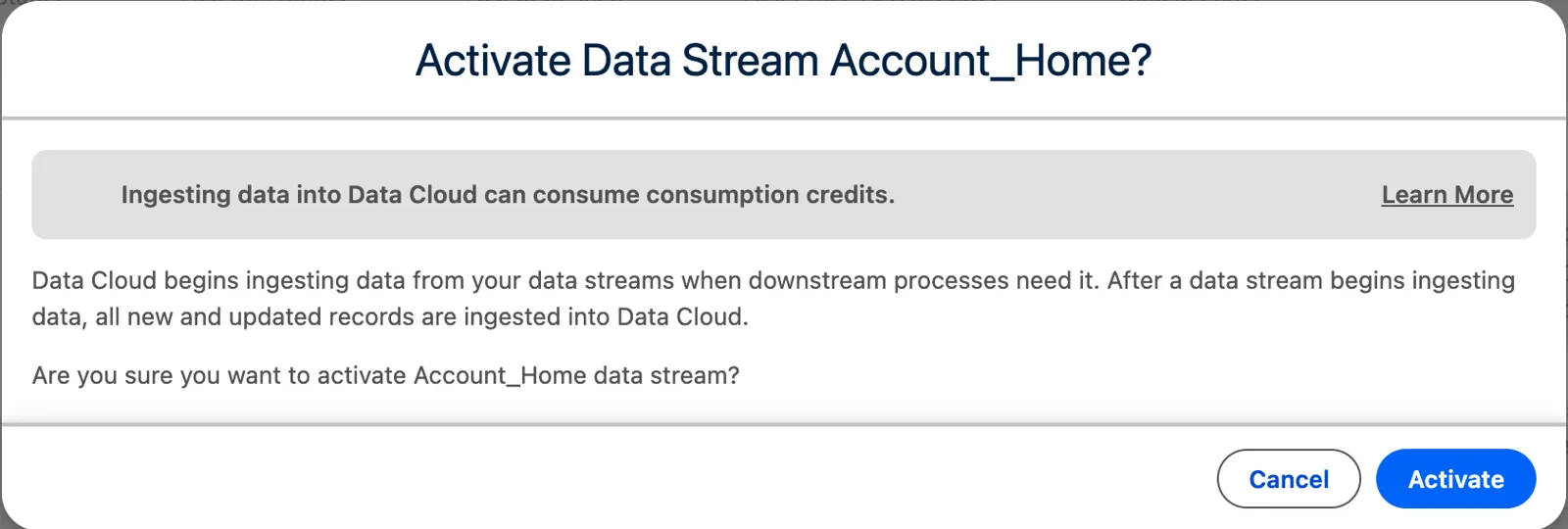
Activating a stream (Salesforce Data 360 in a Developer Edition org, screenshot, November 2026). Full size
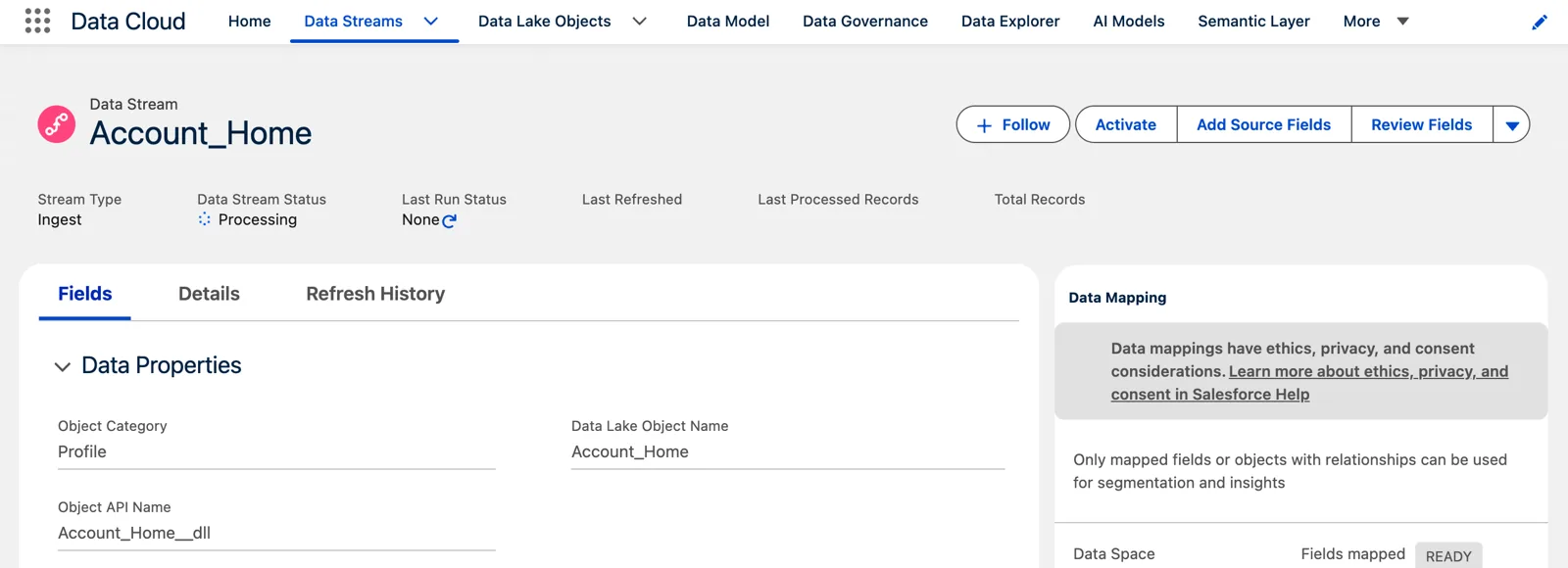
Just after Activate: Processing (Salesforce Data 360 in a Developer Edition org, screenshot, November 2026). Full size
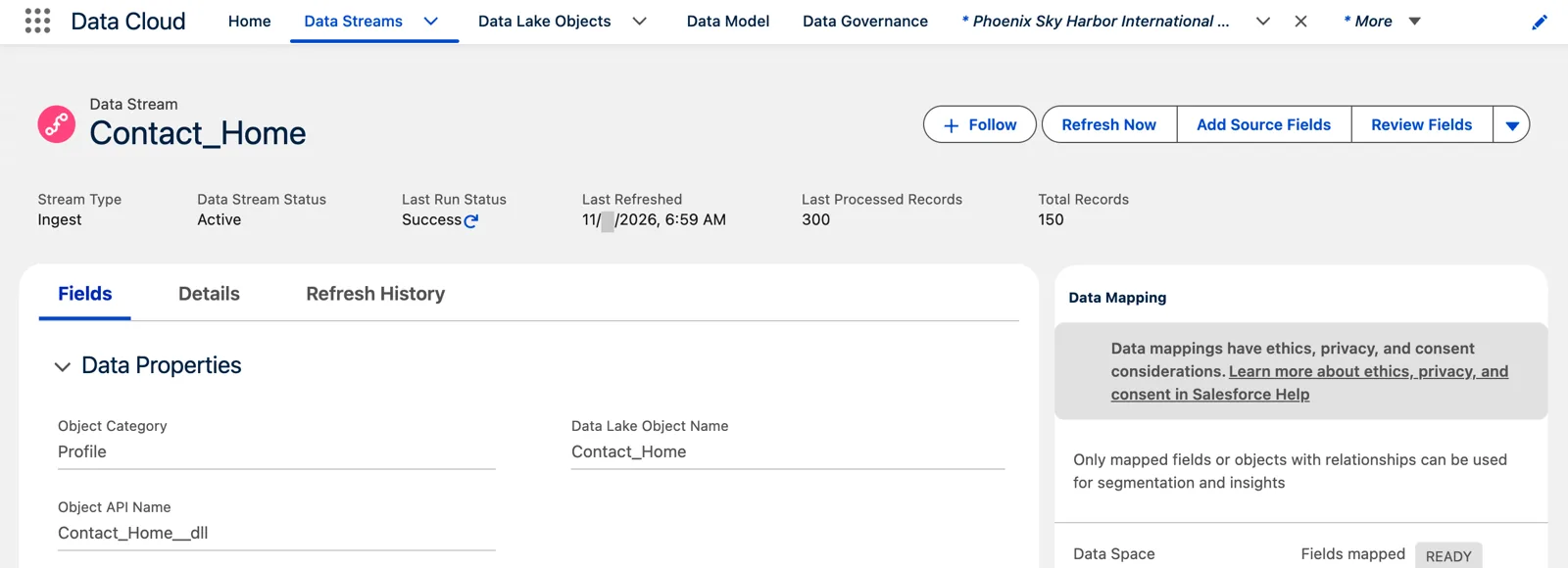
The contacts in, 150 of them (Salesforce Data 360 in a Developer Edition org, screenshot, November 2026). Full size
What it leaves to you
Section titled “What it leaves to you”The bundle gives you a fast, correct start for the standard objects. It doesn’t know your business.
- Only the fields you need. When you create the streams, Salesforce’s page says to “Deselect any fields not needed in your data stream.” That’s chapter 3, module 5, again: don’t bring in everything.
- Only the addresses you need. If shipping addresses matter to you, the bundle won’t map them. That’s a mapping you add (chapter 8).
- Your own objects aren’t in it. The custom objects your org has built over the years come in their own streams. That’s module 3.
Decide before you deploy
Section titled “Decide before you deploy”One caution from my own org. Once the bundle’s streams, lake objects and mappings were in, it was a little challenging to get it all deleted carefully, so I left it. That’s chapter 1 again: Data 360 is feed-based, and things are much easier to bring in than to take out.
So decide before you deploy: which bundle, which org, which data space, and which fields. Take the bundle’s mappings as a starting point, read them right to left, and change what your business needs before the data starts flowing.
Watch it on video
Section titled “Watch it on video”In 2023 I filmed the Sales Cloud bundle going in, and read its mappings on screen, right to left. Then I added email and phone to my own pilot data. The note under the video says what’s still right and what’s changed since.
What an architect decides here
Section titled “What an architect decides here”- Whether to start from a standard bundle or build the streams yourself.
- Which fields to keep, before the first deploy.
- Which data space the bundle’s streams go into.
- Which of the bundle’s mappings to keep, and which to add to (chapter 8).
Explore
Section titled “Explore”All checked 2026-11-14.
- Install Standard Data Bundles Powered by Data Kits (opens in a new tab), Salesforce Help.
- Create a Salesforce CRM Starter Bundle (opens in a new tab), Salesforce Help: the steps and the limits.
- SkyData: Bringing In CRM Data (opens in a new tab), this chapter’s data files.