
Custom Objects
Also in 28 languages
Español · 日本語 · Português (Brasil) · Français · Deutsch · Italiano · 한국어 · 简体中文 · Português (Portugal) · 繁體中文 · Bahasa Indonesia · Türkçe · Polski · Tiếng Việt · ไทย · Nederlands · العربية · עברית · Українська · हिन्दी · Русский · Svenska · Dansk · Norsk bokmål · Suomi · Español (México) · Français (Canada) · Deutsch (Schweiz)

Module 3 of 10 in the chapter Salesforce Data Architecture, chapter 3 of the Data Architect course. Each module stands on its own. Previous: Look to the Mothership: The Standard Data Models · Next: Where Does This Data Live?
The question this module answers: When Salesforce doesn’t have it, what do you actually get when you build your own object?
In the last module we looked at what Salesforce has already built. Sometimes it doesn’t have what you need. Steve Trucking runs trucks, and there’s no standard Truck object. So you build one: a custom object.
Here’s what I want you to see in this module. A custom object is created in metadata, like everything else in module 1, and the moment it exists it comes with a set of standard functionality. It isn’t a blank table. And the screen you fill in to create it is asking you architecture questions, whether you notice or not.
The New Custom Object Screen
Section titled “The New Custom Object Screen”Go to Setup → Object Manager → Create → Custom Object and you get one long form. Most people fill in the first two boxes and click Save. Let’s slow down and read it.
Label and Plural Label. “Truck” and “Trucks”. These are what users see, in tabs, page layouts and reports. You can change them later without much pain.
Object Name. This one is different: it’s the API name, the name code, integrations, reports and now agents use. Type “Truck” and Salesforce makes it Truck__c. Changing it later means finding everything that refers to it, which is the Reversibility Test from chapter 1 again. Get this one right the first time.
Description. Fill it in. Every time. In module 1 I said metadata isn’t decoration any more: the next admin reads this, and so does every AI tool that tries to understand your org. A custom object with an empty description is a box with no label on it.
Record Name. Every custom object has a Name field, and this is where you decide what it is. A Text name, like “Truck 117”, or an Auto Number, like T-000184, which Salesforce fills in for you. Read the warning on that screen: if you plan to insert a high volume of records through the API, Salesforce tells you to use Text. That’s the platform telling you something about scale before you’ve created a single record.

Salesforce Setup, New Custom Object: the Record Name section, with its warning (screenshot, 2026-10-12). Full size
Optional Features. Allow Reports, Allow Activities, Track Field History, Allow in Chatter Groups. Off by default. Each one is a capability you’re switching on for this object; decide on purpose.
Object Classification. Allow Sharing, Allow Bulk API Access, Allow Streaming API Access, all on by default. The screen says it plainly: with these on, the object is an Enterprise Application object; with them off, it’s a Light Application object. Those names line up with Salesforce’s app-subscription licenses: a Lightning Platform Light App has no record-level sharing and can’t use the Bulk API or Streaming API, and an Enterprise App can. My advice: leave them on unless you know exactly why not. Turn off Bulk API access on an object you’ll later load in volume, and you’ll find out why it mattered.
Deployment Status and Search. “In Development” hides the object from users while you build it; “Deployed” makes it live. And Allow Search is off by default, so users won’t find these records in global search until you turn it on. That one catches people every time.
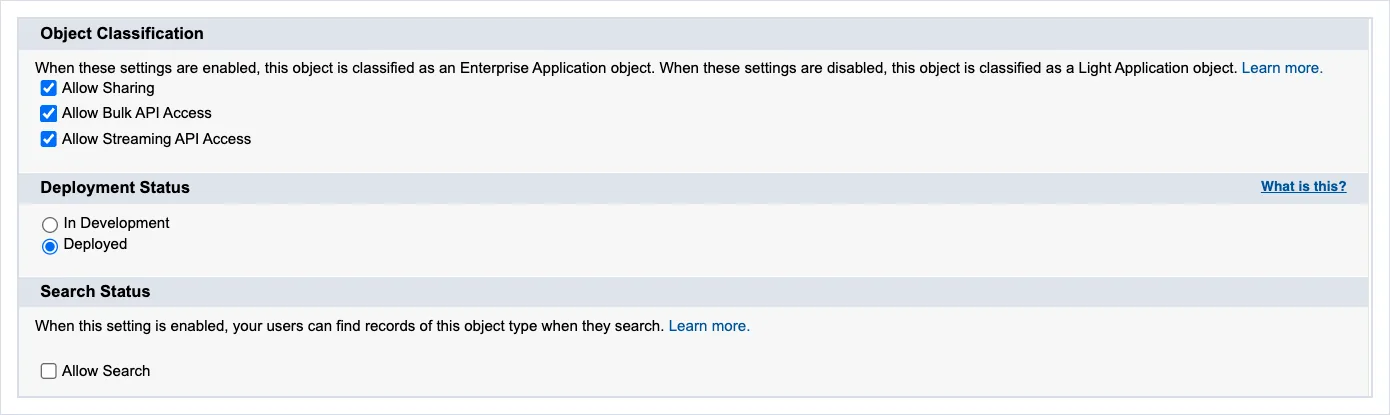
The defaults: the three API settings on, Deployed, and Allow Search off (screenshot, 2026-10-12). Full size
Click Save, and Object Manager shows you the object: API name Truck__c, a check in Custom, the labels, the deployment status. Look down the left-hand side, though: Fields & Relationships, Page Layouts, Lightning Record Pages, Record Types, Validation Rules, Triggers, Flow Triggers, Object Access, Field Access. That list is module 1 made visible. An object isn’t just storage; it’s the place all of that behavior hangs from.
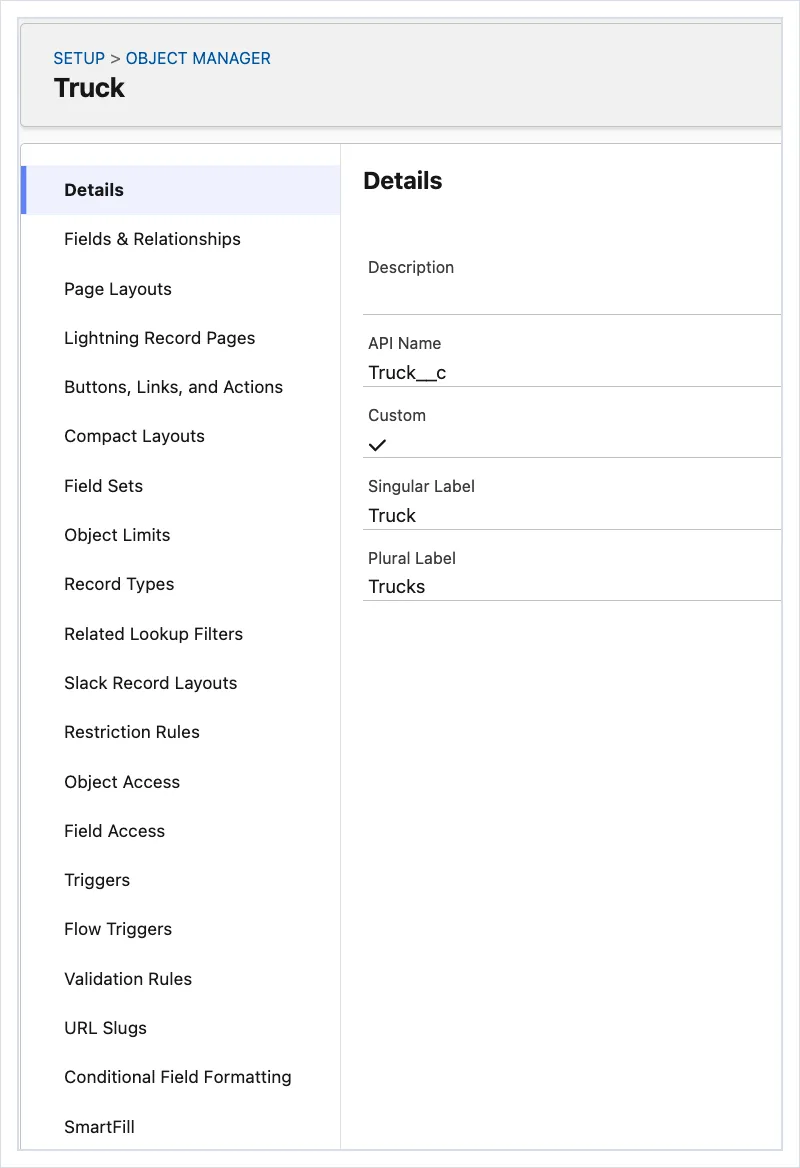
Object Manager, Truck: the API name Truck__c, Custom, and everything that hangs off an object (screenshot, 2026-10-12). Full size
The Fields You Didn’t Create
Section titled “The Fields You Didn’t Create”Open Fields & Relationships on a brand-new custom object, and it already has fields. Every custom object gets a standard set:
- Name, the record name you just chose, used in page layouts, related lists, lookups and search results.
- Owner, the user or queue that owns the record.
- Created By and Last Modified By, the users who created and last changed it.
- Currency, if multi-currency is on, and Division, if your org uses divisions.
And underneath, the record ID from module 1, and the created and modified dates. Export a few records with Data Loader and you’ll see them all.
One of them can disappear. Make your custom object the detail side of a master-detail relationship, and the Owner field goes away: ownership comes from the master record instead. That’s a bigger deal than it sounds, and we’ll come back to it in modules 7 and 8.
Prefixes and Suffixes: What You’re Looking At
Section titled “Prefixes and Suffixes: What You’re Looking At”In the last module I said standard objects have no prefix and no suffix. Everything else does, and once you can read them, a field list tells you exactly what you’re looking at.
| What it looks like | What it is |
|---|---|
Account, Case | A standard object or field: no prefix, no suffix |
Truck__c | A custom object, or a custom field, like Unit_Number__c |
abc__Inspection__c | A custom object from a managed package: abc is the vendor’s namespace |
Delivery_History__b | A big object (module 4) |
Shipment__x | An external object: the data lives in another system (module 4) |
Allergies__pc | A custom contact field on a person account (module 2) |
Truck__r | The relationship behind a custom lookup, when you follow it in a query |
A few things to notice.
So far that’s a list. Here’s how I teach it: as layers. There are three kinds of object, standard, custom and managed package, and every one of them can have the same kinds of field on it: the standard fields it came with, and the custom fields somebody added.
Standard objects. Account has no prefix and no suffix, and neither do its standard fields: Name, Industry, OwnerId. You can add custom fields to most standard objects, and every one you add ends in __c: Region__c (Custom Fields (opens in a new tab)). That suffix is what keeps you safe. Salesforce adds new standard fields to Account in its releases, and because yours always end in __c and theirs never do, a future standard field can never collide with a field you already have.
Custom objects. Your own object ends in __c, Truck__c (Custom Objects (opens in a new tab)), and so do the custom fields you put on it: Unit_Number__c. But the fields it was born with, the ones from the last section, are standard fields: Name, OwnerId, CreatedDate, no suffix. So even on your own object, the suffix tells you who made each field.
Managed package objects. When you install a managed package from AppExchange, its objects and fields come with the vendor’s namespace prefix: abc__Inspection__c, and fields like abc__Result__c. That prefix is unique to the vendor, and it doesn’t change (Namespace Prefix (opens in a new tab)). In Salesforce’s own words, the prefix is added to each component to make it unique: name__c becomes prefix__name__c (AppExchange Object Prefixes and the API (opens in a new tab)). So two vendors can both ship an object called Invoice__c and never collide with each other, or with you. The package’s objects still have their standard fields, Name and OwnerId, with no prefix. A package can also add its own prefixed fields to standard objects, like abc__Score__c on Account. And you can add your own custom fields to a package’s objects: Depot__c on abc__Inspection__c takes your __c suffix, but never the vendor’s prefix, because you made it, not them (Known Issue: unmanaged custom field on a managed package object (opens in a new tab)).
Read any API name and you know who made it. No suffix: Salesforce. __c with no prefix: your org. abc__ in front: the vendor. That matters every time you plan a change. What’s yours, you can change. What’s Salesforce’s, you configure and extend. What’s the vendor’s is mostly locked: a few things, like page layouts and help text, are yours to edit, but most of the package, and every API name, belongs to the vendor, and their upgrades bring their changes (Editable Properties After Package Promotion or Installation (opens in a new tab)).
Unmanaged packages don’t. Install an unmanaged package, and its objects land in your org as if you’d built them yourself, with no prefix. If it brings a Truck__c and you already have one, you have a name collision. Check before you install.
Build Only What Salesforce Doesn’t Have
Section titled “Build Only What Salesforce Doesn’t Have”Creating a custom object is easy; that’s exactly why I think we create too many of them. The New Custom Object screen will happily make you a Customer__c in an org that already has Account. So before you click it, ask the question from the last module: does the mothership already have this? If it does, use it. If it doesn’t, build it, and fill in the whole screen like an architect.
The next module asks an even earlier question: should this data be in Salesforce at all?
What an Architect Decides Here
Section titled “What an Architect Decides Here”- Whether Salesforce already has a standard object for this, before building a custom one.
- The API name, chosen once, and a description written for people and machines.
- The record name: Text or Auto Number, with the volume you expect in mind.
- Which optional features, API access and search to turn on, on purpose.
- What the suffixes in an org tell you: custom, managed, big, external, person account.
- Whether a package you’re about to install could collide with what you’ve built.
Explore
Section titled “Explore”- Custom Objects (opens in a new tab) and Custom Fields (opens in a new tab), Object Reference (checked 2026-10-13): “the names of custom objects include a suffix of two underscores followed by a lowercase ‘c’”; the same for custom fields; and the table of standard objects that support custom fields.
- AppExchange Object Prefixes and the API (opens in a new tab), Object Reference (checked 2026-10-13): a namespace prefix makes each packaged component unique; “name__c becomes prefix__name__c”.
- Namespace Prefix (opens in a new tab), Apex Developer Guide (checked 2026-10-13): namespace prefixes keep managed packages’ object and field names apart from other orgs’.
- Editable Properties After Package Promotion or Installation (opens in a new tab), Second-Generation Managed Packaging Developer Guide (checked 2026-10-13): which properties of a package’s components the developer, the subscriber, both or neither can edit.
- Custom Object Standard Fields (opens in a new tab), Salesforce Help (checked 2026-10-12): the standard fields every custom object gets (Name, Owner, Created By, Last Modified By, Currency, Division), and why Owner is removed on the detail side of a master-detail relationship.
- Standard User Licenses (opens in a new tab), Salesforce Help (checked 2026-10-12): a Lightning Platform Light App “can’t use the Bulk API or Streaming API”; an Enterprise App “supports record-level sharing, can use the Bulk API and Streaming API.”