
Fields Are Architecture Too
Also in 28 languages
Español · 日本語 · Português (Brasil) · Français · Deutsch · Italiano · 한국어 · 简体中文 · Português (Portugal) · 繁體中文 · Bahasa Indonesia · Türkçe · Polski · Tiếng Việt · ไทย · Nederlands · العربية · עברית · Українська · हिन्दी · Русский · Svenska · Dansk · Norsk bokmål · Suomi · Español (México) · Français (Canada) · Deutsch (Schweiz)

Module 6 of 10 in the chapter Salesforce Data Architecture, chapter 3 of the Data Architect course. Each module stands on its own. Previous: Choose the Right Object · Next: Relationships Have Consequences
The question this module answers: How should Salesforce physically represent each piece of data?
Creating a field takes about a minute. New Field, pick a type, name it, Next, Next, Save. That’s exactly why fields don’t get treated as architecture.
Go into an org that’s been around for ten years and open Account. Five hundred fields. Status2__c, Legacy_Status__c, Old_Status__c, Status_New__c. Three different customer numbers. A checkbox nobody will delete because nobody knows which integration still uses it. Creating the field took a minute. Living with it takes years. So the idea for this module is simple: a field is an architectural decision. Not always a big one, but every field encodes something about the meaning, behavior, identity or quality of the data, and like objects, fields are easy to add and surprisingly hard to take away.
What Does This Data Actually Mean?
Section titled “What Does This Data Actually Mean?”In chapter 2 we gave our entities attributes: a Delivery has a scheduled window, a Truck has a VIN. Now we implement them, and this is where people jump straight to “text field.” Wait. Before the type, I want to know what the data means. Is it a number, or an identifier that happens to have digits? A date, or a moment in time? Free text, or one of an approved set? Entered by a person, or owned by another system? Can it change? Must it be unique? Can it be missing? Should it be stored at all, or calculated? Those aren’t Setup questions. They’re data architecture questions, and the field type comes after we answer them.
A Number Isn’t Always a Number
Section titled “A Number Isn’t Always a Number”Steve Trucking gives every truck a fleet number, say 001247. Number field? Probably not. Do we add fleet numbers together? Is truck 1247 minus truck 1246 one truck? It’s an identifier that happens to contain digits, and a Number field would even drop the leading zeros. The same goes for postal codes, product codes, account numbers and tracking numbers. What the value looks like doesn’t tell you what it means. Choose the type for the behavior you need, not for what the sample data looks like.
Does a Human Need to Identify It?
Section titled “Does a Human Need to Identify It?”Every custom object gets a Name field, and the first decision is text or auto number. I ask: does a human need to identify this thing? People know a Retail Partner by name and a truck by its fleet number. But a manifest the system generates every night? Nobody should be typing “Manifest 10-02 Number 3” because Salesforce required a Name. Give it an auto number. Just don’t confuse that generated Name with the record’s identity: the auto number helps users, the Salesforce ID identifies the record, and the Retail Partner’s own manifest reference may identify the same thing across systems. Three different jobs.
The Details Screen
Section titled “The Details Screen”Pick a type, click Next, and Setup asks for the details. This is the screen where most of the decisions in this module actually get made, usually in a hurry.
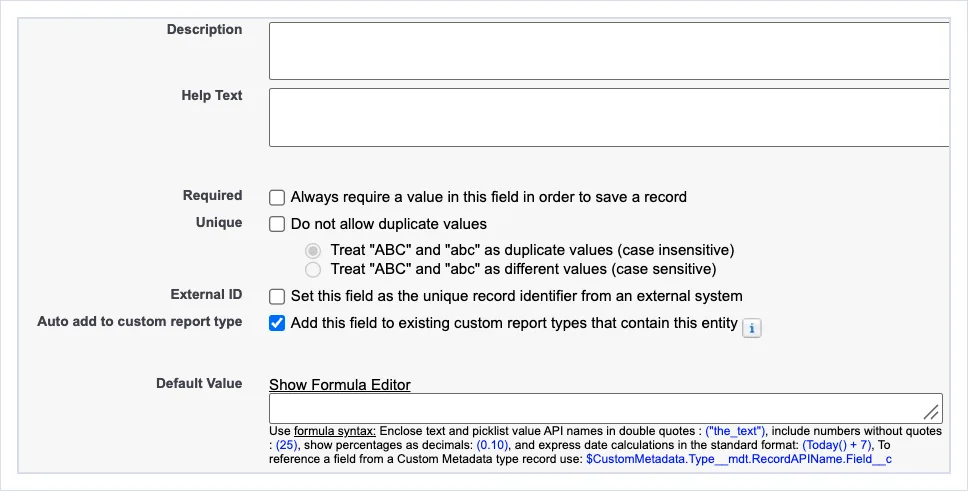
New Custom Field, step 2: the details (screenshot, 2026-10-12). Full size
Two boxes look alike and do different jobs. Description is for the people who maintain the org, and now for the AI tools that read it: what the field means, who owns it, where it comes from. Help Text is for the user on the screen: what to type here. Fill in both. Then come Required, Unique and External ID, and each of those deserves its own section. Below them, Default Value can be a formula, so a new record can start with a sensible value instead of a blank.
Required Is a Bigger Decision Than It Looks
Section titled “Required Is a Bigger Decision Than It Looks”There’s a little checkbox in the field wizard labeled Required, and as we saw in chapter 1, it can be a time bomb. You’ve had an object for five years and two million records, and now someone decides a new field must always have a value. What about the two million records that predate it? The integrations that don’t send it? The automation that creates the record before the value is known? The process where the value only turns up three steps later?
“Required” sounds like a data-quality decision, and sometimes it is. But when a value becomes known is part of the business process. So don’t check Required because somebody says “we always want that.” Ask when it’s known, who supplies it, and what happens when it isn’t. We’ll put this on the full consistency ladder in module 7.
Unique Means Something Too
Section titled “Unique Means Something Too”If I mark a field unique, I’m making a statement about the business: not “it usually doesn’t repeat,” but “two records may never have this value.” That’s strong. And the screen makes you decide one more thing: are “ABC” and “abc” the same value or different ones? Case-insensitive is the safer default for anything a person types. Chapter 2’s key rule, unique, unchanging, meaningless, never PII, applies here. If someone tells me employee email is unique, I start asking: can it change, can someone leave and come back, can addresses be reused, what happens after an acquisition? Email may be useful, even unique today. That doesn’t make it a good identity.
External IDs: Identity Across the Boundary
Section titled “External IDs: Identity Across the Boundary”This is where External IDs earn their keep. The screen describes it well: the field becomes “the unique record identifier from an external system.” The ERP has customer 873492; Salesforce has its own record ID. When the ERP sends an update, how do we know which record it belongs to? Mark a field as an External ID and an integration can upsert on it: create the record if it doesn’t exist, update it if it does (Upsert a Record Using an External ID (opens in a new tab)). And when you load child records, you can point at the parent by its External ID instead of querying for the Salesforce ID first. I like to say you let Salesforce do the lookup for you. Very powerful.
Notice the ERP’s number doesn’t become the Salesforce record’s identity. It’s an attribute, and a record may carry several: an ERP customer ID, a legacy ID, a partner’s ID. That’s fine. One business entity can be known differently by several systems. The architectural question is which system owns each identifier, and what promise it makes: mark it unique only if the business really guarantees that.
Field Type by Field Type
Section titled “Field Type by Field Type”Now the types themselves. Open New Field on any object and Setup shows you the whole list, grouped the way I’ll walk through it: the fields Salesforce calculates for you, the relationship fields, and then the data types.
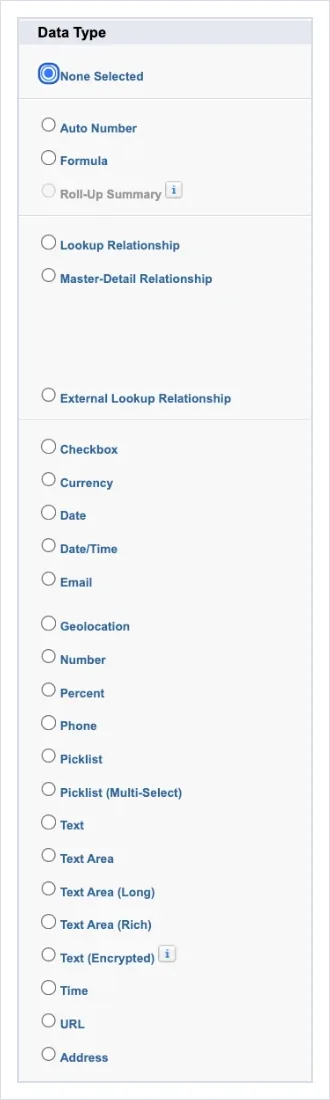
Setup, New Custom Field, step 1: the data types (screenshot, 2026-10-12). Full size
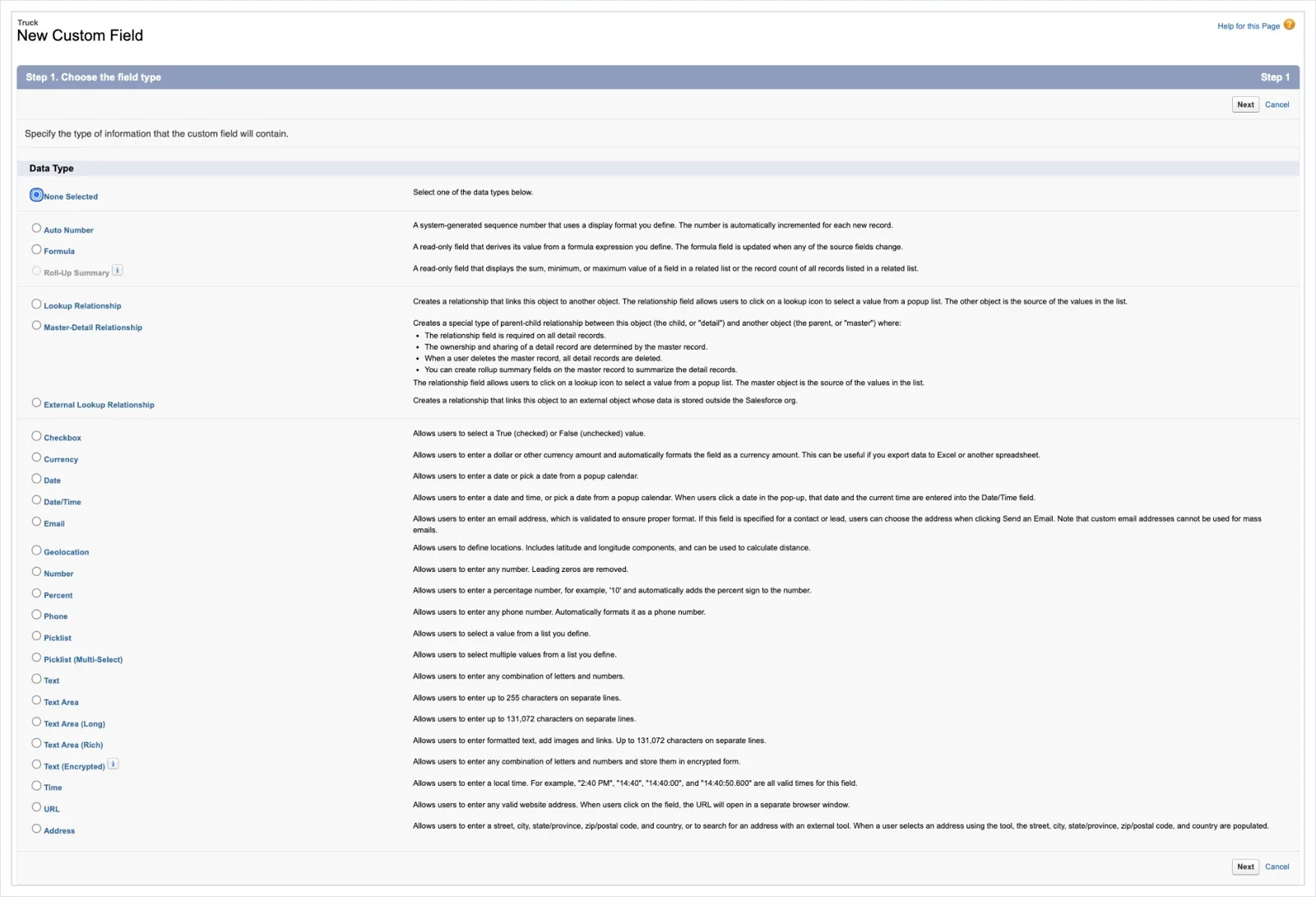
Here’s the whole list at a glance, with the one thing I’d want you to remember about each.
| Group | Type | Remember |
|---|---|---|
| Calculated | Auto Number | Up to 30 characters, 20 of them prefix or suffix; a label for people, not the record’s identity |
| Formula | Calculated when it’s read, not stored; 3,900 characters | |
| Roll-Up Summary | Count, sum, min or max of the details; master-detail only | |
| Relationships | Lookup, Master-Detail, External Lookup | Module 7 |
| Data | Checkbox | True or false, with a default you choose; null can still appear in flows |
| Number, Percent, Currency | Rounding rules; leading zeros dropped; 15 decimal places | |
| Date, Date/Time, Time | A day, a moment, or a time of day; moments are stored in UTC | |
| Email, Phone, URL | Formatted and checked on save: 80, 40 and 255 characters | |
| Geolocation, Address | Compound fields that cost more than one field: 3 and 9 | |
| Picklist, Multi-Select | A controlled vocabulary, owned by an admin | |
| Text, Text Area, Long, Rich, Encrypted | Up to 255 on the record and indexable; above that, no index or filtering |
The Fields Salesforce Calculates
Section titled “The Fields Salesforce Calculates”Auto Number assigns the next number in a sequence to every new record, in a format you define, like T-{000000}. Use it when a human needs a friendly handle and nobody should have to make one up. The whole value is up to 30 characters, and 20 of those are reserved for the prefix or suffix. Just remember from chapter 2: it’s a label for people, not the record’s identity, and the numbers aren’t always strictly sequential.
Formula fields calculate a value from other fields. They’re powerful, and they’re calculated when the record is read, not when it’s saved, so there’s nothing stored to go stale. You choose what the formula returns: a checkbox, currency, date, date/time, number, percent, text or time.
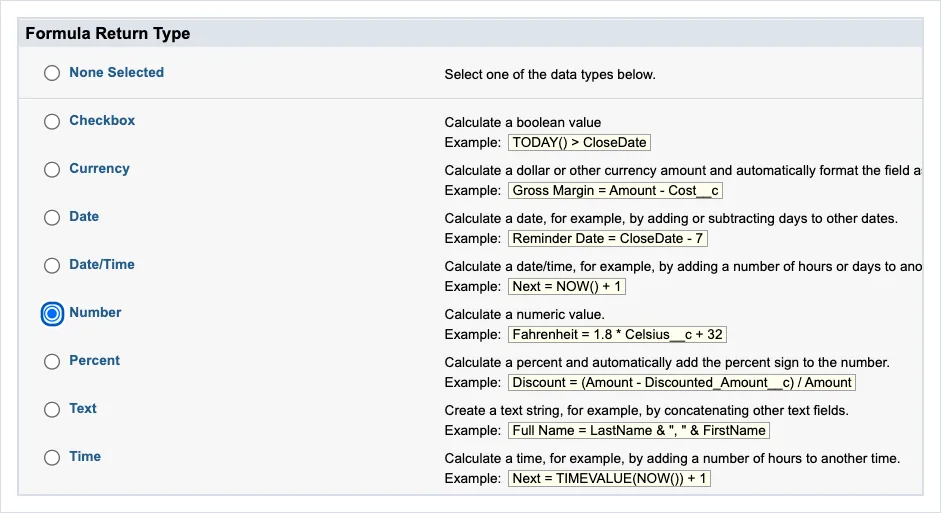
New Custom Field, formula: choosing the return type (screenshot, 2026-10-12). Full size
Then you write the formula itself, with fields, operators and functions, and check its syntax. Notice the Use Formula Assistant button: Salesforce’s AI will now help you write the formula. Use it, and then read what it wrote. You own the formula, not the assistant.
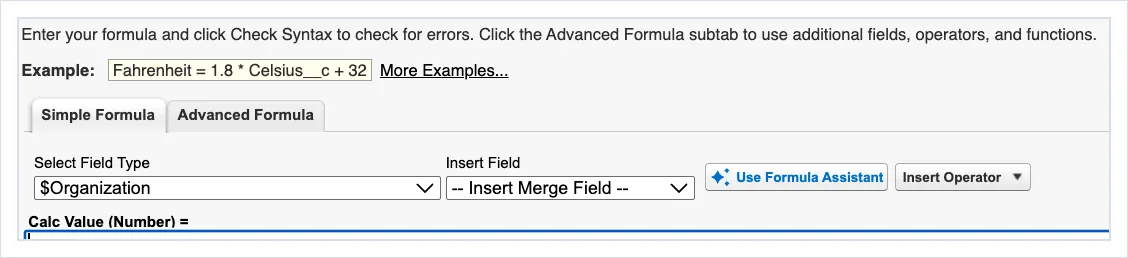
The formula editor, with the Formula Assistant (screenshot, 2026-10-12). Full size A formula can be up to 3,900 characters, and it can’t exceed 15,000 bytes when saved or compiled; a long formula can be split across several formula fields that reference each other. Long text areas, encrypted fields and Description fields can’t be used in them.
Roll-Up Summary fields sit on the master and count, sum, or take the minimum or maximum of its detail records. They only work across a master-detail relationship, which is one of the biggest reasons to choose master-detail at all. We’ll come back to them, and their limits, in module 7.
Stored or Derived?
Section titled “Stored or Derived?”Do we need to store this value at all? If I have quantity and unit price, does someone, or some automation, need to maintain a total? Maybe a formula should derive it: one source for the calculation, recalculated when it’s read, so change the quantity and the answer follows. Formulas have limits of their own (save size and displayed length; Formula Field Limits and Restrictions (opens in a new tab)), and complex ones get hard to maintain.
But sometimes the business doesn’t want today’s answer. It wants the answer as it was. If the discount rule changes next year, should last year’s invoice suddenly show a different amount? Of course not. So the question isn’t “can Salesforce calculate this?” It’s “is this a current calculation or a historical fact?” Historical facts get stored.
The Relationship Fields
Section titled “The Relationship Fields”Lookup, Master-Detail and External Lookup relationships are fields too, and they’re where your model’s lines become real. The lookup is the loose link; master-detail ties the child’s life, ownership and security to the parent; the external lookup reaches an external object from module 4, matching on its External ID. Choosing between them is a big enough decision to get its own module.
Checkbox
Section titled “Checkbox”A checkbox is the simplest field there is: true or false, checked or unchecked. It’s perfect for a yes/no fact about the record: Is Active, Install Required, Signed For. When you create one, Salesforce makes you choose its default value, checked or unchecked, and that’s a real decision: it’s what every new record starts with, including records an integration creates without sending the field. Reports and list views filter it as True and False; the import tools and the weekly export show it as 1 and 0.
One trap to know. The field on the record has two values, but the automation around it can have a third. In a flow, a checkbox variable that was never set is null, not false, and saving it to a record fails (Trailblazer Community (opens in a new tab); see also Salesforce known issue W-11208535 (opens in a new tab)). Pick a sensible default, and make your flows and code treat null on purpose.
Number, Percent and Currency
Section titled “Number, Percent and Currency”Number stores a real number, and drops any leading zeros, which is exactly why a fleet number like 001247 isn’t a Number. Salesforce rounds number fields half away from zero: 12.345 becomes 12.35, and −12.345 becomes −12.35. And in merge fields, it rounds to the user’s locale, not to the decimal places you set on the field.
Percent stores a decimal and shows a percentage: enter 0.10 and you see 10%. Values lose precision after 15 decimal places.
Currency is formatted for money, and in an org with several currencies it carries its currency code and can use exchange rates; with advanced currency management (opens in a new tab), opportunities can use dated exchange rates, the rate for the period the deal closed in. Only opportunities and the things around them (products, schedules, splits and their reports) use dated rates; currency fields on other objects keep the single static rate. Watch the rounding: with no decimal places, Salesforce simply truncates (23.5 becomes 23); with one or more, it rounds half away from zero.
Date, Date/Time and Time
Section titled “Date, Date/Time and Time”Three types, three different meanings. A Date is a day: a contract expires on a date. A Date/Time is a moment: the delivery arrived at 9:42 that morning. A Time is a time of day with no date at all: the store opens at 7:00, every day.
The trap is the moment. Salesforce stores date/time values in GMT (UTC). The time a user types is read in their time zone, converted, and stored; when someone reads it, it’s converted again into the reader’s time zone. Most of the time that’s exactly what you want. But here’s the example I give in class: a coordinator in Los Angeles logs a delivery late on Sunday night, at 10 p.m. Pacific. Underneath, Salesforce stored Monday morning, 5 a.m. GMT. A report grouped by day in another time zone, or an integration reading the raw value, can put that Sunday delivery on Monday. “The day it happened” depends on whose clock you ask. Watch the users’ time zones, and decide which one the business means.
And be careful comparing them. Underneath, a date/time is one big number: Apex reads it as the number of milliseconds since 1 January 1970, 00:00:00 GMT (Datetime Class (opens in a new tab)). It’s a precise moment, not a day. So asking whether two date/times are equal (==) almost never does what you want: 9:42:00 and 9:42:01 aren’t equal, and neither is “Monday” and any moment on Monday. Instead, ask for a range: on or after the start (>=) and on or before the end (<=). “Every delivery on Monday” is every delivery >= Monday 00:00 and <= Monday 23:59:59, in the time zone you decided the business means.
And a fun one: Salesforce can’t store just any date. Valid dates run from 1 January 1700 up to 31 December 4000, and Salesforce gives the same range for dates and date/times (Data Import Dates (opens in a new tab)). Even the edges are moments in GMT, so for a user in Pacific time the earliest valid value is 4 p.m. on 31 December 1699. Your historical society’s founding date may not make it in. And the classic “no end date” trick, 31 December 9999, gets rejected; if you need a far-future placeholder, it has to be in the year 4000 or before.
Email, Phone and URL
Section titled “Email, Phone and URL”These are the formatted fields, and they do more than store characters. Email holds up to 80 characters and is checked for a proper format; on contacts and leads, clicking it starts an email to that address. Phone holds up to 40 characters, is formatted as a phone number, and becomes click-to-dial when the org has a phone system connected. URL holds up to 255 characters and opens as a link. That’s the platform giving you behavior for free, which is why I’d never store a phone number in a plain text field.
Integrations get checked too. A value that doesn’t match the field’s format, such as a badly formed email address, fails validation, and the whole record is rejected, not just that field. So when the source system’s data is messy, clean it before it arrives, or plan for the records that won’t load.
Geolocation and Address
Section titled “Geolocation and Address”Geolocation holds a latitude and a longitude. Underneath, a field called Location__c is really two values you can read and set on their own, Location__Latitude__s and Location__Longitude__s. And you can query on it: SOQL’s DISTANCE and GEOLOCATION functions find records within a radius, or sort them by how far away they are. “Every open delivery within 25 miles of this truck” is one query: WHERE DISTANCE(Location__c, GEOLOCATION(33.45, -112.07), 'mi') < 25 (Location-Based SOQL Queries (opens in a new tab)). Address holds a whole address, street, city, state or province, postal code and country, and users can search for an address and have the parts filled in.
Both are compound fields: one field on the screen, several underneath. And they cost more than one field against your object’s limit: a Geolocation counts as three custom fields, and an Address counts as nine. On an object that’s already crowded, that matters.
Picklist and Multi-Select
Section titled “Picklist and Multi-Select”A picklist controls what users can enter: one value from a list you define. Status? Picklist, probably. But the values are metadata, and an admin has to add or change them. So I still ask who owns the values, how often they change, whether several objects need the same list, whether the values carry information of their own, and whether another system owns the vocabulary.
Where the values live is a decision too. When a list is used once, on one field, keep the values on the field itself, on the object; that’s what Salesforce does by default. But when the same set of values starts showing up in several places, a Region on the account, on the delivery and on the warehouse, promote it to a global value set before the copies drift apart. A global value set keeps one list for all of them, up to 1,000 values, active and inactive combined (Picklist Limitations (opens in a new tab)). Setup’s own description says why it matters: the value set “is restricted so users can’t add unapproved values through the API.” One list, one owner, and no integration sneaking in a new spelling.
That last point is the difference between restricted and unrestricted. On a restricted picklist, only the values an admin defined are allowed, from anywhere: a user, an import or an integration that sends anything else gets an error, “bad value for restricted picklist field”, and the record isn’t saved. On an unrestricted picklist, users still pick from the list on screen, but the API, imports and automation can send any value, and Salesforce saves it and adds it as an inactive value (Picklist Limitations (opens in a new tab); Create a Custom Picklist Field (opens in a new tab)). That’s how an org ends up with “Delivered”, “delivered” and “Dlvrd”. Global value sets are always restricted. My default is restricted; unrestricted is a deliberate choice for when another system really owns the values, and then somebody owns cleaning up the inactive ones.
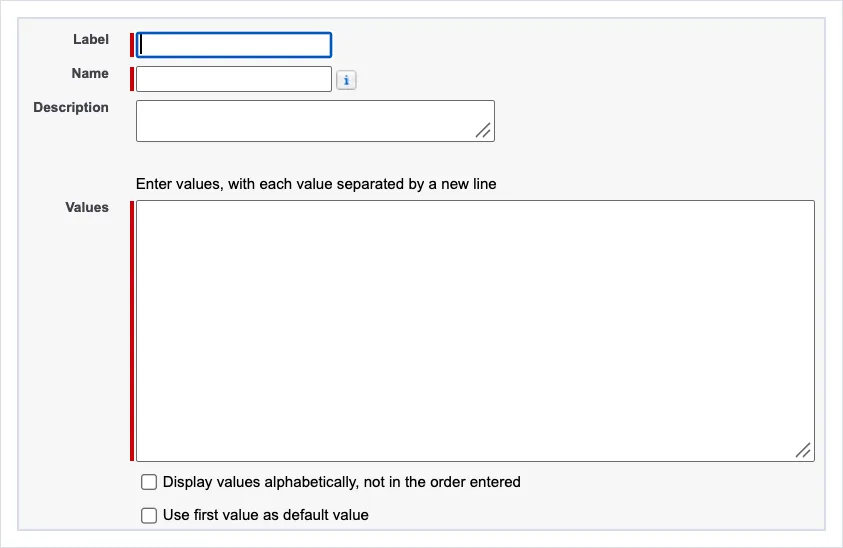
Setup, Picklist Value Sets: a new global value set (screenshot, 2026-10-12). Full size
A multi-select picklist lets a user pick several values, stored together separated by semicolons. Convenient on a screen, awkward everywhere else: harder to filter, report and integrate on, and it can’t be used in a roll-up summary’s filter. Several values for one record usually means chapter 2’s lesson: there’s a child object trying to get out.
A picklist also has one more value than the ones you defined: blank. A record can sit with nothing selected, and that catches people. In a formula or validation rule you can’t test a picklist with ISBLANK on its own; you write ISBLANK(TEXT(Field__c)), or ISPICKVAL(Field__c, "") (Trailblazer Community (opens in a new tab)). So decide what “no value” means for every picklist: is it allowed, and what does it mean when it happens? Then make your formulas, validation rules and filters handle it.
And sometimes an attribute is really an entity. Somebody asks for a picklist of distribution centers. There are nine. Easy. Then we learn each one has an address, a manager, hours, capacity, a region and trucks. That’s not a picklist; that’s a thing. Don’t turn an entity into a picklist just because there aren’t many of them yet. It feels great in year one and terrible in year five. (Chapter 2’s module 5 has my rules of thumb for when a list earns its own object.)
The Text Family
Section titled “The Text Family”I teach text as two kinds, and the line between them is 255 characters.
Up to 255: stored with the record. Text holds up to 255 characters, and you can use it almost anywhere: in formulas, filters, reports, list views, as a unique field or an External ID, and it can be indexed. Text Area also holds 255, on separate lines, like a short note.
Over 255: stored by reference. Text Area (Long) holds up to 131,072 characters, and Text Area (Rich) holds the same with formatting, links and images. I think of them as stored off to the side, with the record holding a pointer, and they behave that way: no index, so you can’t make them unique or an External ID; you can’t filter on them in a SOQL WHERE clause (SOQL WHERE (opens in a new tab)); formulas can’t use them (Formula Field Limits and Restrictions (opens in a new tab)); and reports show only the first 254 characters of a custom one, with report filters searching only about the first 255 (Filter Restrictions for Text Area (Long) Fields (opens in a new tab)). Images uploaded into a rich text field can be up to 1 MB each, and they count against file storage, while the text counts against data storage (Rich Text Area Field Considerations (opens in a new tab)). So if anybody needs to search, sort, match or report on the value, keep it under 255 and keep it a Text field.
Text (Encrypted) stores up to 175 characters in encrypted form, using Classic Encryption. If your org uses Shield Platform Encryption, you encrypt an ordinary Text field instead, and many other types can be encrypted that way too.
Give Every Field a Description
Section titled “Give Every Field a Description”My standard: every field gets a description. I’ve believed it for a long time, and in the time of AI it matters more than ever: every AI tool and agent that reads your org reads the descriptions to understand what a field means. An empty description is a guess waiting to happen. What does Customer_Status__c mean? Who owns it? Where does it come from? Can users edit it, or does the ERP overwrite it tonight? In six months I won’t remember, and in three years the admin maintaining the org won’t know unless we told them. The label isn’t documentation, and neither is the API name.
On heavily shared objects (Account, Contact, Opportunity) I also use naming prefixes for specialty fields, so their origin and purpose show in the name itself: everything the ERP owns starts with the same prefix, for example. I’m not after twelve-word API names. I want the model to explain itself.
Classify What Matters: the Taxonomy Fields
Section titled “Classify What Matters: the Taxonomy Fields”Salesforce gives every field a set of classification metadata. I call them the taxonomy fields. You can record the data owner; the field usage (Active, DeprecateCandidate, Hidden); the data sensitivity level (Public, Internal, Confidential, Restricted, MissionCritical); and the compliance categorization: PII, HIPAA, GDPR, PCI, CCPA and others. They work on standard fields as well as custom ones (Data Classification Metadata Fields (opens in a new tab)).
Why bother? Because processes can read them. Flag a field GDPR and a process can find every GDPR field on a record and mask or remove it. And when Salesforce’s trust layer sends a prompt to a large language model, it can use exactly this classification to mask sensitive fields: it swaps a customer’s name, say “Maria Lopez”, for a placeholder on the way out, the model never sees the name, and the name is swapped back into the response on the way in (Einstein Trust Layer (opens in a new tab)).
An update. Salesforce now documents that pattern-based and field-based masking for LLMs is disabled for agents: masking can strip the context an agent needs to answer (Data Masking Limitations in Agentforce (opens in a new tab)). Classification still drives masking for other generative AI features, but don’t count on it to keep personal data away from an agent; that’s an access and design decision (chapter 12).
My position: classification is important at key times. Don’t turn it into three weeks of filling in every box because governance said so. Use it where it matters: personal data, financial data, regulated data, and fields where the business needs a named owner. The point is that sensitivity stops being knowledge in somebody’s head and becomes part of the field.
Beyond the exam: what AI changes. Poor field documentation used to punish the next admin. Now it misleads every AI tool and agent reading the schema: is
Flag2__csensitive, authoritative, still used? AI also creates fields faster than any team, so names, descriptions and classification are part of the architecture, not housekeeping.
Every Field Is a Commitment
Section titled “Every Field Is a Commitment”Once a field is out there collecting data, everything starts leaning on it. Screens show it, flows branch on it, validation rules check it, reports group by it, integrations send it and read it, and now AI tools reason about it. Every one of them makes assumptions about the field: its type, its length, whether it’s ever blank, and what its values mean. Change the field later and you have to find every one of those assumptions first. Renaming a picklist value, shortening a text field, or turning a Text field into a picklist sounds like a small change, and it can break an integration in another company’s system. That’s why a field is a commitment.
I don’t want you leaving this module afraid to create fields. Salesforce is built to be extended; use it. I want the question to change from “what field type should I pick?” to “what does this data mean, and what behavior are we committing to?” Type, required, unique, External ID, picklist, formula, description, classification: together they’re the physical expression of chapter 2’s logical model.
What an Architect Decides Here
Section titled “What an Architect Decides Here”- What the value means before choosing the field type, and whether it’s an attribute, an identifier, a controlled vocabulary or really another entity.
- Whether a value is a current calculation that can be derived or a historical fact that must be stored.
- Which system owns each identifier, and whether its uniqueness is a real business promise.
- When a required value is actually known, and what happens to records and integrations that don’t have it.
- What description, naming and classification the field needs so people, processes and AI can use it safely.
Explore
Section titled “Explore”- Salesforce Help, Data Classification Metadata Fields (opens in a new tab), checked 2026-10-02.
- Salesforce Help, Einstein Trust Layer: Designed for Trust (opens in a new tab) and Data Masking Limitations in Agentforce (opens in a new tab), checked 2026-10-02.
- Salesforce Developers, Insert or Update (Upsert) a Record Using an External ID (opens in a new tab), checked 2026-10-02.
- Salesforce Help, Picklist Limitations (opens in a new tab), checked 2026-10-02.
- Salesforce Help, Formula Field Limits and Restrictions (opens in a new tab), checked 2026-10-02.
- Salesforce Developers, Date Formats and Date Literals (opens in a new tab), checked 2026-10-02.