
Encryption Gen One
Este conteúdo não está disponível em sua língua ainda.
Module 2 of 7 in the chapter Encryption: Classic, Shield and Apex Crypto, chapter 18 of Securing Salesforce: Sharing and Visibility. Each module stands on its own.
The question this module answers: Salesforce includes an encrypted field type with every license. What does it do, what do you give up, and when is it enough?
Encryption Gen One and Gen Two
Section titled “Encryption Gen One and Gen Two”You’ll find a pattern all over Salesforce. They build a first version that gets them onto the playing field: it checks the boxes that let a whole group of customers say yes. Then they build the second version properly, or acquire it. I call those Gen One and Gen Two.
Encryption is one of them. Gen One is Classic Encryption (in my older classes I called it standard encryption). Gen Two is Shield Platform Encryption, which the next module covers. Salesforce’s own description of Gen One is a fair one: it restricts other users “from seeing custom text fields that you want to keep private” (Classic Encryption for Custom Fields (opens in a new tab), Salesforce Help, checked 2026-11-26). Custom text fields. That’s the whole scope, and it’s a narrower purpose than Shield’s.
It’s on the exam in exactly that form: know the difference between Classic and Shield. You don’t need to memorize every limit on the list. Get the feeling of it.
A field type, not a setting
Section titled “A field type, not a setting”Classic Encryption isn’t something you switch on for a field you already have. It’s its own field type: when you create a custom field, you choose Text (Encrypted). Salesforce’s description of the type: you “can set a maximum length of up to 175 characters,” and the fields “are encrypted with 128-bit master keys and use the Advanced Encryption Standard (AES) algorithm” (Custom Field Types (opens in a new tab), Salesforce Help, checked 2026-11-26). The 175 characters are a limit “because of the encryption algorithm” (Classic Encryption for Custom Fields). 128-bit AES is good. Shield uses 256-bit.
And because it’s a type, it can’t be added later. “Existing custom fields can’t be converted into encrypted fields nor can encrypted fields be converted into another data type.” To encrypt values you already have: export the data, create a new encrypted field, and import the data into it (same page). If you already know a field is going to need encryption, decide before it has data in it.
It’s included: Salesforce’s comparison lists Classic Encryption as “Included in base user license,” next to “Additional fee applies” for both kinds of Shield (Differences Between Classic Encryption and Shield Platform Encryption (opens in a new tab), Salesforce Help, checked 2026-11-26).
Masking, and View Encrypted Data
Section titled “Masking, and View Encrypted Data”Here’s where Gen One behaves differently from everything in module 1. Module 1 said encryption at rest is about logins, not permissions: a user with access to the field sees the value. Classic Encryption adds something on top: a mask, and a permission.
When you create the field you pick a Mask Type and a Mask Character (* or X). The mask types are Mask All Characters, Last Four Characters Clear, Credit Card Number, National Insurance Number, Social Security Number and Social Insurance Number; Credit Card Number, for example, hides the first 12 characters and shows the last four (Custom Field Attributes (opens in a new tab), Salesforce Help, checked 2026-11-26). Only users with the View Encrypted Data permission see the value unmasked. Everyone else who can see the field sees the mask.
So with Classic Encryption, what hides the value from a logged-in user is the mask and that permission, not the encryption itself. Salesforce’s comparison table lists the two as separate rows: masking, and “View Encrypted Data Permission Required to Read Encrypted Field Values”. Classic has both; Shield has neither. That’s why “data can be masked but not encrypted, or encrypted but not masked,” from module 1.
A few details from the Help page that catch people:
- Editing isn’t protected. “Encrypted fields are editable regardless of whether the user has the View Encrypted Data permission.” Use field-level security, page layouts or validation rules to stop edits.
- Login access passes it on. If a user with View Encrypted Data grants login access to another user, that user “can see encrypted fields in plain text.”
- Email templates always mask. You can use the fields in email templates, “but the value is always masked,” whoever you are.
- Some users can’t have it at all. The fields aren’t available to users with some partner and customer portal license types (“Partner, PowerPartner, CspLitePortal, CustomerSuccess, or PowerCustomerSuccess”), “even if users have the View Encrypted Data permission.” If the site from chapter 15 needs the value, Classic Encryption isn’t the answer.
- Mask Type isn’t validation. It “isn’t an input mask that ensures the data matches the Mask Type.” Use a validation rule for the format.
(All from Classic Encryption for Custom Fields.)
Here’s a Classic encrypted field in a lab org, with its mask:
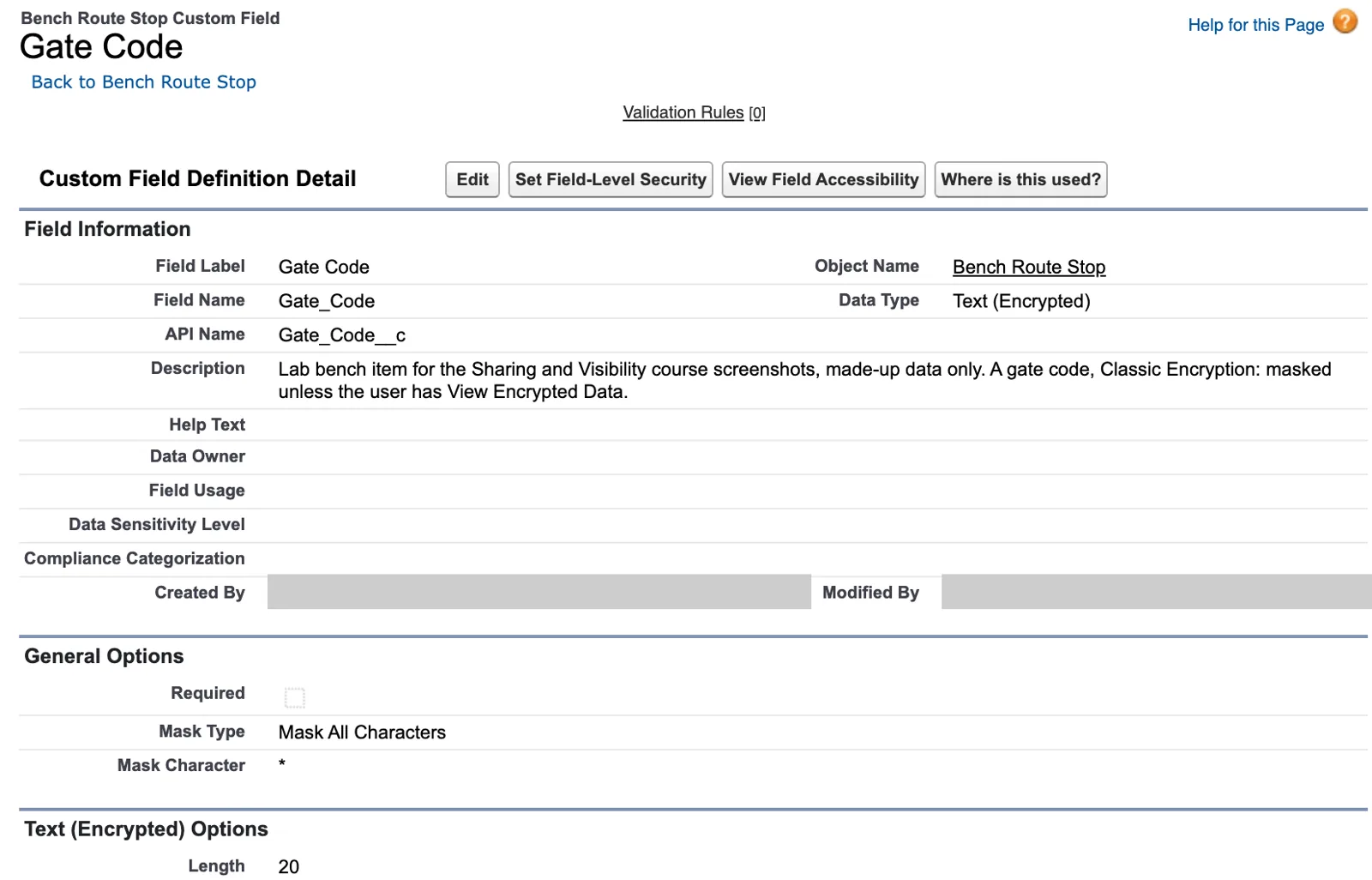
A field type, a mask, and a length of 20 (Salesforce, Setup in a Partner Developer Edition org, screenshot, November 2026). Full size
What you give up
Section titled “What you give up”Encryption you don’t need still costs you everything it costs, and Gen One’s costs are on a long list. On the Help page, encrypted text fields:
- can’t be unique, an external ID, or have default values;
- aren’t available in filters: list views, reports, roll-up summary fields and rule filters; they can’t be report criteria, though they can appear in report results;
- aren’t searchable, though they can appear in search results;
- aren’t available for lead conversion or mapping leads, formula fields, workflow rule criteria or formulas, the Assignment element in a flow, outbound messages, or Web-to-Lead and Web-to-Case forms.
Read that list as a designer. A field that can’t be searched, filtered or reported on is a field nobody uses to find a record. That’s fine for a value you only ever look at once you’re on the record. It’s a problem for anything a process runs on.
Who holds the keys
Section titled “Who holds the keys”With Classic Encryption Salesforce generates the key. You “can archive, delete, and import” it, and “To enable encryption key management, contact Salesforce” (Classic Encryption for Custom Fields). What it can’t do, in the comparison table: store keys outside Salesforce, derive keys from a hardware security module, or use a separate Manage Encryption Keys permission.
This is the point where some compliance environments push back. The question I hear is: why does a third party have control of the encryption? Why don’t you? If a regulation, an auditor or a customer’s contract asks that, Classic Encryption isn’t the answer. That’s Shield, and its key options are module 4.
When it’s enough
Section titled “When it’s enough”Salesforce’s own advice is narrow: “Use encrypted custom fields only when government regulations require it because they involve more processing and have search-related limitations” (Classic Encryption for Custom Fields).
So, when I ask the room which field they’d flag, the answer is a single short identifier: a social security number, a national insurance number, a tax ID. Classic Encryption can be enough when all of these are true:
- A requirement names it. A regulation, contract or policy asks for that field to be encrypted at rest (module 1’s order: the threat, the classification, the requirement, then the tool).
- It’s short text. Up to 175 characters, on a custom field. Not a date, not a file, not a standard field.
- Nobody needs to find records by it. No search, filter, report criteria, formula or automation runs on it.
- Only a few people need the full value, and the rest are well served by a mask such as the last four digits.
- The keys can stay with Salesforce, and no external user needs the value.
If any one of those fails, the conversation is about Shield. And if the org already has Shield Platform Encryption, don’t use this field type at all: Salesforce’s guidance is to “use Text to create an encrypted text field” (Custom Field Types).
Honestly, I can’t remember the last time I turned Classic Encryption on for a client. When encryption is a real requirement, the requirement usually goes further than Gen One. But it’s included, it’s simple, and for one short field and a mask it can be exactly right. My question in a design review is always the same: if they need encryption, why not Shield? Sometimes there’s a good answer.
Test knowledge. Know Classic Encryption as a dedicated custom field type, Text (Encrypted): up to 175 characters, 128-bit AES, included in the base license. Know that it masks the value (mask types and mask characters), that only users with the View Encrypted Data permission see it unmasked, and that encrypted fields are still editable without that permission. Know its restrictions: not unique, external ID or default values; not in filters, report criteria, search, formulas, workflow, lead conversion, flow assignment or Web-to-Lead; not available to some partner and customer portal licenses; existing fields can’t be converted. Know how it differs from Shield Platform Encryption: 256-bit AES, standard fields, files and attachments, key control, an additional fee, and no masking. A likely area, not a known question.
What an architect decides here
Section titled “What an architect decides here”- Whether the requirement names a field that Classic Encryption can carry, or goes further (keys, files, standard fields, search), which means Shield.
- That an encrypted field is created as encrypted from the start, and how existing data moves into it if not.
- The mask type, and who gets View Encrypted Data: a short list, granted through a permission set, reviewed.
- How edits are stopped for users who see only the mask: field-level security, page layouts or validation rules.
- That no search, report, formula, automation or external user depends on the field.
Beyond the exam: what AI changes. Classic Encryption’s mask follows the View Encrypted Data permission of the user the work runs as. So the question for an agent or an integration is the same one this course keeps asking: which user does it run as, and what does that user hold? If that user has View Encrypted Data, it gets the full value. Give it the permission only if its job truly needs the whole number. Chapter 20 covers agents.
Explore
Section titled “Explore”- Classic Encryption for Custom Fields (opens in a new tab), Salesforce Help (checked 2026-11-26)
- Differences Between Classic Encryption and Shield Platform Encryption (opens in a new tab), Salesforce Help (checked 2026-11-26)
- Custom Field Attributes (opens in a new tab), Salesforce Help (checked 2026-11-26)
- Custom Field Types (opens in a new tab), Salesforce Help (checked 2026-11-26)