
What Salesforce Connect Is
Nội dung này hiện chưa có sẵn bằng ngôn ngữ của bạn.
Module 1 of 6 in the chapter Data Connectivity and Virtualization, chapter 19 of the Integration Architect course. Each module stands on its own. Previous chapter: Enterprise Integration Architecture · Next: What OData Is
The question this module answers: What is Salesforce Connect, what does it let you do, and where can it reach?
As Though It Were Inside Salesforce
Section titled “As Though It Were Inside Salesforce”Here’s the need. A salesperson opens a customer’s account in Salesforce. Before the call, they want to see what that customer has ordered. But the orders don’t live in Salesforce. They live in an order system, an ERP, going back years: tens of millions of orders, and hundreds of millions of order lines.
You could copy them all in. Then you’d pay to store them, keep the copy current, and explain why yesterday’s numbers are on the screen. Do you data load a hundred million order lines into Salesforce so a salesperson can glance at a few of them? The answer is you don’t.
That’s the job Salesforce Connect does. In my own words to a class: Salesforce Connect is a powerful integration tool that lets you view and access external data as though it were inside of Salesforce. This is what’s called virtualization. Salesforce makes the callout, Salesforce brings the data in, and you just treat it like an object. The data stays where it is. You only see it when you touch it.
Salesforce describes it the same way: it lets your users “view, search, and modify” data stored outside your org, and instead of copying it in, it “accesses the data on demand and in real time” (Salesforce Connect (opens in a new tab), Salesforce Help, checked 2026-11-06).
Salesforce recommends it when three things are true:
- You have a large amount of data that you don’t want to copy into your org.
- You need small amounts of it at any one time.
- You want real-time access to the latest data.
Keep those three in mind. When one of them isn’t true, the answer may be a copy instead, and the Data Architect course takes that decision apart in Copy, Virtualize or Federate.
Three Pieces: the Data Source, the Adapter, the External Object
Section titled “Three Pieces: the Data Source, the Adapter, the External Object”Salesforce Connect is three pieces, and you set them up in this order.
- The external data source. In Setup, under External Data Sources, you tell Salesforce where the outside system is: its address, how to sign in (a named credential), and which adapter to use.
- The adapter. You choose it in the data source’s Type field. The adapter is the language Salesforce speaks to that system: OData, SQL, GraphQL, another Salesforce org, and more. Salesforce calls them adapters; you’ll also hear connectors. The list is in Where It Can Reach below.
- The external object. One external object for each table you want to see. Each external object “maps to a data table, and the object fields map to accessible table columns” (External Objects in Salesforce Connect (opens in a new tab), checked 2026-11-06).
You can tell an external object by its name. Custom objects end in __c. External objects end in __x. So the orders become Order__x, and the order lines become Order_Detail__x.
Here’s what happens when you set one up. You save the data source, then press Validate and Sync. Salesforce goes out to the system and asks: tell me what you’ve got. What are your tables, and what’s in them? The system answers with its list. In the Trailhead quick start I teach from, it comes back with categories, orders, order details, payments. You tick the ones you want, say orders and order details, and Salesforce creates an external object for each one, with its fields.
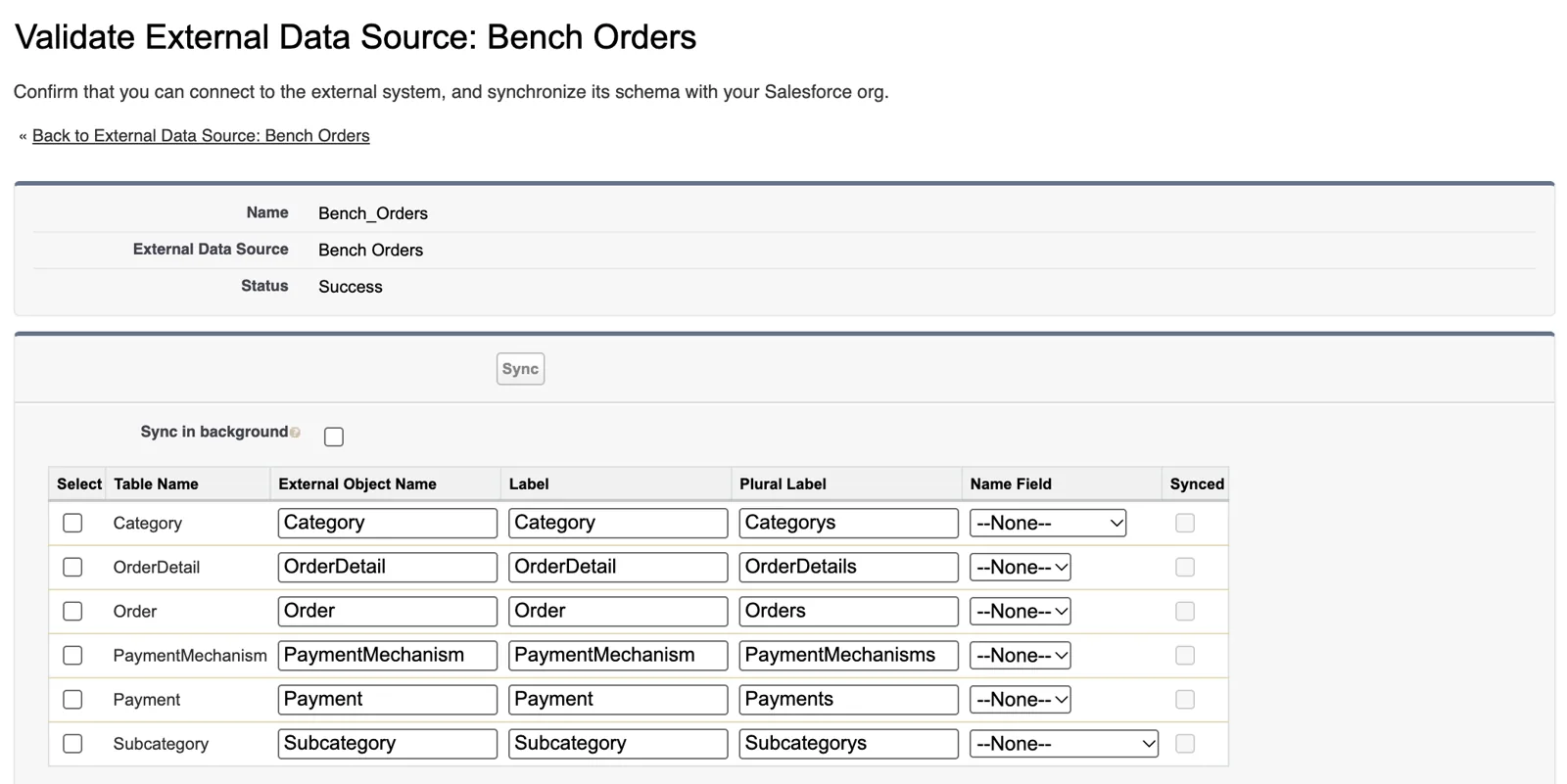
Validate and Sync: the service’s tables, ready to choose. The names are only proposals; you can fix them before you sync (Salesforce, Setup in a Developer Edition org, screenshot, November 2026). Full size
No rows were copied. Salesforce now knows the shape of the data, and where to ask for it.
It Looks and Acts Like an Object
Section titled “It Looks and Acts Like an Object”This is the point of Salesforce Connect. The first time I showed it to a class, I opened an order on the screen and said: that looks like a Salesforce screen, but none of this data is inside Salesforce. It looks and acts like an sObject, even though it’s an __x object.
In Salesforce’s words, external objects “behave similar to custom objects,” except that the data is stored outside. So most of what you know about custom objects carries over. As Salesforce Help lists it on 2026-11-06 (Salesforce Platform Features Supported by Salesforce Connect (opens in a new tab); More Features Supported by Salesforce Connect (opens in a new tab)), external objects work in:
| Where people see it | Where code and admins use it |
|---|---|
| Tabs, page layouts and related lists | SOQL and SOSL |
| Global search | Apex |
| Reports (they “can take a long time to run”) | The Salesforce APIs |
| Record feeds, and quick actions | Flows |
| The Salesforce mobile app | Metadata API, change sets and packages |
Two small cautions from that same list. In Lightning Experience, the data source must have the High Data Volume option turned off (the cross-org adapter is the exception). And reports and dashboards work, but be careful: every report asks the outside system for its rows while someone waits.
Here’s one order, opened like any record. Every value on it came from the service a moment ago, and none of it is stored in Salesforce.
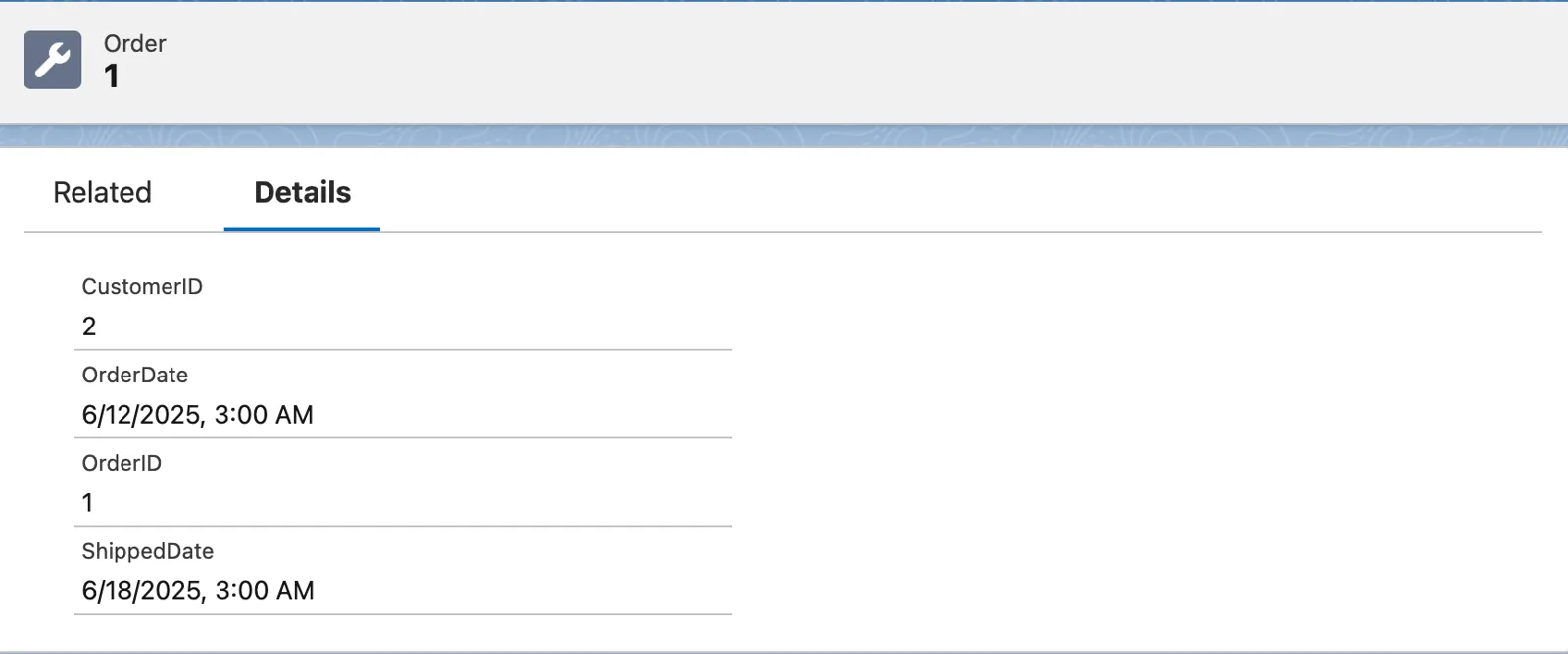
An external object’s record, read live from the order service (Salesforce, a Developer Edition org, screenshot, November 2026; the dates are the sample service’s). Full size
Three Lookups, Two of Them New
Section titled “Three Lookups, Two of Them New”How do you relate records in Salesforce? Master-detail and lookup. External objects add two more, and they’re on the test.
Why two more? A normal lookup stores the parent’s 18-character Salesforce record ID. But the order system has never heard of a Salesforce record ID. It knows its own customer numbers. So Salesforce lets you match on a value both sides know (External Object Relationships (opens in a new tab), checked 2026-11-21):
| Relationship | The child | The parent | How the records match |
|---|---|---|---|
| Lookup (direct) | Standard, custom or external | Standard or custom | The 18-character Salesforce record ID |
| External lookup | Standard, custom or external | External | The parent’s External ID standard field |
| Indirect lookup | External | Standard or custom | A custom field on the parent marked External ID and Unique |
In the orders example, both new ones appear. The orders point to the account with an indirect lookup: the order carries the customer number, and the account has a unique external ID field holding the same number. Then the order lines point to the order with an external lookup: both are outside. Add the related lists to the page layouts, and you can open an account, see its orders, open an order and see its lines. Two external objects deep, and none of it is stored in Salesforce.
Notice what the indirect lookup needs. The customer number has to be on the account already. You’ll need some kind of data sync to bring in the keys. Salesforce Connect shows the outside data; it doesn’t put the matching keys on your records for you.
And the first row of the table still works for external objects. If the outside data really does hold the parent’s Salesforce record ID, an external child can use an ordinary lookup. I think of it as the direct lookup: no other key in between. In Setup it’s the same field type as anywhere else, Lookup Relationship, and you give it the external column that holds the 18-character IDs (Lookup Relationship Fields on External Objects (opens in a new tab), checked 2026-11-21). It’s the rare case. Most outside systems know their own keys, not Salesforce’s, and that’s why the indirect lookup exists.
Where It Can Reach
Section titled “Where It Can Reach”Each adapter speaks to a different kind of system. As Salesforce Help lists them on 2026-11-06 (Choose Which Salesforce Connect Adapter to Use (opens in a new tab)):
| Adapter | What it reaches | A typical use | Since |
|---|---|---|---|
| OData 2.0, 4.0 and 4.01 | Any system that publishes an OData service. OData is an open standard for asking a service for its tables and rows | ERP and back-office systems; Salesforce names SAP and Microsoft | 2.0 from the start, when Salesforce launched it as Lightning Connect in November 2014; 4.0 later; 4.01 in Winter ‘24 |
| Cross-org | Another Salesforce org, through its REST API | One org seeing another org’s records | By Summer ‘15, then called the Salesforce adapter |
| Custom, in Apex | Anything you can call. You write the adapter with the Apex Connector Framework | A REST API none of the others can speak to | Summer ‘15, as the Apex Connector Framework |
| Amazon DynamoDB | DynamoDB tables | Data that lives in AWS | Generally available June 2022 |
| SQL | Snowflake and Amazon Athena, through their REST APIs. Athena can itself query data in Amazon S3 and other AWS stores | Data in a cloud data warehouse or a data lake | Athena in Winter ‘23; renamed the SQL adapter, with Snowflake added, in Summer ‘24 |
| GraphQL | Any system that offers a GraphQL API | Salesforce’s example: a relational database on Amazon RDS, through AWS AppSync | Generally available in Winter ‘24 |
That’s every adapter Salesforce lists today. If you learned Salesforce Connect before 2022, half of this table is new. Since Summer ‘24 the adapters have grown up rather than multiplied: Snowflake views (Spring ‘25), a private network connection to Snowflake (Winter ‘25), every field type for custom adapters (Winter ‘25), and higher limits on Hyperforce (Spring ‘25 and Summer ‘25). The newest change is about signing in: the cross-org adapter now uses named credentials (Summer ‘26), and its old password and OAuth sign-in is being retired (Salesforce Connect, Winter ‘27 release notes (opens in a new tab), checked 2026-11-06).
Three things sit close to Salesforce Connect but aren’t its adapters, and people mix them up:
- Files Connect reaches files in SharePoint, OneDrive, Google Drive and Box. It uses an external data source too, but it shows files, not rows, and it comes with most editions rather than as a Salesforce Connect add-on.
- Data 360’s zero copy connectors (Snowflake, Databricks and Google BigQuery among them) bring outside data into Data 360, not into an
__xobject in your org. That’s chapter 20 (coming soon). - Heroku Connect copies data between Salesforce and a Heroku Postgres database. It’s a copy, not virtualization, and Heroku is now in sustaining engineering. That’s module 6.
Here’s the question I get most: can it reach my database? Not directly. Salesforce Connect doesn’t open a database connection the way a reporting tool does. It reaches a database through a service that speaks one of these languages. I had a customer with years of orders in an on-premises database that had no OData. So the data was fed into another database that presented itself as an OData service, and Salesforce Connect read from that. So before you design, ask: does the system expose OData, SQL over REST, or GraphQL? If it does, you may be able to go straight to it. If it doesn’t, something has to stand in front of it, or you write a custom adapter.
Module 2 explains OData, and module 3 takes each adapter in turn.
Reading, and Writing
Section titled “Reading, and Writing”By default, external objects are read-only. You can switch on writing for a data source by selecting Writable External Objects. Then people can create, update and delete the outside records from Salesforce, through the screen, a flow or Apex (Writable External Objects in Salesforce Connect (opens in a new tab), checked 2026-11-06).
Remember where the write lands. You edit the order in Salesforce, and the change is pushed to the order system. The outside system does the write, so its rules decide, and “external systems… also handle write conflicts.” Not every adapter writes: Amazon Athena doesn’t.
One trap for designers: you can’t save an external object and a normal Salesforce object in the same transaction. Salesforce returns an error. Save them in separate steps.
What It Doesn’t Do
Section titled “What It Doesn’t Do”This data isn’t sitting in your org. It’s virtualized: you only see it when you touch it. So anything that needs the data stored in Salesforce won’t work on it. Salesforce lists these among the features external objects don’t support (External Objects in Salesforce Connect (opens in a new tab), checked 2026-11-06):
- Formulas and roll-up summaries. They “can’t reference fields on external objects,” and you can’t create formula or roll-up summary fields on them.
- Validation rules and default field values.
- Master-detail relationships. Use the lookups above.
- Record-level security. Sharing rules don’t apply. Who sees the rows depends on the object’s permissions and the identity used to call the outside system.
- Record types, activities, notes and attachments.
- Picklists, currency and auto-number fields, except with the cross-org adapter.
What about automation? Flows work with external objects. But the automation you’d put on your own records doesn’t fire when the data changes outside, because Salesforce doesn’t know it changed. For the OData 4.0 and 4.01 adapters, External Change Data Capture can poll for changes and publish change events, and an Apex trigger can react to those events (Access External Data with OData Adapters (opens in a new tab), checked 2026-11-20). When the business needs automation, roll-ups and reports on the data, that’s usually the sign to copy it in instead.
One more thing to know: an external object record gets a Salesforce ID the first time it’s read, but that ID “can change” and isn’t a permanent identifier. Store the external ID, not the Salesforce ID, when you need to point to an outside record later.
How It’s Licensed
Section titled “How It’s Licensed”Salesforce Connect is a paid add-on in Enterprise, Performance and Unlimited Editions, and included in Developer Edition for learning. A licence belongs to one org, and it’s counted by connections: each licence includes five cross-org connections, or one connection of any other kind. Chapter 16, module 5 does the licence math, and the limits that come with it.
Weigh it against the alternative: a Lightning web component that calls out and shows the data (that’s module 5). The component has no licence cost, but someone has to build and maintain it. Salesforce Connect is configuration: your admins can maintain it, and when the business wants another field, you add it, no programmer needed. And one connection can carry many external objects. Orders, order lines and payments from the same system all ride on one connection. And external objects go more places than a component: reports, search, related lists, flows.
Test knowledge
Section titled “Test knowledge”Test knowledge. Know what Salesforce Connect is (virtualization: the data stays outside and is read on demand), the
__xsuffix, the adapters, that external objects are read-only by default and writable per data source, and the three relationships: a lookup, the direct one, when the outside data holds the parent’s 18-character Salesforce record ID; an external lookup (the parent is external, matched on its External ID) and an indirect lookup (an external child pointing to a standard or custom parent through a unique external ID field).
Beyond the exam: what AI changes. Since Summer ‘25, a prompt template in Prompt Builder can use an external object’s fields just as it uses a custom object’s: Salesforce’s example is an agent that looks up an order’s status in an outside system. So an agent can read external objects the way it reads any object, and that is the risk: an agent that runs a broad query to answer one question makes the outside system do the work, every time, and may spend your connection’s limits. Give agents narrow, filtered questions on external objects, and know who pays for each read.
What an Architect Decides Here
Section titled “What an Architect Decides Here”- Is this data to look at, or to act on? Looking fits Salesforce Connect. Acting with automation, roll-ups and sharing usually means a copy.
- Which adapter can reach the system, and if none can, what stands in front of it, or whether a custom adapter is worth it.
- Which key both sides share, and how it gets onto your records for an indirect lookup.
- Read-only or writable, and whose rules decide when a write lands.
- Who can see it, without record-level security.
- How many connections and licences, and whose limits each read spends.
Explore
Section titled “Explore”- Salesforce Help, Salesforce Connect (opens in a new tab) (checked 2026-11-26).
- Salesforce Help, Choose Which Salesforce Connect Adapter to Use (opens in a new tab) (checked 2026-11-26).
- Salesforce Help, External Objects in Salesforce Connect (opens in a new tab) and External Object Relationships (opens in a new tab) (checked 2026-11-26).
- Salesforce Help, Salesforce Platform Features Supported by Salesforce Connect (opens in a new tab) and Writable External Objects in Salesforce Connect (opens in a new tab) (checked 2026-11-26).
- Quick Start: Salesforce Connect (opens in a new tab), Trailhead (checked 2026-11-26): build the orders example yourself in a Trailhead Playground; module 6 walks through it.
- More Features Supported by Salesforce Connect (opens in a new tab), Salesforce Help (checked 2026-11-26): what external objects can do.
- Lookup Relationship Fields on External Objects (opens in a new tab), Salesforce Help (checked 2026-11-26): the direct lookup.
- Salesforce Connect (opens in a new tab), Winter ‘27 release notes (checked 2026-11-26): what’s new this release.
- Access External Data with OData Adapters for Salesforce Connect (opens in a new tab), Salesforce Help (checked 2026-11-26): the OData adapters, and External Change Data Capture.