
Salesforce Field Level Security (FLS) – Details and Strategies
Welcome to another session in the security series. Today, we’ll delve deep into the concept of Salesforce Field Level Security (FLS). This feature is essential when you’ve already granted access to an object but wish to regulate visibility to specific fields within that object.
1. Introduction
Field Level Security is about controlling who can see certain fields on an object. Consider an object with a field that houses confidential data. How can we ensure that only specific users can see this data?
2. The Scenario
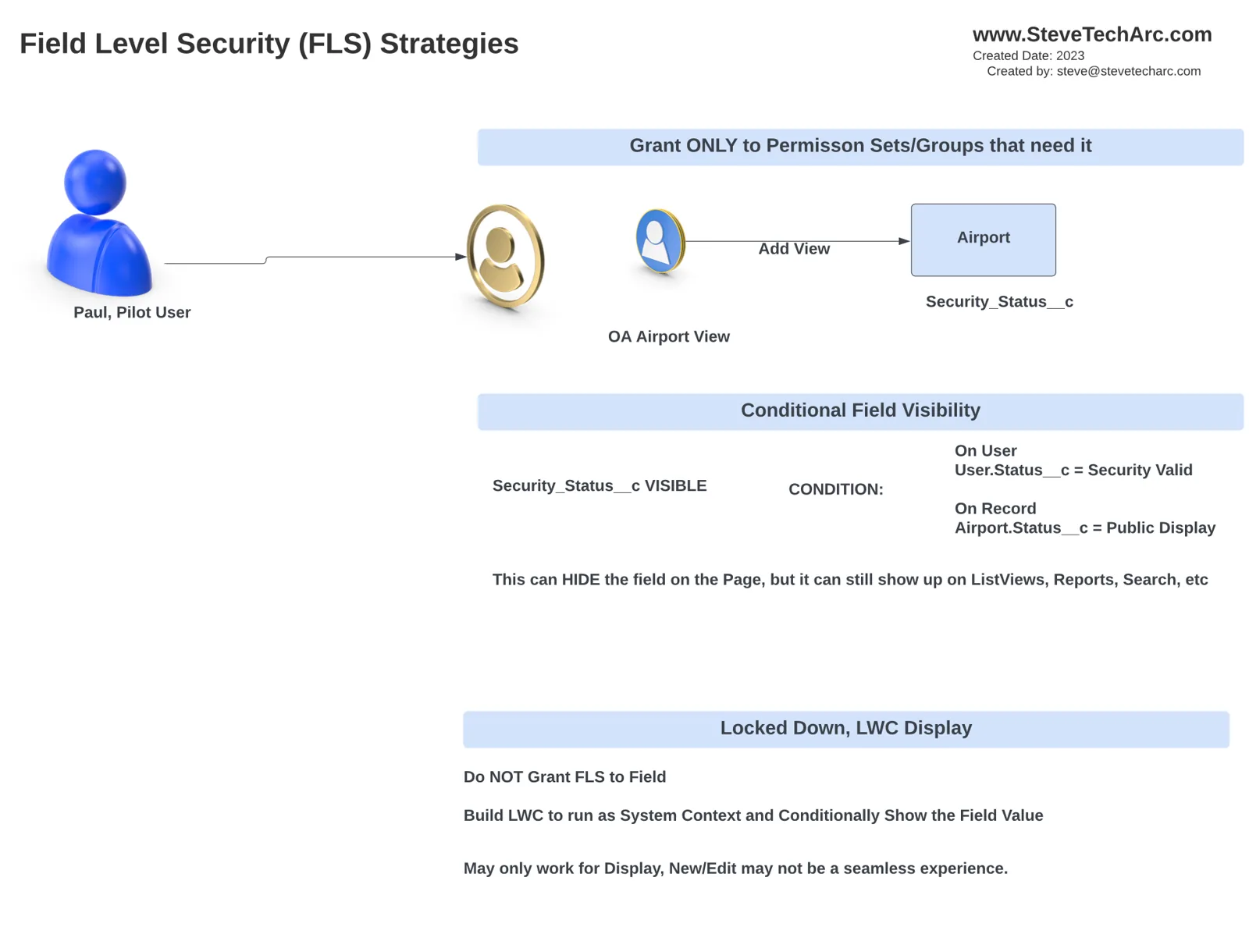
To illustrate, let’s use a hypothetical example involving “Paul the Pilot”. We have an object named “Airport”. Within this object, there’s a field called “Security Status”. Our goal is to allow only Paul to access this field and restrict others.
3. Granting Access
First, within the object manager for “Airport”, we create a new field. For our example, it’s a picklist titled “Security Status” with options like “Normal”, “Elevated”, and “Lockdown”.
Instead of giving access at the profile level, shift towards permission set level security. The only exception being the system administrator who can still have profile-level access.
Consequently, by default, only the system administrator can view this new field.
4. Permission Sets
To grant access to Paul:
- Navigate to Permission Sets.
- Check Paul’s permission set groups. Within, you’ll find a group named “Airport View” (This was created as part of a previous demo).
- Adjust the object settings within this group to provide read access to the “Security Status” field (Using standard field level security).
By following these steps, both Paul and anyone else with the “Airport View” permission set will now be able to view the security status on any airport record they have access to.
5. Conditional Field Display Using Dynamic Forms
[caption id="" align=“alignnone” width=“3002”]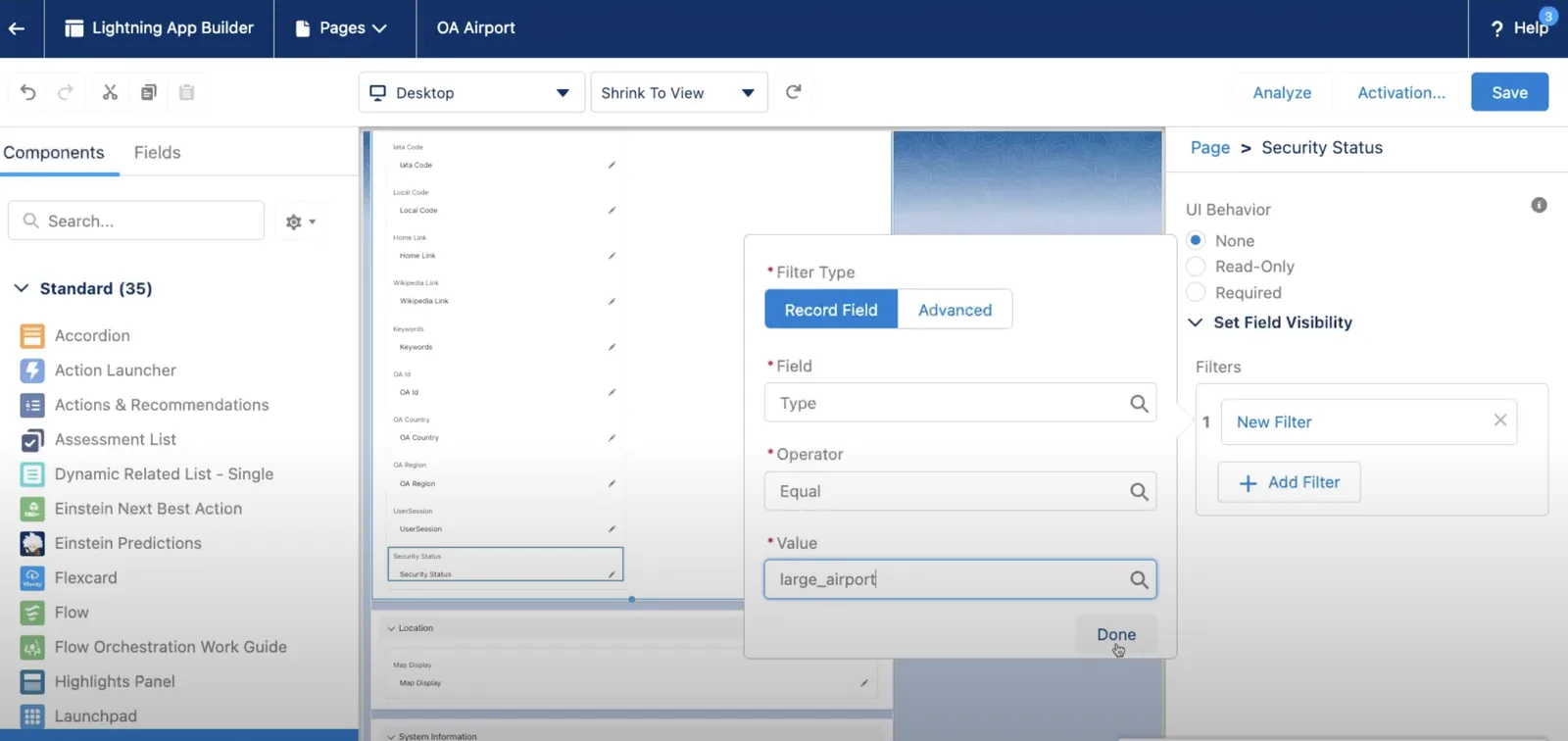 A filter condition can be added at the individual field level [/caption]
If you wish to display the field conditionally:
- Access the Lightning Page Builder.
- Upgrade to use Dynamic Forms.
- Add a filter to the “Security Status” field. For instance, display this field only if the airport type is “Large”.
Remember, this method will only hide the field on the user interface, but the field will still be accessible in list views, reports, dashboards, and global search. So, this isn’t a foolproof method for absolute data confidentiality.
6. Advanced Security with Lightning Web Components (LWC)
If there’s a genuine need for stringent field-level security:
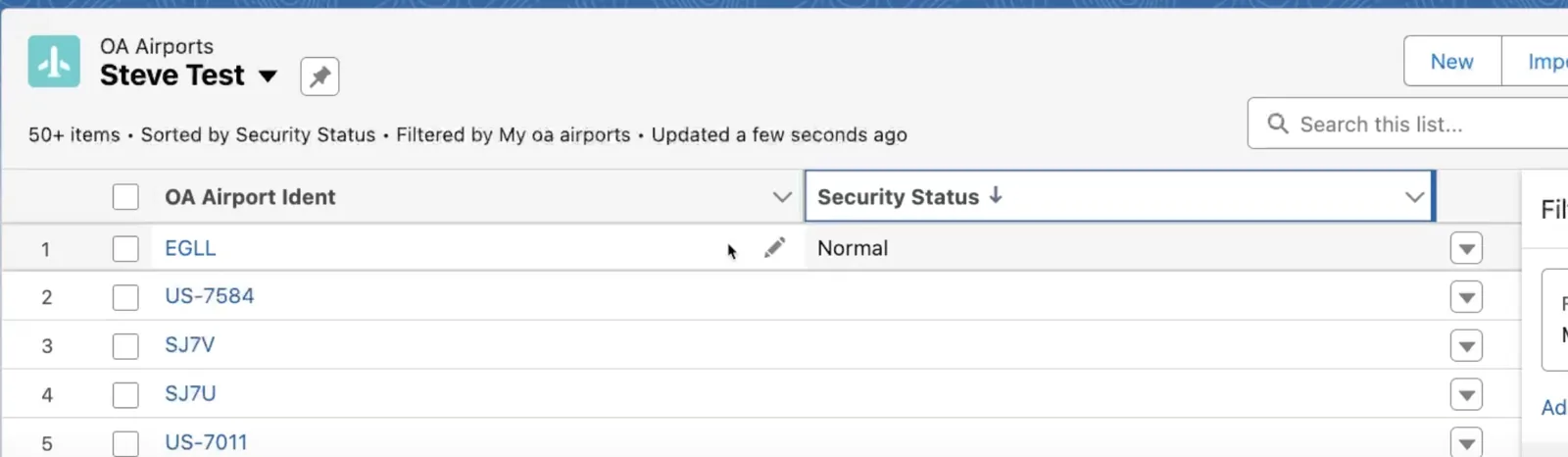
Avoid granting standard Field Level Security. This is because if the User has FLS (Field Level Security) access to the field, then they may be able to access it through other means, such as:
- List Views
- Reports
- Search
Design a Lightning Web Component (LWC) to run in system context and conditionally display the field.
Although LWCs are robust for displaying data, they may pose challenges during new entries or edits. It might necessitate a custom edit screen within the LWC.
Conclusion
Securing fields within Salesforce is paramount. Depending on the level of security required, Salesforce offers various options:
- Grant access only via permission sets.
- Utilize conditional field visibility with inherent limitations.
- For high-security requirements, design a Lightning Web Component.
Thank You
Thank you for tuning in. Remember, security is paramount, and understanding field-level security ensures your Salesforce data remains confidential and in the right hands.
Stay tuned here on www.SteveTechArc.com and to the @SteveTechArc (opens in a new tab) YouTube channel.
Helping change the world by sharing cool thoughts with fellow Architects and those on their Architect Journey!
STA 4.5