
The Push Door: the Ingestion API
Tento obsah zatím není dostupný ve vašem jazyce.
Module 4 in the chapter The Doors In, chapter 4 of the Data 360 Architect course. Each module stands on its own. Previous: The Pull Door: Amazon S3 · Next: The Other Doors, Named
The question this module answers: How do you push data into Data 360 with the Ingestion API, and when do you stream rather than bulk-load?
Flights don’t sit in a file waiting to be collected. A flight departs, and something should happen in Data 360 soon after. That’s the push door: your system calls the Ingestion API and sends the data in. It’s the door with the most control, and the most work.
Define, stream, push
Section titled “Define, stream, push”The Ingestion API works in three steps, and the order matters.
- Define. Create an Ingestion API connector and upload a schema that describes the objects you’ll send, in OpenAPI format. Remember chapter 3: “Objects can’t have nested objects.” The flight’s aircraft becomes fields on the flight, and the crew becomes an object of its own.
- Stream. Create a data stream on that connector, one per object, with its category and primary key (chapter 3’s dictionary again), and map it.
- Push. Now your code can send data.
Your code needs to sign in, and this is where it differs from the core APIs. You set up an app with the Ingestion API scope (an external client app: since February 21, 2026, new connected apps can no longer be created), get a Salesforce access token, and then exchange it: you convert the Salesforce bearer token into a Data 360 token, and that’s the one the Ingestion API accepts. Plan that exchange into your integration from the start.
Streaming: small, as it happens
Section titled “Streaming: small, as it happens”Streaming is for small amounts of data, sent as things happen. The rules are short, and from Salesforce’s own pages:
- Wrap your records in a data envelope:
{ "data": [ ... ] }. - Each request must be under 200 KB.
- Data “is processed asynchronously approximately every 3 minutes.” In my own tests with flight data, that’s what I saw.
- If the API answers HTTP 429, Too Many Requests, your code must slow down.
So streaming is near real time, not real time. A flight that departs at 8:15 is in Data 360 a few minutes later. For most uses, like updating a pilot’s hours or a flight’s status, that’s plenty. If you need something to react within seconds, read chapter 13 first.
Bulk: the loading dock
Section titled “Bulk: the loading dock”Now think about a month of flight history: the 29,524 PHX flights of August 2026 on SkyData (opens in a new tab), one CSV of about 11 MB. A year of them is twelve files like it. Two hundred kilobytes at a time is the wrong tool.
When I teach the Salesforce Bulk API, I use a bank. You walk in with a million deposits, and the teller takes 200 at a time. You get back in line, again and again, while someone else pulls a truck up to the loading dock at the side of the bank, unloads everything, and drives away. The Data 360 bulk ingestion follows a similar pattern:
- Open a job. That’s your ticket at the loading dock.
- Upload your files against the job: CSV files up to 150 MB each, up to 100 files in a job.
- Close the job, marking the upload complete. Nothing is processed until you do; Data 360 doesn’t know you’re finished.
- Monitor it until it’s done.
You can watch the same loading dock in any Salesforce org. When I loaded the course’s accounts and contacts with the Data Import Wizard (chapter 5), Setup’s Bulk Data Load Jobs page showed every load as a Bulk API job, one for the accounts and one for the contacts. And one job read Closed while its batch was still queued, at 0%. Closed means the upload is complete, not that the work is done. That’s step 4: monitor it until it’s finished.
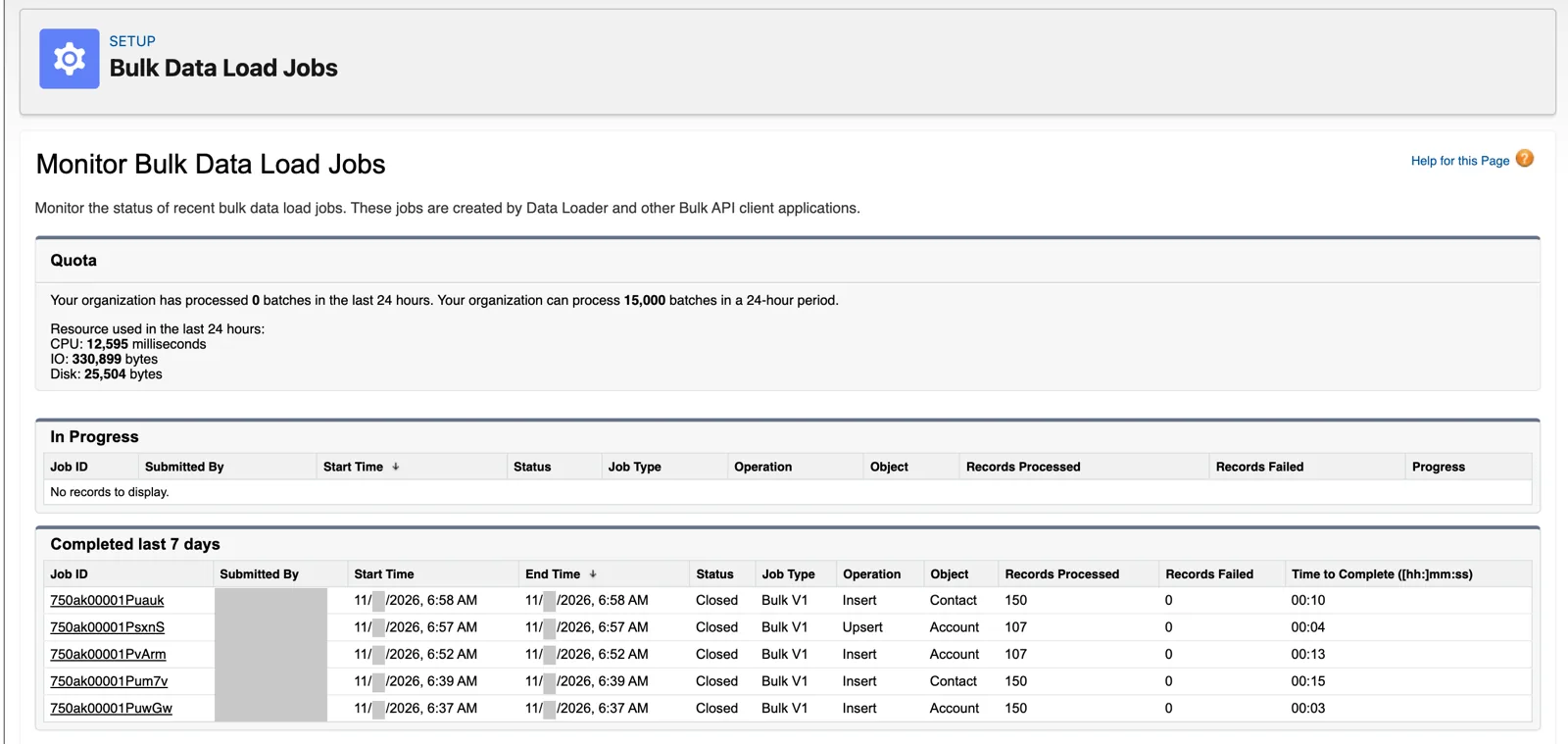
The Data Import Wizard’s loads, as Bulk API jobs (Salesforce Data 360 in a Developer Edition org, screenshot, November 2026). Full size
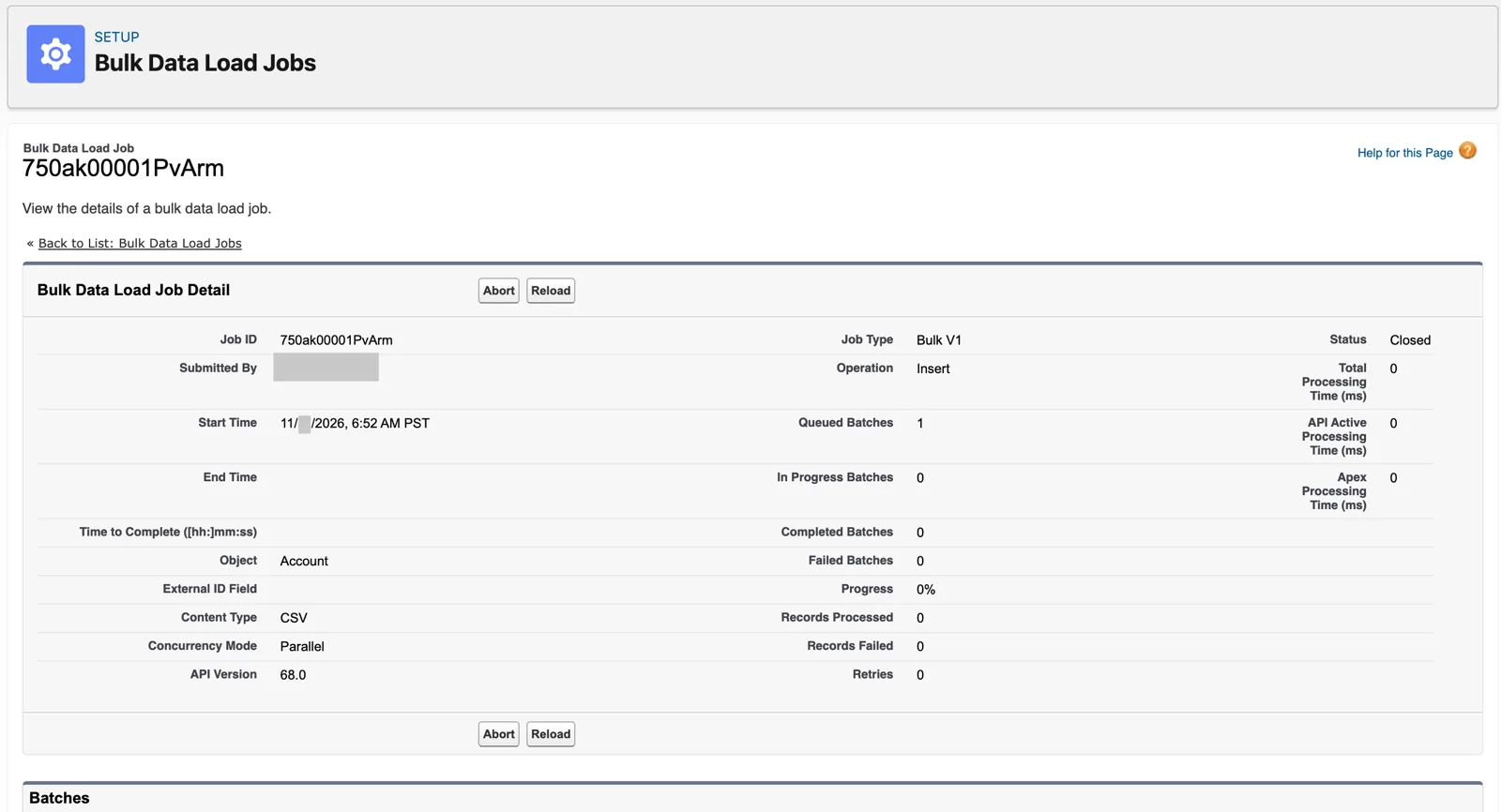
Closed, but not done: the batch is still queued (Salesforce Data 360 in a Developer Edition org, screenshot, November 2026). Full size
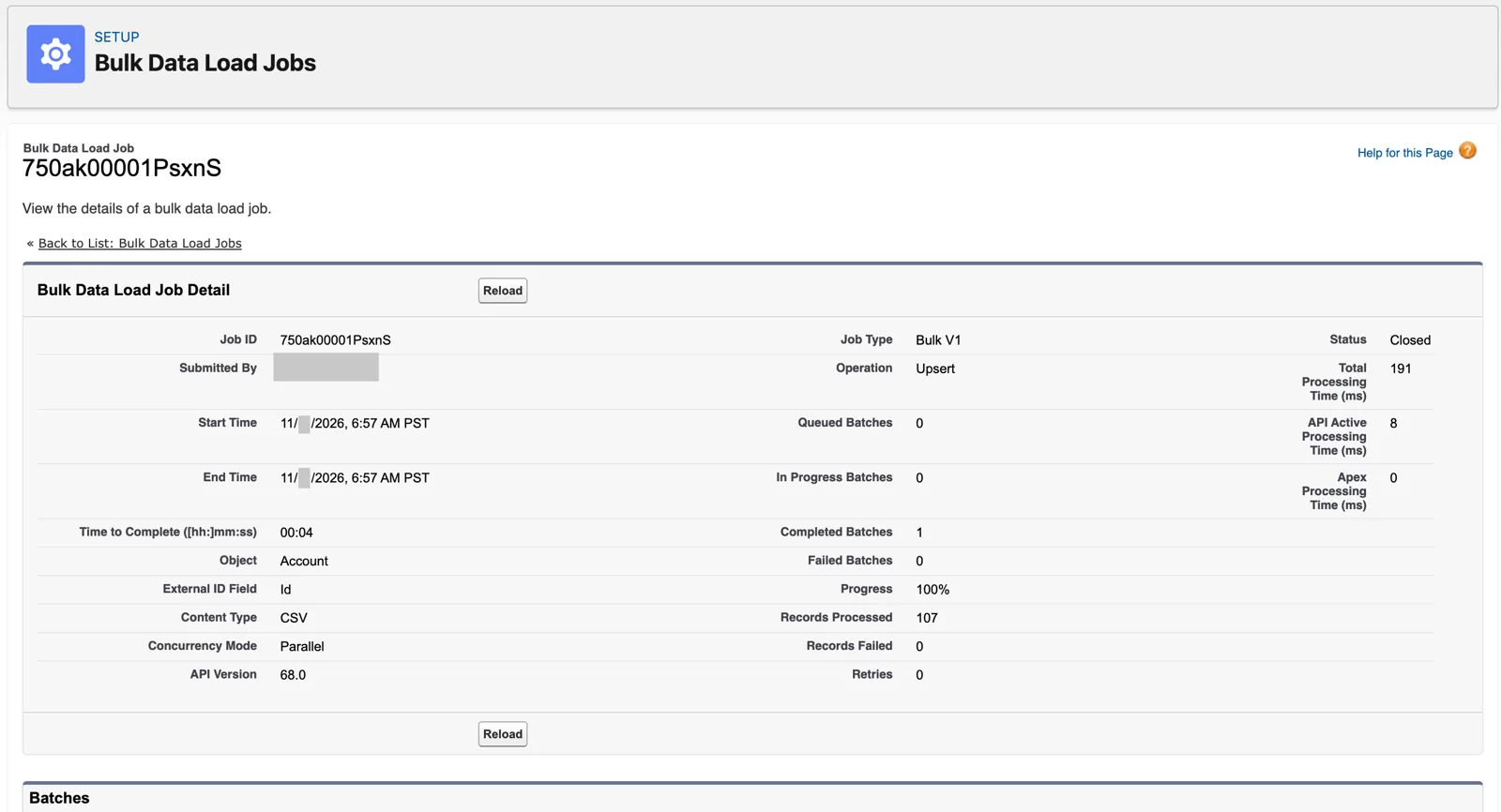
With matching on, the load becomes an upsert: 107 airports, not 150 rows (Salesforce Data 360 in a Developer Edition org, screenshot, November 2026). Full size
Salesforce’s limits for bulk: 20 jobs an hour, 5 at the same time, and open jobs older than 7 days are deleted from the queue. So a bulk load is a planned event, not something you fire every few seconds. A month of BTS flights fits it well: one job, one file of about 11 MB, well under the 150 MB limit.
Validate before you load
Section titled “Validate before you load”Here’s a habit worth copying. The streaming API has a test path: send the same request to the actions/test endpoint, and it validates your payload without loading it. Salesforce puts it plainly: “Requests that fail validation aren’t processed into the data lake,” and the API returns a report of which records failed and why.
That’s what I did with the flight data. I validated my payloads in test mode until they passed, then switched test mode off and sent them for real. It’s far cheaper to find a bad date format or a missing field in a test call than in a data lake object you can’t easily change (chapter 3).
Trust, but verify
Section titled “Trust, but verify”One more story from building this. The flight data came from an outside API as deep, nested JSON, and I needed C# classes to read it and a YAML schema to describe it. I pasted the JSON into ChatGPT and asked for both. In a few seconds, I had them.
Now, it’s not always perfect. It grouped everything into one class, and I wanted separate ones, so I reworked them by hand. That’s the right way to use an AI assistant here: it saves you the typing, and you still own every line. The schema you upload defines a data stream you’ll live with for a long time. Check it like you wrote it.
Watch it on video
Section titled “Watch it on video”In 2023 I filmed the flight data coming in through the Ingestion API, streaming in two parts and bulk in two parts, from the first API call to the rows in Data 360. In 2025 I opened the Data 360 Diaries with a short, simple version: one airport object, pushed from Postman. The notes under the videos say what’s still right and what’s changed since.
What an architect decides here
Section titled “What an architect decides here”- Streaming or bulk for each pushed source, from how soon the data is needed, how much of it there is, and what it costs. Streaming is billed by the row in both credit models: 5,000 credits per million rows against 2,000 for batch on the Data Services rate card; 3,500 for the Streaming Pipeline on the Flex Credits card, which has no batch ingestion type. So streaming needs a reason in freshness.
- Who owns the push code, the token exchange and the retries after the project ends.
- That every payload is validated in test mode before the first real load.
Explore
Section titled “Explore”All checked 2026-11-14.
- Flex Credits Rate Card (opens in a new tab), Salesforce, dated 08.31.2026 (checked 2026-11-14).
- Salesforce Customer Data Cloud Rate Card (opens in a new tab) (Data Services credits), Salesforce, last updated July 2025 (checked 2026-11-14).
- Get Started with Ingestion API (opens in a new tab), Salesforce Developers: setup, the token exchange and the limits.
- Streaming Ingestion Walkthrough (opens in a new tab), Salesforce Developers: the data envelope and the test path.
- Requirements for Ingestion API Schema File (opens in a new tab), Salesforce Developers.
- SkyData: The Doors In (opens in a new tab), this chapter’s data files.