
People Data, Into the Standard Model
Tento obsah zatím není dostupný ve vašem jazyce.
Module 3 in the chapter From the Lake to the Model, chapter 8 of the Data 360 Architect course. Each module stands on its own. Previous: Reference Data, One to One · Next: The Party, Ready for Identity Resolution
The question this module answers: How do you map people data into the standard model, and how do you check a mapping?
Reference data can go into the model in its own shape (module 2). People can’t. A pilot, a customer or a member has to land in the standard objects, because that’s where identity resolution, segments and activation look for people. This module maps the pilots file into the standard model, one object at a time.
The pilots file
Section titled “The pilots file”This is the file from chapter 1, pilots-synthetic.csv on SkyData (opens in a new tab): 1,000 synthetic pilots, one row each, with a pilot ID, first and last name, email, phone, home airport, flying role, highest certificate and years flying. It came in as a profile stream, because it’s about individuals. And in chapter 3 we already wrote down where each field goes:
| Source field | Maps to |
|---|---|
| pilot_id | Individual: Individual ID |
| first_name, last_name | Individual: First Name, Last Name |
| Contact Point Email: Email Address | |
| phone | Contact Point Phone: Telephone Number |
| years_flying, flying_role | Individual: custom fields |
| highest_certificate, home_airport | Not mapped yet: they stay on the lake until a use needs them |
The custom fields are this course’s example. The pilots are synthetic; the home airports are real.
Mapping is where that table gets built.
Step 1: the Individual
Section titled “Step 1: the Individual”From the lake object, start the data mapping and select the objects to map to. This time, instead of creating a new object, look for the standard Individual. You see all of the standard fields on the Individual, and that’s where the pilot goes.
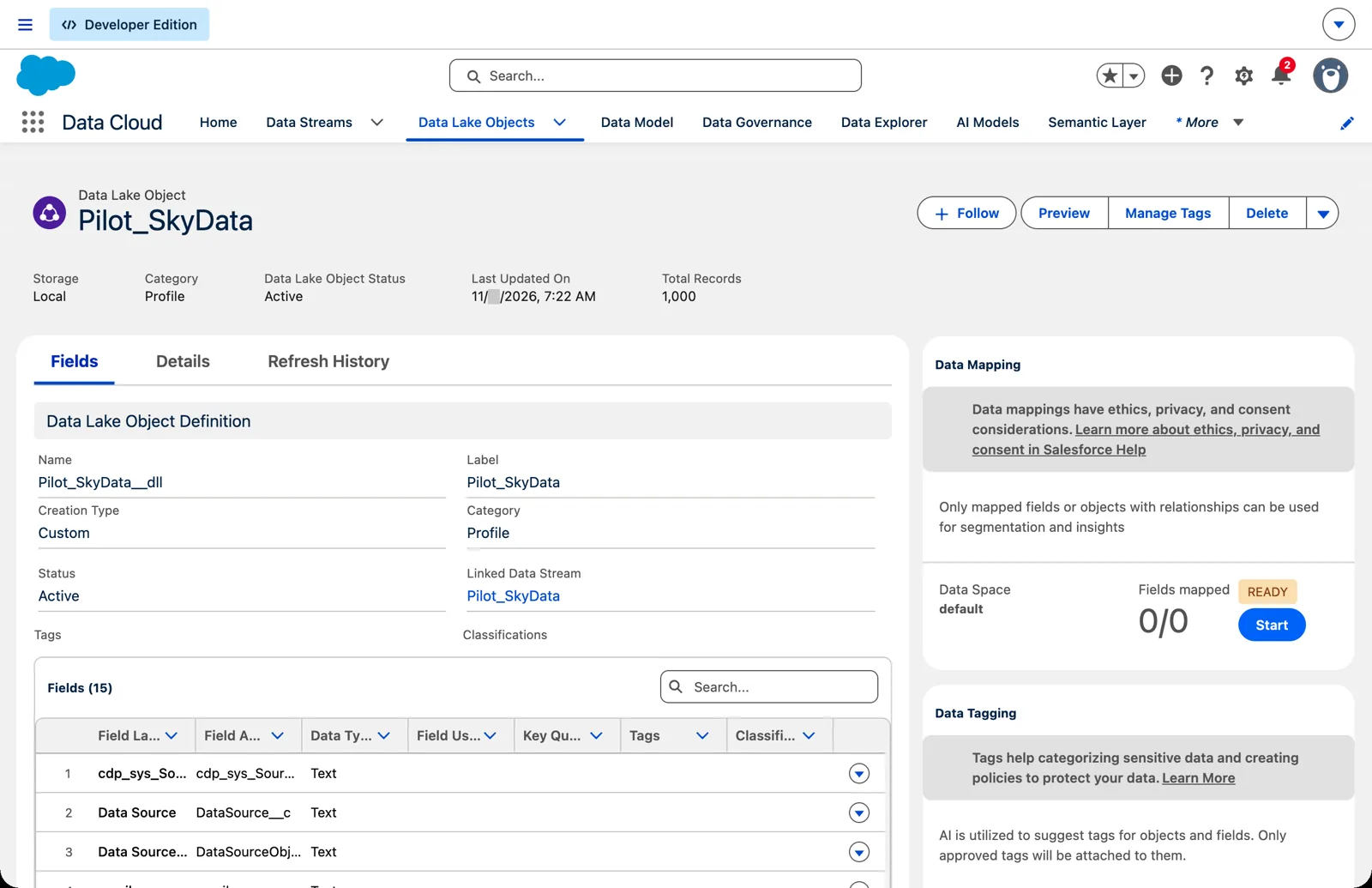
The way in: Start, on the lake object (Salesforce Data 360 in a Developer Edition org, screenshot, November 2026). Full size
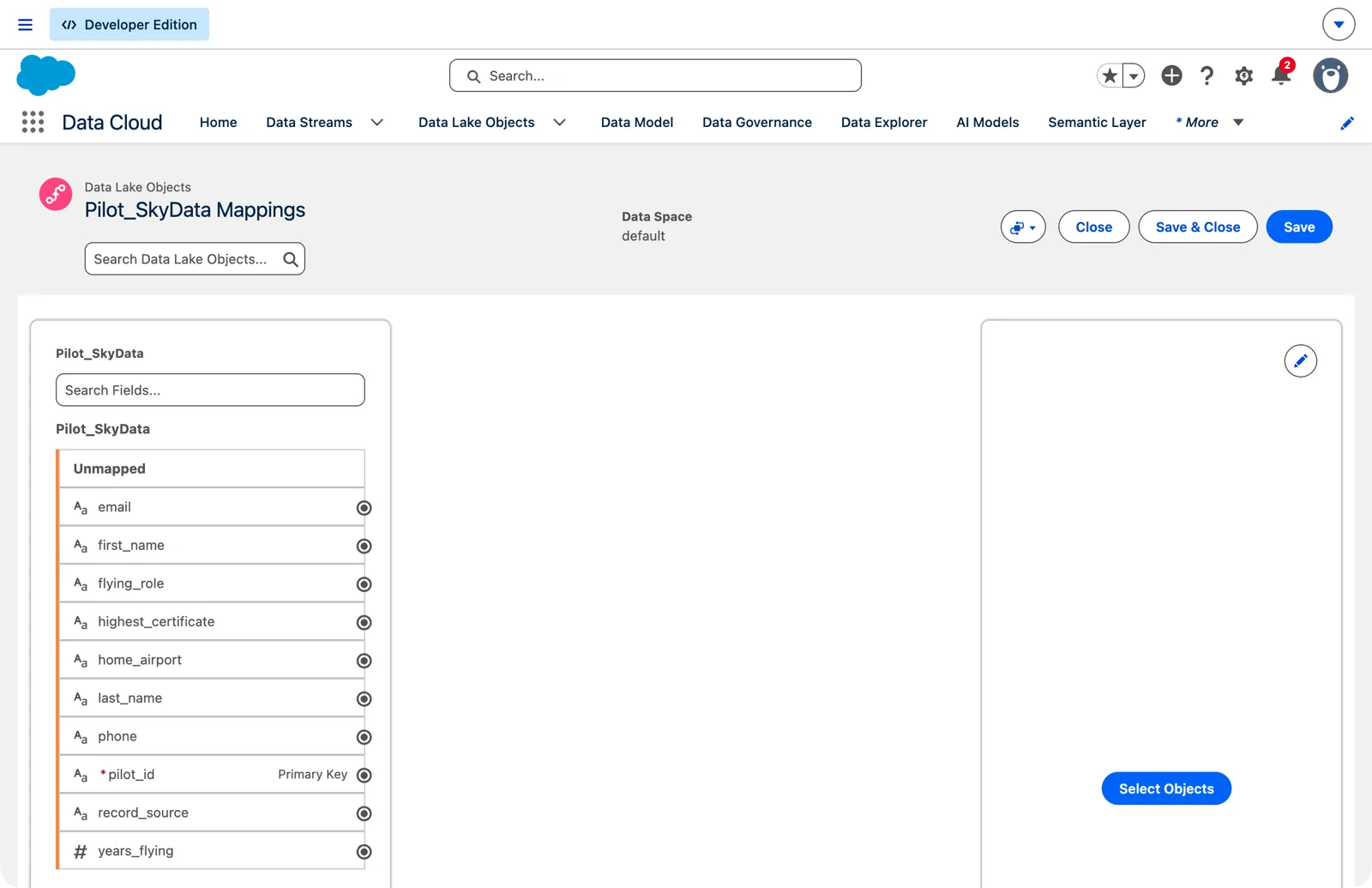
The empty mapping canvas (Salesforce Data 360 in a Developer Edition org, screenshot, November 2026). Full size
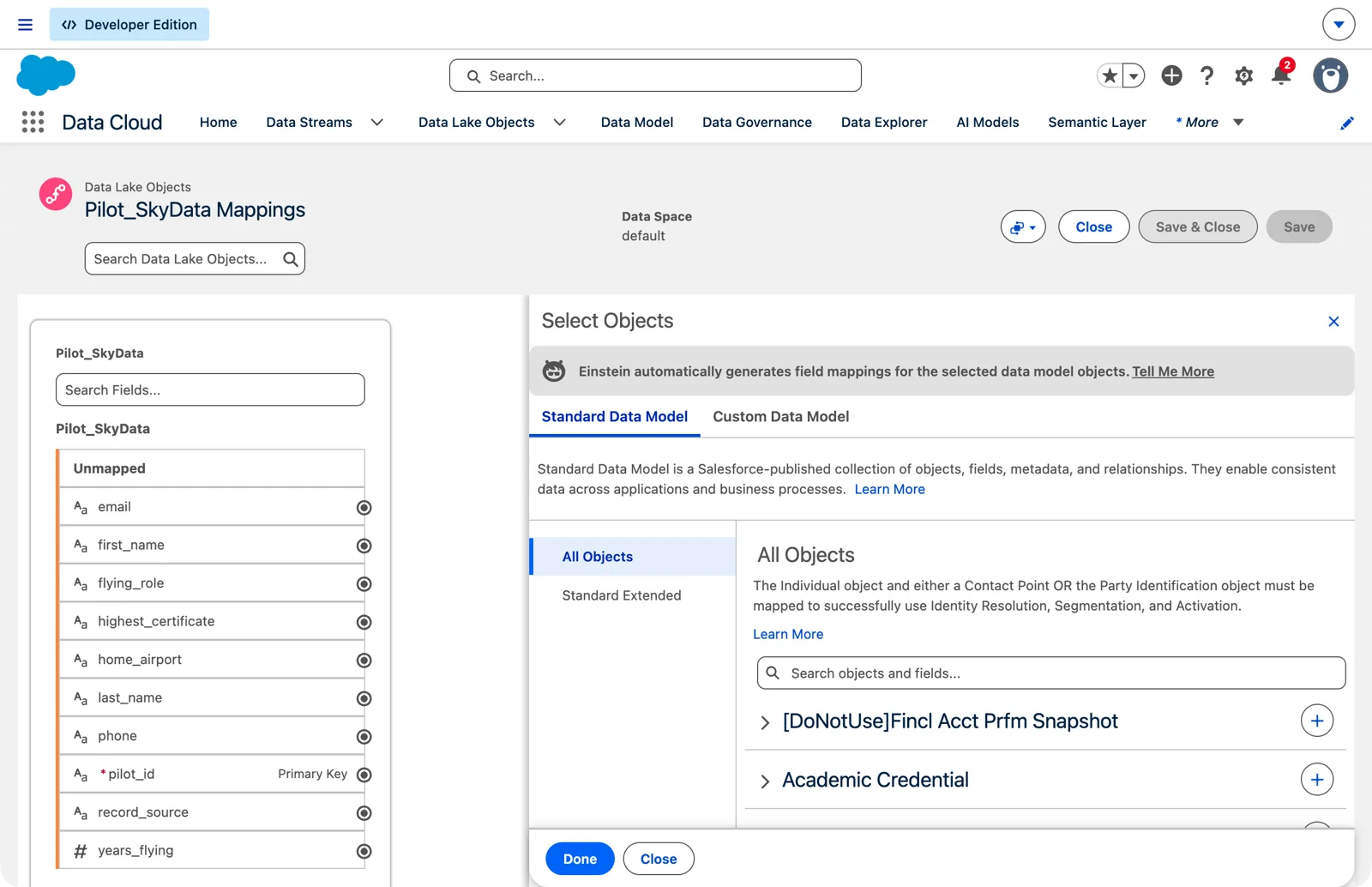
Choosing the model objects to map to (Salesforce Data 360 in a Developer Edition org, screenshot, November 2026). Full size
When you pick it, Data 360 does an automapping: first name to First Name, last name to Last Name. Salesforce says automapping suggests from three things: field pairs that were mapped before, names that match exactly or nearly (“fuzzy match”), and synonyms. It keeps the data types compatible, and the suggestions “improve over time.” Then, in Salesforce’s words, “You can then make any necessary changes and save the mappings.” Automapping is a first draft. Review every line before you save.
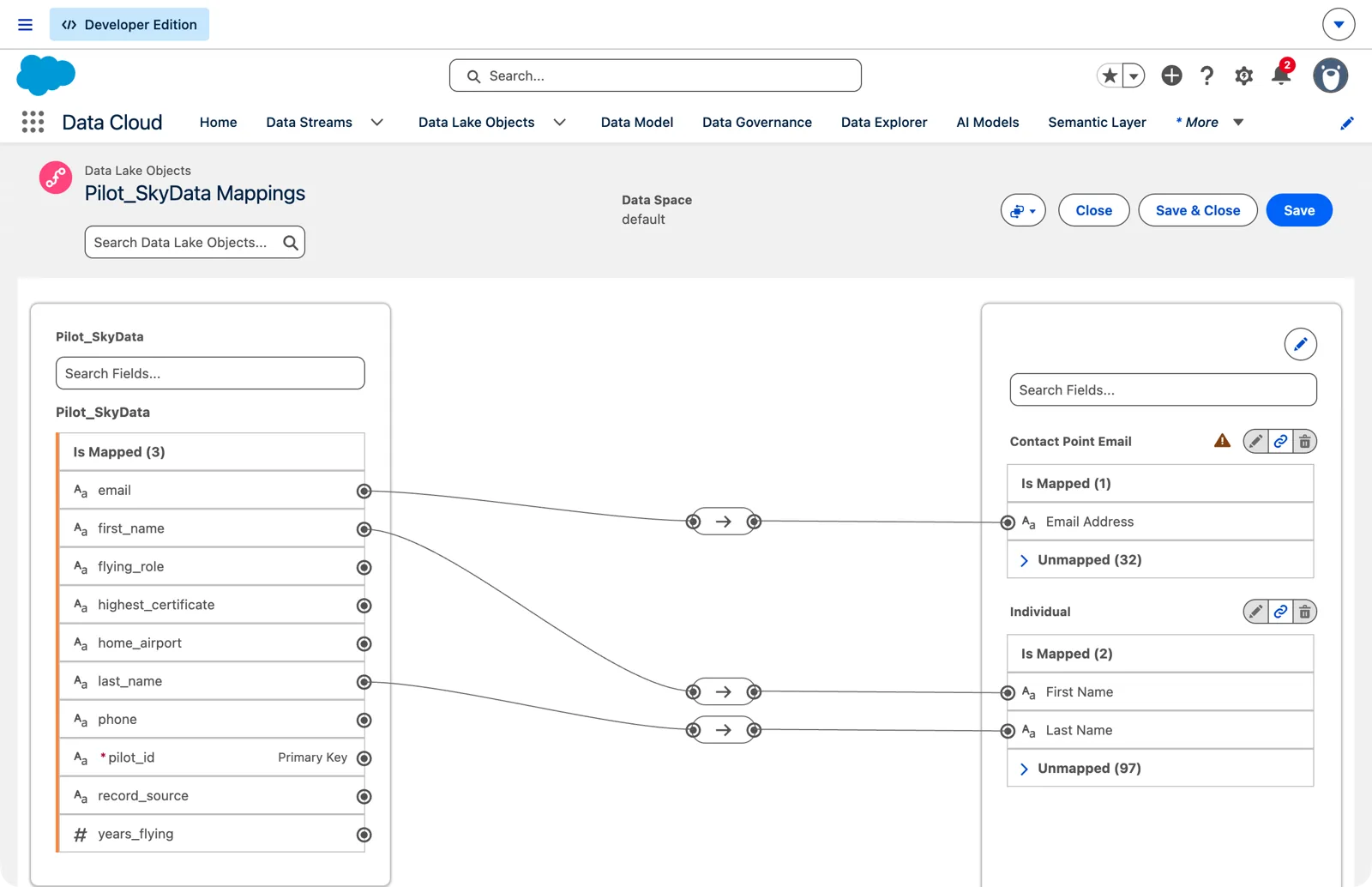
Automapping: the name and email lines, drawn for you (Salesforce Data 360 in a Developer Edition org, screenshot, November 2026). Full size
Check the primary key yourself. Salesforce won’t let you save without it: “When you’re mapping a data model object (DMO) in the Profile or Other category, you must map the primary key field.” If it isn’t mapped, click the unmapped pilot ID on the left, then the Individual ID on the right, and the line connects them. In my org I didn’t have to. A moment after the names, lines from the pilot ID to the Individual ID, to the Contact Point Email’s own ID and to its Party appeared on their own. I drew no lines at all. That’s helpful, and it’s also why you read the mapping before you trust it (below): a line you didn’t draw is a line you haven’t checked.
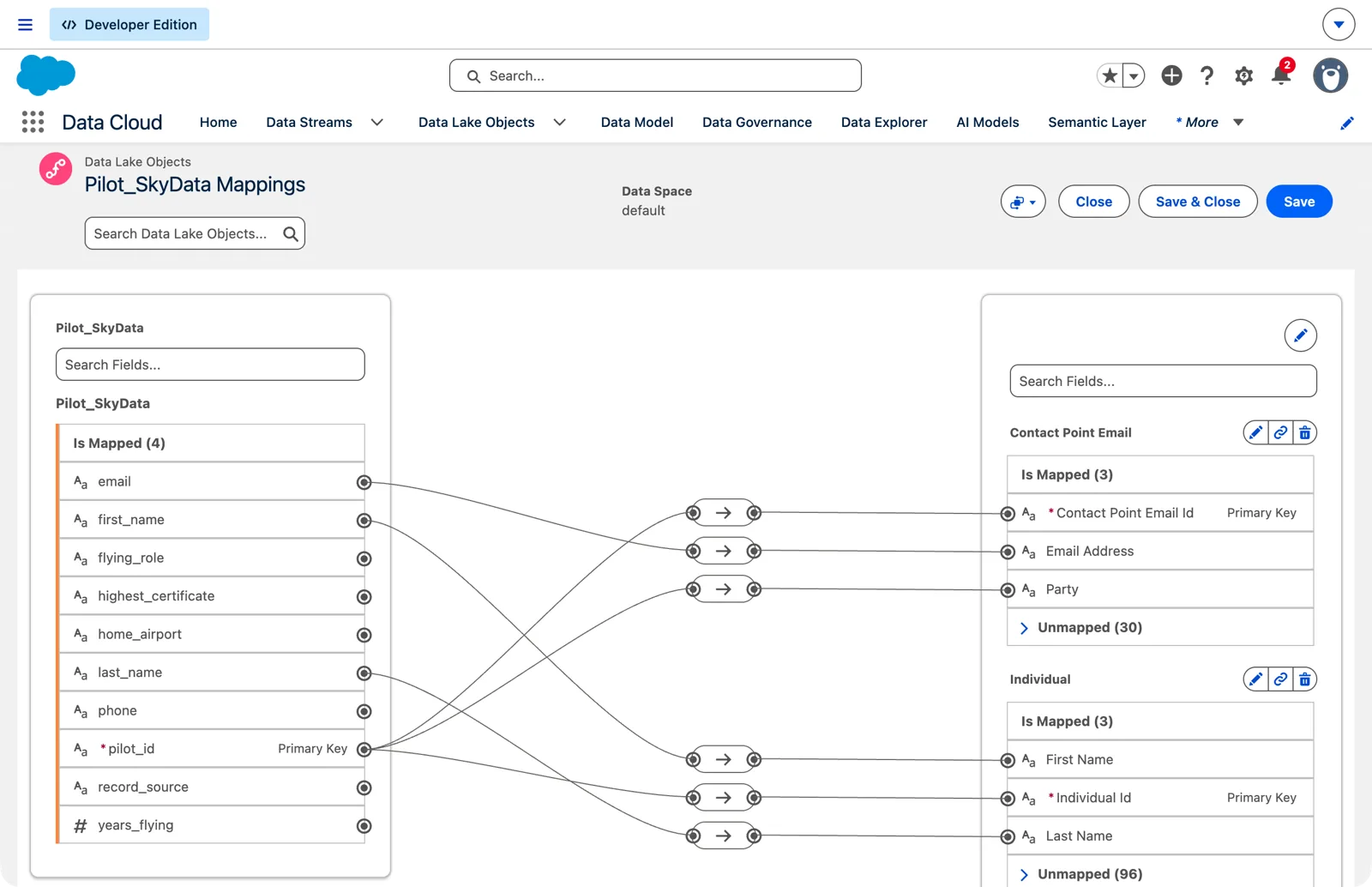
The keys mapped: one pilot ID feeds three fields (Salesforce Data 360 in a Developer Edition org, screenshot, November 2026). Full size
The two custom fields, years flying and flying role, have no standard home on the Individual. From the unmapped fields you can add a new field to the data model object, with a type compatible with the source field, and map to it.
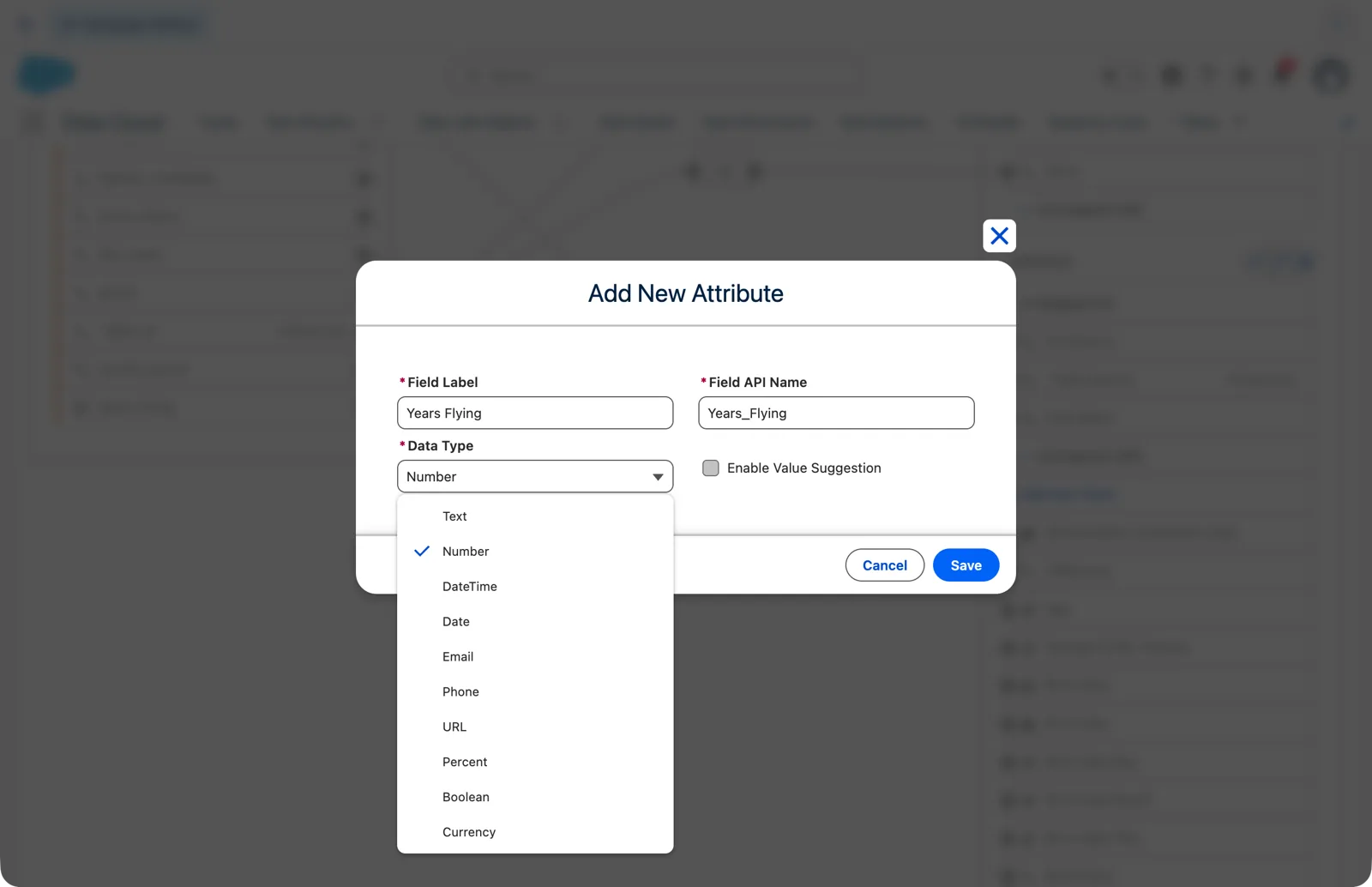
A custom field on the Individual, added from the mapping (Salesforce Data 360 in a Developer Edition org, screenshot, November 2026). Full size
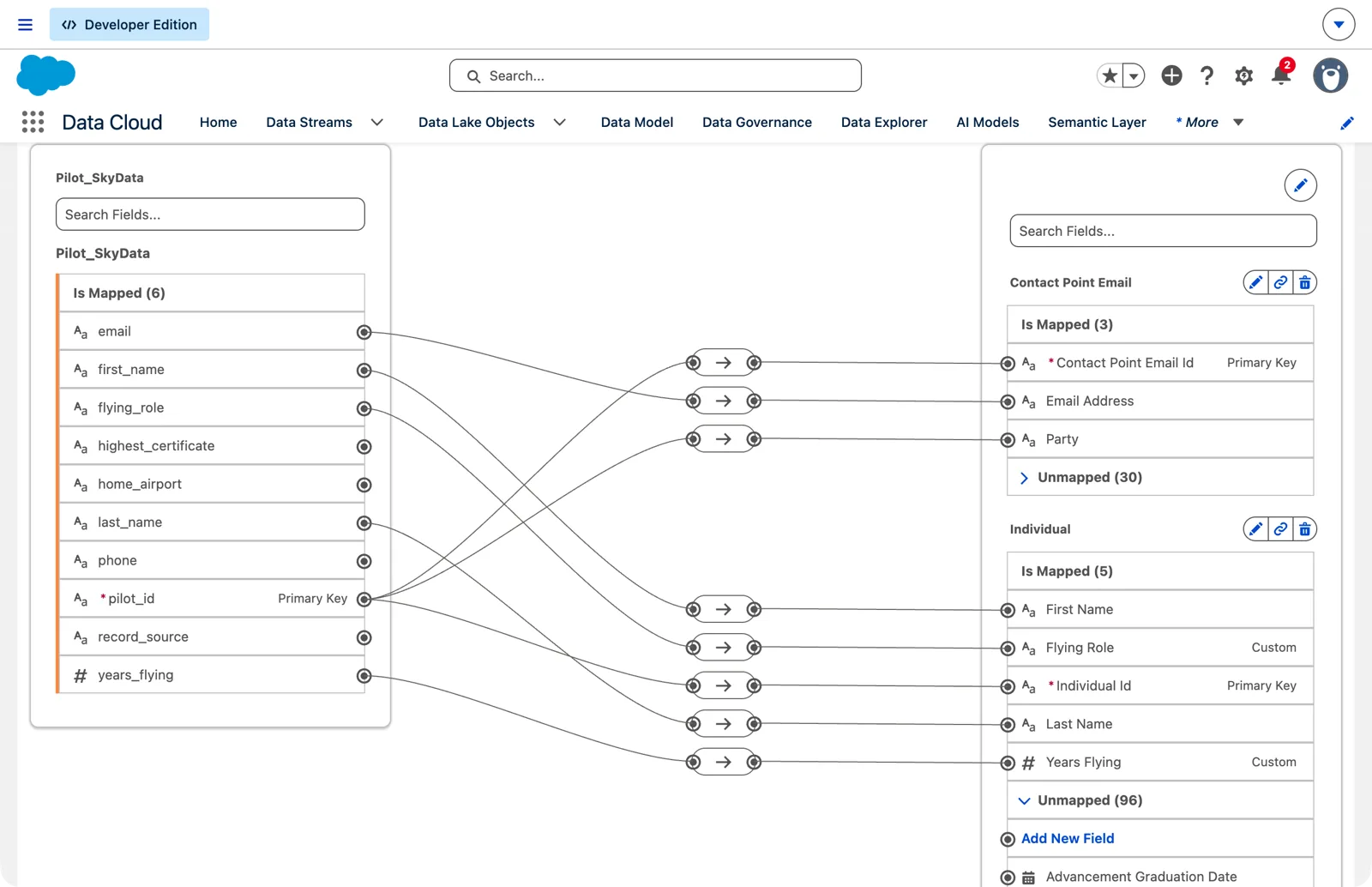
The two custom fields, mapped as soon as they existed (Salesforce Data 360 in a Developer Edition org, screenshot, November 2026). Full size
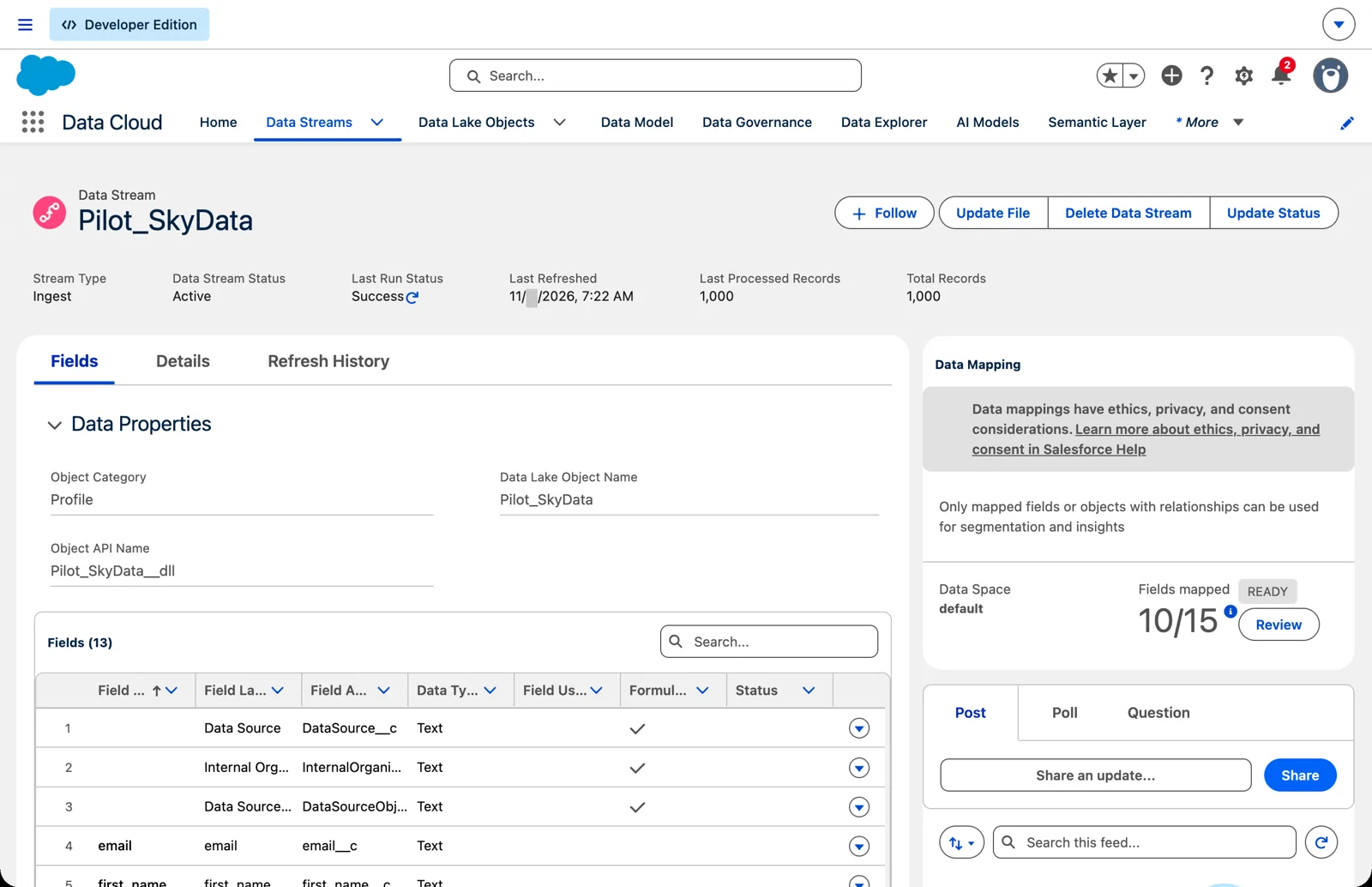
The stream after mapping: 10 of 15 fields mapped (Salesforce Data 360 in a Developer Edition org, screenshot, November 2026). Full size
Step 2: the contact points
Section titled “Step 2: the contact points”Now add the contact details. In the same mapping, add two more standard objects: Contact Point Email and Contact Point Phone. Map the email address to the email address, and the phone to the telephone number.
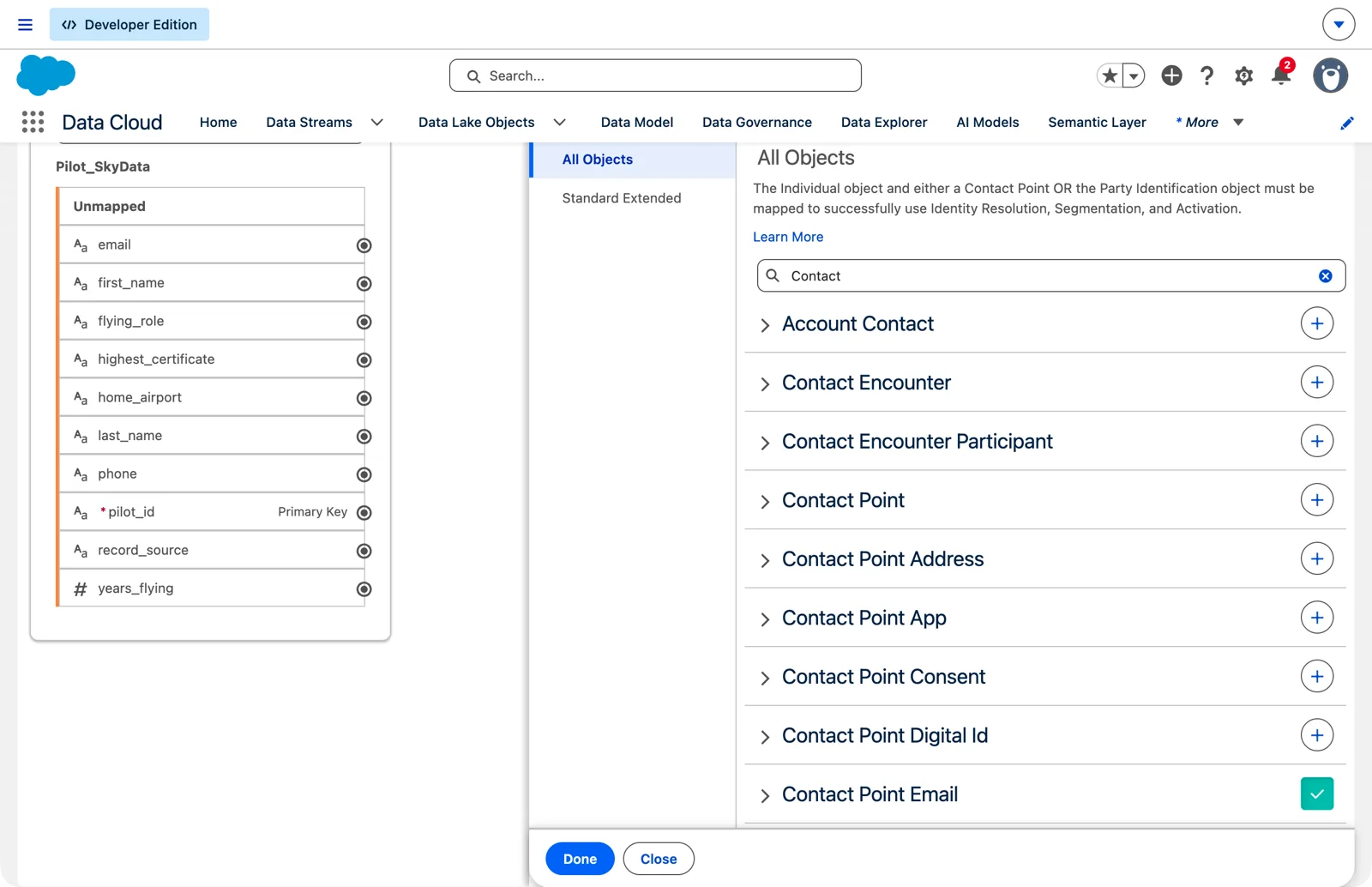
The contact point objects, one per kind of contact detail (Salesforce Data 360 in a Developer Edition org, screenshot, November 2026). Full size
Why separate objects? Because the standard model allows an individual to have many email addresses and many phones. Each contact point is a child of the person, one person to many. A pilot with a work email and a personal one has two Contact Point Email rows, both pointing to the same Individual.
Each contact point needs two keys:
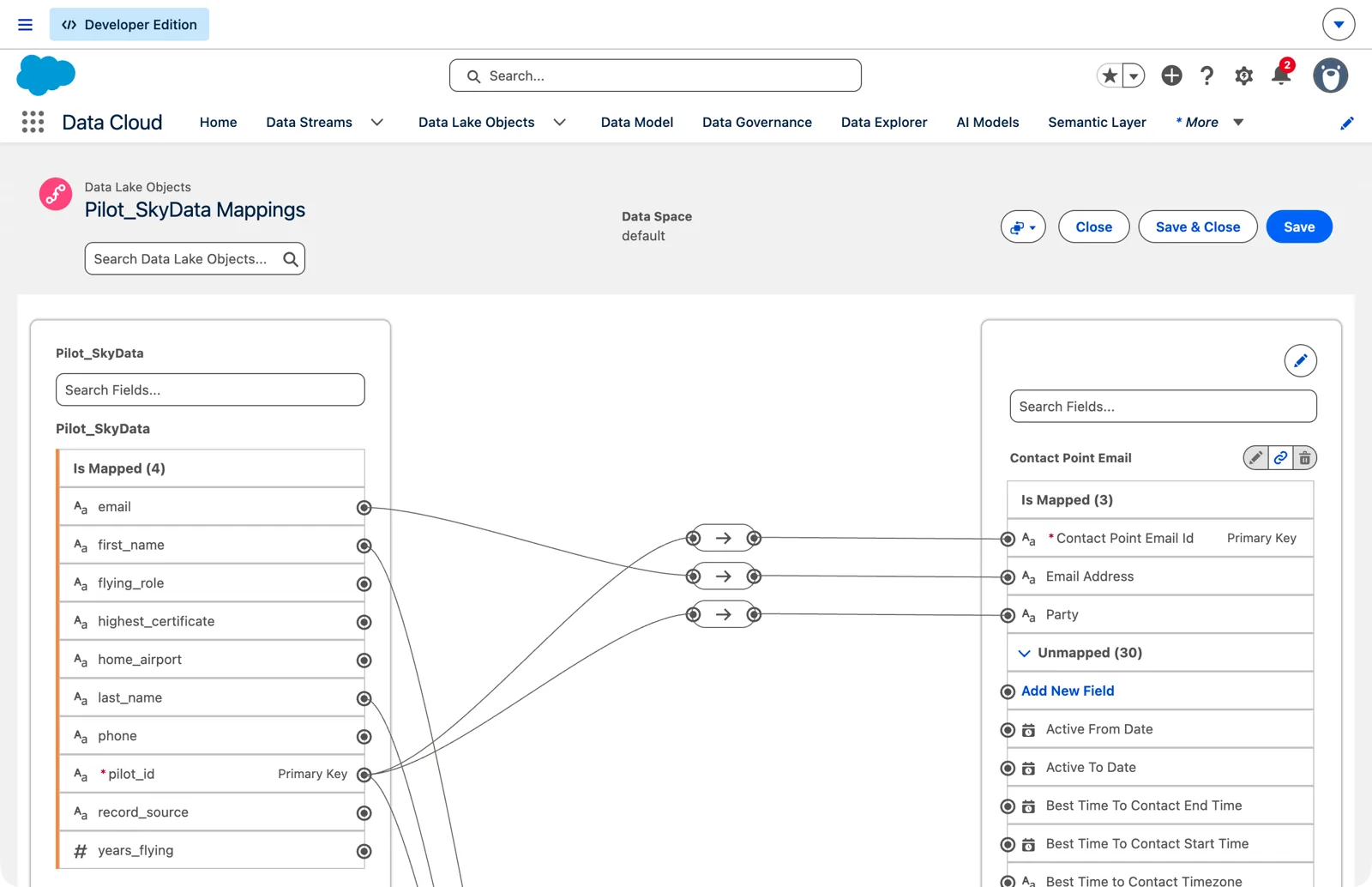
A contact point’s two keys: its own ID and its Party (Salesforce Data 360 in a Developer Edition org, screenshot, November 2026). Full size
- Its own primary key, one per contact point. The pilots file has one email and one phone per pilot, so in my mapping I used the pilot reference for both. That works while there’s one of each. If a file carries a work and a personal email, each needs its own key, such as the pilot ID plus the type (chapter 7, module 4, does exactly this for phones).
- Its Party, the pilot ID again, which points the contact point to its Individual. Salesforce: “Party = Individual.Id.” Module 4 is about the party.
Salesforce’s rules for one lake object feeding several model objects:
- “You can map a DLO to one or more DMOs.” One pilots file, three objects.
- “You can map a DLO field to more than one DMO field in the same DMO.”
- But “A single DMO field can’t have more than one source DLO field.”
And Salesforce’s minimum for people data to be used by identity resolution, segmentation and activation: map the Individual, and either a contact point or a party identification. Without a contact point, “activation isn’t feasible because there isn’t a contact detail through which to engage with customers.”
The category still decides
Section titled “The category still decides”From chapter 6: “A DMO inherits its category from the first DLO mapped to it,” and the categories limit what maps where:
- Profile and other lake objects map to profile or other model objects, never engagement.
- Engagement lake objects map only to engagement model objects.
If you can’t find the object you expect in the mapping list, check the category first. Salesforce’s troubleshooting note: the list is “filtered by compatible categories.”
Read it right to left
Section titled “Read it right to left”In chapter 5, we read a data bundle’s mapping right to left. Do the same with your own. With all the lines, it’s easy to read a mapping left to right, source field by source field, and miss what’s missing. I like tracing it from right back to left, so I get to trace the keys and the mappings.
- Start at each model object’s primary key. Individual ID: follow the line back. It leads to the pilot ID. Good.
- Then each contact point’s key and its Party. Both lead to the pilot ID, and the Party matches the Individual’s key.
- Then the fields you need downstream. Is the email mapped? The phone? The fields your segments will filter on?
- Then what’s not mapped. Anything left on the left side is something no one can use: “Only mapped fields and objects with relationships can be used for Segmentation and Activation.”
Check it in Data Explorer
Section titled “Check it in Data Explorer”After the mapping runs, look at the data. In Data Explorer, choose the data space, then the data model objects, then the Individual. In my org, the individuals from the CRM org and the individuals from the pilots file sat side by side; sort on the data source, and you see which came from where. Then switch to Contact Point Email and check the emails came across with the right party.
In my org, the first page of the Individual showed only contacts from the CRM org, and the pilots seemed to be missing. They weren’t. A filter on Years Flying greater than 1 showed only the pilots, with their flying role and years flying filled in. Don’t judge a mapping by the first page.
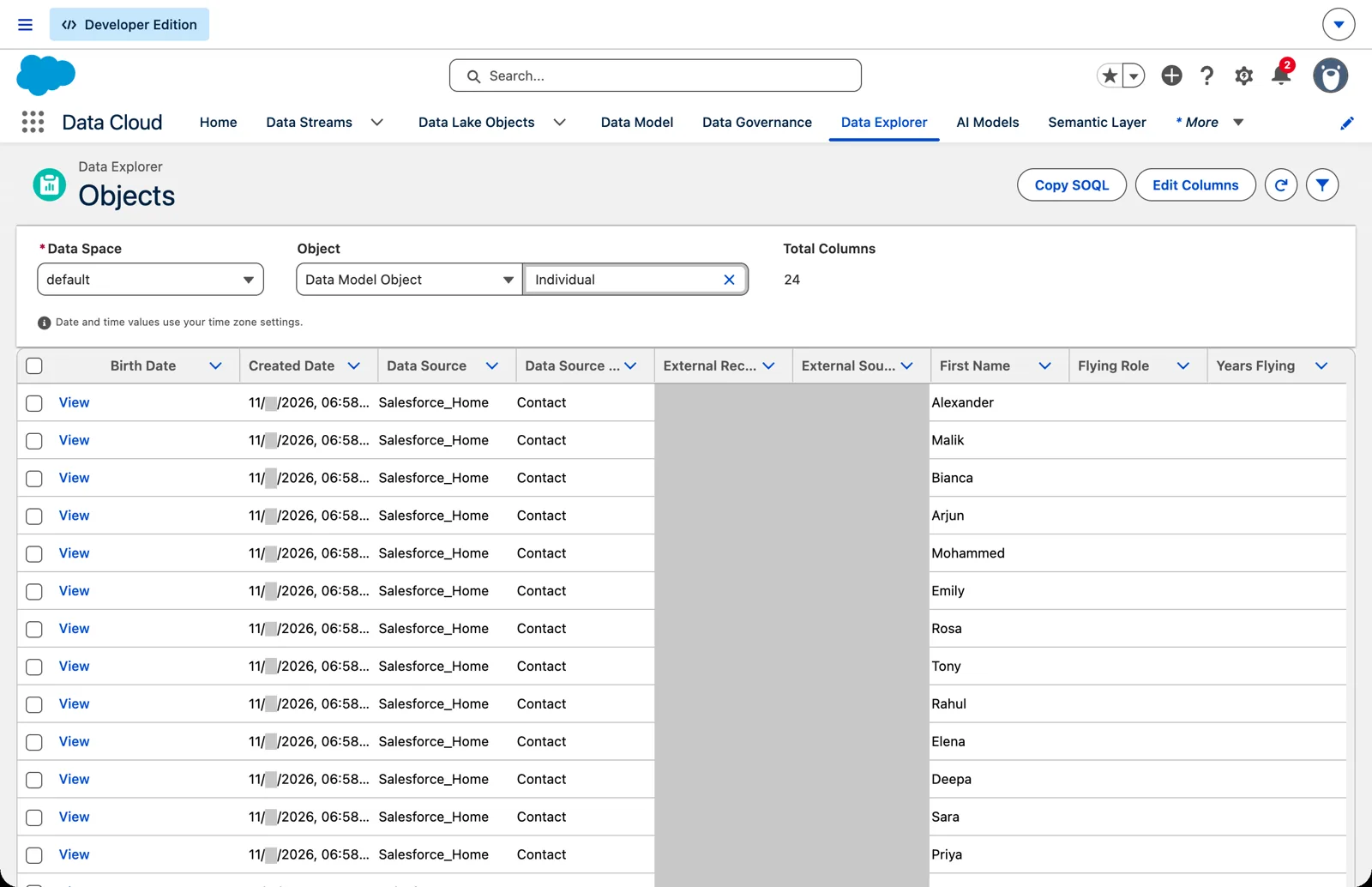
The first page: only the org’s contacts (Salesforce Data 360 in a Developer Edition org, screenshot, November 2026). Full size
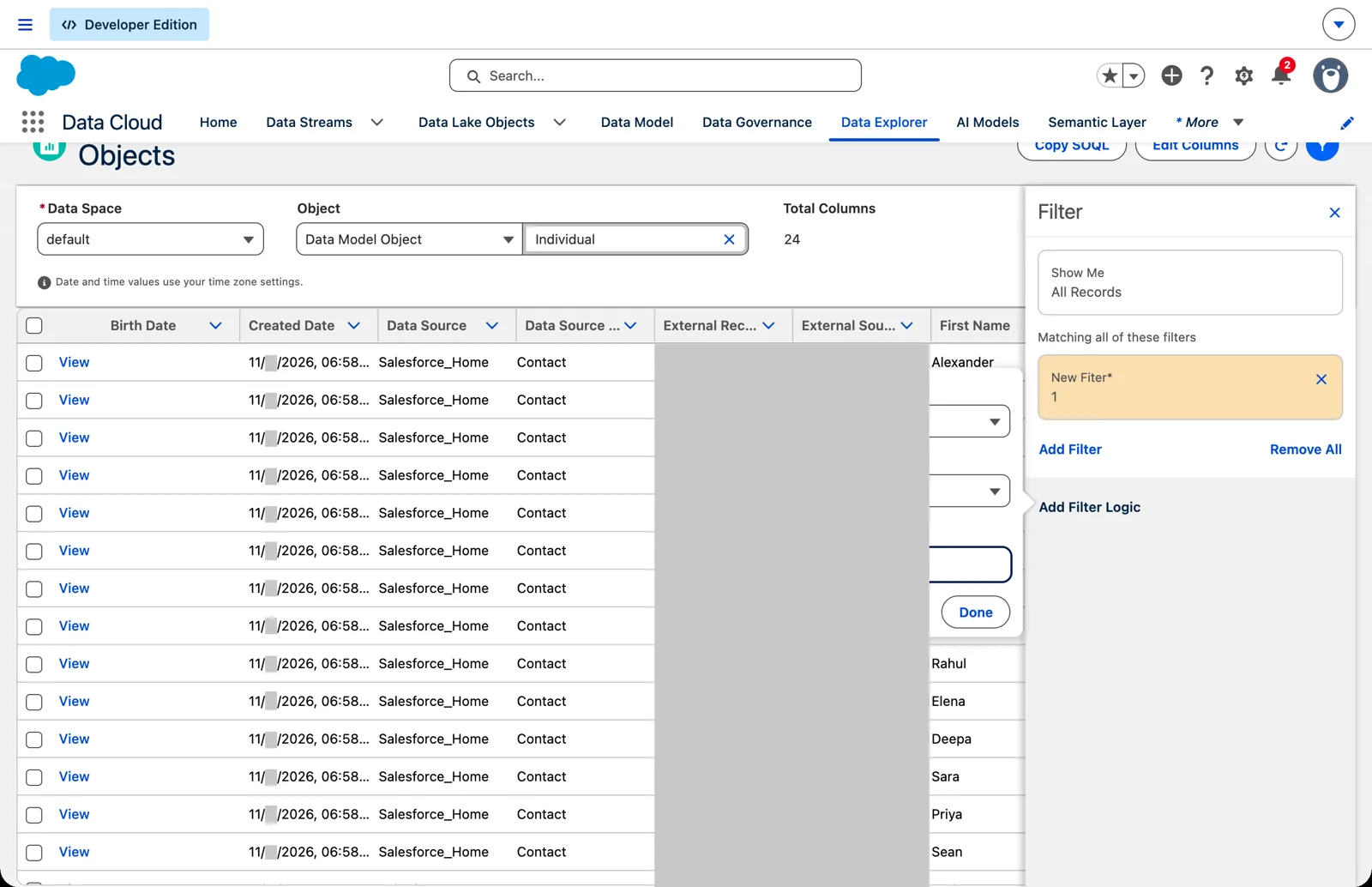
A filter that only a pilot can pass (Salesforce Data 360 in a Developer Edition org, screenshot, November 2026). Full size
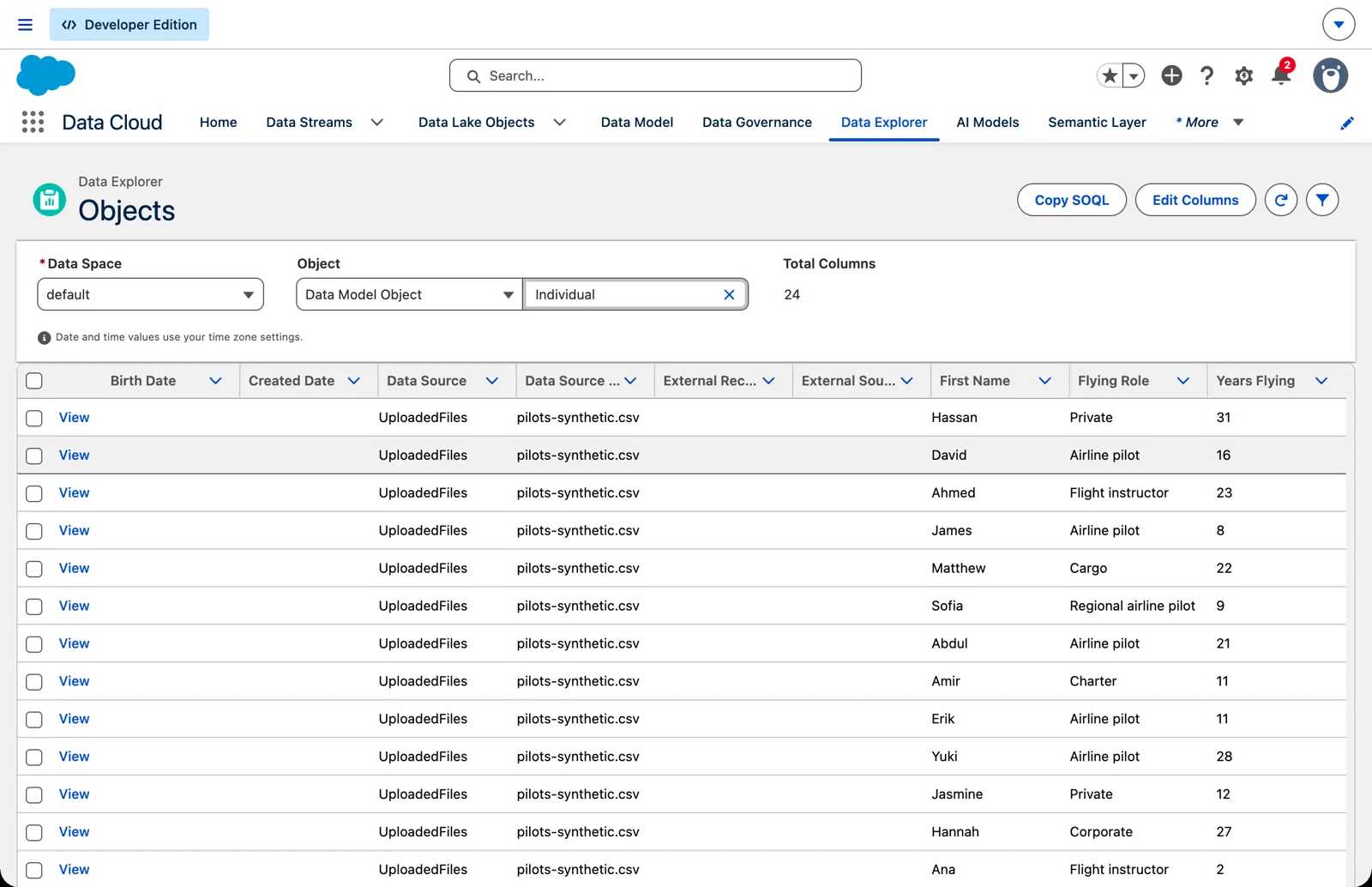
The pilots, in the Individual (Salesforce Data 360 in a Developer Edition org, screenshot, November 2026). Full size
Notice what you’re looking at: individuals, not people. A pilot who is also a contact in the org is two Individuals now, one from each source. That’s not yet the unified individual; that’s done through the matching rules in chapter 9.
The same idea for the org
Section titled “The same idea for the org”When the CRM org’s contacts come in, the bundle (chapter 5) maps them to the Individual too, with the contact ID as the Individual ID. That’s Salesforce’s best practice: “Map the Contact object to Individual DMO and use Contact Id as Individual Id.” There is no concept of contact; there’s the individual. Pilots from a file and contacts from an org are the same kind of thing in the model, which is what lets chapter 9 bring them together.
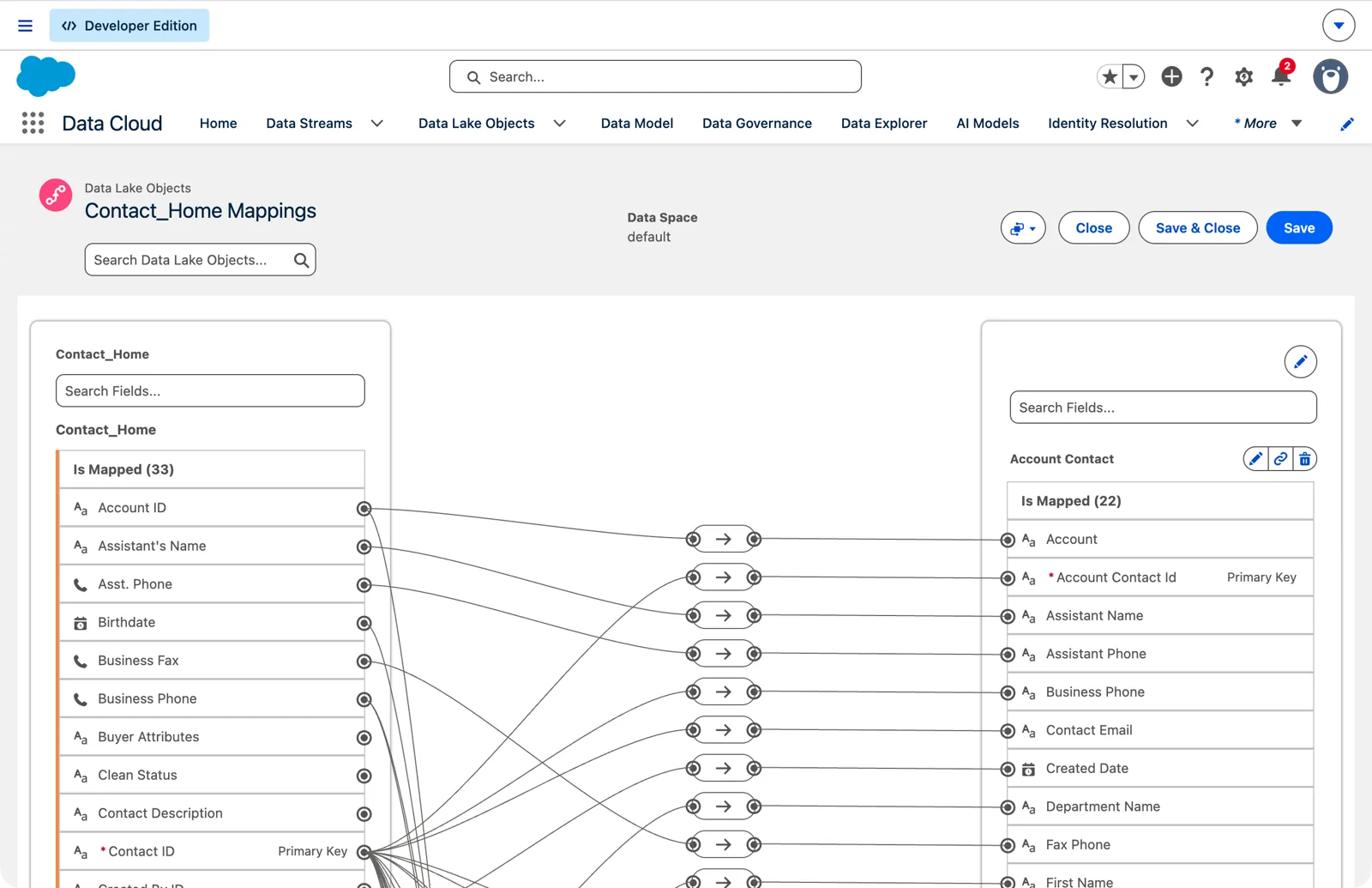
The bundle’s mapping for the org’s contacts: one contact, many model objects (Salesforce Data 360 in a Developer Edition org, screenshot, November 2026). Full size
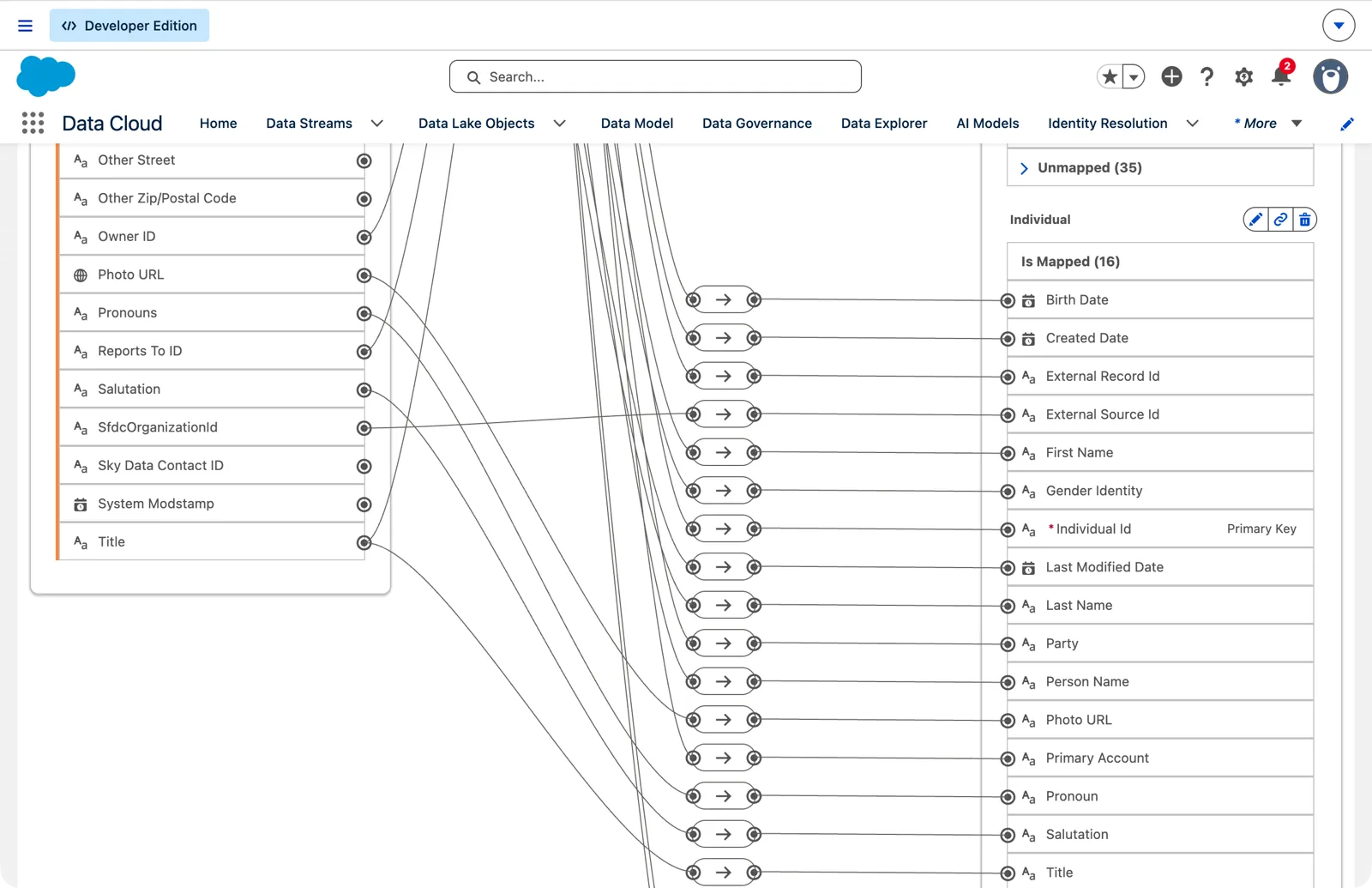
What the bundle mapped for the org’s contacts (Salesforce Data 360 in a Developer Edition org, screenshot, November 2026). Full size
Watch it on video
Section titled “Watch it on video”In 2023 I filmed the pilots file’s first mapping: to the standard Individual, the primary key mapped by hand, and the same data queried through the API. The note under the video says what’s still right and what’s changed since.
What an architect decides here
Section titled “What an architect decides here”- Which standard objects each people source maps to: the Individual, and which contact points.
- The key for each contact point, so two emails for one person never share one.
- Which source fields need custom fields on the standard objects, and which stay unmapped.
- Who reviews every automapping, right to left, before it’s saved.
Explore
Section titled “Explore”All checked 2026-11-14.
- Map Data Model Objects (opens in a new tab), Salesforce Help.
- Automapping (opens in a new tab), Salesforce Help.
- Data Mapping Requirements in Data 360 (opens in a new tab), Salesforce Help.
- SkyData: synthetic pilots (opens in a new tab), the library page for the pilot data.