
Where a Restriction Rule Sits
Ta treść nie jest jeszcze dostępna w Twoim języku.
Module 1 of 7 in the chapter Taking Access Away: Restriction and Scoping Rules, chapter 16 of Securing Salesforce: Sharing and Visibility. Each module stands on its own.
The question this module answers: Every tool so far opens records. When some users must see fewer, where does a restriction rule fit in, and what can’t it stop?
Count the ways in this course. Org-wide defaults, the role hierarchy, sharing rules, teams, territories, implicit sharing, code, sharing sets. Almost every one of them adds access. In class I put restriction rules this way: this is the first element that lets us narrow access down.
That’s why they get a chapter of their own. A restriction rule is the tool you reach for when the sharing model has done its job and some users still see too much.
After all of sharing
Section titled “After all of sharing”In my video I called a restriction rule a second-level filter. It sits on top of all the record-level security you already have, and narrows it.
Salesforce describes it the same way. “Restriction rules filter the records that a user has access to so that they can access only the records that match the criteria you specify” (Restriction Rules (opens in a new tab), Salesforce Help, checked 2026-11-26). And the order matters: “When a restriction rule is applied to a user, the records that the user is granted access to via org-wide defaults, sharing rules, and other sharing mechanisms are filtered by criteria that you specify” (same page).
So the sharing model runs first. It opens what it opens. Then the restriction rule kicks in at the end and takes away everything that doesn’t match. In class I said it plainly: restriction rules kick in after all of sharing.
Salesforce compares it to something you already know: “This behavior is similar to how you can filter results in a list view or report, except that it’s permanent” (same page). A list view filter the user can’t take off.
My demo is in chapter 5, module 7: a checkbox on the user, “small airport only,” and a rule that shows those users small airports and nothing else, whatever else shares airports with them. What I love about it is the first half. You can use things about the user that sharing never could. Module 2 takes those criteria apart.
Everywhere the user looks
Section titled “Everywhere the user looks”A filter is only as good as the places it reaches. This one reaches a long way. “Restriction rules are applied to these Salesforce features: Links, List Views, Lookups, Records, Related Lists, Reports, Search, SOQL, SOSL” (Restriction Rules).
In class I said it works pretty much like your sharing rules. That’s the point: it acts at the fundamental level, not in one screen. A user who can’t see a record through the rule can’t find it in a list view, a lookup, a report or a search, and can’t query it either. “If a user has a link to a record that is no longer accessible after a restriction rule is applied, the user sees an error message” (same page).
There are a few corners where it behaves in ways people don’t expect, mostly around activities and search. Module 4 walks through them.
What goes straight past it
Section titled “What goes straight past it”Here’s what you have to know before you lean on a restriction rule for anything that matters. Three things go straight past it (Restriction Rule Considerations (opens in a new tab), Salesforce Help, checked 2026-11-26):
- Code in system mode. “Restriction rules aren’t applied for code executed in System Mode.”
- View All. “Users with the View All Records or View All Data permissions can view all records regardless of restriction rules.”
- Modify All. “Users with the Modify All Records or Modify All Data permissions can view, edit, and delete all records regardless of restriction rules.”
You’ve met all three. View All and Modify All are way 13 (chapter 5, module 5); system mode is way 17 (chapter 5, module 6). They were overrides before, and they’re overrides here. So a restriction rule is only as strong as your control over who holds those permissions on the object, and over which code runs in system mode against it.
No row, and a query that doesn’t know
Section titled “No row, and a query that doesn’t know”Everything in Part 2 wrote rows into the share table. A restriction rule doesn’t write a row, and it doesn’t remove one. It filters what the share table opened.
That has a consequence for troubleshooting. Salesforce: “The UserRecordAccess object doesn’t consider whether a user’s access is blocked due to a restriction rule.” So if the query says a user has access and they still can’t open the record, check the object’s restriction rules (Restriction Rule Considerations).
So the query you’d use to ask “can this user see this record?” can say yes, and the user still can’t. That’s why chapter 13 put restriction rules in the last step of “why can’t this user see it” (chapter 13, module 5): when the shares say yes and the screen says no, look for a rule that takes access away. Module 7 builds the test.
Which objects, and how many
Section titled “Which objects, and how many”A restriction rule isn’t for every object. “Restriction rules are available only for custom objects, external objects, quotes, contracts, events, tasks, time sheets, and time sheet entries” (Restriction Rules). Not accounts, not cases, not opportunities.
One thing to know: Salesforce’s considerations page gives a shorter list on the same day, “custom objects, external objects, contracts, events, tasks, time sheets, and time sheet entries” (Restriction Rule Considerations), without quotes. I’ve used the main page’s list. If quotes matter to your design, check the Object Manager in your own org before you count on it.
And not many of them. “You can create up to two active restriction rules per object in Enterprise and Developer editions and up to five active restriction rules per object in Performance and Unlimited editions” (Restriction Rules). In class I called it a double-barreled shotgun: two shots in the gun, so spend them on purpose. Module 3 is about spending them well, and the rule that only one can ever apply to a user.
Two more things before you start. They’re for Lightning Experience: “Before creating restriction rules, we recommend that you Turn Off Salesforce Classic for Your Org. Salesforce can’t guarantee that restriction rules work as intended for end users who are in the Salesforce Classic experience” (same page). And they don’t reach down: “Creating a restriction rule for an object doesn’t automatically restrict access to its child objects” (Restriction Rule Considerations). A child needs a rule of its own, which turns out to be one of the best uses of one, below.
Salesforce puts the count on the page itself. Here’s an object with one rule:
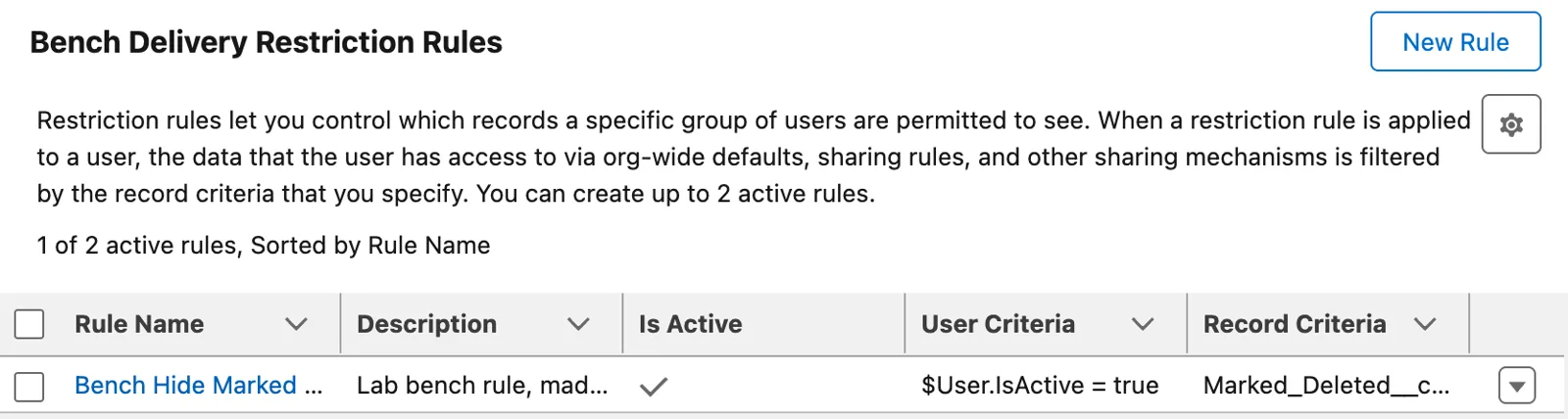
Two shots in the gun, counted on the page: 1 of 2 active rules. The 2 is this edition’s (Salesforce, Setup in a Partner Developer Edition org, screenshot, November 2026). Full size
When it’s the right tool
Section titled “When it’s the right tool”“Use restriction rules when you want certain users to see only a specific set of records. Restriction rules can simplify controlling access to records with sensitive or confidential information” (Restriction Rules).
When a student asked me whether a restriction rule would work for confidential data, I said yes: a checkbox on the record that says confidential, a rule that hides it, and that’s a great use of one of your two shots. It still is, on an object that supports one. For the confidential case in my story, cases aren’t on the list, and chapter 6, module 5 covers the other ways: a branch of its own, an owner with no role, a queue.
And one question before any of this: should the design open less in the first place? It’s easier to open up later than to lock down later. A restriction rule is how Salesforce lets you lock down later, on a few objects, with a few rules. Use it where the sharing model really can’t say what you need, not to patch a model that opened too much.
Where restriction rules shine
Section titled “Where restriction rules shine”So you only get a few. Two, or five, and only one for each user. That’s exactly why it’s worth knowing where they do something nothing else in Salesforce can. These are the places I’d spend a shot.
Filtering the children of a master-detail
Section titled “Filtering the children of a master-detail”This is the one I’d put first, because no other mechanism does it.
On the detail side of a master-detail relationship, the child has no sharing of its own. “Detail and subdetail records inherit security settings and permissions from the master record. You can’t set permissions on the detail record independently,” and “Custom objects on the detail side of a master-detail relationship can’t have sharing rules, manual sharing, or queues, as these require the Owner field” (Object Relationships Overview (opens in a new tab), Salesforce Help, checked 2026-11-26). So with the usual tools it’s all or nothing: share the master, and every child comes with it.
A restriction rule on the detail object changes that. The master stays shared as it is, and the rule filters which of its children each user sees. Share the project, and filter its cost lines. Share the account, and hide the account reviews a team shouldn’t read.
That’s not only my reading of the docs. When customers asked Salesforce to let children opt out of Controlled by Parent, Salesforce’s reply on the IdeaExchange was: “For further restrictions on the child (want parent to have broad access, but not the children), have you evaluated Restriction Rules?” (Larry Tung, Update from Salesforce, Opt-out of ‘Controlled By Parent’ Sharing for Children (opens in a new tab), IdeaExchange, checked 2026-11-26). And the community has shown it working. Tom Bassett’s restriction rules article uses an Account Review child: “Restriction Rules will enable you to selectively share these child records” (Salesforce Restriction Rules: How to Restrict Record Access (opens in a new tab), Salesforce Ben, published 2021-12-01, updated 2023-10-23, checked 2026-11-26). In his story on the Salesforce Admins blog, the rule goes on a junction object with master-detail relationships to Account and Promotion (How I Solved It: Selectively Control Record Access from Account Fields (opens in a new tab), Salesforce Admins, 2022-10-26, checked 2026-11-26).
Three things to get right:
- The rule goes on the child, not the master. A rule on the master doesn’t reach down: “Creating a restriction rule for an object doesn’t automatically restrict access to its child objects” (Restriction Rule Considerations).
- The flag lives on the child. The record criteria “can’t reference fields on the object’s parent” (same page). If the child’s visibility depends on something about the master, copy it down to a field on the child with automation, and point the rule at that field (module 2).
- It’s for custom detail objects. Salesforce’s list says custom objects, with no exception for the detail side, but no Salesforce page names the master-detail case directly.
External objects
Section titled “External objects”Salesforce Connect brings another system’s rows into Salesforce, with no share table and no sharing rules. A restriction rule is the only record-level lock you can put on them. When I first showed restriction rules, this is the part I was most excited about. Module 5 covers it, including the load the rule puts on the other system.
A flag on the record: archived, soft-deleted, confidential
Section titled “A flag on the record: archived, soft-deleted, confidential”The simplest use is often the best one: one checkbox on the record, and a rule that hides every record where it’s checked.
- Soft delete. You can’t really delete the record yet: there’s history, an audit, a retention period. So you mark it deleted, and a rule shows everyone only the records where Is Deleted equals false. To the users, it’s gone. It’s still in the data.
- Confidential. A Confidential checkbox, and a rule that shows it only to the people with a custom permission. That’s the answer I gave the student, earlier in this module.
The catch is the one from module 3. A soft-delete rule usually applies to everyone, so it becomes the one rule for every user on that object. If you later need a second filter, by region say, it can’t be a second rule. And a rule can’t say “my region and not deleted,” because the criteria take no AND (module 2). Decide on day one, and compute one field that says both.
And remember who still sees the flagged records: anyone with View All or Modify All on the object, and any code in system mode. For a soft delete that’s often what you want. Your admins and your integration still see everything. For a confidential flag, check that list carefully.
Watch it on video
Section titled “Watch it on video”In 2023 I made a video of both rules in this chapter: a restriction rule that keeps one pilot to small airports, and a scoping rule the user can switch off. The note under the video says what’s still right and what’s changed since.
Test knowledge. Know that a restriction rule filters the records a user already has through sharing, permanently, and applies to links, list views, lookups, records, related lists, reports, search, SOQL and SOSL. Know what goes past it: code in system mode, View All Records and View All Data, Modify All Records and Modify All Data. Know that UserRecordAccess doesn’t consider restriction rules. Know the objects (custom, external, quotes, contracts, events, tasks, time sheets and time sheet entries; not accounts, cases or opportunities), two active rules per object in Enterprise and Developer and five in Performance and Unlimited, that a rule on a parent doesn’t restrict its child objects, and that Salesforce recommends turning off Classic first. Know where restriction rules do what nothing else can: filtering the children of a master-detail relationship (a rule on the custom detail object, with the criteria on the child’s own fields), a record-level lock on external objects, and hiding records by a flag such as soft-deleted or confidential. A likely area, not a known question.
What an architect decides here
Section titled “What an architect decides here”- Whether the sharing model should open less in the first place, before a restriction rule narrows it.
- Whether the object supports a restriction rule at all, and if not, which of chapter 6’s other ways fits.
- Who holds View All or Modify All on the object, and which code runs in system mode against it, since the rule won’t narrow either.
- Which of the two (or five) shots this rule spends, and what it leaves for later.
- That Classic is off, and that child records get their own protection.
- Whether a shot is best spent on one of the uses only a restriction rule covers: the children of a master-detail, an external object, or a soft-delete or confidential flag, and if a flag applies to everyone, that it’s designed as the one rule for every user from day one.
Beyond the exam: what AI changes. A restriction rule applies to an agent’s user like any other user, in SOQL and in search, so it’s a real guardrail: a rule that hides confidential or soft-deleted records keeps them out of the agent’s answers. But it’s only a guardrail for actions that run as the user. An action whose Apex or flow runs in system mode goes straight past it. Before you rely on a restriction rule to protect an agent’s answers, check how every action the agent can call runs. Chapter 20 covers agents.
Explore
Section titled “Explore”- Restriction Rules (opens in a new tab), Salesforce Help (checked 2026-11-26)
- Restriction Rule Considerations (opens in a new tab), Salesforce Help (checked 2026-11-26)
- Object Relationships Overview (opens in a new tab), Salesforce Help (checked 2026-11-26)
- Opt-out of ‘Controlled By Parent’ Sharing for Children (opens in a new tab), IdeaExchange, with Salesforce’s reply (checked 2026-11-26)
- Salesforce Restriction Rules: How to Restrict Record Access (opens in a new tab), Salesforce Ben, published 2021-12-01, updated 2023-10-23 (checked 2026-11-26)
- How I Solved It: Selectively Control Record Access from Account Fields (opens in a new tab), Salesforce Admins blog, 2022-10-26 (checked 2026-11-26)