
Custom Objects: From Core to Data 360
Цей контент ще не доступний вашою мовою.
Module 3 in the chapter Bringing In CRM Data, chapter 5 of the Data 360 Architect course. Each module stands on its own. Previous: Data Bundles: the Fast Start · Next: How Fresh Is CRM Data?
The question this module answers: How does a custom object you build in core get into Data 360?
A standard bundle covers the objects everyone has (module 2). But most orgs have their own objects too, built for their own business, and those are often the data that matters most. No bundle knows about them. So let’s walk the whole flow, from creating a custom object in core to seeing its records in Data 360.
The example: the pilot’s certifications
Section titled “The example: the pilot’s certifications”In our aviation org, each pilot is a contact. A pilot holds certifications: a license type, a rating for an aircraft type, the date it was issued and the date it expires. One pilot, many certifications. So in core we build a custom object, Pilot Certification, with a lookup to the pilot’s contact.
Try it with the course’s data. SkyData has the certifications for chapter 5’s core contacts: pilot-certifications-synthetic.csv on SkyData (opens in a new tab), 627 synthetic rows for the 150 contacts, one to five each. Each row has its own ID (CRT-000001), the contact it belongs to (CON-00001), the type and the certification, an aircraft type rating where it applies (a Boeing 737, an Embraer 170/175; never an employer), an issue date, and an expiry date on the medicals. Fourteen of the 149 medicals have already expired, on purpose: something for a segment or an insight to find later. To load them with the Data Import Wizard, SkyData’s Salesforce import files (opens in a new tab) have the same rows ready as pilot-certifications-for-import.csv, with the pilot’s Sky Data Contact ID, and a short file, core-org-contact-ids.csv, that puts that ID on each contact first. The card gives every step.
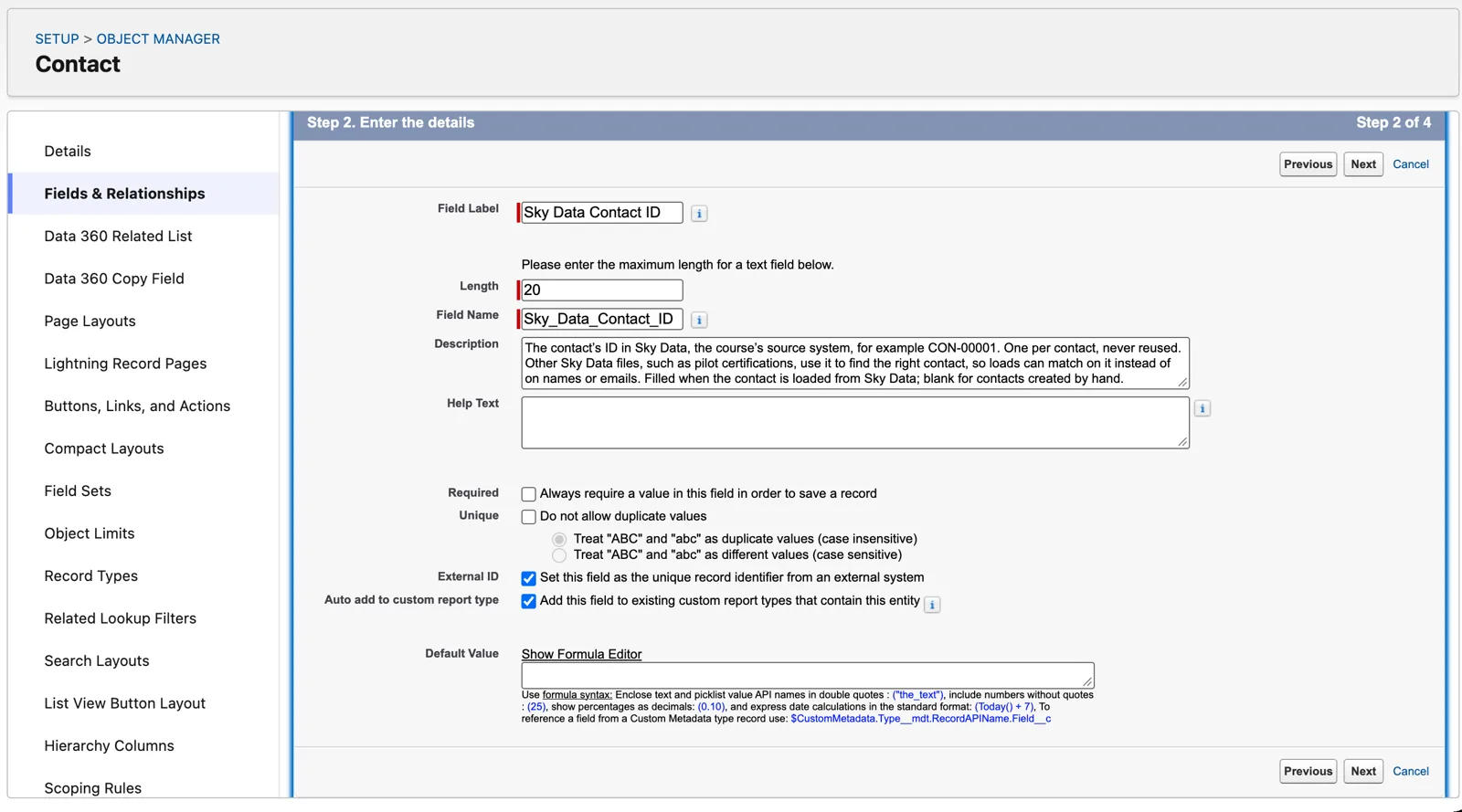
An external ID on the contact, for the load (Salesforce Data 360 in a Developer Edition org, screenshot, November 2026). Full size
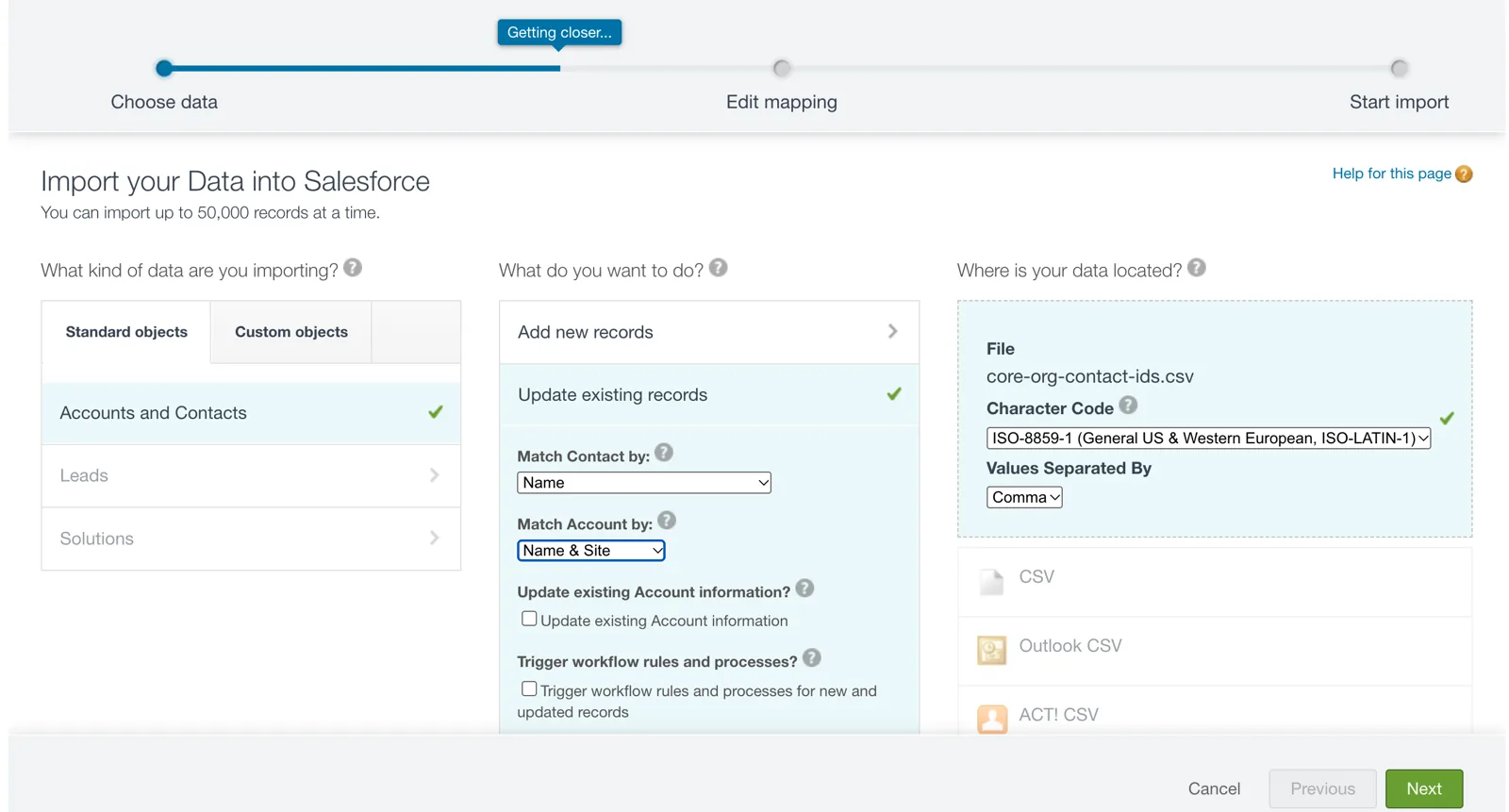
Filling the new ID: update the contacts, matched by name (Salesforce Data 360 in a Developer Edition org, screenshot, November 2026). Full size
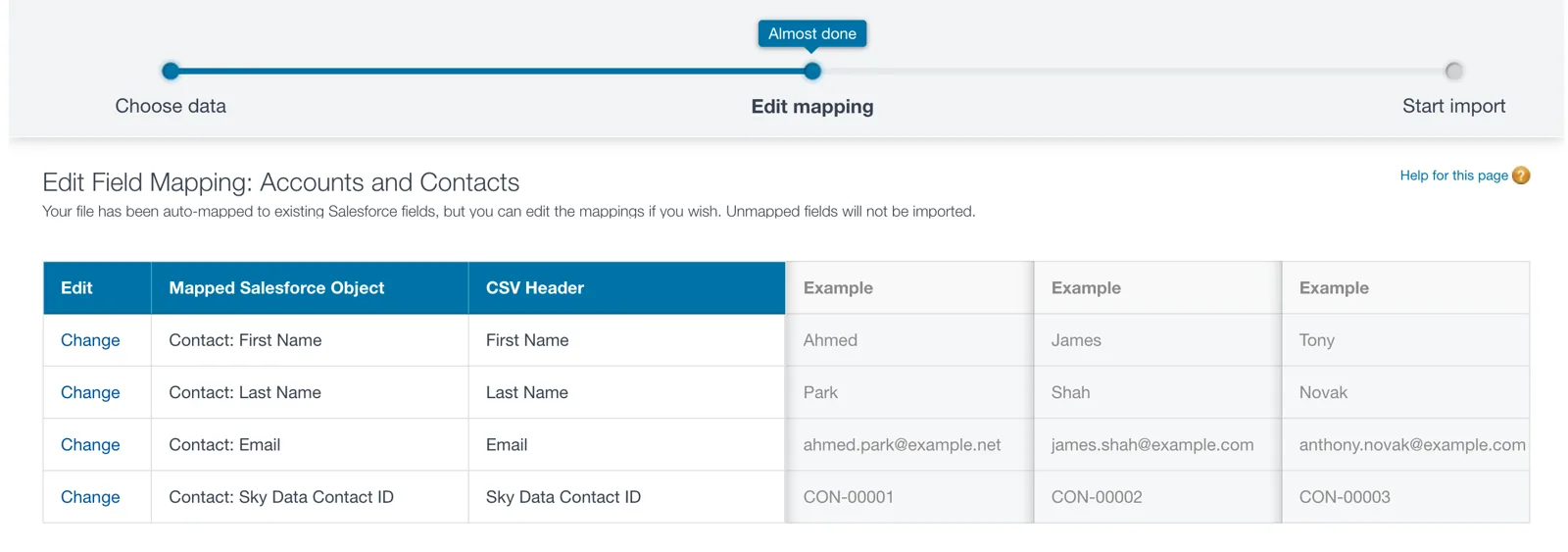
The new field found by its label (Salesforce Data 360 in a Developer Edition org, screenshot, November 2026). Full size
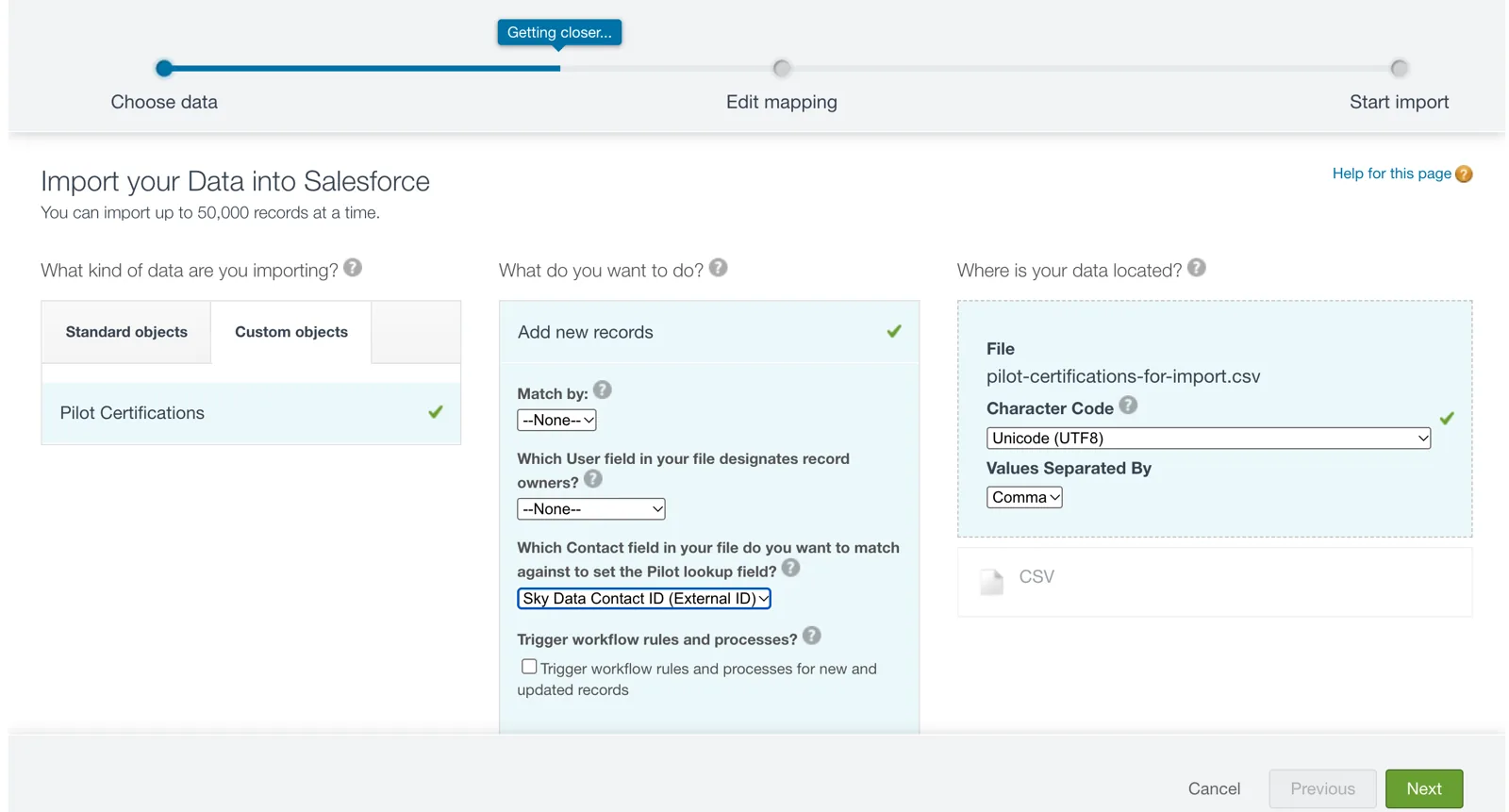
The wizard matches the pilot by the external ID (Salesforce Data 360 in a Developer Edition org, screenshot, November 2026). Full size
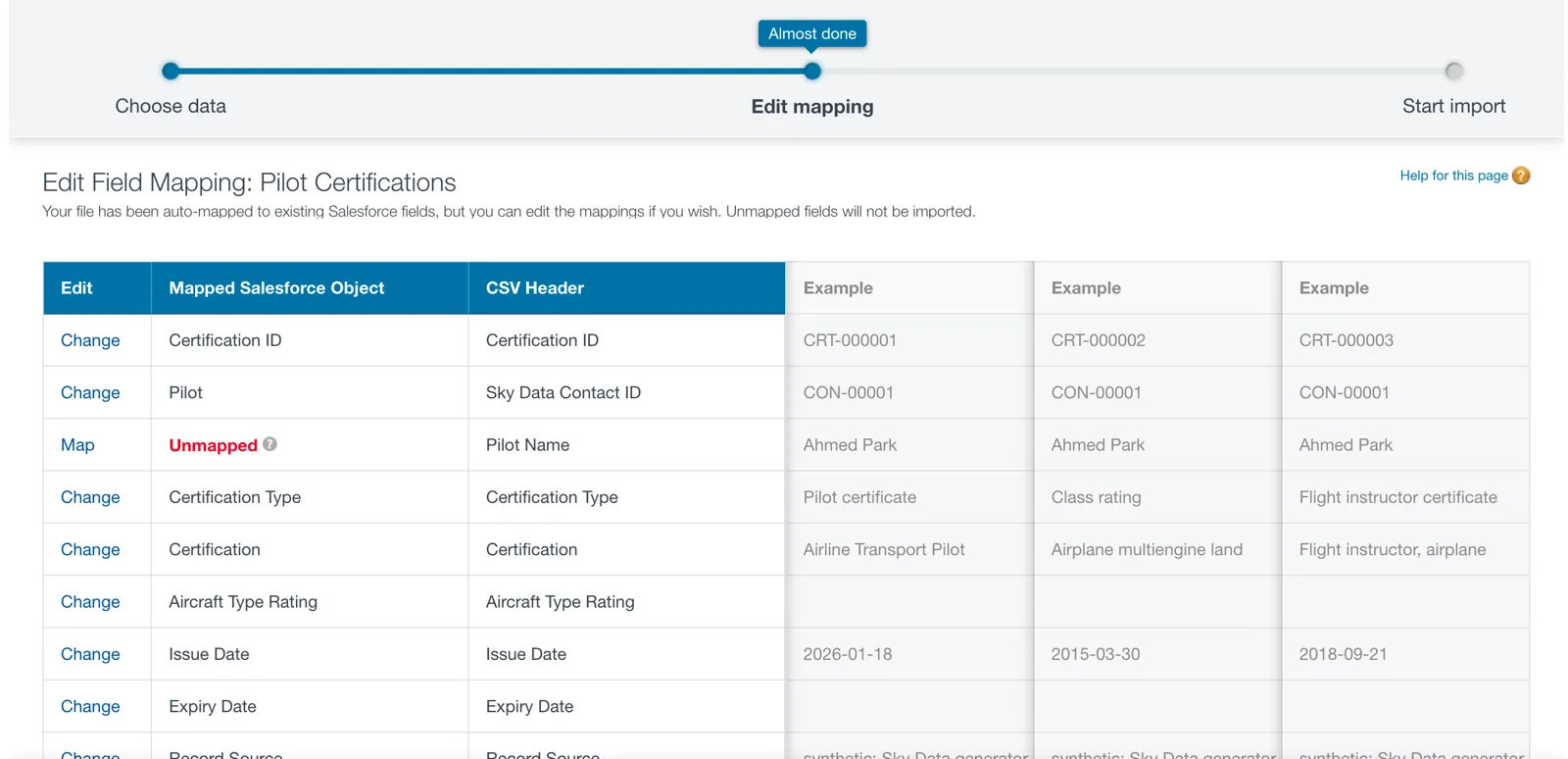
The lookup mapped, the step people miss (Salesforce Data 360 in a Developer Edition org, screenshot, November 2026). Full size
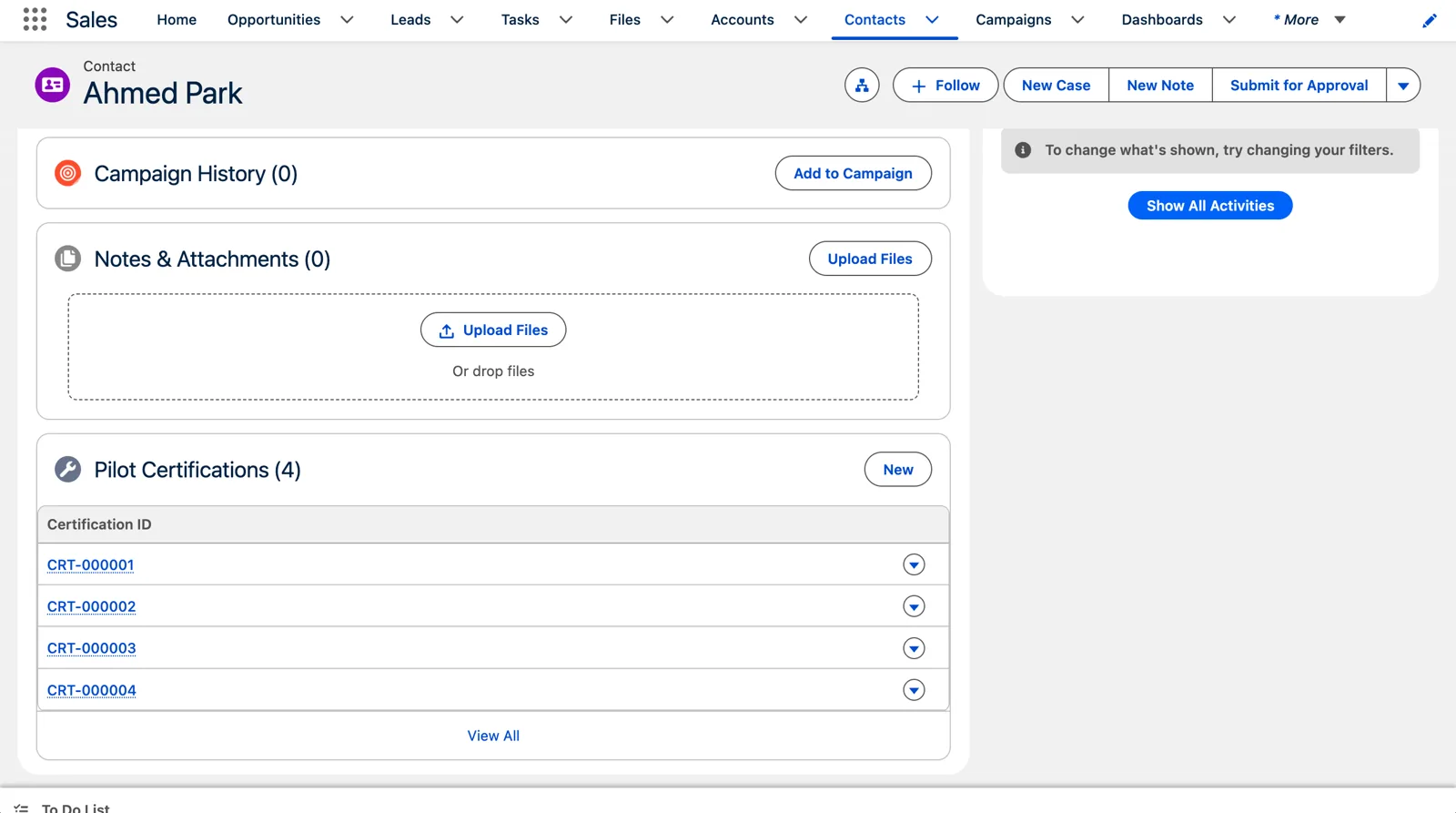
The check: four certifications on the first pilot (Salesforce Data 360 in a Developer Edition org, screenshot, November 2026). Full size
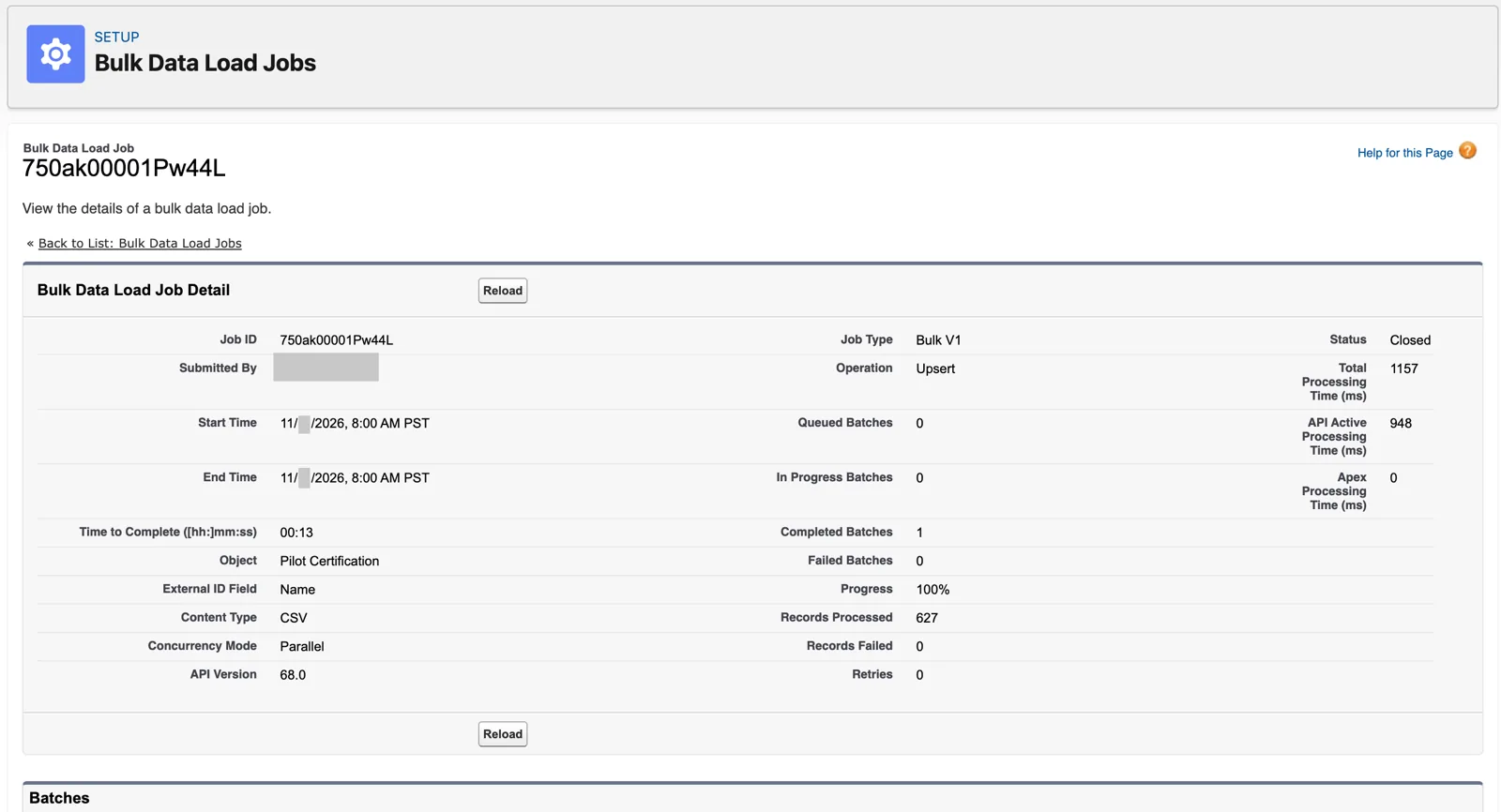
Matched by name, the load is an upsert: a reload updates instead of duplicating (Salesforce Data 360 in a Developer Edition org, screenshot, November 2026). Full size
That’s ordinary core work. What follows is what Data 360 needs on top of it.
Step 1: Finish it in core
Section titled “Step 1: Finish it in core”Build the object, its fields and its relationships, and deploy it. Salesforce lists an object whose deployment status is “In Development instead of Deployed” as one of the reasons a CRM stream can’t use the faster streaming mode (module 4). So finish the object in core first, then bring it in.
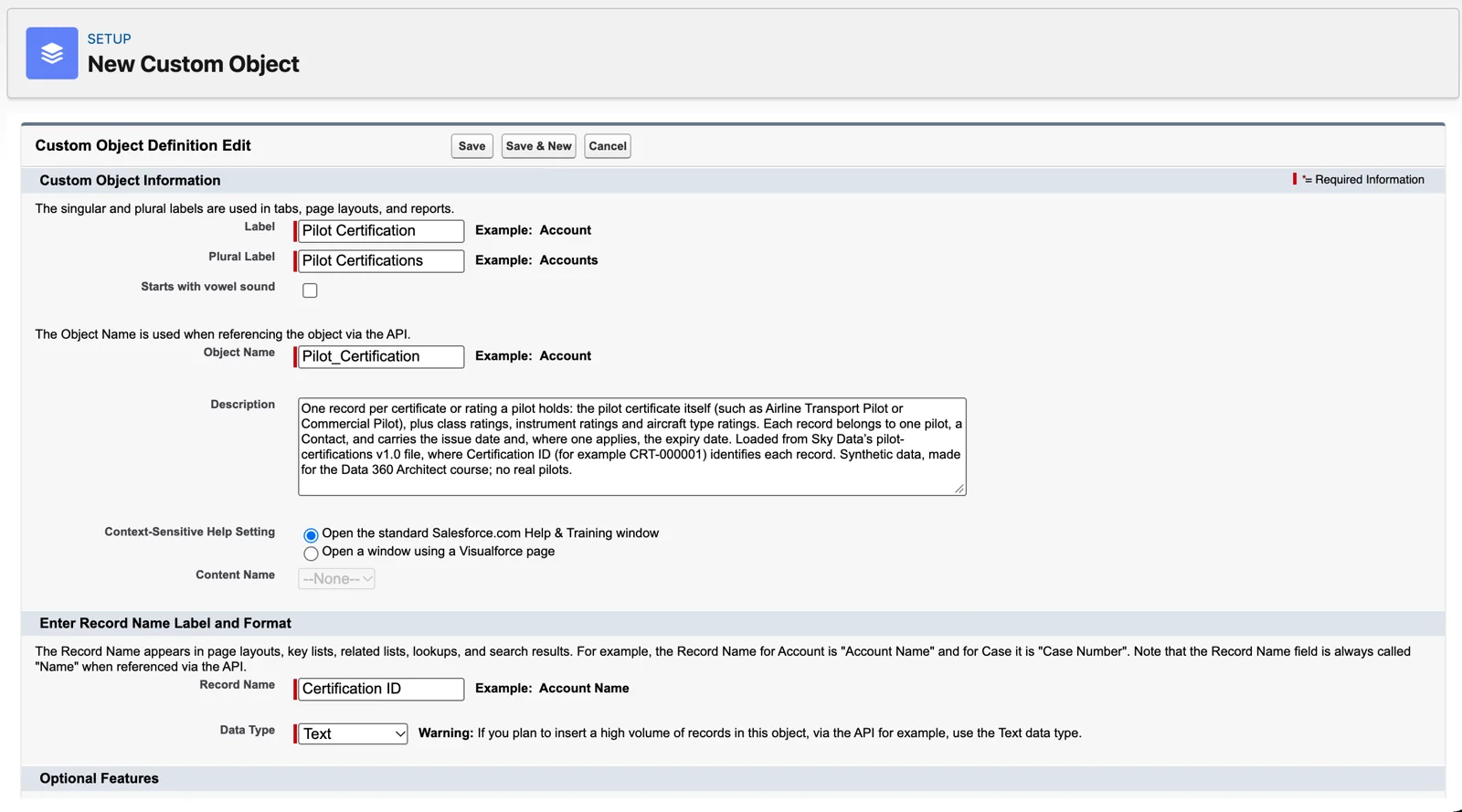
Building the custom object in core, with a description (Salesforce Data 360 in a Developer Edition org, screenshot, November 2026). Full size
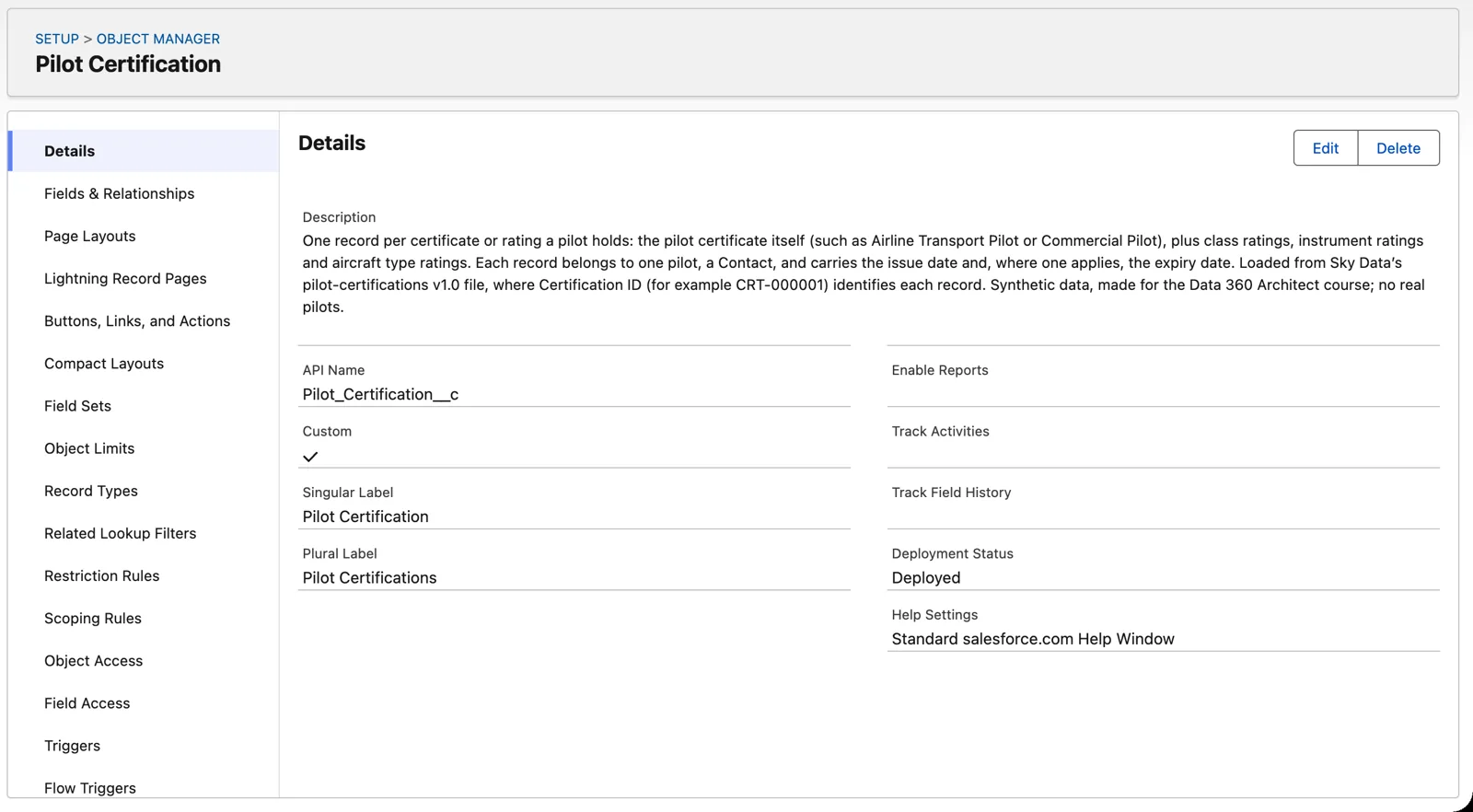
Deployed, not In Development (Salesforce Data 360 in a Developer Edition org, screenshot, November 2026). Full size
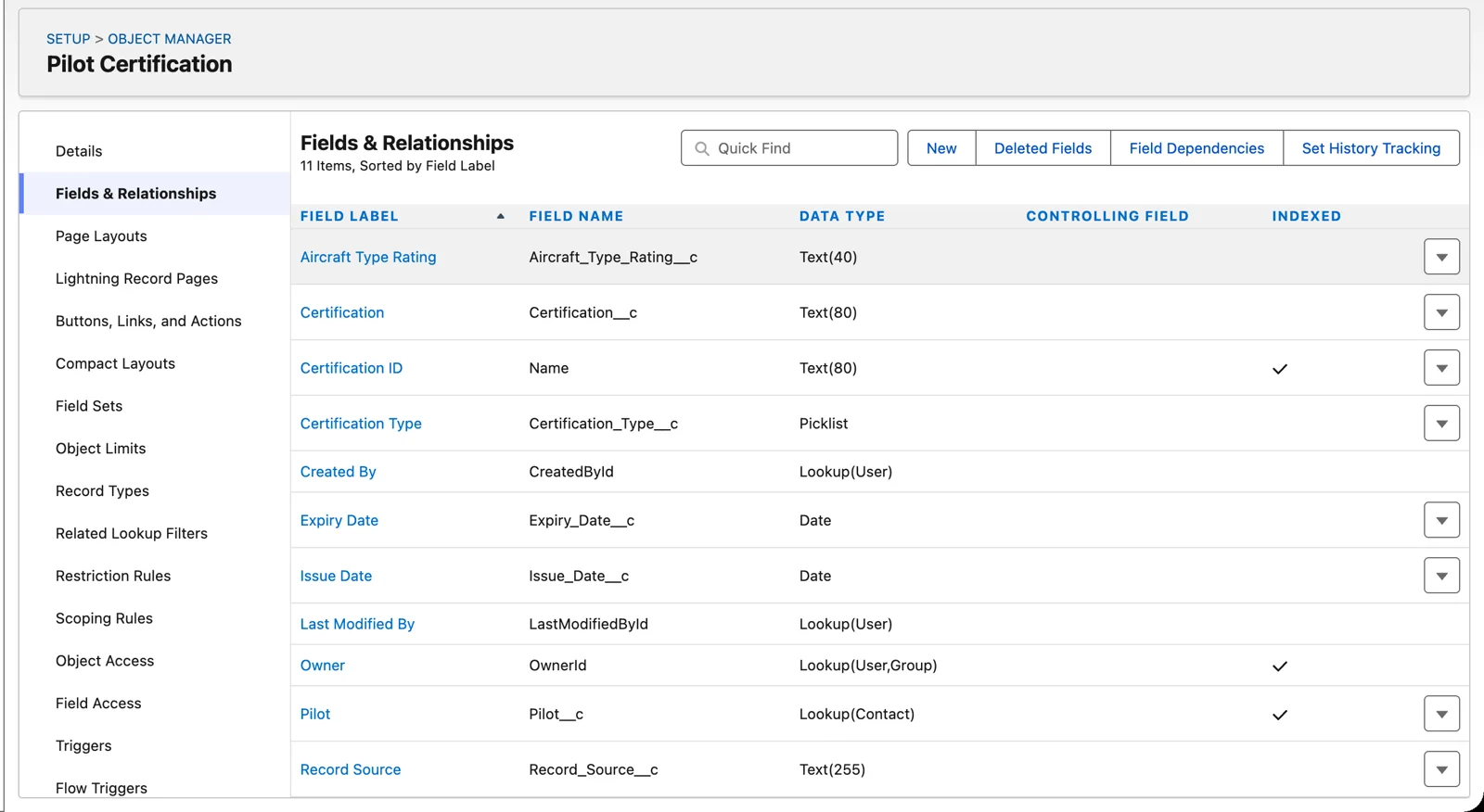
The object’s fields, with the lookup to Contact (Salesforce Data 360 in a Developer Edition org, screenshot, November 2026). Full size
And think about the key now, not later (chapter 3). The record ID of each certification is unique, unchanging and meaningless, and it’s what Data 360 will use.
Step 2: Give the connector access
Section titled “Step 2: Give the connector access”Data 360 doesn’t read your org as you. When you connect an org, Salesforce creates a permission set called Data Cloud Salesforce Connector, used by a system user, the Platform Integration User. Salesforce is clear: “Permissions granted through permission sets to this user determine the data you retrieve from Data 360.” If that user can’t see the object or a field, the data doesn’t come in.
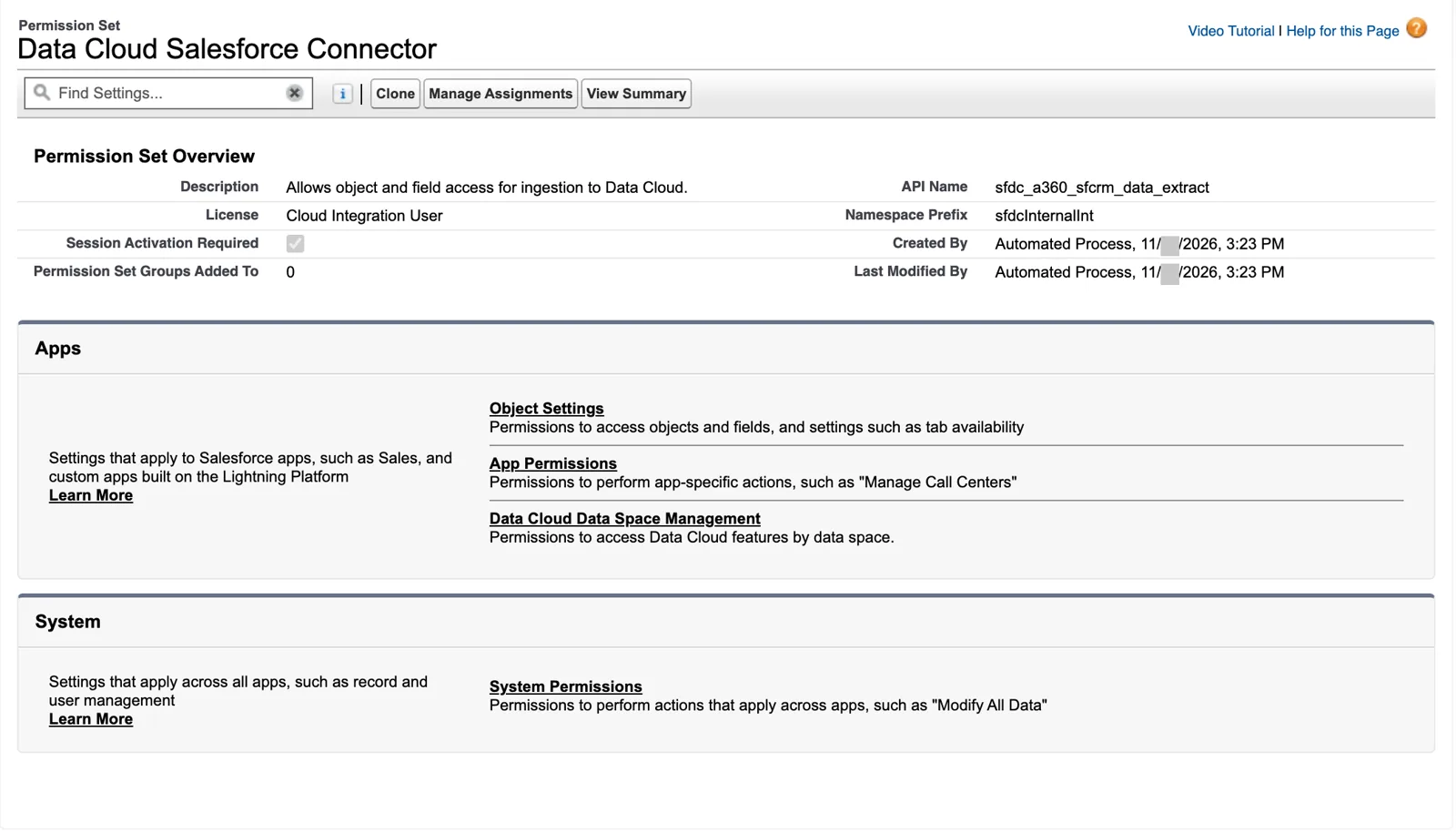
The connector’s permission set, created for you (Salesforce Data 360 in a Developer Edition org, screenshot, November 2026). Full size
From Salesforce’s permissions page:
- View All Records and View All Fields must be granted on the objects and fields you ingest.
- Grant permissions on related objects too, “even if you don’t ingest the related objects.” A certification looks up to a contact, so the connector needs access to Contact as well.
Here’s what I found when I opened that permission set in my org, after building Pilot Certification. The object was already there. I hadn’t granted anything: the connector already had Read and View All Records on Pilot Certification, and Read on every one of its fields. View All Fields was off. And the stream still brought in every certification, all 627 of them, with every field.
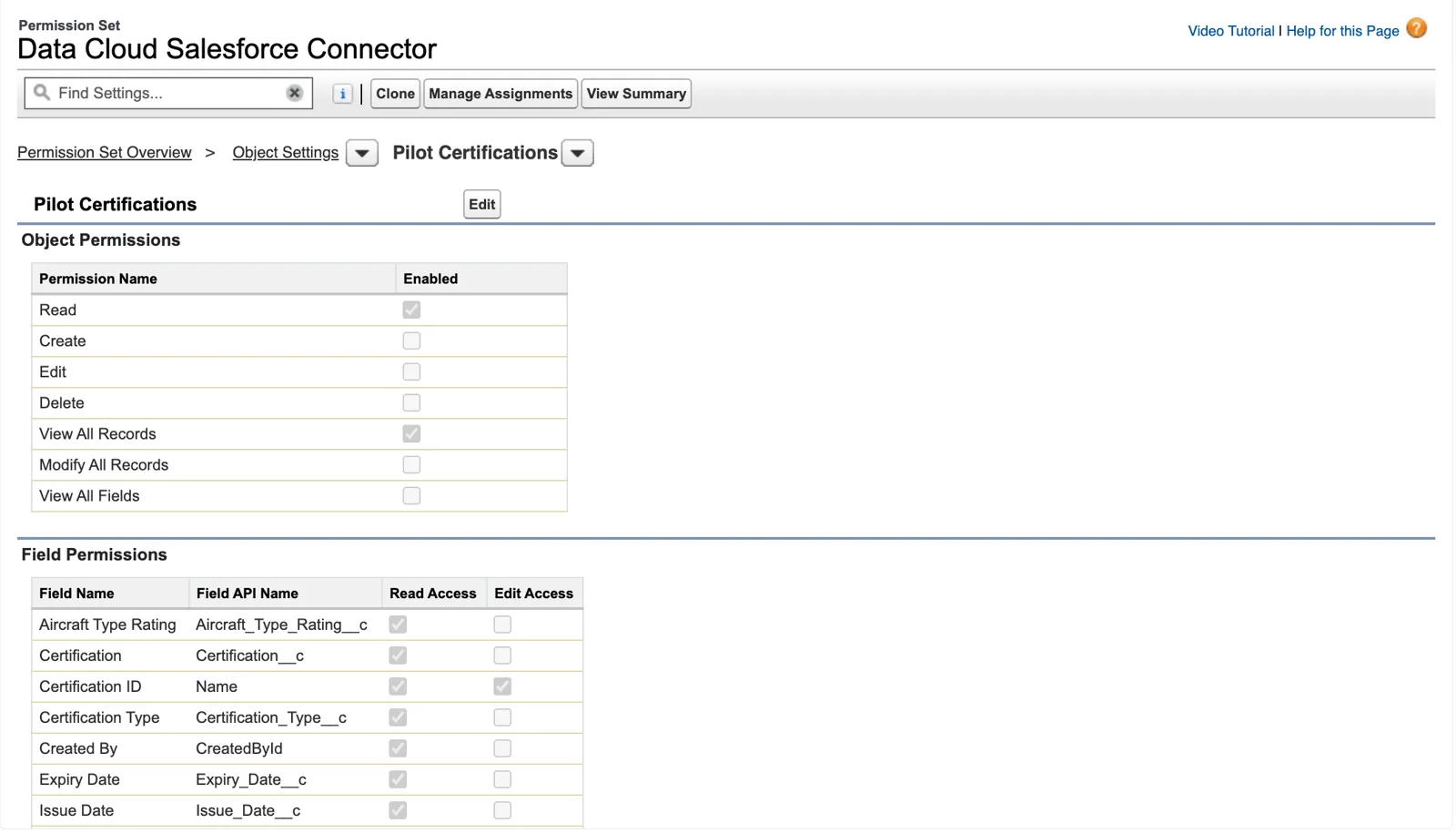
The connector’s access to the new object, already there, with View All Fields off (Salesforce Data 360 in a Developer Edition org, screenshot, November 2026). Full size
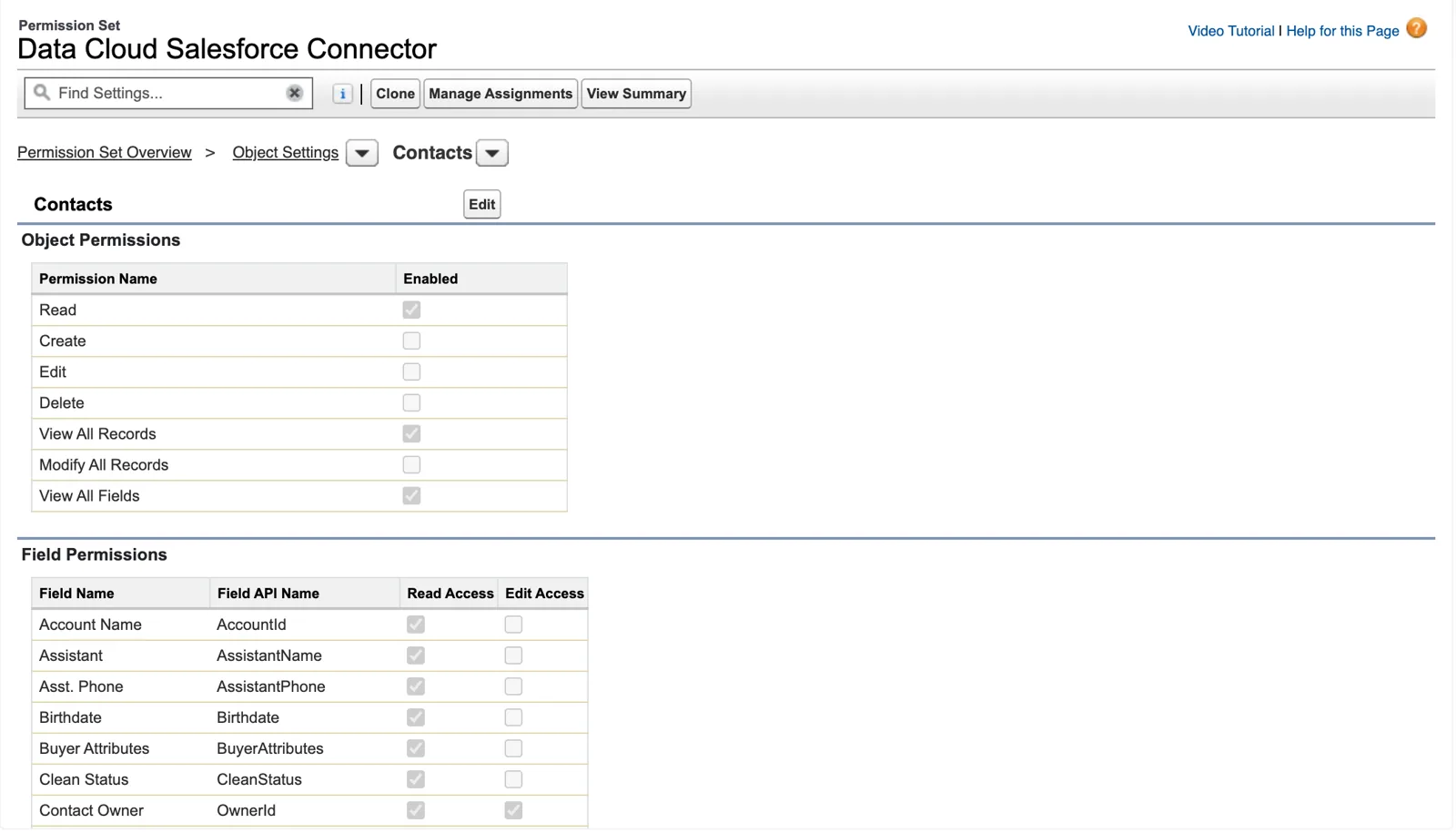
On Contact, the same connector has View All Fields on (Salesforce Data 360 in a Developer Edition org, screenshot, November 2026). Full size
So why did it work? Because Read on each field is enough for the fields that exist today. View All Fields is about the future. When you create a stream, Data 360 shows a banner asking you to grant View All Fields (Global) on this permission set, “to ensure data is ingested from fields and objects created in the future.” Without it, every field someone adds later needs its own Read access before it can come in. On Contact, in the same org, View All Fields was on.
So check, don’t assume. Open the permission set for each object you ingest, look at the object and its fields, and decide whether you want View All Fields, or field-by-field access you grant on purpose. That’s a security choice as much as a data one (chapter 17).
Put this step on the plan with a name beside it: it’s done in core, often by a different person from the one building the stream.
Step 3: Create the CRM data stream
Section titled “Step 3: Create the CRM data stream”Now in Data 360, on the Data Streams tab, click New and choose Salesforce CRM. Salesforce’s page walks it through:
- Pick the org, then the objects. You can select up to 30, and each one gets its own data stream.
- Choose the category: profile, engagement or other. A certification belongs to a person, but it isn’t the person; we’ll come back to categories in chapter 6.
- Decide on the data lake object’s name. Data 360 builds a default from the object’s API name and the org’s alias (module 1). Salesforce warns that a customized API name isn’t preserved when you deploy to another org, and the transforms, identity resolution and data space filters that depend on it can then fail to deploy (chapter 22). More on this below.
- Review the fields. “By default, all fields for an object are selected.” Deselect what you don’t need (chapter 3, module 5). You can add formula fields here too.
- Choose the data space, and deploy. The refresh schedule is set for you (module 4).
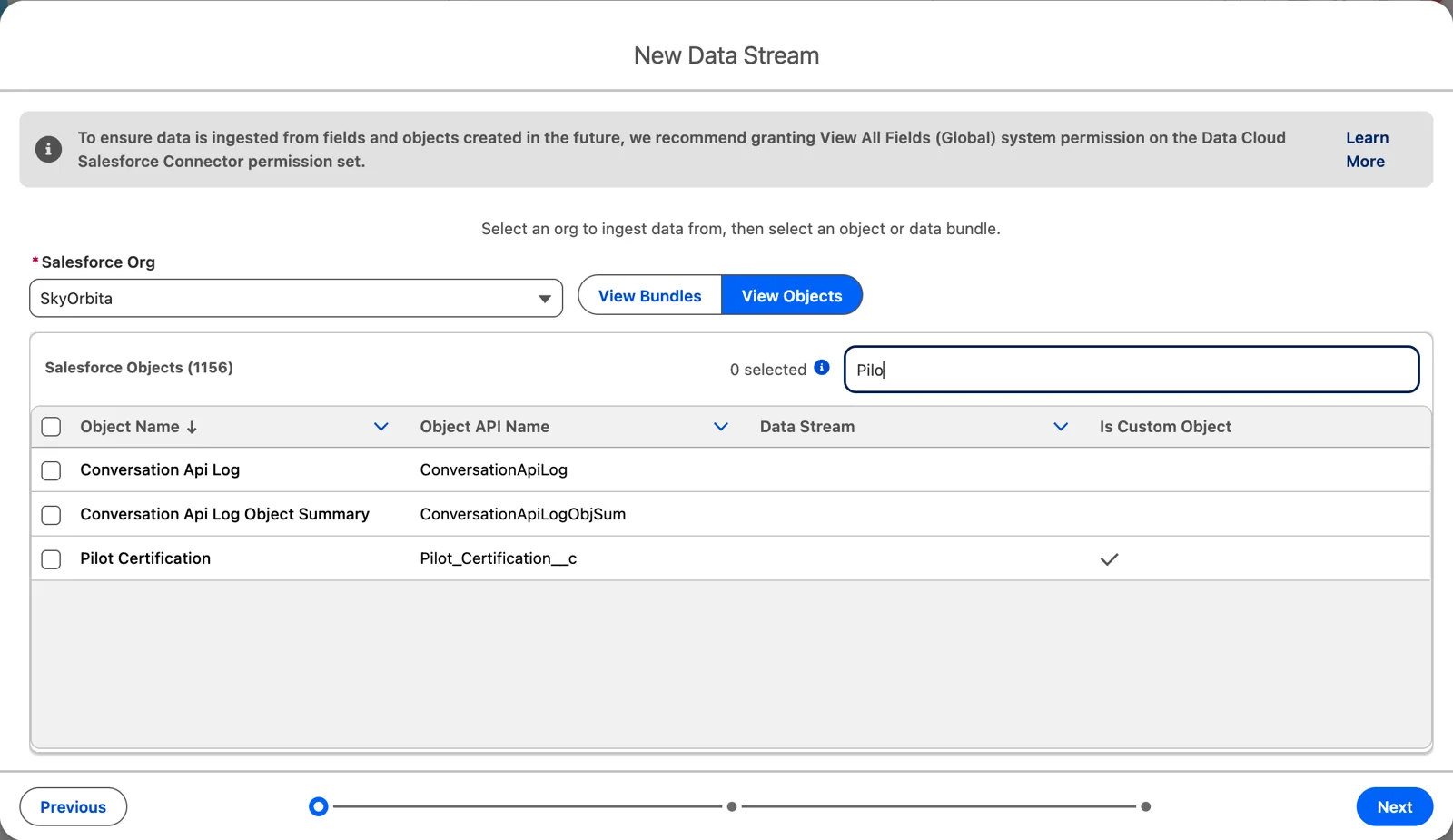
Finding the custom object (Salesforce Data 360 in a Developer Edition org, screenshot, November 2026). Full size
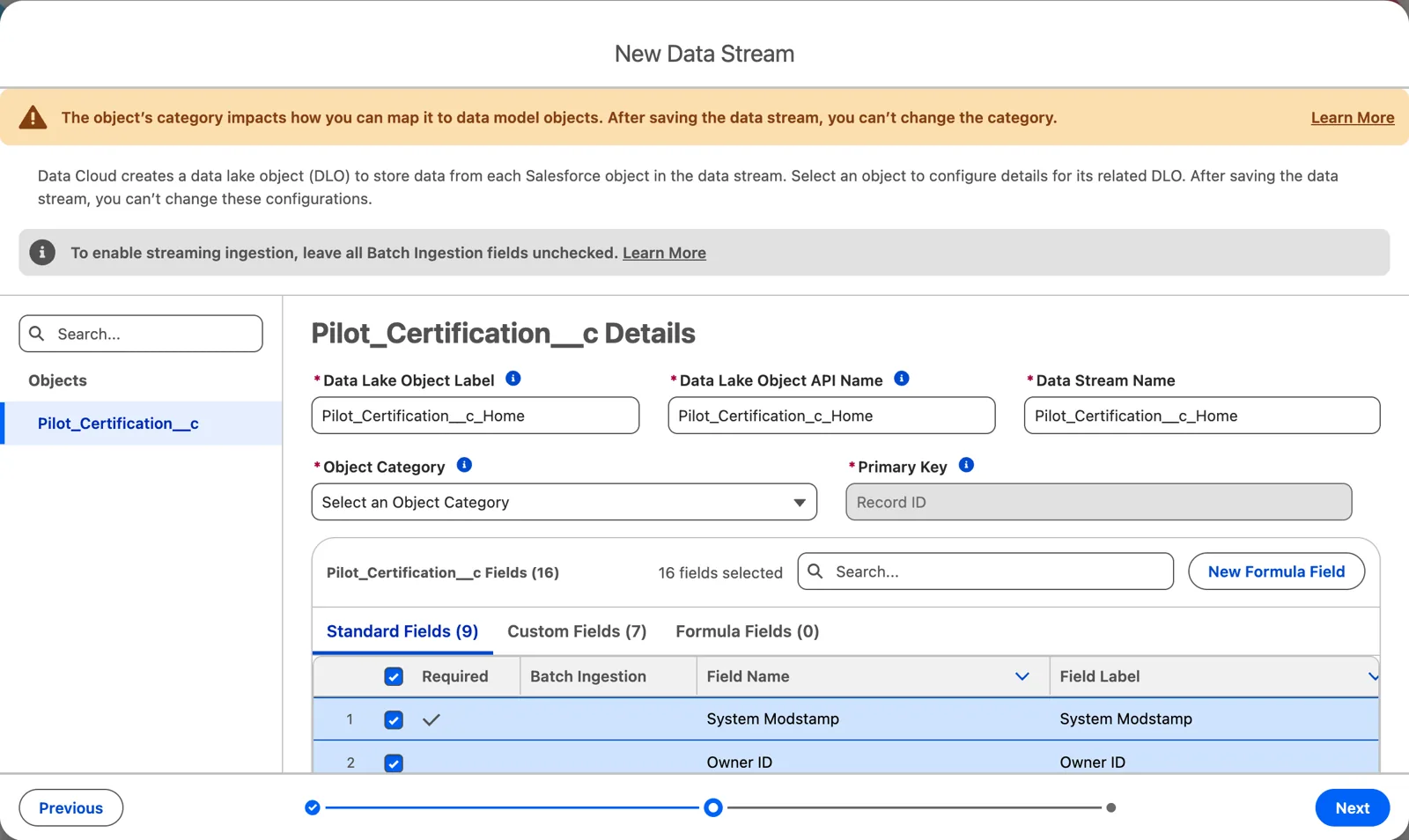
The stream’s defaults, before you choose a category (Salesforce Data 360 in a Developer Edition org, screenshot, November 2026). Full size
The default here is Pilot_Certification__c_Home: the object’s API name, __c and all, then the org’s alias. In my org I changed it to Pilot_Certification_Home, in the label, the API name and the stream name. Why? Because the bundles in module 2 had already made Account_Home and Contact_Home, and I wanted the custom object’s lake object to read the same way, with no __c in the middle.
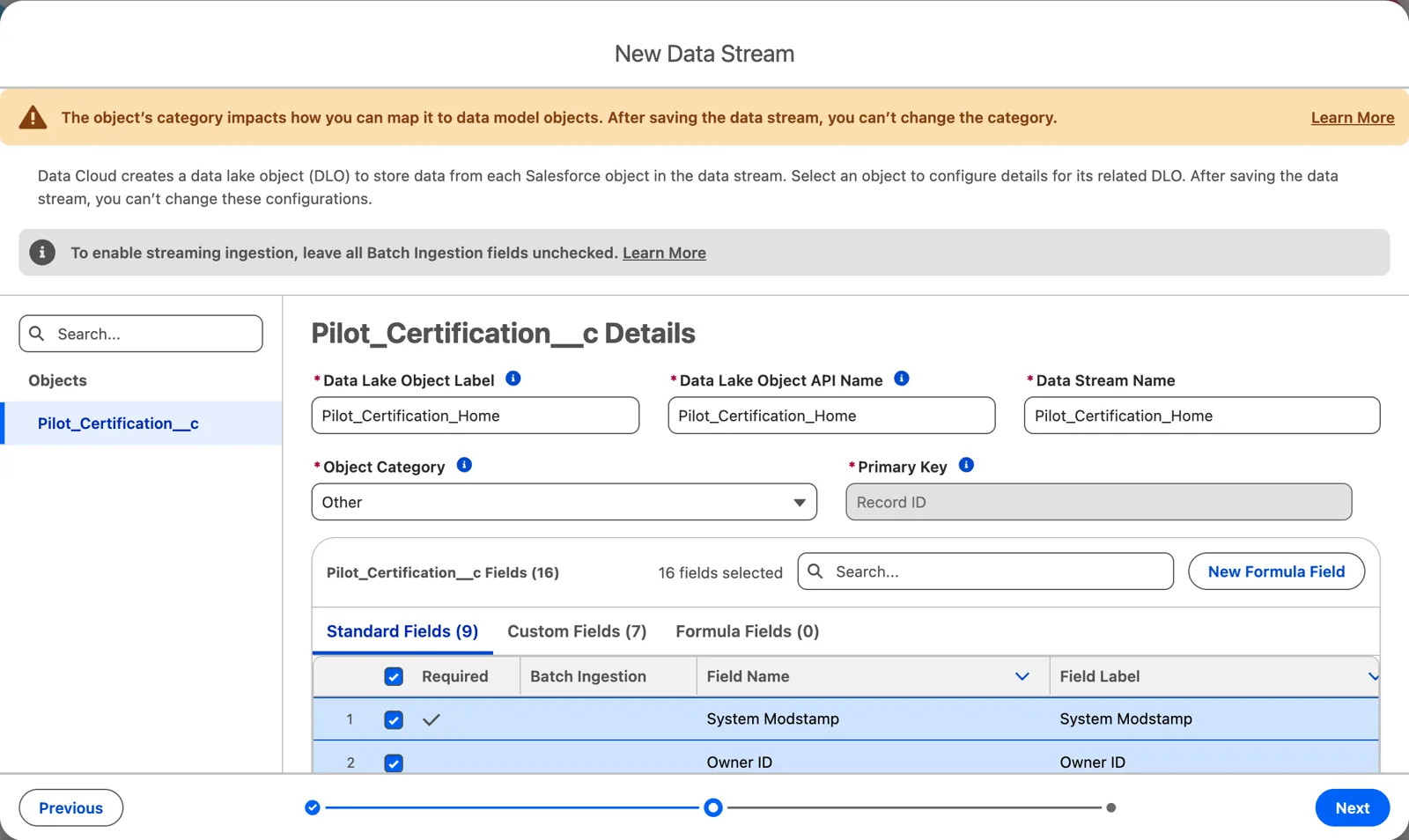
The same screen, renamed and with the category chosen (Salesforce Data 360 in a Developer Edition org, screenshot, November 2026). Full size
That’s a trade-off, and you should make it on purpose. In one org, a cleaner name helps everyone who reads it. But Salesforce’s warning is about the next org: the custom name isn’t carried across when you deploy, and whatever was built on it can fail. If this org’s work will be deployed to another (a sandbox to production, say), keep the default. If it won’t, or your team has a naming standard and a plan for deployments, rename it, and write the decision down. Either way, decide before you save: as the screen says, “After saving the data stream, you can’t change these configurations.”
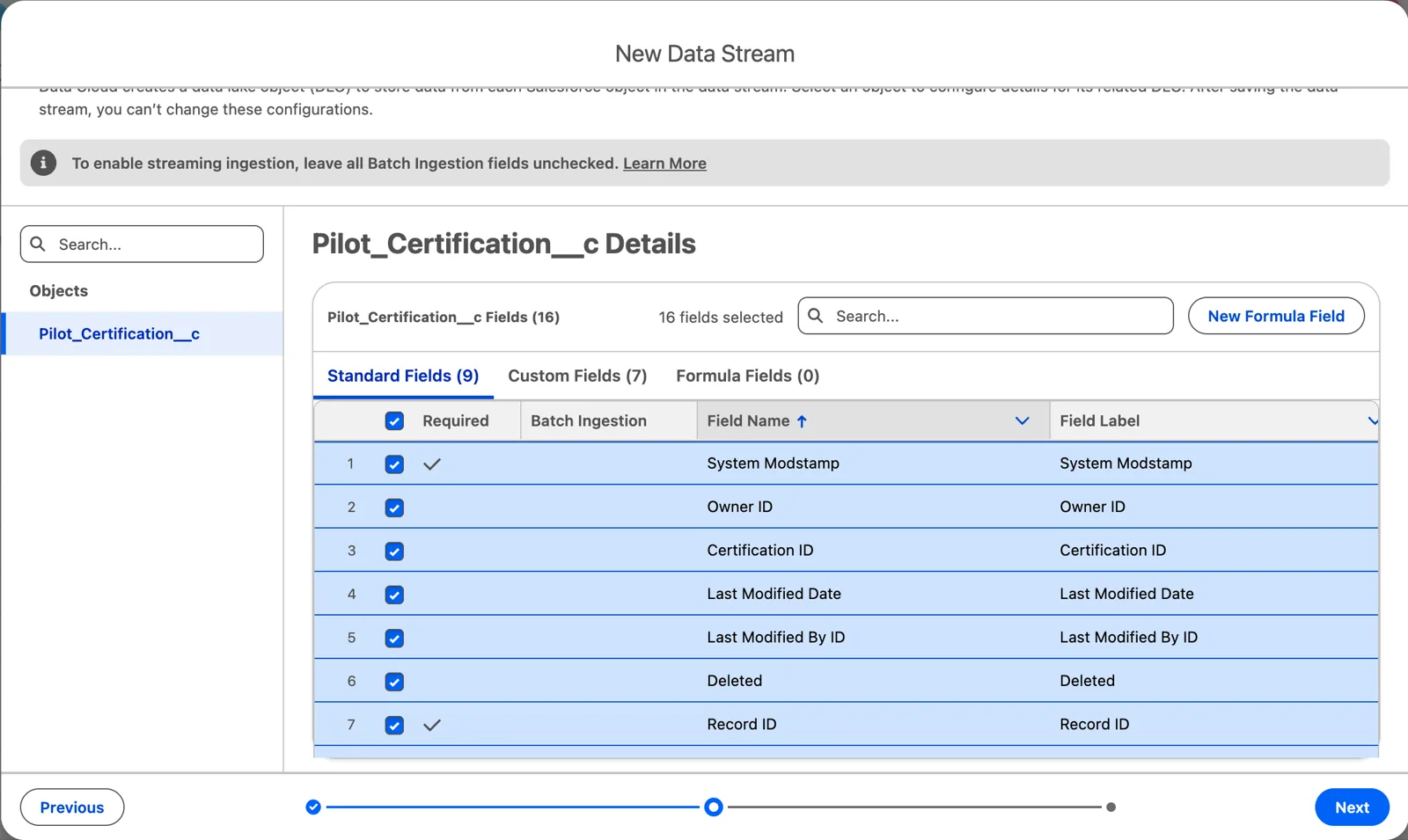
The fields, all selected by default (Salesforce Data 360 in a Developer Edition org, screenshot, November 2026). Full size
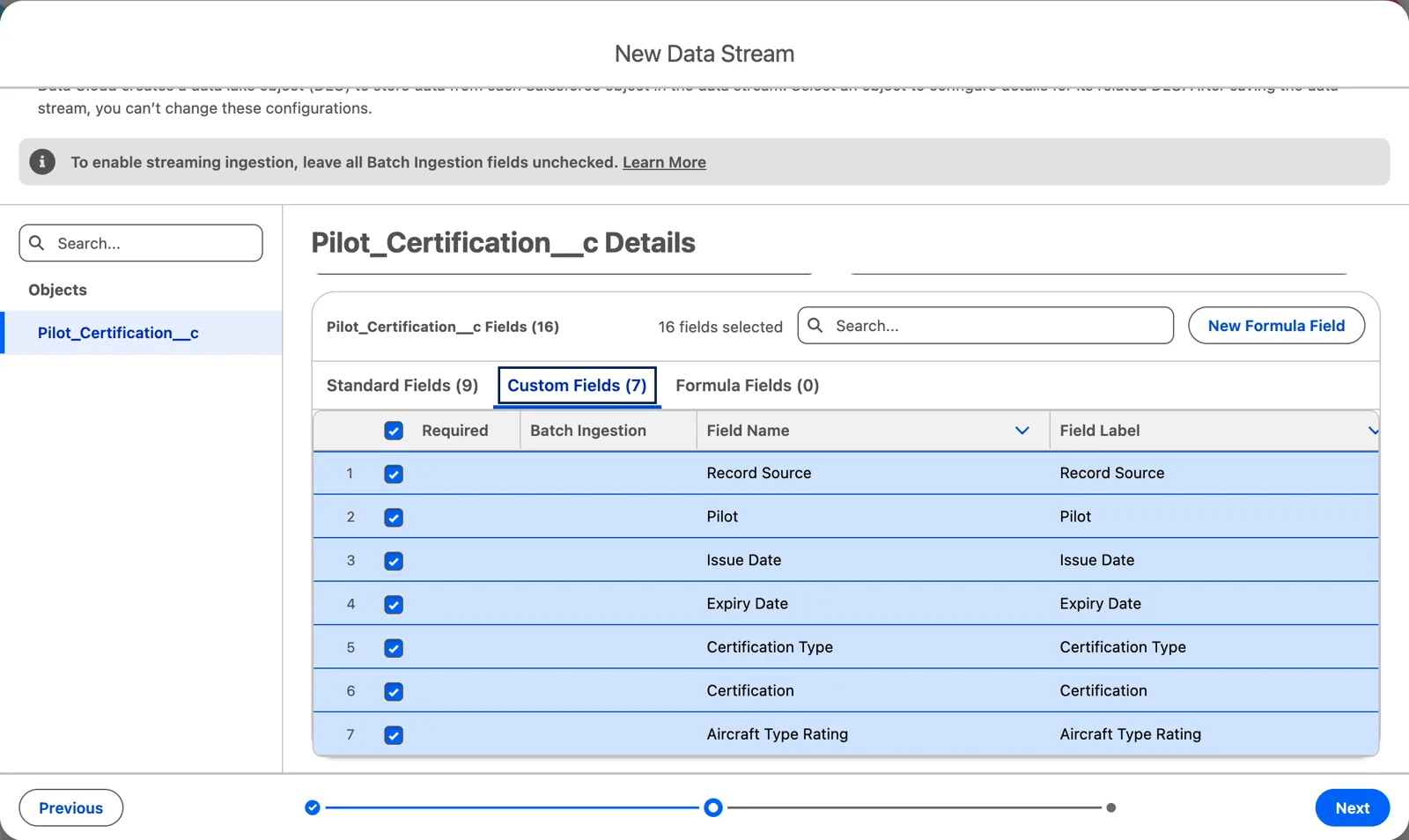
And the seven custom fields (Salesforce Data 360 in a Developer Edition org, screenshot, November 2026). Full size
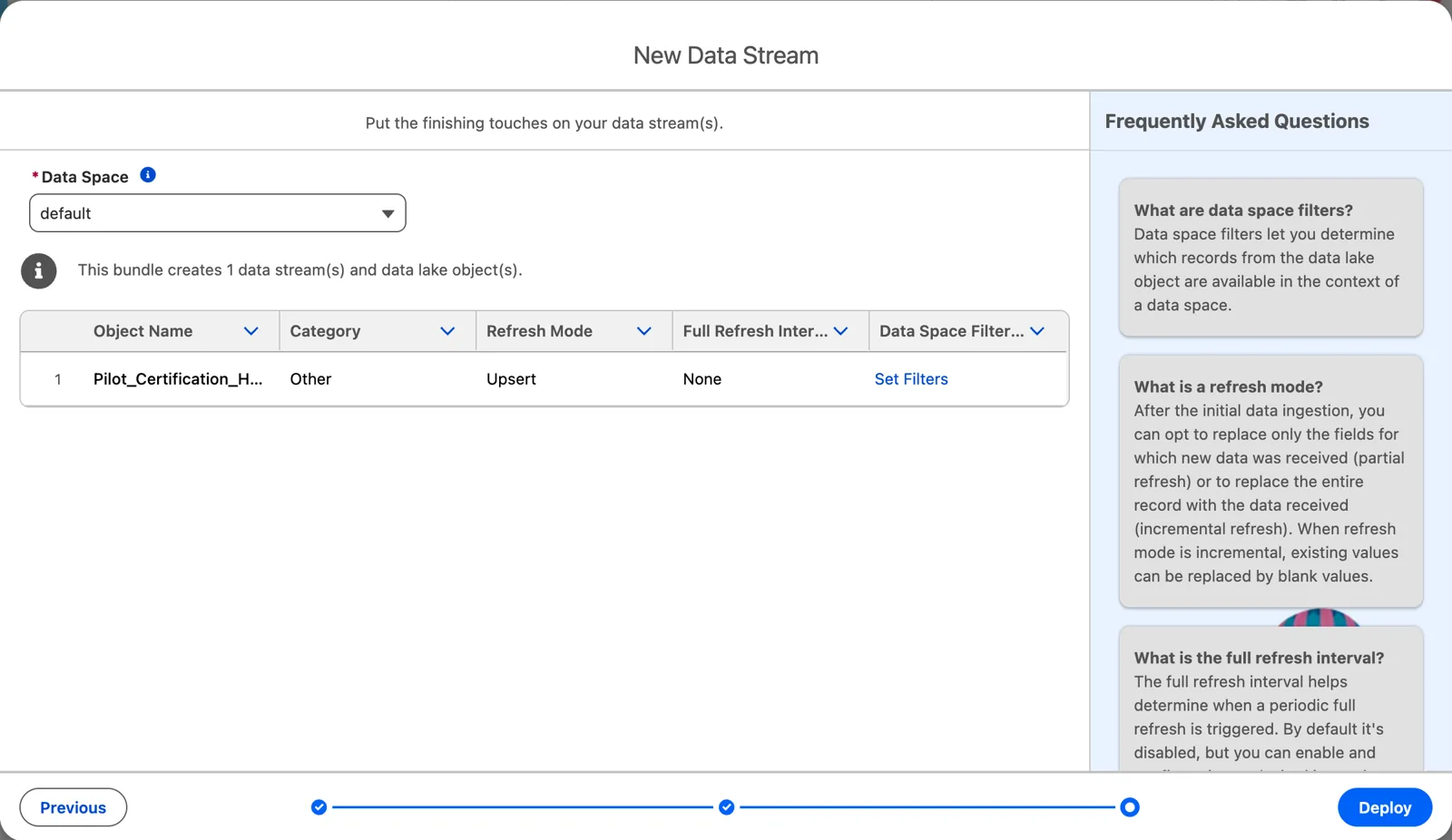
The data space and the refresh mode, set for you (Salesforce Data 360 in a Developer Edition org, screenshot, November 2026). Full size
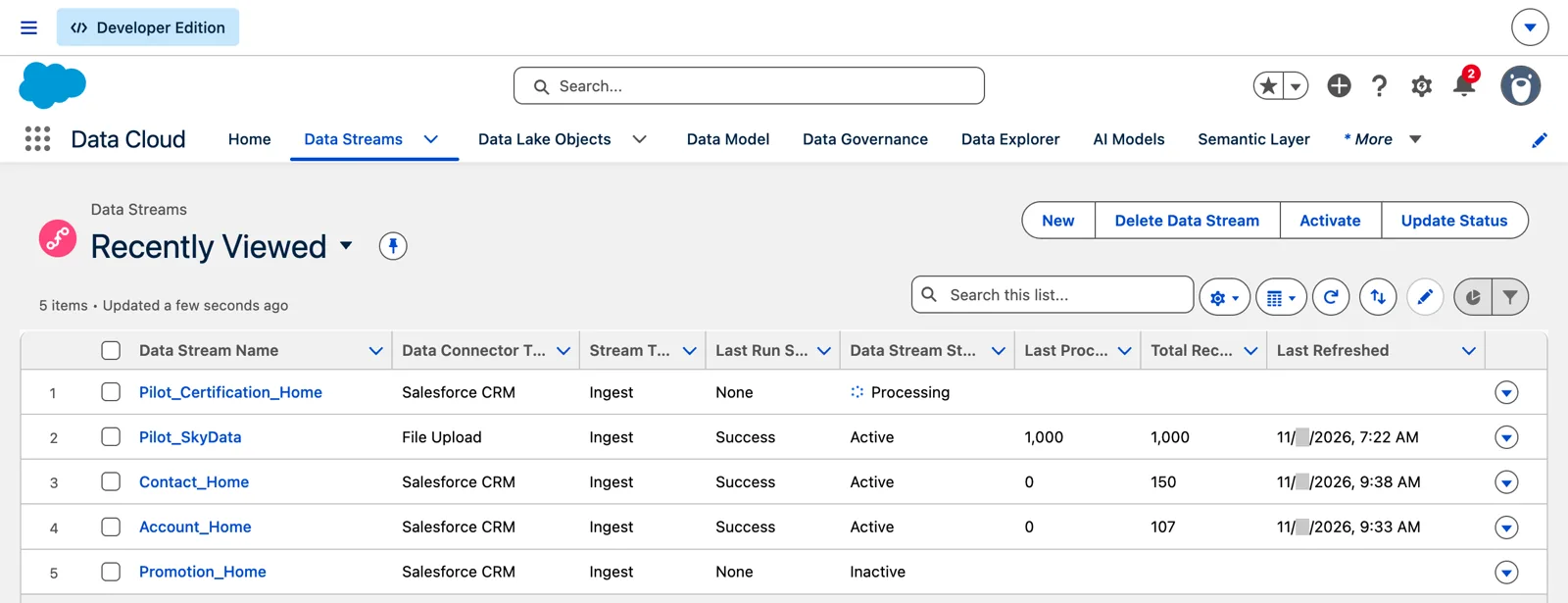
Just after Deploy: Processing (Salesforce Data 360 in a Developer Edition org, screenshot, November 2026). Full size
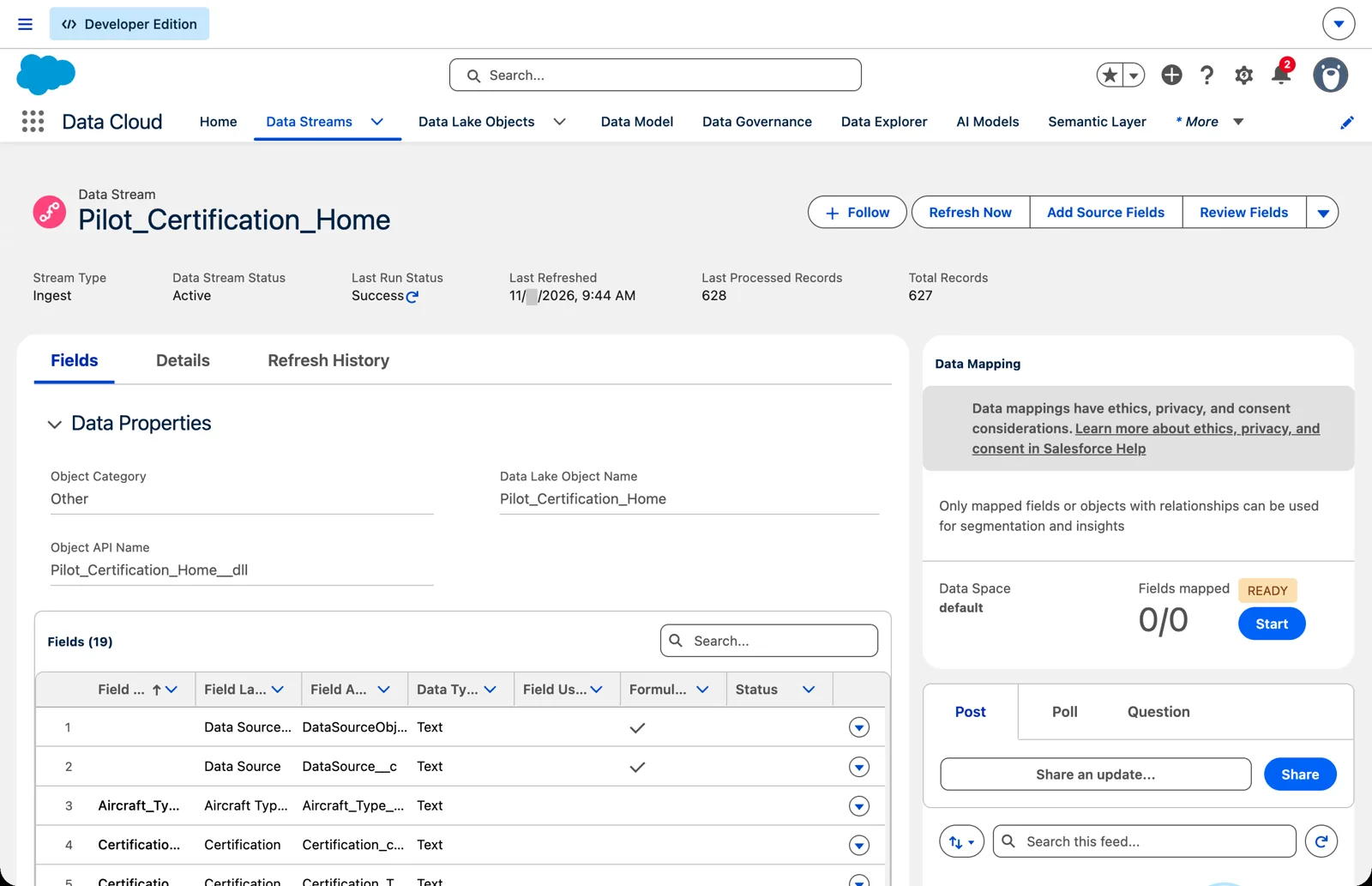
The certifications in: 627 (Salesforce Data 360 in a Developer Edition org, screenshot, November 2026). Full size
Step 4: Map it
Section titled “Step 4: Map it”The stream lands the certifications in a data lake object. To use them for identity resolution, segments or insights, they need to be mapped to the data model, either to a standard object or to a custom data model object of your own. That’s chapter 8.
When the object changes
Section titled “When the object changes”Your custom object won’t stand still. Someone will add a field next quarter. You don’t need to drop the stream and start over: give the connector access to the new field, then add it to the existing stream as a source field. That matters, because if you’re going to delete a data stream, there could be a dependent data lake object, data transforms and data model objects. So it can be kind of unraveling the sweater. Being able to add a field later is a very powerful mechanism.
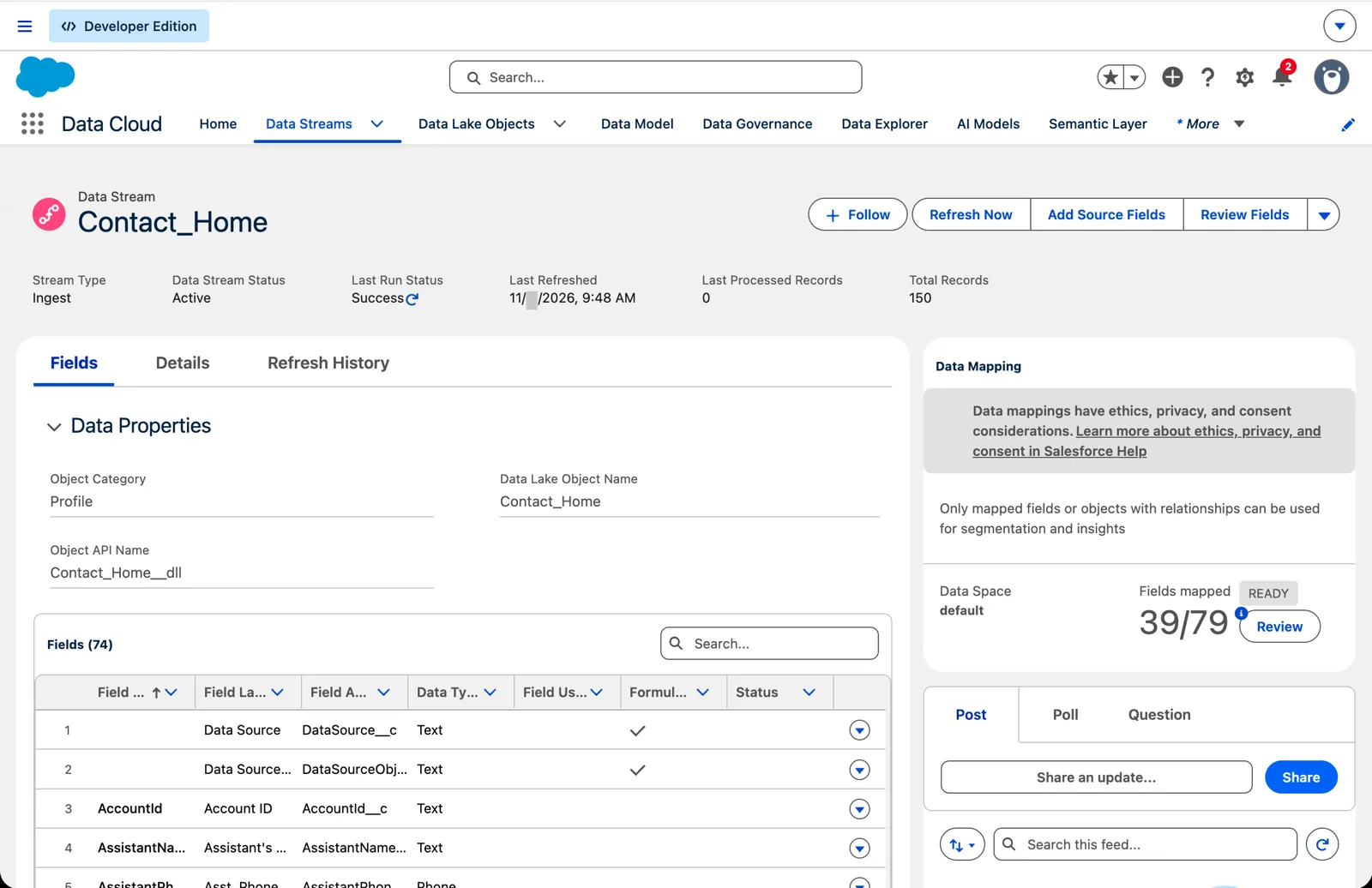
Contact_Home before: 74 fields (Salesforce Data 360 in a Developer Edition org, screenshot, November 2026). Full size
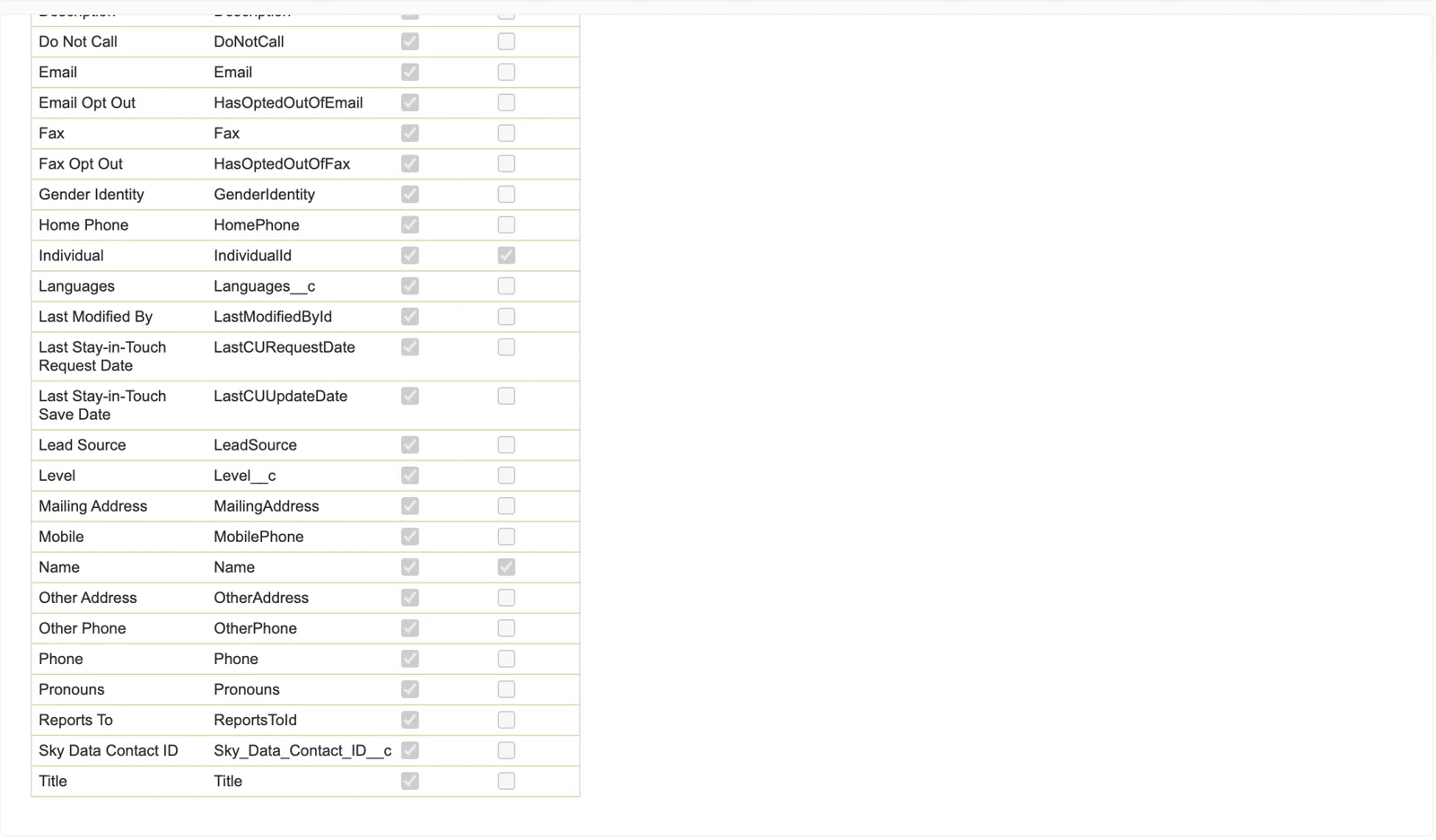
First, the connector can read the new field (Salesforce Data 360 in a Developer Edition org, screenshot, November 2026). Full size
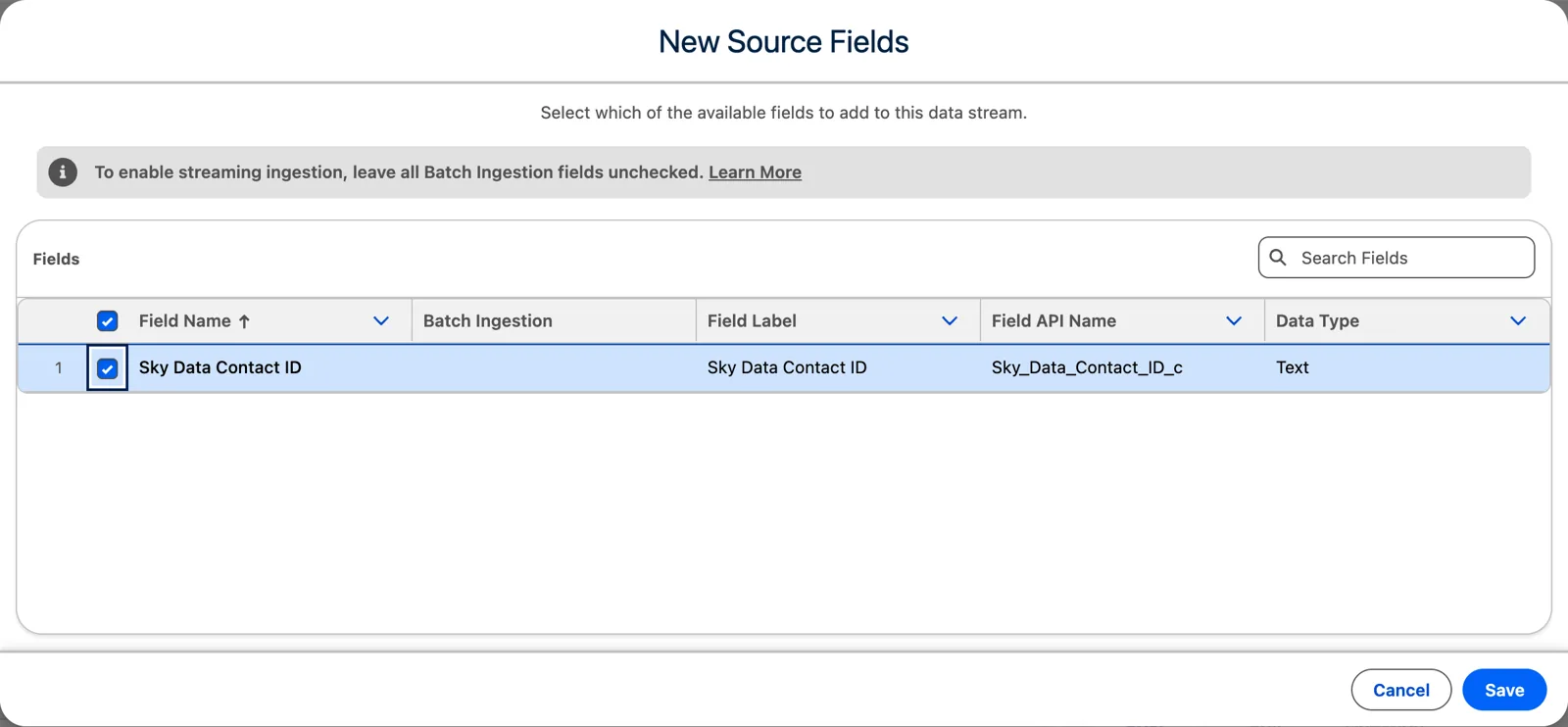
A new field joins a running stream (Salesforce Data 360 in a Developer Edition org, screenshot, November 2026). Full size
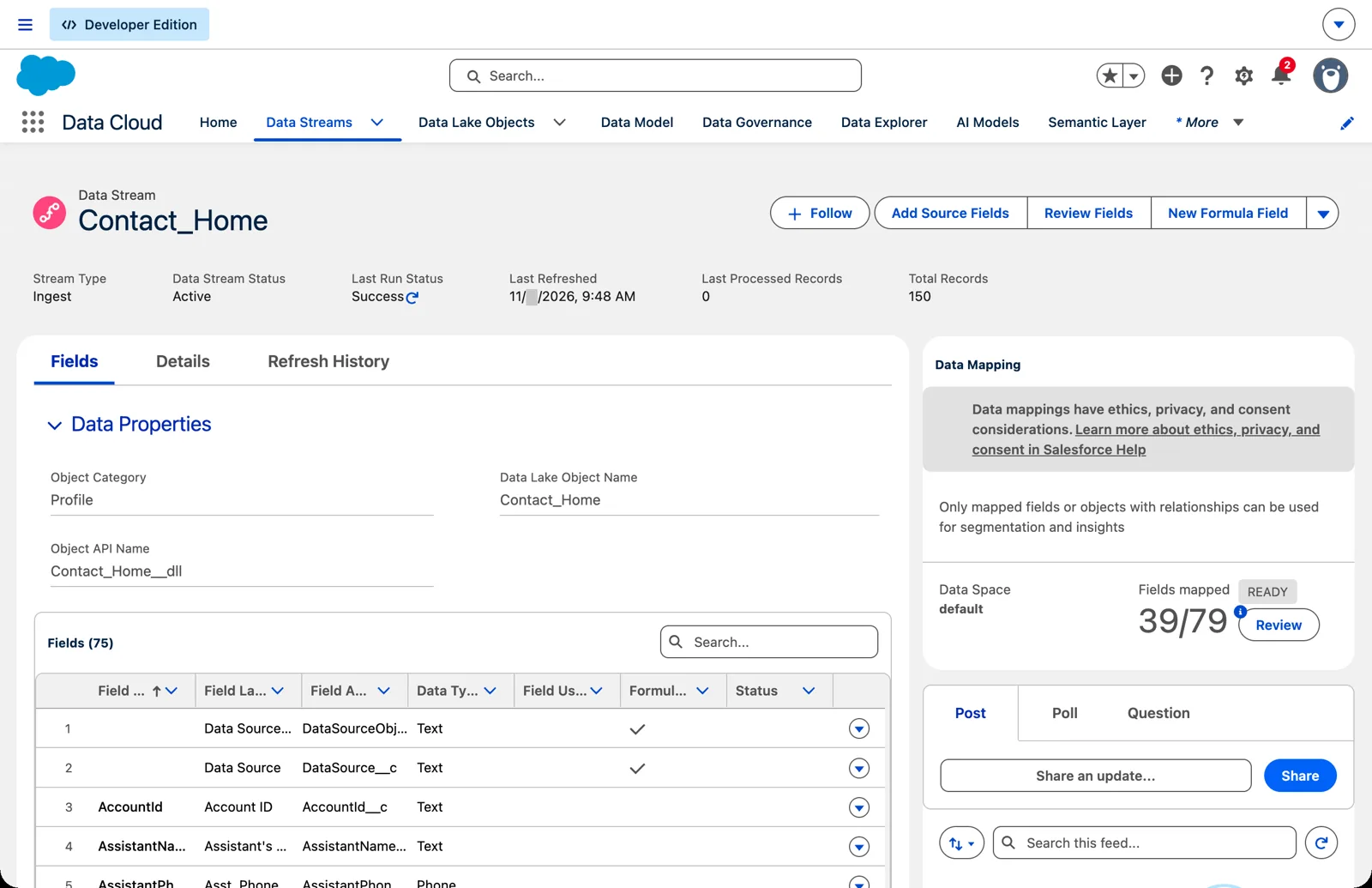
After: 75 fields, no new stream, nothing rebuilt (Salesforce Data 360 in a Developer Edition org, screenshot, November 2026). Full size
Going the other way, be careful. Disabling a field in a CRM stream will “stop new data ingestion, clear existing data for the fields, and remove it.” And you can’t give a new field the name of a disabled one.
What an architect decides here
Section titled “What an architect decides here”- Which custom objects come in, and which stay in core.
- Who grants the connector access in core, for each object, its fields and its related objects, and whether View All Fields is on.
- The category of each stream, and whether to keep the default lake object names, so deployments work.
- How new fields reach Data 360 after go-live: access first, then the source field.
Explore
Section titled “Explore”All checked 2026-11-14.
- Create a Salesforce CRM Data Stream (opens in a new tab), Salesforce Help: the steps and the considerations.
- Salesforce CRM Permissions (opens in a new tab), Salesforce Help: the connector’s permission set.
- SkyData: Bringing In CRM Data (opens in a new tab), this chapter’s data files.