
Steve Data Modeling: From Picklists To Infinity And Beyond
Introduction:
Welcome to another insightful session on data modeling with Steve’s Data Modeling series! In this blog, we will explore the versatile use of picklists and discuss scenarios where you might need to consider alternatives for more advanced data modeling requirements.
Understanding Picklists
Picklists are ideal when you have a field requiring a set of fixed values. They offer a clean user experience but come with some limitations:
- Elevated admin rights are needed to add values.
- New values must be deployed through sandboxes.
Data validation errors occur if values from third-party integrations aren’t pre-added in Salesforce.
Exploring Picklist Options
Here are some picklist options to consider:
Option 1: Global Value Sets
This is the standard Salesforce option and can leverage lists across objects.
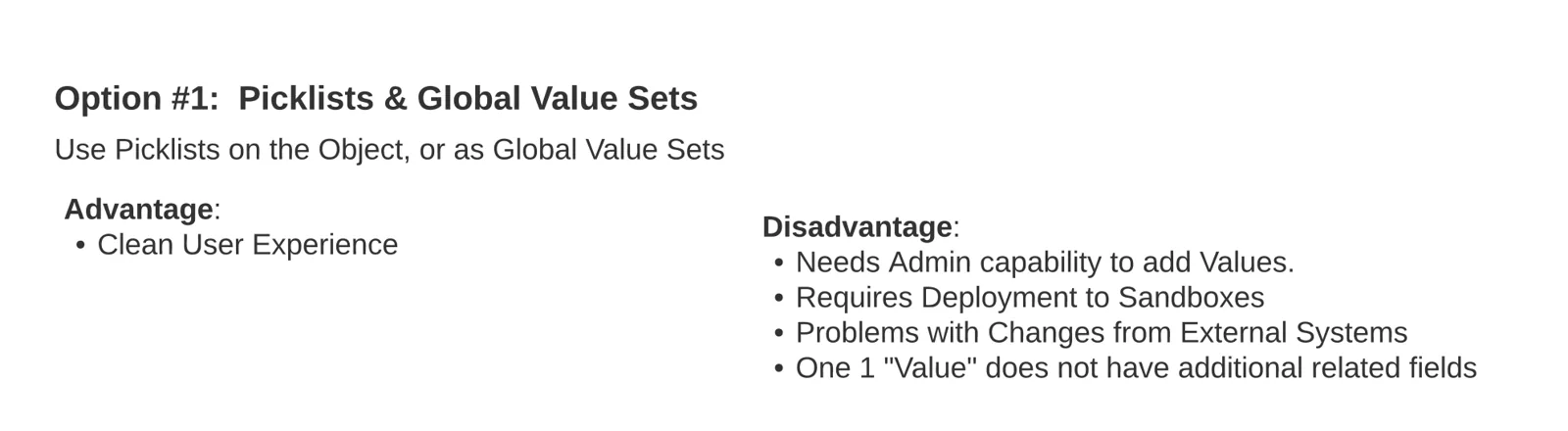
Global value sets are best for values used in multiple places. For instance, you can have two global value sets for ‘pipe size’ and ‘pipe thickness’, providing a clean UI for users to select values.
[caption id="" align=“alignnone” width=“1372”]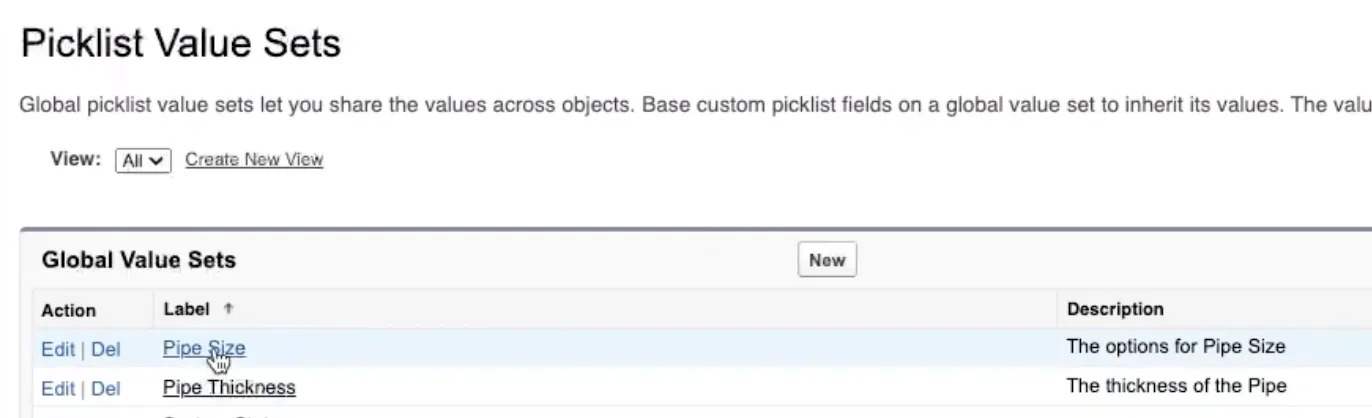 Sample Value Sets [/caption]
[caption id="" align=“alignnone” width=“1814”]
Sample Value Sets [/caption]
[caption id="" align=“alignnone” width=“1814”]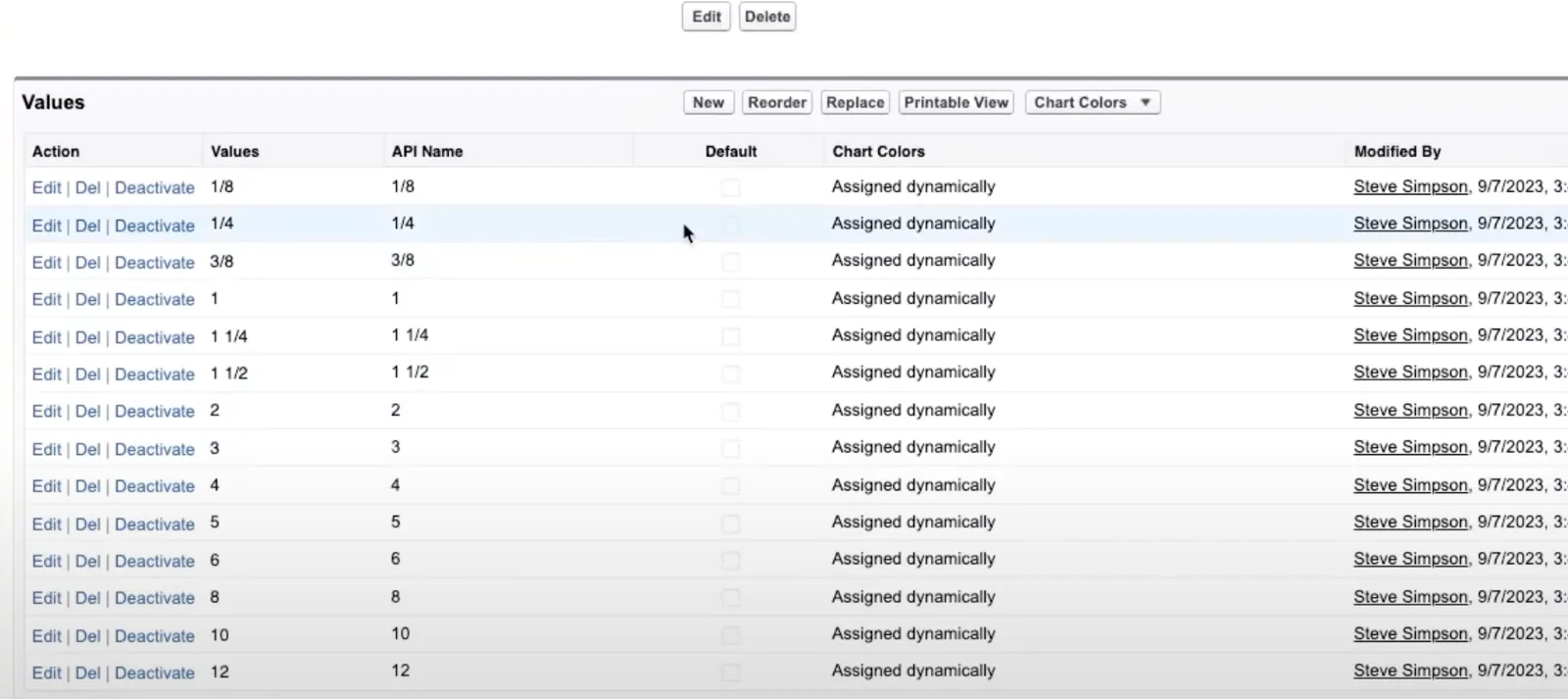 Sample Values [/caption]
[caption id="" align=“alignnone” width=“676”]
Sample Values [/caption]
[caption id="" align=“alignnone” width=“676”]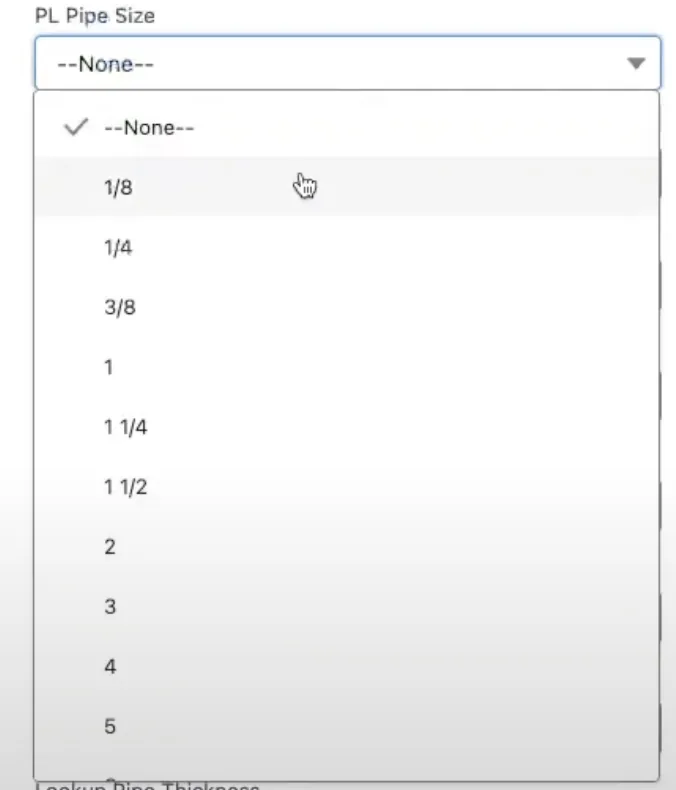 Choosing from a list [/caption]
Option 2: Text Fields
This is just a text field with no validation.
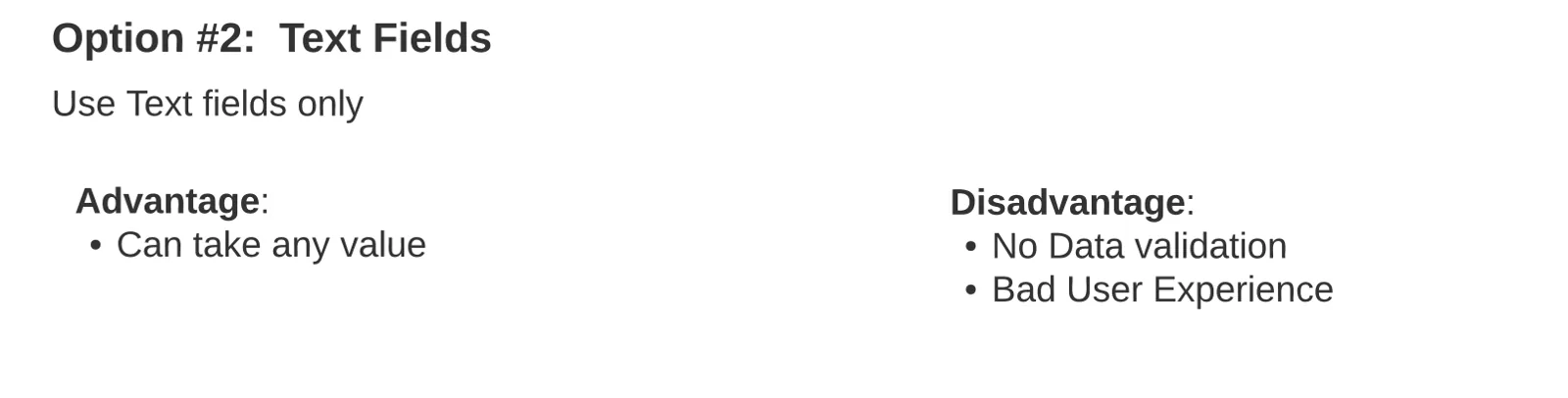
If data values are pushed through integrations, you might consider using text fields. However, this approach loses validation, allowing users to input any data, which might lead to inconsistency.
This might be an option if the fields are read only in Salesforce and you are just displaying the values.
[caption id="" align=“alignnone” width=“678”] No validation [/caption]
Option 3: Shared Reference Object
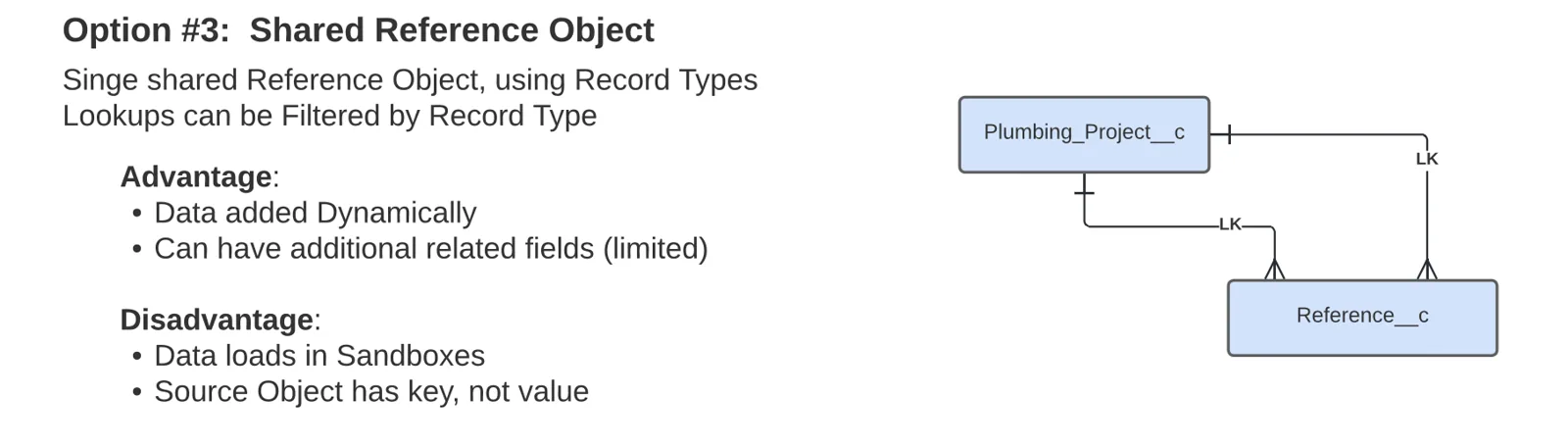
A shared reference object with multiple record types can be used for data loads. This approach creates two lookups on the primary object, linking to the reference object instead of actual values. You can also add new values dynamically without admin rights, enhancing flexibility.
[caption id="" align=“alignnone” width=“1462”]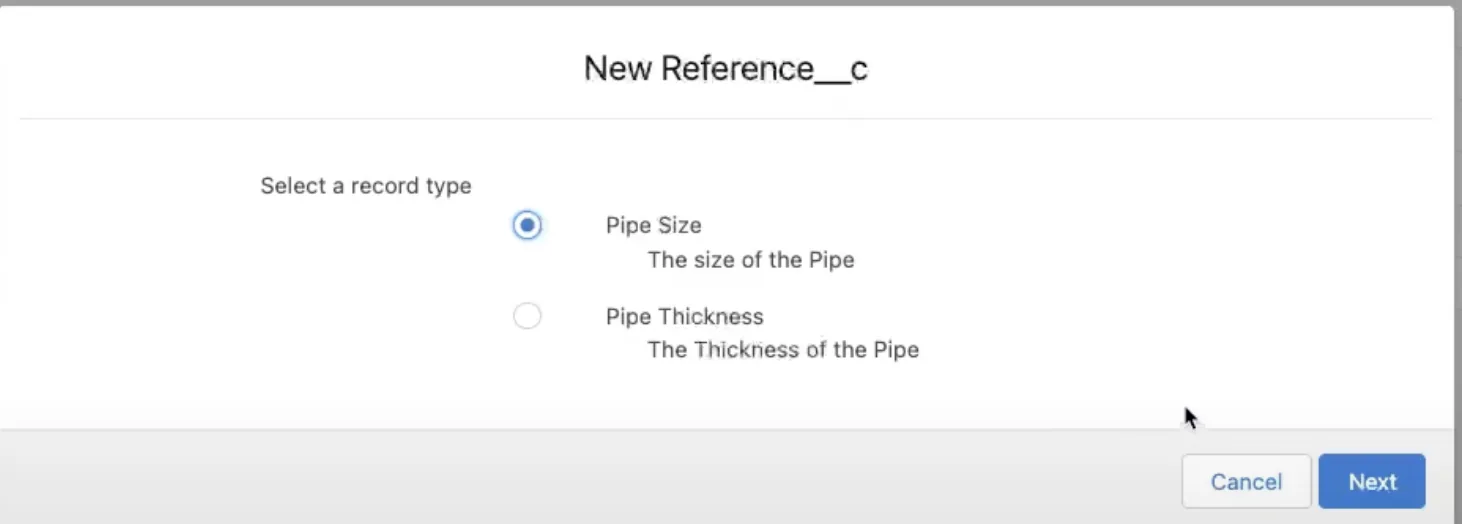 Using Record Types [/caption]
[caption id="" align=“alignnone” width=“1700”]
Using Record Types [/caption]
[caption id="" align=“alignnone” width=“1700”]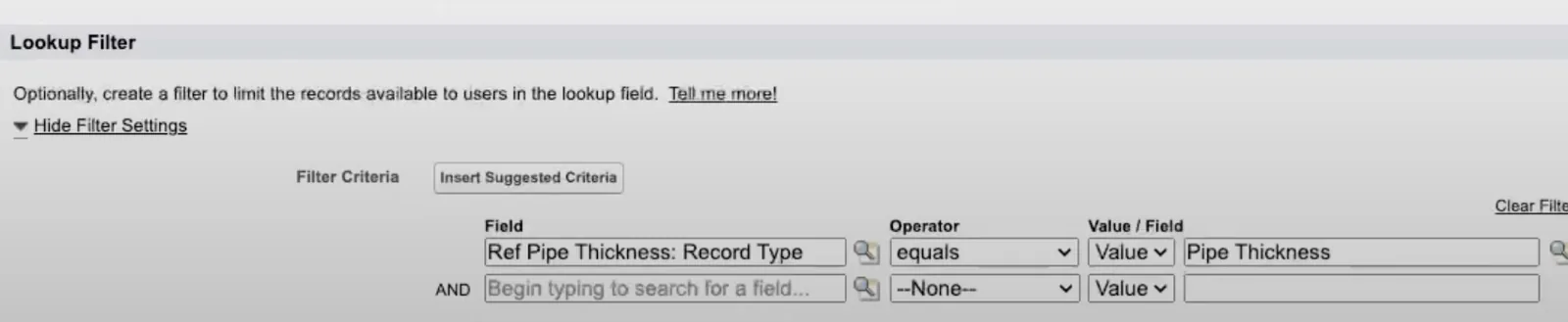 Use a filtered lookup [/caption]
[caption id="" align=“alignnone” width=“1434”]
Use a filtered lookup [/caption]
[caption id="" align=“alignnone” width=“1434”]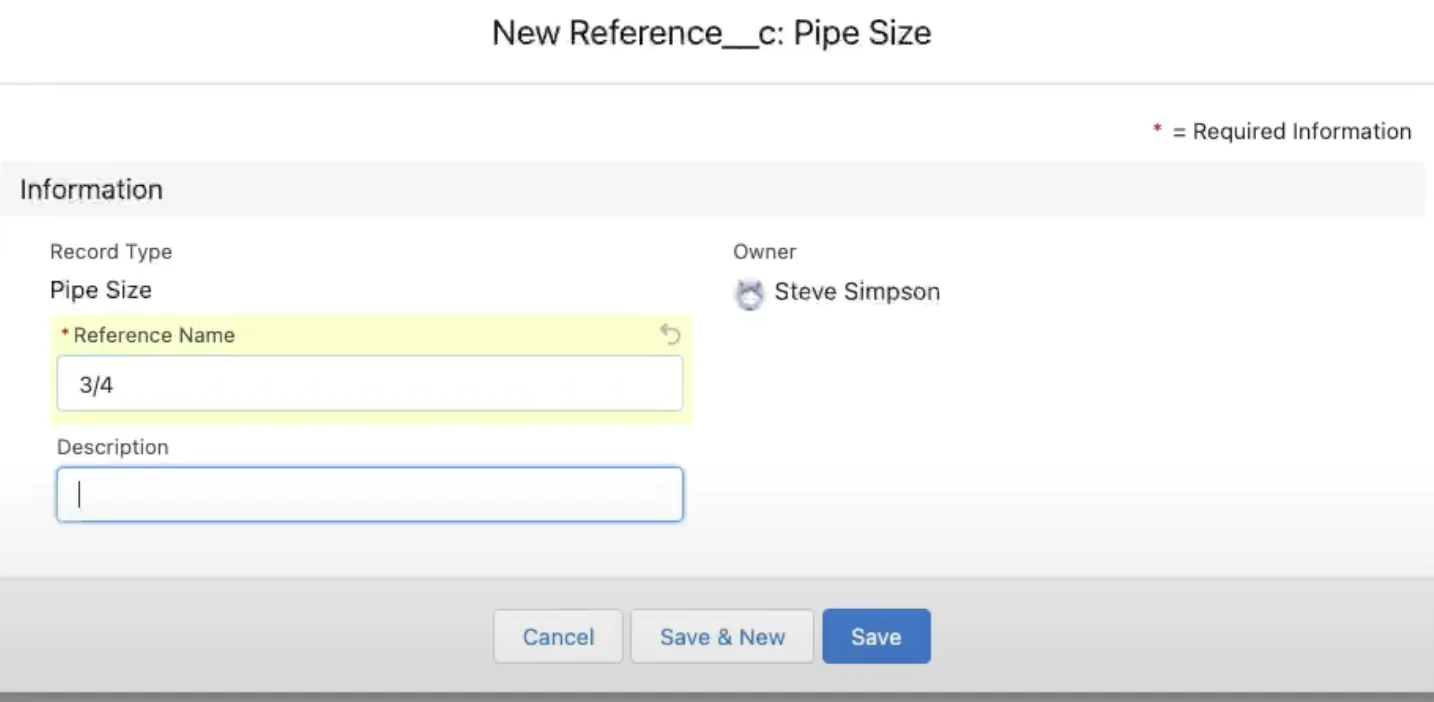 Adding Values [/caption]
[caption id="" align=“alignnone” width=“658”]
Adding Values [/caption]
[caption id="" align=“alignnone” width=“658”]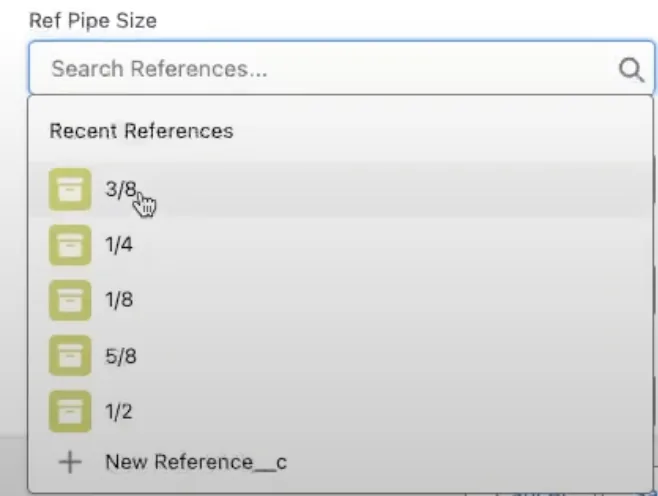 What selecting a value looks like. Sorting is not correct and it does not show all values at initial load, the user has to search for them. Also, make sure you remove “Create” from Profiles/Permission Sets so the users do not create more records on the fly. [/caption]
Section 3: Advanced Options
For more advanced scenarios, consider these options:
Option 4: Custom Screens with Reference Object
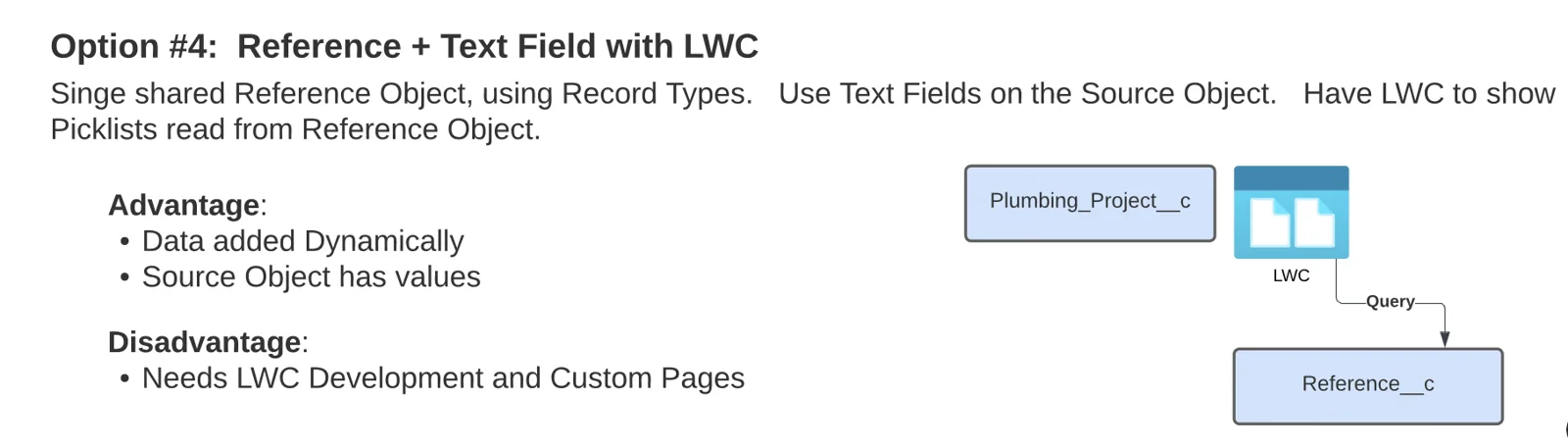
If you’re using custom Lightning Web Components (LWCs) for your edit screens, you can use a reference object to read values and render them, storing the actual values instead of lookups.
Option 5: Standalone Objects
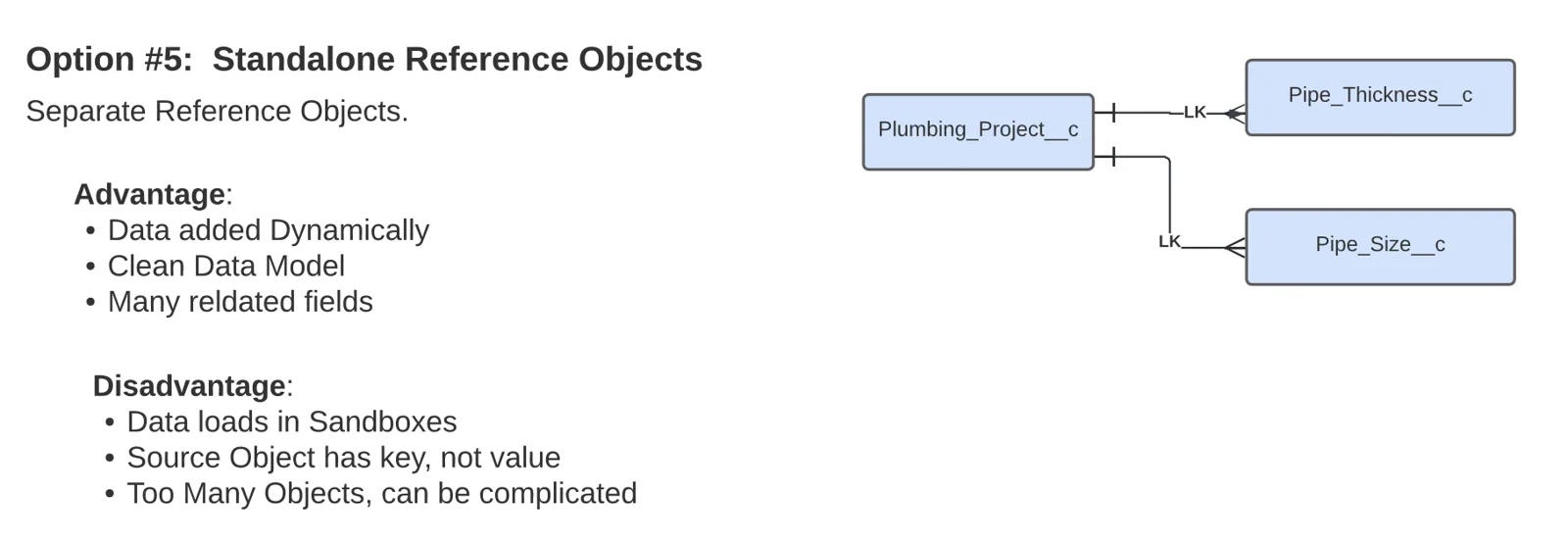
If lookup values grow in importance, consider creating standalone objects for each and creating separate lookups. This approach allows dynamic data addition, maintains a clean data model, and supports additional related fields on each object.
Practical Examples
Here are practical examples to illustrate each option:
Standard Picklists: Offers a clean UI with fixed values.
Text Fields without Validation: Provides flexibility but no data validation.
Lookup to Reference Objects: Uses the same object with filtered record types for flexibility.
Standalone Objects: Uses separate objects for each lookup, offering a clean and flexible data model.
Conclusion
Understanding the nuances of picklists and their alternatives is crucial for effective data modeling. From standard picklists to standalone objects, each option offers unique benefits to meet specific data modeling needs.
Come Back Soon!
For more insights and tips, stay tuned here on www.SteveTechArc.com and to the @SteveTechArc (opens in a new tab) YouTube channel. Subscribe and enhance your data modeling brilliance with us!
Helping change the world by sharing cool thoughts with fellow Architects and those on their Architect Journey!
STA 2.2