
Salesforce Bulk API Steps: Importing Data at the Loading Dock
Introduction:
In this blog post, we will explore the Salesforce Bulk API, a powerful tool designed for importing large data sets efficiently into Salesforce. Unlike the REST API, which limits you to 200 records per call, the Bulk API allows for the insertion of millions of records through a streamlined process.
Section 1: Understanding the Bulk API Process
The Salesforce Bulk API operates through a five-step process to import large volumes of data seamlessly:

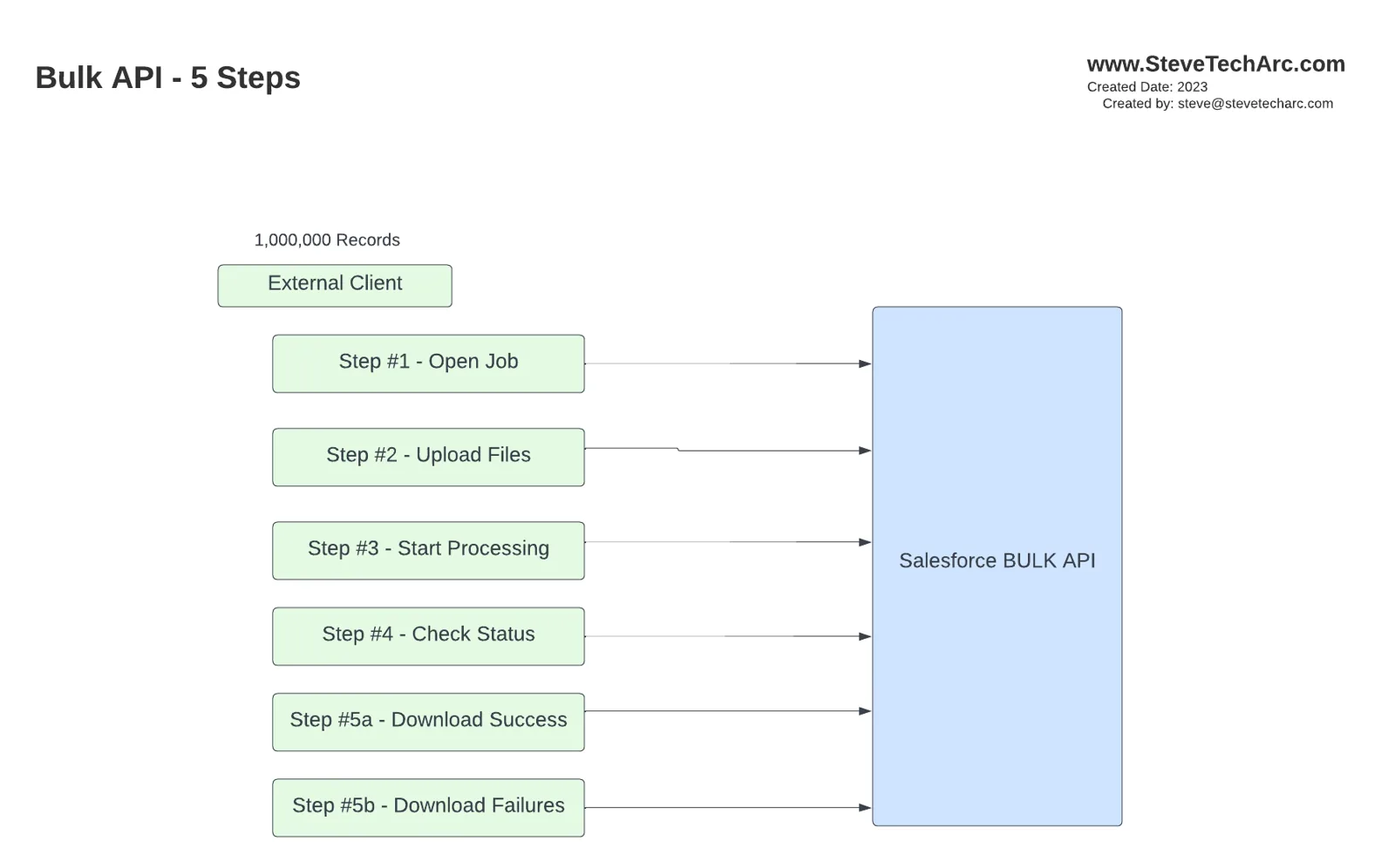
- Open the Job (Step 1): Initiate the process by opening a job, which provides you with a unique job ID. This step is analogous to receiving a ticket that grants you access to the loading dock.
- Upload Files (Step 2): With your job ID, you can start uploading data files in CSV format. Each file can contain up to 10,000 records, subject to size limitations. You can upload multiple files under the same job ID.
- Start Processing (Step 3): Once the upload is complete, inform Salesforce to begin processing the data by pressing the metaphorical “big blue button”. Salesforce will then start processing the uploaded files.
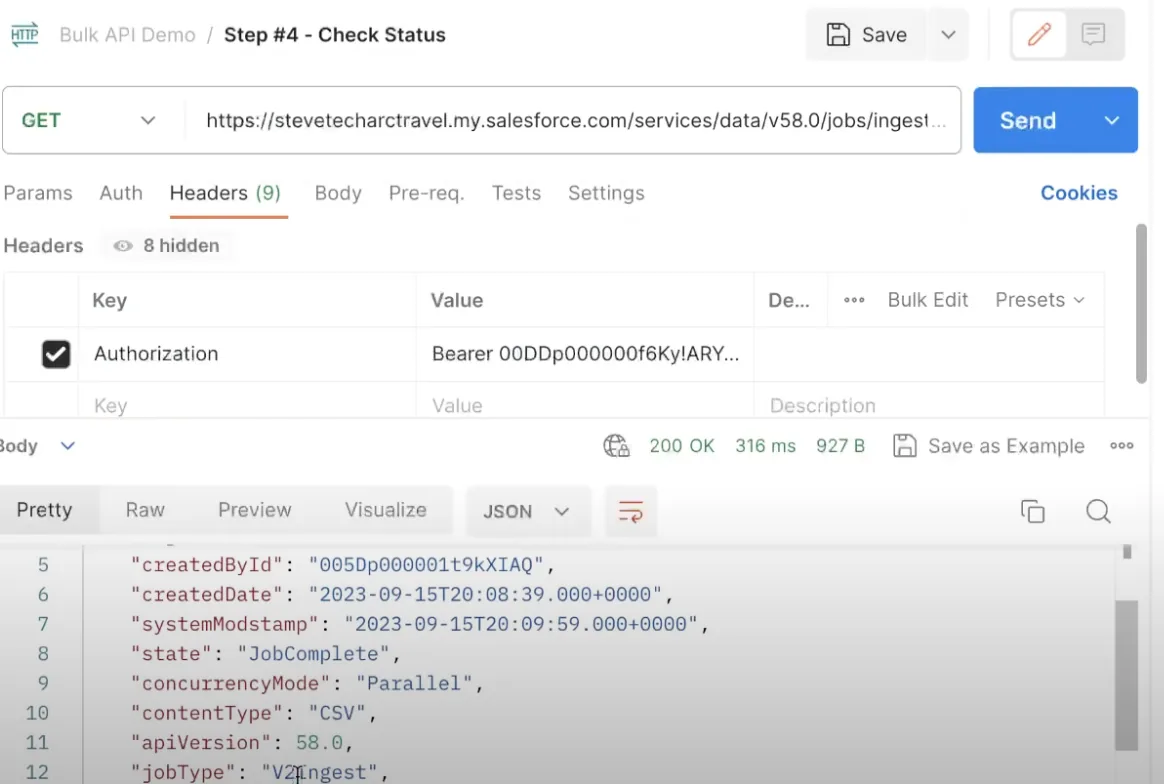
- Check Job Status (Step 4): While processing, you can inquire about the job status using the job ID. This step allows you to monitor the progress of the data import.
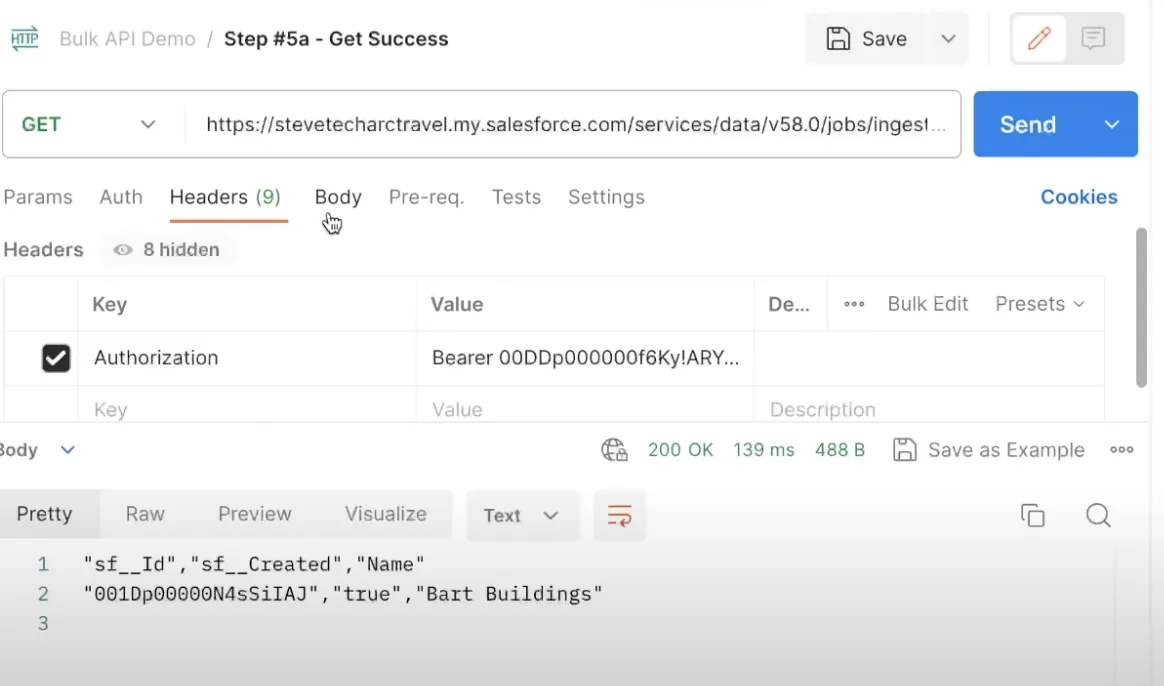
- Download Results (Step 5): After processing is complete, you can download the results. You have the option to download either the successful records, which include the Salesforce IDs of the newly inserted or updated records, or the failed records, which provide details on the errors encountered.
Section 2: Demonstrating the Bulk API with Postman
To illustrate the Bulk API process, we will use Postman to interact with a Salesforce sandbox:
- Authentication: Start by authenticating to receive an access token.
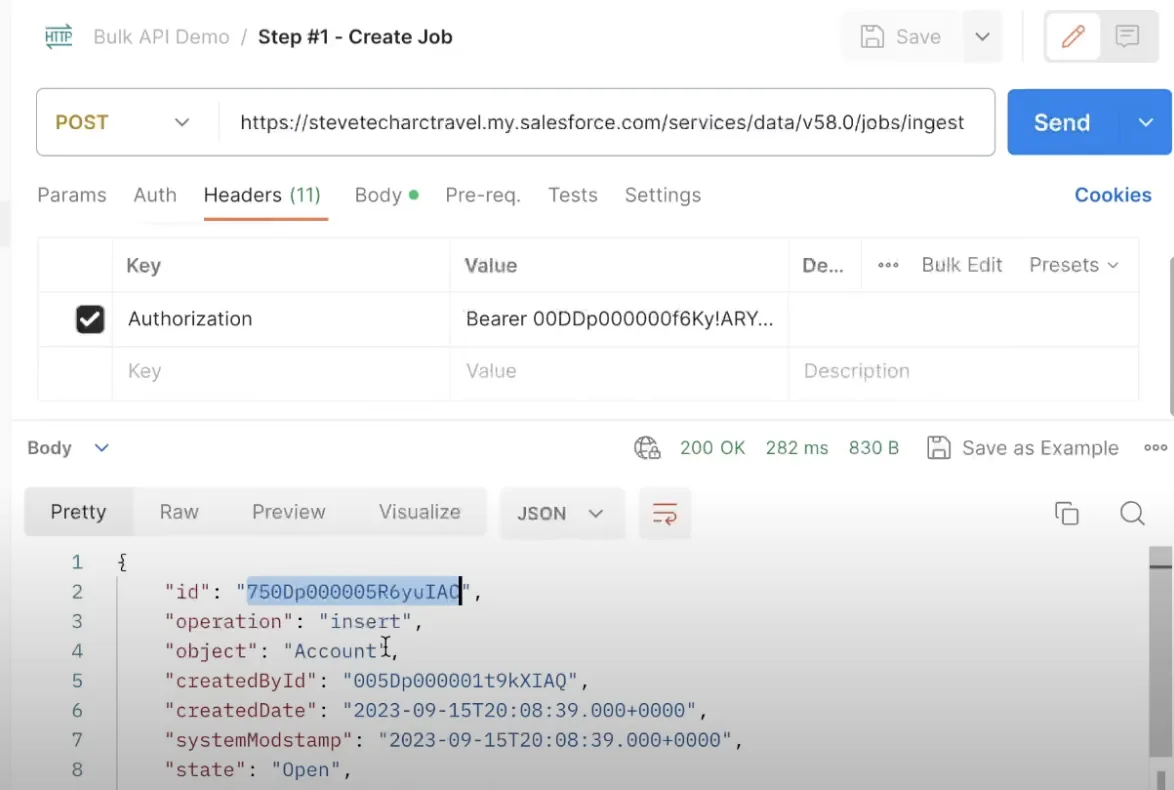
- Create a New Job: Initiate a new job by sending a request to create a job. This action will provide you with a job ID.
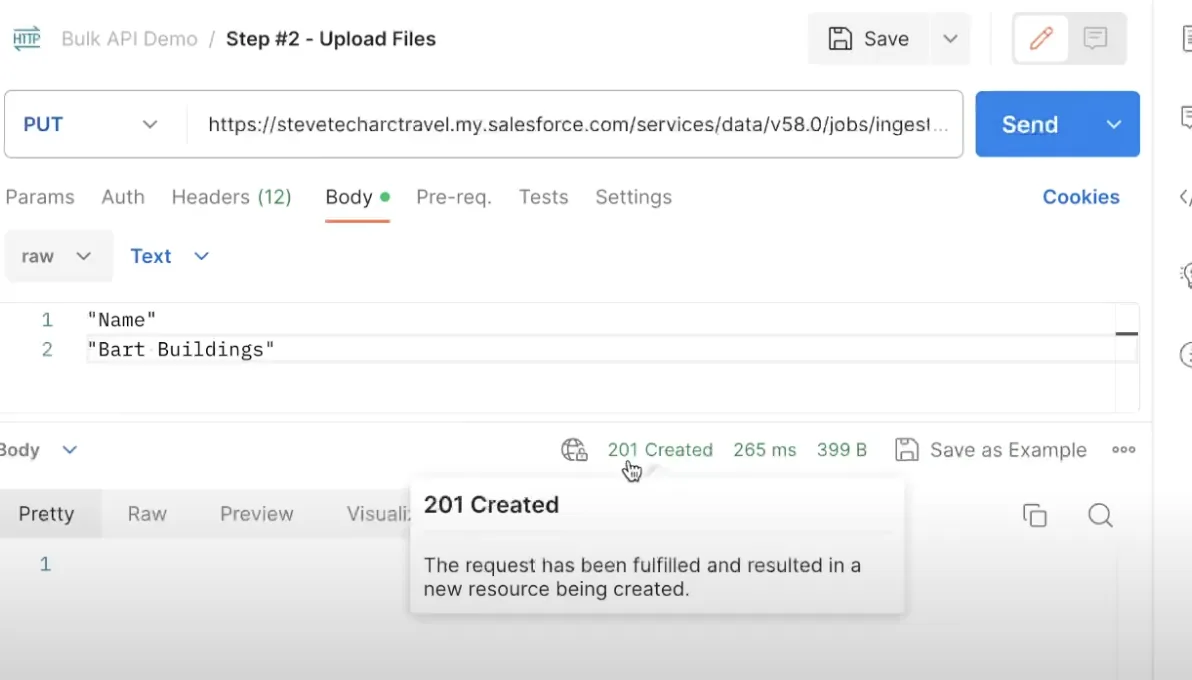
- Upload Data: Insert the job ID in the URL and upload your data. In this example, we will create a new account named “Bart Buildings”.
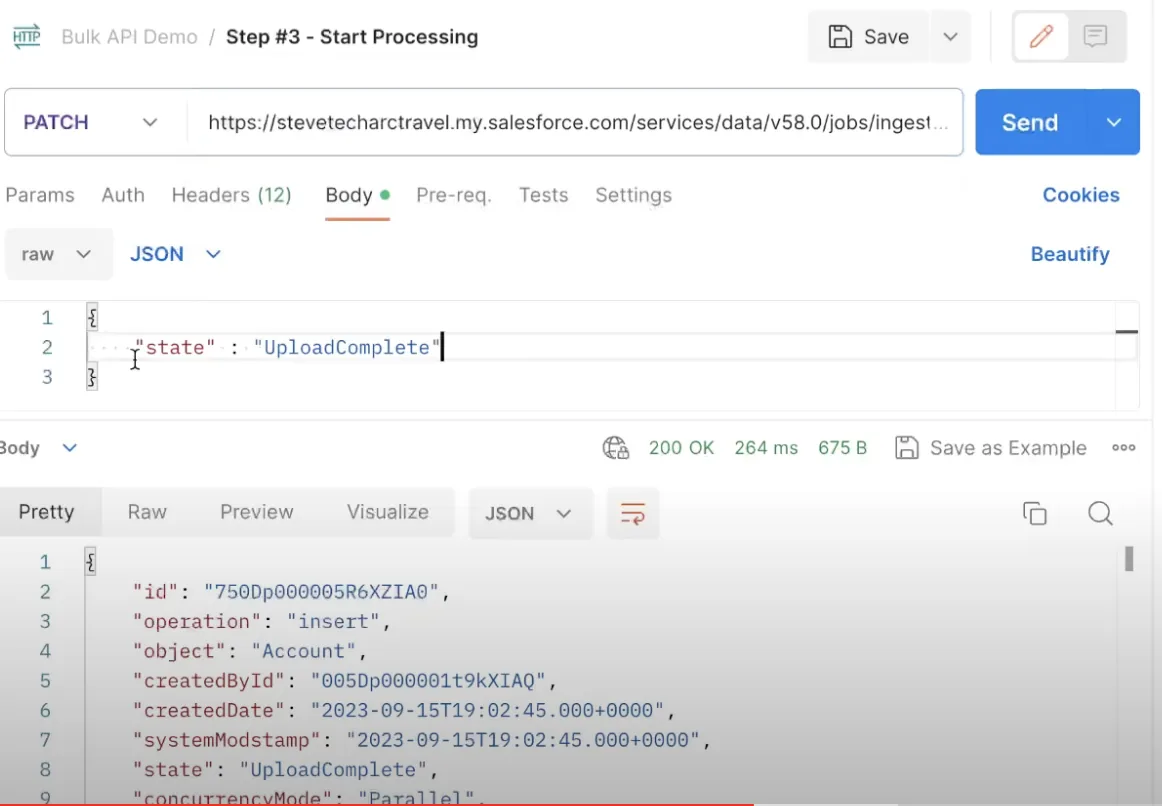
- Start Processing: Inform Salesforce to begin processing by sending a request with the job ID and the status “Upload Complete”.
- Check Job Status: Monitor the job’s progress by checking its status using the job ID. Once the job is complete, you can proceed to the next step.
- Download Successful Records: Retrieve the Salesforce ID for the newly created records by downloading the successful records using the job ID.
Section 3: Conclusion
The Salesforce Bulk API offers an efficient method for importing large data sets into Salesforce with minimal API calls. Through a straightforward five-step process, you can insert, update, or even delete millions of records efficiently. Whether you are dealing with a single record or millions, the Bulk API provides a quick and reliable solution for your data import needs.
Stay Tuned
Thank you for joining us in exploring the Salesforce Bulk API. Stay tuned for more insightful content on leveraging Salesforce’s powerful features!
Join www.SteveTechArc.com and to the @SteveTechArc (opens in a new tab) YouTube channel. Subscribe and enhance your understanding of Salesforce and how you can integrate it with other systems.
Helping change the world by sharing integration info with fellow Architects and those on their Architect Journey!
STA 1.7