
Patterns From the Field
Tento obsah zatím není dostupný ve vašem jazyce.
The question this module answers: Which data model patterns come up again and again, and how do you recognize them quickly?
In chapter 1 I said speed comes from having done the thinking before the moment arrives: you’ve seen the pattern, so you recognize the next one. I told you about a customer who needed form entry, with many forms and questions that would change, and how I recognized it as a survey data model. I promised we’d come back to it. This is where.
Three patterns come up in project after project: soft delete, versioning, and dynamic forms. None of them is exotic. All of them are easy to get half right. And for two of them, Salesforce has already built the pattern for itself, so the best design is often sitting in front of you.
Soft Delete: Gone, but Not Deleted
Section titled “Soft Delete: Gone, but Not Deleted”Here’s the requirement. You have a custom object with, say, 100,000 records. Users need to “delete” a record so nobody sees it any more, but the business wants to keep it. The recycle bin isn’t the answer; it empties.
Here’s the pattern I teach:
- Add an
isDeletedcheckbox, and default it to false. That default matters: the sharing rule in step 3 filters on it, and you don’t want to worry about blanks. - Make the object private in the org-wide defaults.
- Create a sharing rule that shares records where
isDeletedequals false with all internal users. Now “deleting” a record is ticking a box, and it disappears. - Give deleted records a holding owner, a user who exists to own them, because an owner can always see their own records.
Why not just add isDeleted = false as a filter on every report and list view? I’ve seen that tried. It never holds, because the record is still visible somewhere else: global search, a related list, a lookup. Sharing hides it everywhere at once.
Two things to think through. First, children. If the object has child records, they need the same treatment. With master-detail, access follows the parent; with lookups and deeper relationships, you design it object by object. Second, making an object private is a sharing model decision, with all of chapter 12’s consequences. Don’t do it casually on an object everyone reads today.
There’s a second way: restriction rules. A restriction rule filters which records a user can see, so a rule that hides records where isDeleted is true does the job without touching the sharing model. The catch is that they’re scarce. Salesforce allows “up to two restriction rules per object in Enterprise and Developer editions and up to five” in Performance and Unlimited, and only one restriction or scoping rule can apply to a given user on an object. A restriction rule also “doesn’t automatically restrict access to its child objects” (Restriction Rule Considerations (opens in a new tab), Salesforce Help, checked 2026-11-28). So using one for soft delete may use up the rule you’ll need later for something else. It’s easy to add to an existing org, and that’s its strength. Just know what it costs.
In the org, the limit is right there on the page.
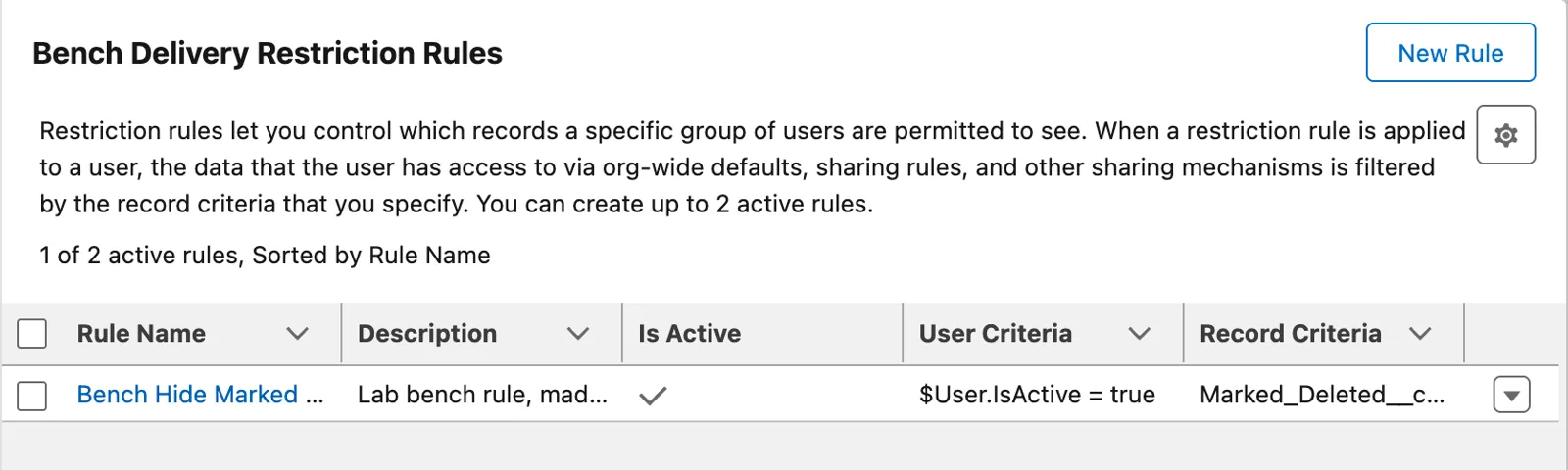
Soft delete with a restriction rule: one of two allowed, in a Developer Edition (Salesforce, Setup in a Developer Edition org, screenshot, November 2026). Full size
Versioning: Peers, or a Version Child
Section titled “Versioning: Peers, or a Version Child”The requirement: a record changes over time, and the business needs to keep each version. A configuration, a price agreement, an order before it’s final, a form definition. There are two ways I build it.
Peer versions. Every version is a full record of its own, sitting next to the others: version 1, version 2, version 3, all peers. You’ve used this pattern without noticing: it’s quotes. An opportunity can have many quotes. A customer wants three sinks and a toilet; no, five sinks and two toilets; back and forth. Each quote is its own record with its own line items. It’s simple, and it works. But look at what you get: every version shows up in list views and reports, blended together; nothing says which came first or which replaced which; and more than one can be live unless you add something, like a button and a little automation that marks one as the primary and unmarks the rest.
A version child. When the business needs a lineage, version 1 became version 2 became version 3, I put a new object between the record and its details: the parent holds what never changes, and a version child holds each version, with a version number and a status. Then I enforce three rules:
- There can be only one active version. It’s locked. Nobody edits what’s live.
- There can be at most one draft. I don’t want three people changing three drafts and trying to merge them.
- Archives are many, and they’re locked too.
The design needs a few actions to go with it: create a draft (a deep clone of the active version and all its children, with the version number incremented), and activate (the active version becomes an archive, and the draft becomes active). Everything else is read-only.
Here’s my favorite part. I designed that pattern on a project, and later found Salesforce had built exactly the same thing. Look to Salesforce first for inspiration. Open any flow and look at its versions: a version number, a status, only one active version, the others inactive, and you clone one to make the next. That’s a version child.
Why go to all that trouble? Audit. If users can change a definition, a form, a price list, a set of rules, then the past has to stay exactly as it was. Two years from now, someone will ask what the form looked like on the day a record was created. Locked archives answer that.
Peers when you only need alternatives. A version child when you need a lineage.
Dynamic Forms: The Same Pattern as Salesforce
Section titled “Dynamic Forms: The Same Pattern as Salesforce”This is the one I work through live in class, because people build it badly from scratch over and over. Here’s the exercise:
Nurses visit patients. At each visit, the nurse completes one or more surveys. Each survey has about ten questions. There are ten surveys today, and more will be added; questions may be added later too. Each answer is a number from 1 to 10.
Start the way chapter 2 taught: the nouns. Nurse, patient, visit, survey, question, response. Then the relationships. Patient to visit, nurse to visit, response to question. Then read the requirement again, slowly, because one phrase decides the model: “one or more surveys.” A visit can have many surveys, and a survey (the diabetic survey, say) is used at many visits. That’s a many-to-many, and it needs a logical junction object: a patient survey, the survey taken at this visit. The responses hang off it.
That model meets the requirement. Now push it one step past the requirement. What if the same question, “How are you feeling today?”, appears on five surveys? In the first model, that’s five copies of the question. So break the direct line between survey and question and put a survey question between them: another junction, with a sequence field that says where the question falls in that survey. Now questions are reused, and the reporting gets much better: you can see every answer to one question, across every survey.
Then push one more step. What if the answers aren’t always 1 to 10? Give each question a data type. For choices, add an option set with its option values (yes, no, maybe), and point the question at the option set. On the response, add one value field per type: a text value, a number value, a date value. Now the business can add surveys, questions and answer types without an admin adding a single field.
Here’s the moment it clicks in class. What did we just build? Definitions of forms, definitions of fields, definitions of picklists, and the values people enter. That’s how Salesforce itself works: dynamic object definitions, dynamic field definitions, dynamic picklist definitions, and record values. It’s how every survey tool works. It’s how a product configurator works. Get used to this pattern. It’s going to show up again, and if you recognize it, you won’t reinvent it.
Two last steps make it production-ready. When you map it to Salesforce, the patient is probably a person account in a business-to-consumer model, and the nurse a contact, with a record type, at the facility they work for. And put the definitions, the surveys, questions and option sets, under the versioning pattern above, so someone changing an option set today can’t break the answers recorded under it last year.
Two junctions turn a fixed form into a dynamic one.
Two Derivatives I Take in Class
Section titled “Two Derivatives I Take in Class”Once the room has the survey model, this is the fun part. I take the same model in two directions, because a pattern you can only see in one costume isn’t a pattern you’ll recognize next time.
From Surveys to Dynamic Forms
Section titled “From Surveys to Dynamic Forms”Now let’s leave the patient and the visit behind. Watch what happens when I make the model generic, one step at a time.
First, the top of the model. Nurse, patient and visit were the business around the survey. Replace all three with one box: a parent object. That’s any object a form can be attached to: a case, a work order, an account, or yes, a visit. The form doesn’t care what it’s attached to.
Second, the definitions. Survey becomes Form. Survey Question becomes Form Question, still the junction with the sequence. Question stays Question, and the option set and option values stay exactly where they were.
Third, the values. The patient survey becomes a form response: one form, filled in, for one parent record. The patient response becomes a question response: one answer to one question. Those two names aren’t an accident. They’re the pairing Salesforce uses in its own survey model, as you’ll see in a moment: a survey response, and a survey question response.
Now read the requirement a customer gives you: “Our inspectors fill in different forms on different jobs, the forms change every quarter, and we don’t want to wait for IT to add fields.” That’s this model. An intake form, an inspection form, a sign-off form: each is a row in Form. Each question is defined once, reused across forms, put in order by the form question, given a data type, and pointed at an option set when it needs choices. The answers land in typed value fields on the question response. The business adds a form, or a question, and no one adds a field.
Then push it the way people do in real projects. Conditional questions, where a yes on one question opens three more, are a parent question on the form question: show this one only when that one was answered a certain way. And the definitions go under the versioning pattern, for the same reason as before: the answers from last year have to keep meaning what they meant.
One word of warning about the name. Salesforce also has a feature called Dynamic Forms, in the Lightning App Builder, which arranges the fields of an object on its record page (the Sharing and Visibility course covers it in Hiding Isn’t Securing: Layouts and Dynamic Forms). That’s a different thing. What we’ve built here is a data model for forms that change, where the questions are records, not fields.
Same junctions, same places, attached to any object: dynamic forms.
Salesforce Surveys: The Same Shape
Section titled “Salesforce Surveys: The Same Shape”Now the other direction. I said in class that every survey tool has this shape, Salesforce’s own included. Here it is. Salesforce publishes the Salesforce Surveys data model (opens in a new tab) in its Data Model Gallery, and when you put its objects in the same places as ours, you can see it’s the same model (Salesforce Surveys Data Model (opens in a new tab), Data Model Gallery, and the Object Reference pages for each object, checked 2026-11-28):
| The survey model | The generic form | Salesforce Surveys |
|---|---|---|
| Nurse, patient and visit | Parent Object | Any object, linked through Survey Subject, which Salesforce describes as “a relationship between a survey and another object, such as an account or a case” |
| Survey | Form | Survey, with its Survey Versions |
| Survey Question and Question | Form Question and Question | Survey Question, which belongs to one survey version, with a question order and a question type |
| Option Set and Option Value | Option Set and Option Value | Survey Question Choice, which belongs to its question |
| Patient Survey | Form Response | Survey Response, one participant’s response to one survey version |
| Patient Response | Question Response | Survey Question Response, with typed values: a choice, a number, a date, true or false |
Salesforce Surveys: the same shape, with versions built in and no shared question pool.
Look at what’s the same, and then look at what’s different, because the differences are the trade-offs Salesforce made.
- The versioning is built in. A survey question belongs to a survey version, not to the survey, and a response records which version the participant completed. That’s the version child from earlier in this module, used exactly the way I’d use it: last year’s answers stay tied to last year’s questions.
- There’s no shared question pool. Our model added the survey question junction so “How are you feeling today?” is defined once and reused on five surveys. In Salesforce Surveys, a question belongs to one version of one survey. Put it beside our model: our far-right column has no match on the Salesforce side. There’s no survey question junction, and no separate option set; the choices hang straight off each question. That gap is a real choice: Salesforce chose simple versioning over reuse. If the business needs to report on one question across every survey, that’s harder, and you’d plan for it.
- The answers are typed, like ours. A survey question response has separate value fields for a choice, a number, a date, and true or false, the same idea as our text, number and date values.
- You don’t own every object. Salesforce notes, for example, that “You can’t define custom fields for the SurveyQuestionResponse object using the Object Manager” (SurveyQuestionResponse (opens in a new tab), Object Reference, checked 2026-11-28). That’s the trade with any standard model: you get the product, and you accept its shape.
So the decision when the requirement is a survey: look to Salesforce first. If Salesforce Surveys fits, including its licensing for the people who build and answer the surveys, use it. If you need a shared question pool, a dynamic form that’s really part of your own process, or fields of your own on every answer, build the model above, and now you know exactly why.
At Steve Trucking: Look to Salesforce First
Section titled “At Steve Trucking: Look to Salesforce First”Steve Trucking has this pattern too. About 30% of its deliveries include an installation, and every install needs a completed checklist and specific photos before the crew can close the stop: for a dishwasher, the water line, the drain line, level. Different appliances, different checklists, and the checklists will change.
Before building a survey model for that, look to Salesforce first. Field Service, which is already Steve Trucking’s delivery core, has its own version of the pattern: a work plan template (with an active flag) made of work step templates, joined by a work plan template entry that carries the sequence, and the actual work plan and work steps on the work order (WorkPlanTemplate (opens in a new tab), WorkPlanTemplateEntry (opens in a new tab) and WorkStep (opens in a new tab), Object Reference, checked 2026-11-28). Survey, survey question with a sequence, question, and the answers on the visit: the same shape.
So that’s what I’d use for Steve Trucking, and it’s what Checkpoint 3 builds on. One more Field Service object closes the loop that Checkpoint 1 left open, where the work type “sets the install checklist”: a work plan selection rule “selects a work plan for a work order or work order line item”, matching on the work type, the product and more (WorkPlanSelectionRule (opens in a new tab), Object Reference, checked 2026-11-28). A dishwasher install gets the dishwasher checklist, a refrigerator install gets its own, and when a checklist changes, the business changes a template, not the data model.
Why Patterns Make You Faster
Section titled “Why Patterns Make You Faster”None of these three is in a requirements document by name. Nobody writes “we need a version child.” They write “we need to see what the order looked like before the customer changed it,” or “admins need to add new inspection questions without IT.” Your job is to hear the pattern inside the sentence. The more of them you’ve built, the faster you hear them, and the faster you can say, with confidence, “I’ve seen this before; here’s the shape, and here’s where Salesforce already uses it.”
What an Architect Decides Here
Section titled “What an Architect Decides Here”- For a delete that keeps the data: sharing (a private object, a sharing rule, a holding owner) or a restriction rule, and what each costs, including the children.
- For versions: peers, when you only need alternatives, or a version child, when you need a lineage, one active version and locked history.
- For forms that change: whether the business needs dynamic definitions, and whether to version them.
- Where Salesforce already ships the pattern (quotes, flow versions, Salesforce Surveys, Field Service work plans), and whether to use it instead of building it, knowing what its shape trades (Salesforce Surveys: versions built in, no shared question pool).
Beyond the exam: what AI changes. Dynamic forms and versioned definitions are exactly the data agents struggle with if you don’t design for them: the meaning of a response lives in the question and option set, not in the response row. Give agents the definitions with the values, and the version that applied at the time. And when an AI tool proposes a data model, check whether it recognized the pattern, or built twenty custom fields where one survey model would do.
Explore
Section titled “Explore”- Earlier in this course: chapter 1, Architecture Is the Art of Trade-offs (the survey model, and the video); chapter 2, Modeling Data for Meaning (nouns first, logical junction objects); chapter 12, Data Security (the sharing model).
- Salesforce Developers, Data Model Gallery, Salesforce Surveys Data Model (opens in a new tab), and the Object Reference: SurveyVersion (opens in a new tab), SurveyQuestion (opens in a new tab), SurveyQuestionChoice (opens in a new tab), SurveyResponse (opens in a new tab), SurveyQuestionResponse (opens in a new tab) and SurveySubject (opens in a new tab), checked 2026-11-28.
- Salesforce Help, Restriction Rule Considerations (opens in a new tab), checked 2026-11-28.
- Salesforce Object Reference, Field Service work plans: WorkPlanTemplate (opens in a new tab), WorkPlanTemplateEntry (opens in a new tab) and WorkStep (opens in a new tab), checked 2026-11-28. WorkPlanSelectionRule (opens in a new tab), checked 2026-11-28.