
A Key That Holds
이 콘텐츠는 아직 번역되지 않았습니다.
Module 4 in the chapter Data Transforms, chapter 7 of the Data 360 Architect course. Each module stands on its own. Previous: Layers That Build on Each Other · Next: Streaming Transforms
The question this module answers: What key does a transform’s output need, and how do you build one that holds?
Every transform ends in an output object, and every output object needs a primary key. The data can look right in the preview, and then the output asks for a key you don’t have. Each row needs to be uniquely identified.
Why the key matters
Section titled “Why the key matters”In chapter 3 we saw the rule. Salesforce: “The primary key is the basis for deciding whether to add a new record or update an existing record.” Same key, and it’s the same record. New key, and it’s a new one.
A transform runs again and again. Each run writes its rows to the output, and the key is how Data 360 knows which rows are already there. If the key is right, each run updates the same rows and adds the new ones. If it’s wrong, rows overwrite each other, or the same row is written as two.
The row decides the key
Section titled “The row decides the key”So start with the question from module 2: one row per what?
When a transform keeps the source’s rows, the source’s key usually still works. The layers in module 3 do this: Airport Enriched keeps one row per airport, so it keeps the source’s key: OurAirports’ permanent id, not the ident (KPHX), because the ident changes when an airport is given an ICAO code (module 3). But an aggregate makes new rows, and they have no key of their own. In an aggregate, the row is the grouping, so the key is built from the group-by columns.
In one of my demos, I took a file of airports from all over the world, about 80,000 of them, and counted them by continent and by type: heliport, small airport, and so on. One row for each continent and type. Before building the transform, I created the target data lake object: a continent, a type, a count, and a key, a text field I called the P key. Then, after the aggregate, I added a transform node with a custom formula that concatenates the continent and the type, returned as text. That became the P key, and I mapped it to the output with the other three columns.
The arrivals transform in module 2 is the same idea: one row for each airline on each day at PHX. So the key is the airline’s code and the arrival date, together.
Building it so it holds
Section titled “Building it so it holds”Salesforce has a worked example of exactly this, a composite key: an order number and a product ID, which together identify a row. Its formula is CONCAT(sourceField['Order Confirmation Number'], "_", sourceField['Product ID']), so order A43JCT and product soap gives A43JCT_soap. A few things make a key like this hold:
- Put a separator between the parts. Without one, two different pairs can make the same text: “AB” and “C” and “A” and “BC” both give “ABC”. The underscore keeps them apart.
- Use IDs, not names. In module 2 we kept the airline’s code, not its name. Build the key from the code. If an airline changes its name, its rows should still have the same key. A business code, like the airline’s IATA code, is an ID in this sense, and it’s better than a Salesforce record ID, which changes from org to org (module 3).
- Fix the format of every part. A date as text should always look the same, for example year, month, day:
AA_2026-08-14. If the format changes, every row gets a new key. - Make it text. A key is a label, not an amount (chapter 3).
- Never personal data. If you group by a person, build the key from their ID, not their email.
And watch for a key that’s too narrow. Suppose the arrivals output used the arrival date alone as its key. Two airlines that both land at PHX on August 14 would get the same key. Data 360 would treat them as one record. The key has to include every column you grouped by.
You might notice this key has meaning, and my rule for keys in chapter 3 says meaningless, unless the meaning can never change. This one can’t: it’s built from an airline and a date. For an aggregate, that’s the point. The row means “this airline on this day” and nothing else, so it never has to change. If its meaning changed, it would be a different row.
The fully qualified key
Section titled “The fully qualified key”A primary key makes a row unique inside one source. It doesn’t help when two sources share key values. Remember the problem from chapter 3: two sources can use the same key values for different things. Salesforce’s help page on fully qualified keys has an example. Contacts come from a CRM org, and subscribers come from a marketing system. Both are mapped to the same Individual data model object, and the marketing system uses the CRM’s contact IDs as its own keys. So one person can appear twice in Individual, with the same ID. Join that to the email clicks, and a person with one click is counted as having two. A segment for “at least two clicks” picks the wrong people.
A fully qualified key fixes this. It “consists of a source key, such as a contact ID from CRM or a subscriber key from Marketing Cloud Engagement, and a key qualifier”: a field that says where the record came from. Joins use both, so the two copies of the person are no longer mixed up. Chapter 6, module 5 shows the KQ_ fields that hold the qualifiers, and why every join then needs them.
So what does a transform’s output need? It depends on what the output writes to: a data lake object or a data model object. The two ask for different things.
When the output is a data lake object
Section titled “When the output is a data lake object”This is module 2’s arrivals transform. When I built it in my org, the output form asked for one key, the primary key, and nothing else about keys. There was no box for a fully qualified key.
But when I opened the new object in Data Explorer, it had a column I never made: KQ_airline_date, empty on every row. That’s not special to transforms. Data 360 adds a key qualifier field beside the key of every data lake object, and Salesforce says “The default value stored in a key qualifier field is null.” A transform’s output is a data lake object like any other, so it gets one too, named KQ_ and then the key’s name.
It stays empty until you give it a qualifier, the same way as on a stream’s lake object (chapter 6, module 5). On the Data Lake Objects tab, open the object, and on the key field’s row choose Add Key Qualifier. Pick a qualifier the org already has, or create a new one with a label, an API name and a description, named for the source. Do it when the output will meet another source that could share its key values, in a model object or a join. Our arrivals don’t yet: nothing else writes airline-and-day rows. So leaving it empty is a fair choice for now, as long as every join that uses it handles empty values (chapter 6, module 5).
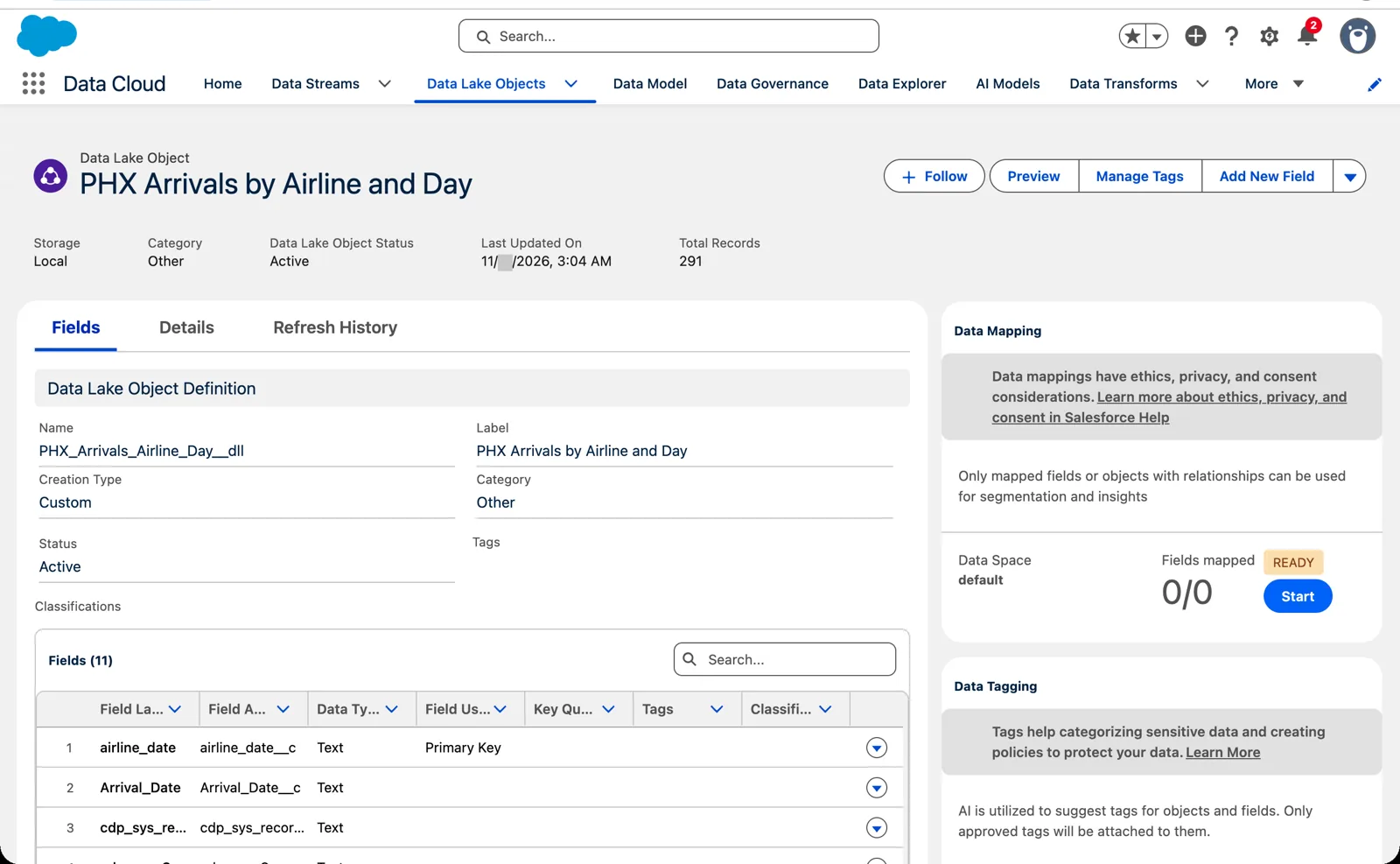
The output’s key, and an empty key qualifier column beside it (Salesforce Data 360 in a Developer Edition org, screenshot, November 2026). Full size
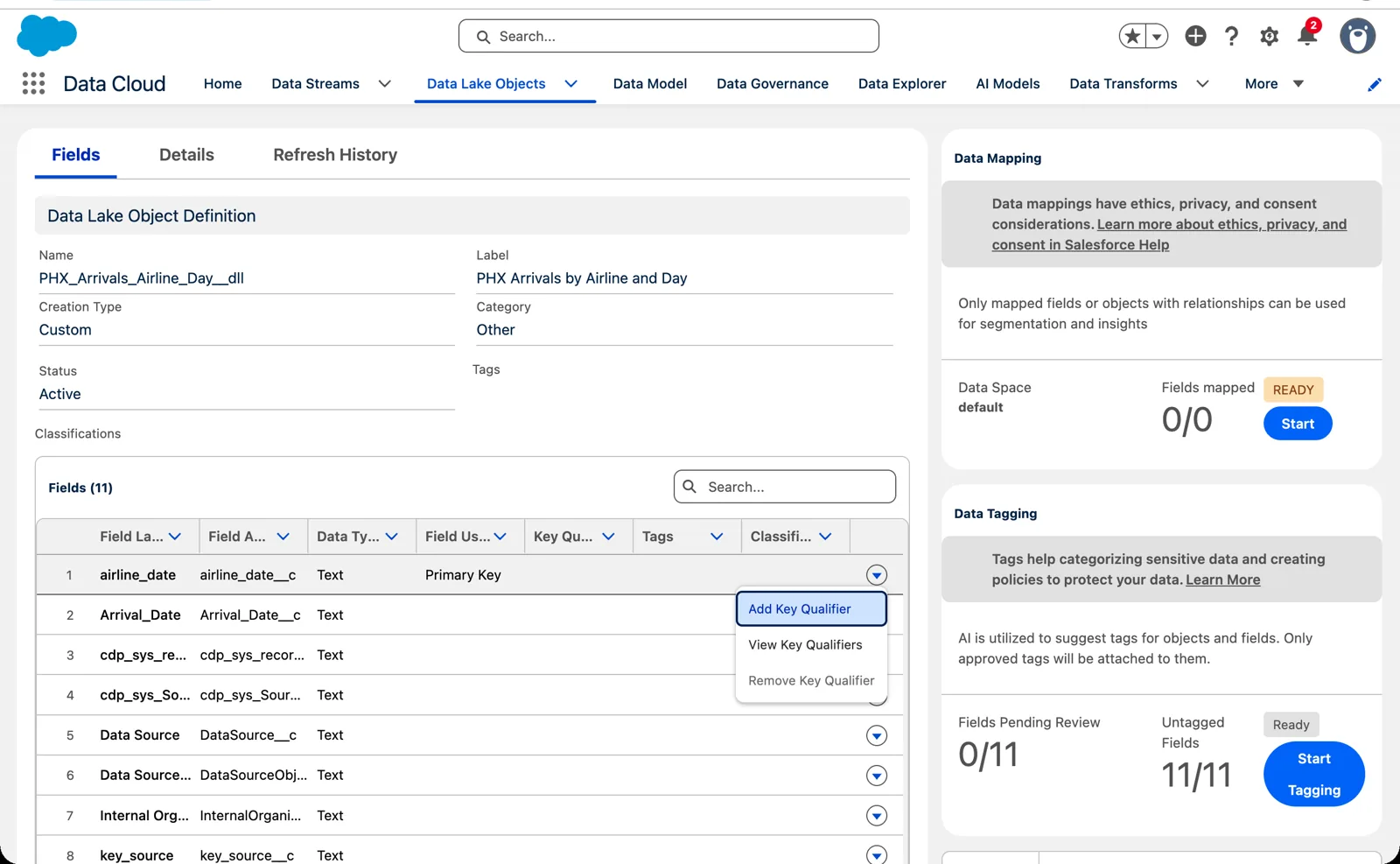
Add Key Qualifier, on the key field’s row (Salesforce Data 360 in a Developer Edition org, screenshot, November 2026). Full size
In module 2 we also added a column, key_source, with the fixed value PHX_ARRIVALS on every row. On a lake object output it’s an ordinary column, not the key qualifier: it says where each row came from, to anyone reading the data, and to any query that selects it. Data 360’s own joins use the KQ_ field, not ours. I keep it because it tells you the source at a glance.
So I tried it in my org. On the arrivals output, I added a key qualifier to airline_date: label “PHX Arrivals”, API name PHX_Arrivals. Then I ran the transform again. The first try failed with a message that said only that the transform “failed to run”. Salesforce’s page on run types says “A transform run will be skipped if the source data or transform remains unchanged from the previous run,” and nothing in the flights or the transform had changed. So I opened the transform, applied the output node again and saved it, and the save started a run that worked.
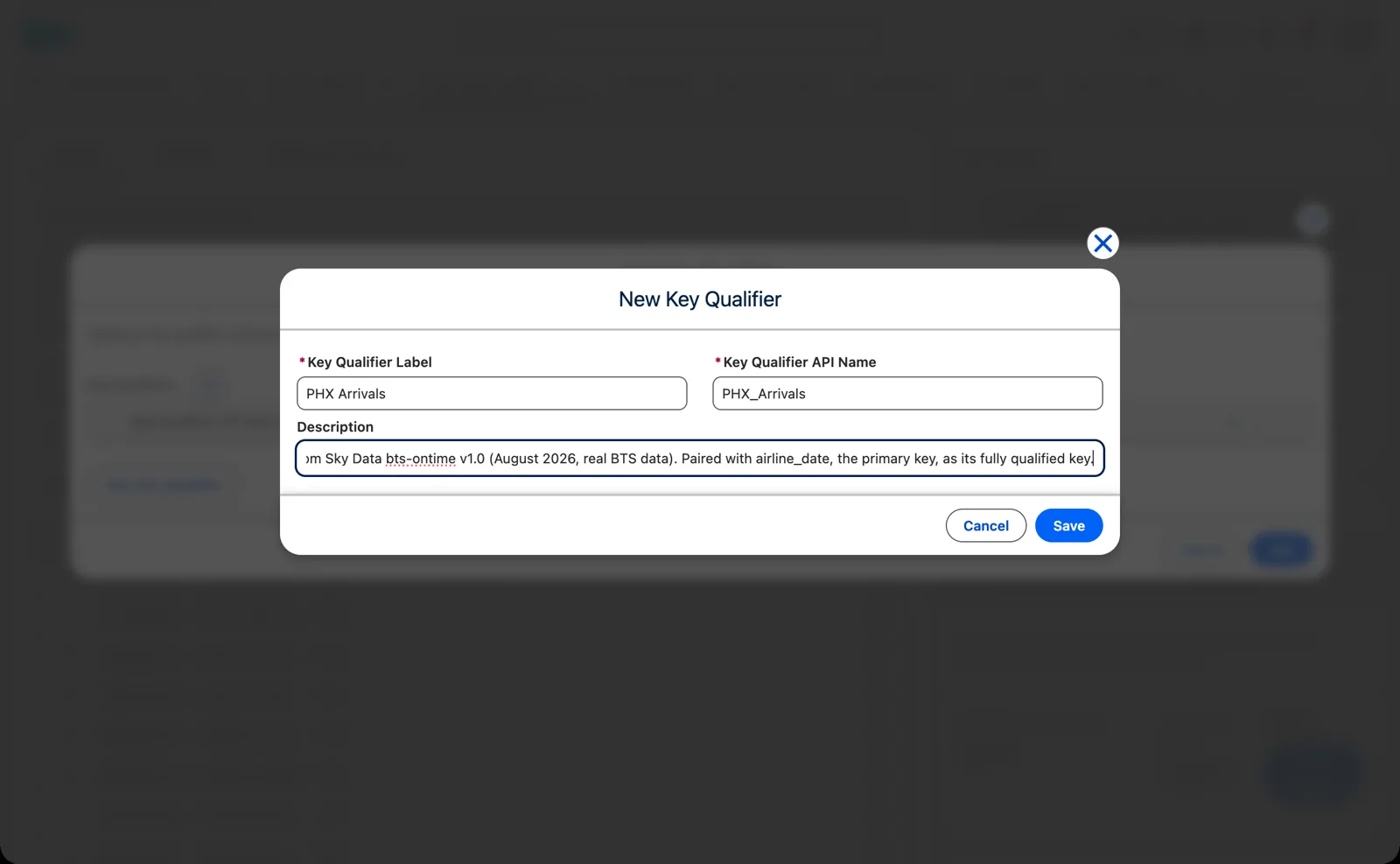
A new key qualifier, named for the source (Salesforce Data 360 in a Developer Edition org, screenshot, November 2026). Full size
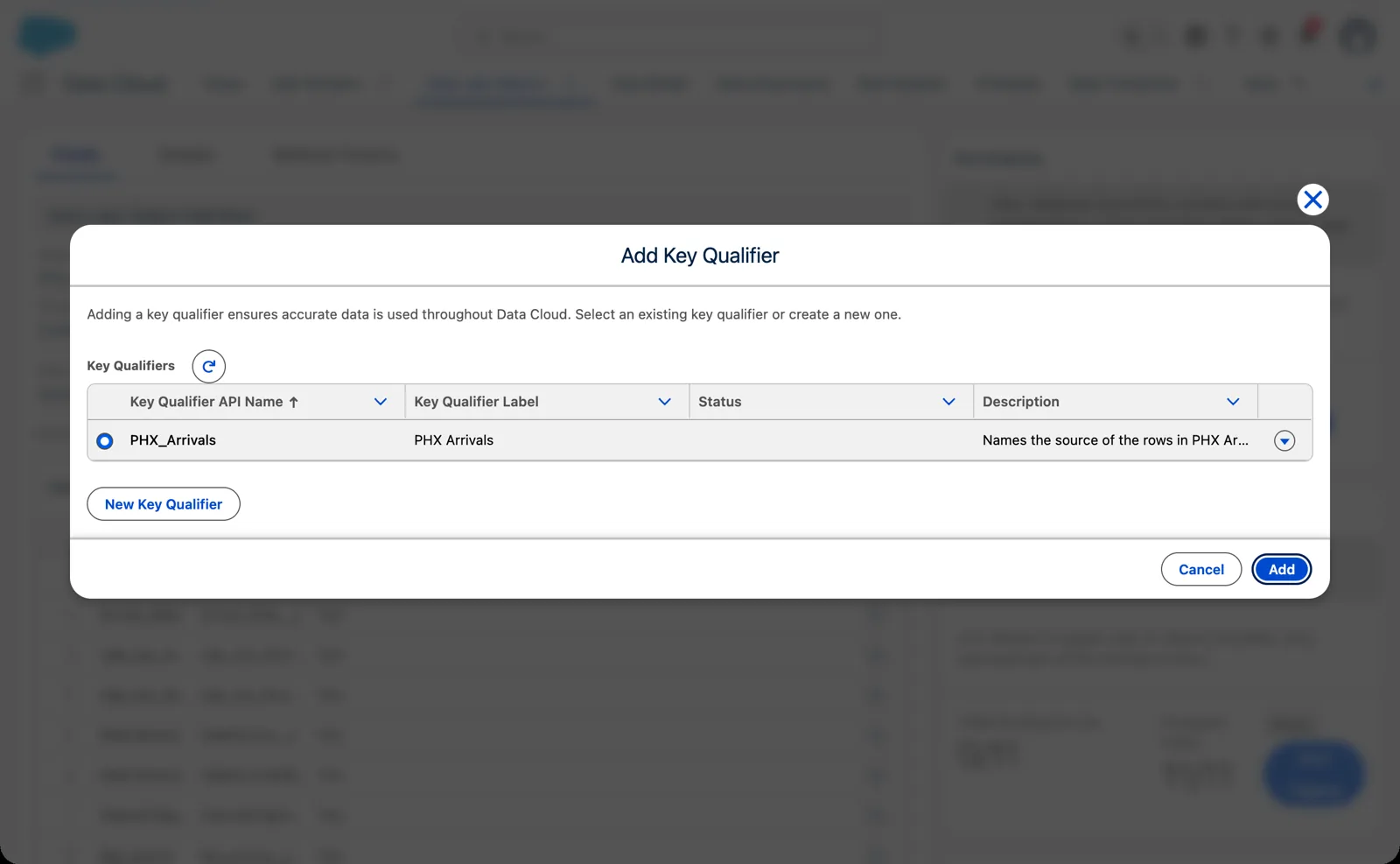
Choosing it for the key (Salesforce Data 360 in a Developer Edition org, screenshot, November 2026). Full size
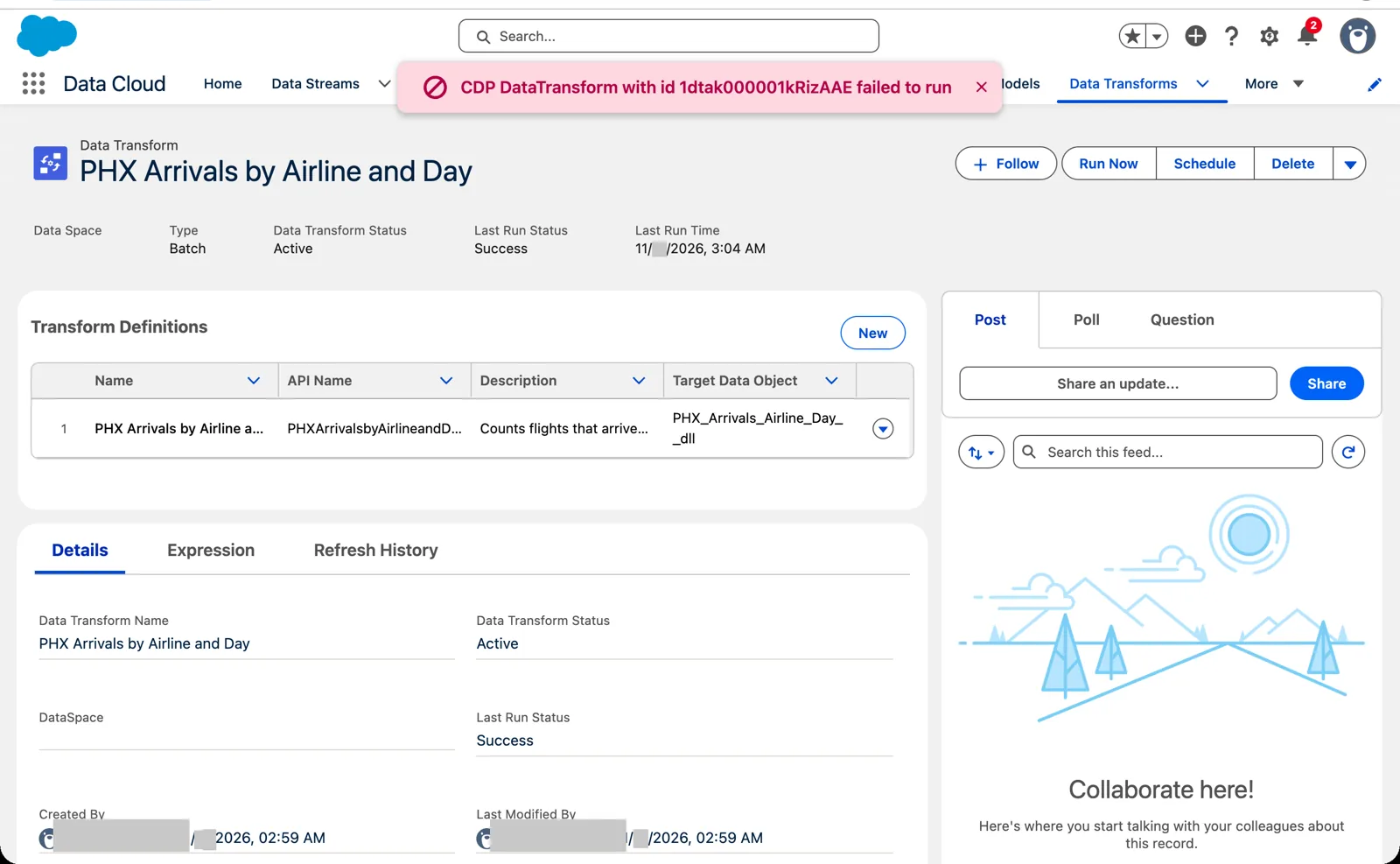
The run that failed, with nothing in the source changed (Salesforce Data 360 in a Developer Edition org, screenshot, November 2026). Full size
After that run, every row I looked at had KQ_airline_date set to PHX_Arrivals: the qualifier’s API name, not its label. So if you set up a qualifier and also keep a source column like key_source, give them the same text, API name included, so the two never disagree. Mine don’t quite: PHX_Arrivals and PHX_ARRIVALS. A join that compares them would treat them as different.
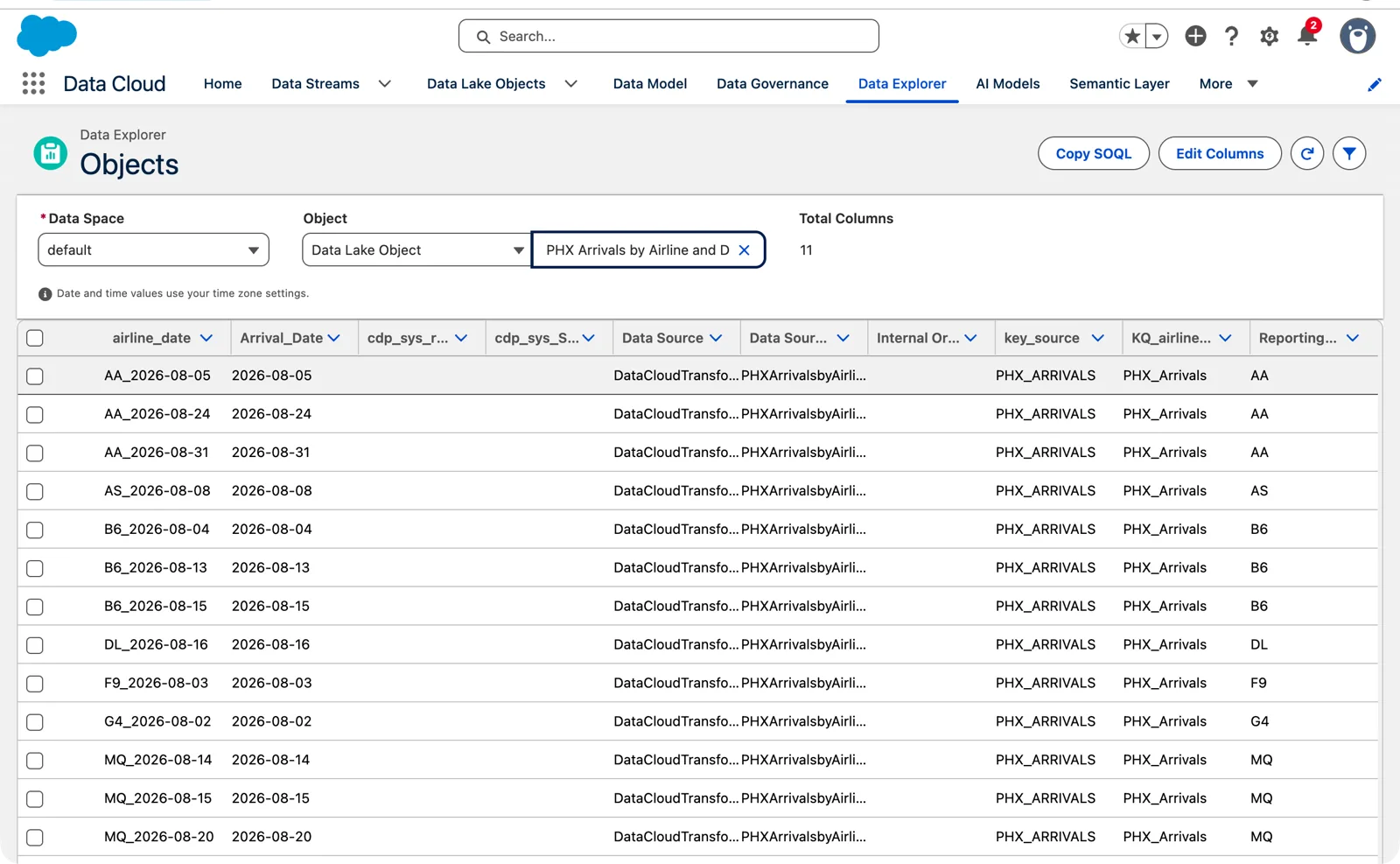
The result: the key qualifier field holds the API name, PHX_Arrivals (Salesforce Data 360 in a Developer Edition org, screenshot, November 2026). Full size
When the output is a data model object
Section titled “When the output is a data model object”A transform that reads and writes data model objects (module 2’s rule: lake in, lake out; model in, model out) has a different output node, and it asks for one more column: the fully qualified key. Salesforce’s words on that output node: “To prevent having multiple DMO records with the same primary key value, use a fully qualified key to distinguish between them.”
What goes in that column? It can’t be the primary key column itself; it’s a second column. In my 2024 arrivals demo, on data model objects, I used a copy of the key, and that got the transform saved. But a copy doesn’t say anything a key qualifier is meant to say. Salesforce describes the qualifier as the field that says where a record came from, so I’d fill it with a fixed value that names the source, the way module 2 builds key_source: PHX_ARRIVALS. It pays off when more than one stream or transform feeds the same model object: every row still tells you where it came from.
So I tested it, in my practice org. A small transform, on data model objects: the Airport model object (chapter 8) in, a filter for the Commercial airports, a formula column key_source with the fixed value 'OURAIRPORTS', and a new model object out. The output node could create the model object, and next to Primary Key it had a second required box, labelled Key Qualifier. It accepted key_source. After the run, every row in Data Explorer had OURAIRPORTS in key_source, and there was no separate KQ_ column: the column you choose is the qualifier.
The field list explains it. The model object’s key_source field has the API name KQ_key_source__c, and its Key Qualifier column says “‘id’ Key Qualifier”: the column you pick in the output node becomes the key qualifier field for the primary key. So give that column a value that names the source, and give it a name you’d be glad to see in every join.
Check the key before you trust the output
Section titled “Check the key before you trust the output”After the first run, look at the output in Data Explorer:
- Count the rows. Do you have one row for each grouping you expected? For the arrivals, that’s the number of airlines times the number of days with arrivals, or fewer.
- Look for repeated keys. If a key appears on rows that should be different, it’s too narrow.
- Run it again. The number of rows shouldn’t grow when the source hasn’t changed. If it does, something in the key is changing between runs.
Watch it on video
Section titled “Watch it on video”In 2025 I filmed a smaller batch transform: airports grouped by continent and type and counted, with a key built from the two grouping columns. The note under the video says what’s still right and what’s changed since.
What an architect decides here
Section titled “What an architect decides here”- The grain of every output, and so the columns its key is built from.
- The key’s format: IDs not names, a separator, a fixed date format, text.
- The key qualifiers: for a lake object output, whether to configure one on its key now or later; for a model object output, what its fully qualified key column holds.
Explore
Section titled “Explore”All checked 2026-11-14.
- Primary Key (opens in a new tab), Salesforce Help.
- Use Case 2: Create a Primary Key Using a Composite Key (opens in a new tab), Salesforce Help.
- Data Interpretation with Fully Qualified Keys (opens in a new tab), Salesforce Help.