
What Site Users See of Other People
이 콘텐츠는 아직 번역되지 않았습니다.
Module 8 of 8 in the chapter External Users: Sites, Communities, Licenses and Roles, chapter 14 of Securing Salesforce: Sharing and Visibility. Each module stands on its own.
The question this module answers: Your site is full of people from different companies, some of them competitors, and some of them guests nobody knows. Who can find whom, what do they see about each other, and what might older settings still be sharing with them?
So far this chapter has been about records: accounts, cases, deals. But a site has people on it too, and every person is a user record. The people on your site work for your customers and partners, and some of them compete with each other. A customer’s buyer shouldn’t be able to browse a list of every other customer’s buyers, with their phone numbers.
My advice for the records was: check all your external sharing, and keep it Private. The same goes for people. Chapter 6 gave the rule in Salesforce’s words: the user default “must be set to Private if there is at least one user who shouldn’t see a record.” On a site, there’s almost always at least one.
This module asks three questions, one after the other.
Who can find whom
Section titled “Who can find whom”Start with the User object’s external default. If it’s Public Read Only, “all users can see one another, regardless of site-specific user visibility settings enabled” (Control Which Users Experience Cloud Site Users Can See (opens in a new tab), Salesforce Help, checked 2026-11-26). Nothing else in this section works until the external default for users is Private.
With it at Private, three settings decide who outside users can see (same page):
- Portal User Visibility. Outside users at the same account “can see each other, regardless of the organization-wide defaults.” Partner users can also see the person in your company who owns their partner account.
- Site User Visibility. Members of the same site can see each other. With it on, each site gets a checkbox, See other members of this site, so you can choose site by site.
- Guest user visibility. A separate checkbox per site, Let guest users see other members of this site. It’s for a public forum, where strangers read posts and need to see who wrote them.
The first two are on the Sharing Settings page; the per-site checkboxes are in each site’s Workspaces, under Administration and Preferences (Control User Visibility in Your Experience Cloud Site (opens in a new tab), Salesforce Help, checked 2026-11-26).
How the first two combine, for LWR and Aura sites (Control Which Users Experience Cloud Site Users Can See):
| Site User Visibility | Portal User Visibility | Outside users see |
|---|---|---|
| Off | Off | Only themselves |
| Off | On | Other site users at the same account, in a site they’re both members of |
| On | Off | Other members of the same site, but not the people at their own account |
| On | On | Other members of the same site, and the people at their own account |
Read the third row twice. It surprises people. Site visibility on and portal visibility off means you see strangers on the same site, but not your own coworkers. Salesforce Tabs + Visualforce sites behave differently again, and the same page lists them.
Now where the walls are thin (same page):
- Sharing still shares. Users shared with each other by manual sharing or sharing rules “still see one another regardless of site or portal user visibility settings.”
- Search and the API don’t filter by site. In searches and API calls, site users can reach other site users “even if they’re not members of the same site.” They see the names. They can’t see details or open the detail page unless they’re members of the same site.
- View All Users opens everything. “If the View All Users permission is selected on a profile, Experience Cloud site users with that profile are able to see all users in the org.” On the guest profile, module 2 told you to turn it off. Check the outside users’ profiles too.
What they see when they find them
Section titled “What they see when they find them”Finding a person is one thing. Seeing their phone number, email and home address is another. That’s a second setting: Enhanced Personal Information Management.
Salesforce: with Enhanced Personal Information Management on, outside users who search or view user records on a site don’t see other users’ personal information fields, and they can still view and update their own; “Unauthenticated guest users can’t view or update personally identifiable information (PII) fields, including their own” (Manage Personal User Information Visibility for External Users (opens in a new tab), Salesforce Help, checked 2026-11-26).
Which fields count as personal is your decision, made in field sets (same page):
- PersonalInfo_EPIM decides what’s hidden from outside users who log in.
- Guest_PersonalInfo_EPIM decides what’s hidden from guests, once Independent Guest Field Masking is on. Without it, the first field set covers guests too.
- Orgs that turned the feature on before Spring ‘22 mark the fields instead, with PII as the field’s Compliance Categorization value.
Both settings are on automatically when you enable Digital Experiences, and “You can’t disable the Enhanced Personal Information Management or the Independent Guest Field Masking settings after you turn them on” (same page). So the work isn’t switching it on. It’s reading the field sets and deciding whether they match your company’s idea of personal information.
One detail on addresses. If any part of an address is in the field set, the profile page treats address fields differently for guests and for site members. Salesforce works through an example where a few address parts were left out of the field set, and they stayed visible to site members. The simple rule: put every part of the address in, or none (Personal User Information Considerations (opens in a new tab), Salesforce Help, checked 2026-11-26).
Where it doesn’t reach
Section titled “Where it doesn’t reach”This is the part I always ask about: where can a hidden field still be found? Salesforce answers it (Personal User Information Considerations):
- Apex. “This setting isn’t enforced in Apex, even with security features such as the WITH USER_MODE clause, the WITH SECURITY_ENFORCED clause, or the stripInaccessible method.” Code that returns user records to a site has to hide the fields itself; Salesforce has sample code for it.
- System mode. “Workflows, flows, and automated tools that run in system mode don’t enforce the personal information visibility settings.” An email sent by a flow in system mode can carry a field the page hides.
- Integrations that run as an outside user and sync user data can fail on the hidden fields.
- The big permissions don’t open it. Personal information “isn’t visible to users with View All Users, Modify All Data, and View All Data permissions. To view personally identifiable information (PII), a user must have the View Concealed Field Data permission.” That’s the permission module 6 said to give a delegated administrator only if they need it.
These are the switches, in User Management Settings, with Salesforce’s warning on the one you can’t take back:
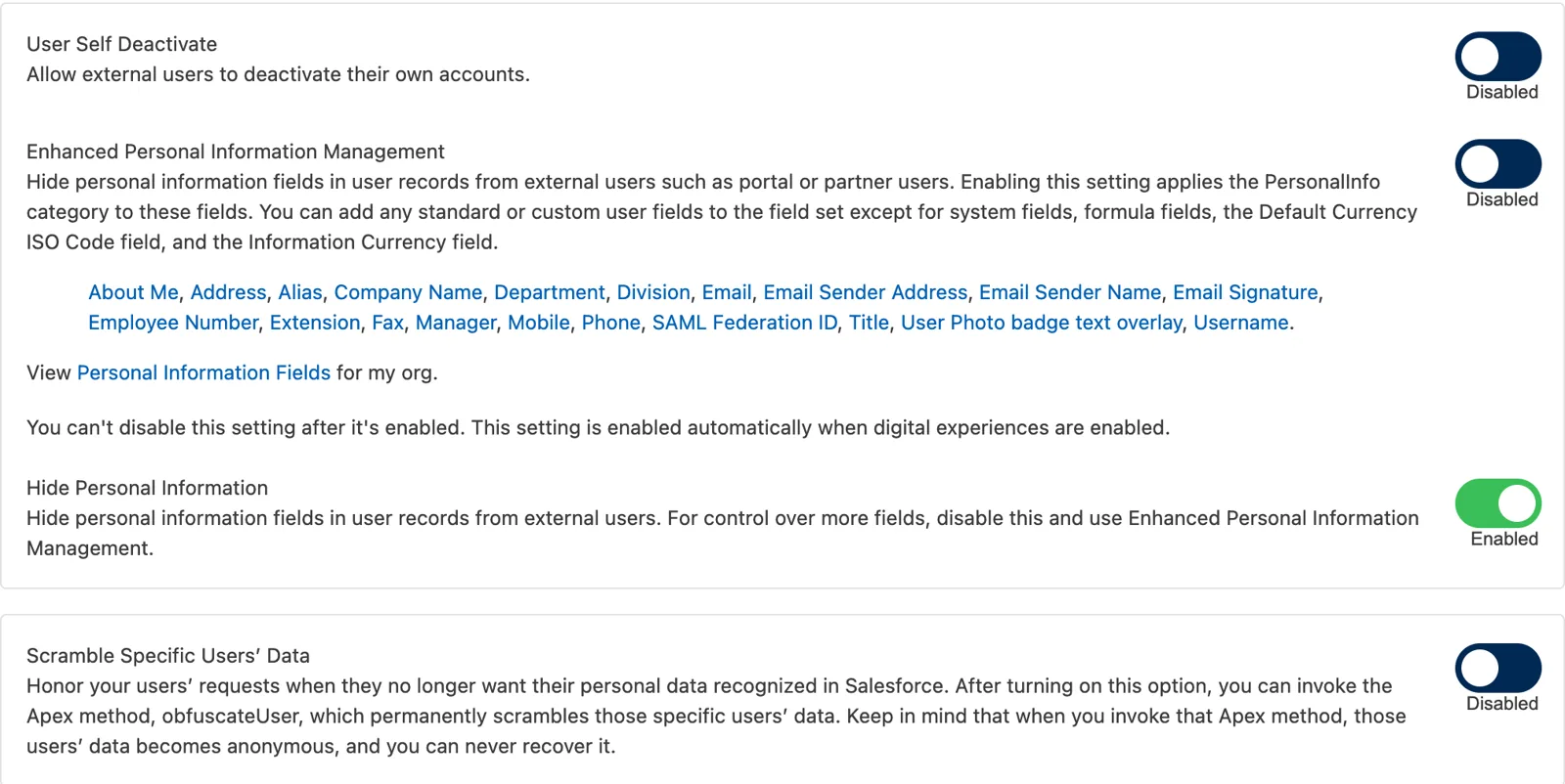
Hiding people’s details from outside users, and the setting that can’t be undone (Salesforce, Setup in a Partner Developer Edition org, screenshot, November 2026). Full size
What older settings still share
Section titled “What older settings still share”The third question is about orgs that have been around a while. Chapter 7 told the story of the group member types: Roles and Subordinates was replaced by two choices, Roles and Internal Subordinates (your people only) and Roles, Internal and Portal Subordinates (your people and outside users below them).
In older orgs, that change opened records up. Salesforce: in production orgs created before February 8, 2024 that enabled digital experiences before a release update was enforced in Winter ‘26, “records that were previously accessible to Roles and Subordinates became available to Roles, Internal and Portal Subordinates.” In other words, sharing rules and folders that used to reach your own people now reach outside users below them too (Use the Convert External User Access Wizard (opens in a new tab), Salesforce Help, checked 2026-11-26).
The Convert External User Access Wizard takes them back. You find it in Digital Experiences settings, under Convert Site Member Access. It does two things (same page, and Considerations for the Convert External User Access Wizard (opens in a new tab), Salesforce Help, checked 2026-11-26):
- Sharing rules. It converts owner-based and criteria-based sharing rules that use Roles, Internal and Portal Subordinates to Roles and Internal Subordinates. Then “you must recalculate the sharing rules to apply the changes,” object by object, from Sharing Settings.
- Folders. It converts report, dashboard and document folders shared with Roles, Internal and Portal Subordinates. It doesn’t convert folders shared with all users or with public groups; you change those by hand.
And it doesn’t touch manual sharing, Apex managed sharing, public groups, queues or list views. Those you check yourself.
In orgs created on or after February 8, 2024, and orgs that enabled digital experiences after Winter ‘26, records shared with Roles and Internal Subordinates stay with your own people, and you don’t need the wizard. If you’re not sure which kind of org you’re in, look at your sharing rules. Any rule using Roles, Internal and Portal Subordinates is either a choice someone made on purpose or a leftover, and you should know which.
Test knowledge. Know that site user visibility settings work only when the User object’s external default is Private; what Portal User Visibility and Site User Visibility each show, and the per-site checkboxes for members and guests; that sharing and the View All Users permission still reveal users; that Enhanced Personal Information Management hides personal fields from other outside users, and from guests even their own, can’t be turned off, isn’t enforced in Apex or system mode, and needs View Concealed Field Data to reveal; and that the Convert External User Access Wizard converts sharing rules and folders from Roles, Internal and Portal Subordinates to Roles and Internal Subordinates in older orgs. A likely area, not a known question.
What an architect decides here
Section titled “What an architect decides here”- The User object’s external default: Private, unless every outside user may see every other.
- For each site, whether members see each other, whether coworkers at the same account see each other, and whether guests see members.
- Which outside profiles have View All Users, and which user sharing rules or manual shares reveal users anyway.
- Which User fields are personal information for logged-in outside users, and which for guests.
- Which Apex, flows and integrations return user data to a site, and how they hide what the page hides.
- Who gets View Concealed Field Data, and why.
- In an older org, which sharing rules, folders, groups, queues and list views still use Roles, Internal and Portal Subordinates, and whether each one is on purpose.
Beyond the exam: what AI changes. Ask an agent on a site “who else at my company uses this?” or “who answered this question in the forum?”, and it answers with people. If the agent’s actions run in system mode, or call Apex that returns user records, the visibility settings and the personal information field sets may not apply at all. Test the agent as an outside user who mustn’t see the others, and ask it for names, emails and phone numbers. Chapter 20 covers agents.
Explore
Section titled “Explore”- Control Which Users Experience Cloud Site Users Can See (opens in a new tab), Salesforce Help (checked 2026-11-26)
- Control User Visibility in Your Experience Cloud Site (opens in a new tab), Salesforce Help (checked 2026-11-26)
- Manage Personal User Information Visibility for External Users (opens in a new tab), Salesforce Help (checked 2026-11-26)
- Personal User Information Considerations (opens in a new tab), Salesforce Help (checked 2026-11-26)
- Use the Convert External User Access Wizard (opens in a new tab), Salesforce Help (checked 2026-11-26)
- Considerations for the Convert External User Access Wizard (opens in a new tab), Salesforce Help (checked 2026-11-26)