
The Device Flow, Hands-On
Dette innholdet er ikke tilgjengelig på ditt språk.
Lab for chapter 9, The Burger House: Flows With a Person, in Securing Salesforce: Identity and Access. The practice asks why each of these steps matters; this page is how to do them.
| You’ll build | A command-line tool’s external client app with the device flow; codes asked for from a terminal and approved as Priya in a browser; tokens that act as her; and, at the end, the web server flow sending back the state you sent |
| Time | About 35 minutes (measured in the lab test, November 2026) |
| Org | The service provider org from chapters 4 to 8 |
| Start from | The end of chapter 8’s lab: the Reporting tool app and its key and secret, and the Account you made. Priya logs in to this org through the identity provider (chapter 7) |
| Files | None |
| You need | A terminal with curl, and openssl for step 8 (built into macOS and Linux) |
| Tested | Winter ‘27 (API 68.0), November 2026 |
Before you start
Section titled “Before you start”-
Log in to the service provider org as the admin.
-
Have a private browser window ready for Priya. The codes in step 3 last 10 minutes: don’t ask for them until step 4’s window is open.
-
In your terminal, set the org’s address again, with your own My Domain:
Terminal window B=https://bluefin-lab-sp-dev-ed.develop.my.salesforce.com
Step 1: Who signs in
Section titled “Step 1: Who signs in”Priya is the user. She’s a Standard User, she can read Accounts, and since chapter 7 she logs in to this org through Log in with IdP org. You don’t need a new user.
Step 2: Make the app
Section titled “Step 2: Make the app”- From Setup, in Quick Find, enter
External Client App, select External Client App Manager, then New External Client App. - External Client App Name:
Command-line tool. Contact Email: your address. Distribution State: Local. - Look at API Name. Salesforce fills in
Command-line_tool, with the hyphen. Change it toCommand_line_tool.
Watch out. In the lab test, Salesforce filled in the API Name from the app’s name, hyphen and all, then refused it on Create: “The External Client Application API Name can only contain underscores and alphanumeric characters.” Replace any hyphen or space with an underscore before you create the app.
-
Open API (Enable OAuth Settings) and tick Enable OAuth.
- Callback URL:
http://localhost:1717/OauthRedirect. - OAuth Scopes: move Manage user data via APIs (api) and Perform requests at any time (refresh_token, offline_access) to Selected OAuth Scopes.
- Under Flow Enablement, tick Enable Device Flow. Salesforce asks: “Enable the OAuth device flow?” Select OK.
- Callback URL:
-
Select Create.
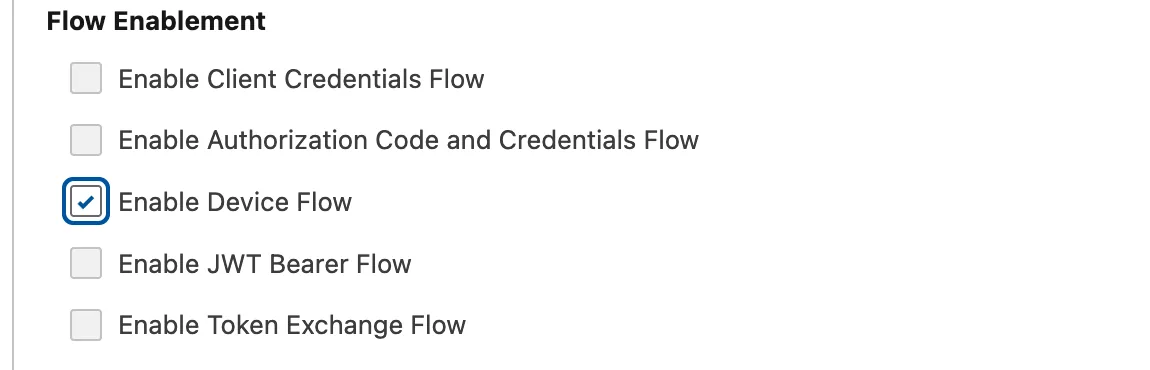
The device flow turns the other flows off (Salesforce, Setup in a Developer Edition org, screenshot, November 2026). Full size
Watch out. The device flow has its own app. Salesforce’s own words when you tick it: “Enabling the device flow disables all other OAuth flows.” In the lab test, the other four flows greyed out at once. Don’t turn it on in an app something else already uses.
-
On the app’s Settings tab, open OAuth Settings, select Consumer Key and Secret, and copy only the key. The device never gets the secret. In your terminal (zsh; in bash use
read -rsp "Consumer key: " CKEY):Terminal window read -rs "CKEY?Command-line tool consumer key: "; echo
Step 3: Ask for codes, as the device
Section titled “Step 3: Ask for codes, as the device”curl -s -X POST "$B/services/oauth2/token" --data-urlencode response_type=device_code --data-urlencode "client_id=$CKEY"You should see, in the lab test:
{"user_code":"2GKKL76A","device_code":"…","interval":5,"verification_uri":"https://bluefin-lab-sp-dev-ed.develop.my.salesforce.com/setup/connect"}An 8-character user_code for Priya, a long device_code for the device, an interval of 5 seconds between polls, and the page where Priya types the code: your org’s /setup/connect. Put the device code in a variable:
DC=paste-the-device_code-hereThe clock is running: about 10 minutes.
Step 4: Be Priya, on another screen
Section titled “Step 4: Be Priya, on another screen”-
In the private window, go to the
verification_uri.You should see Enter Code, with a Security Warning.
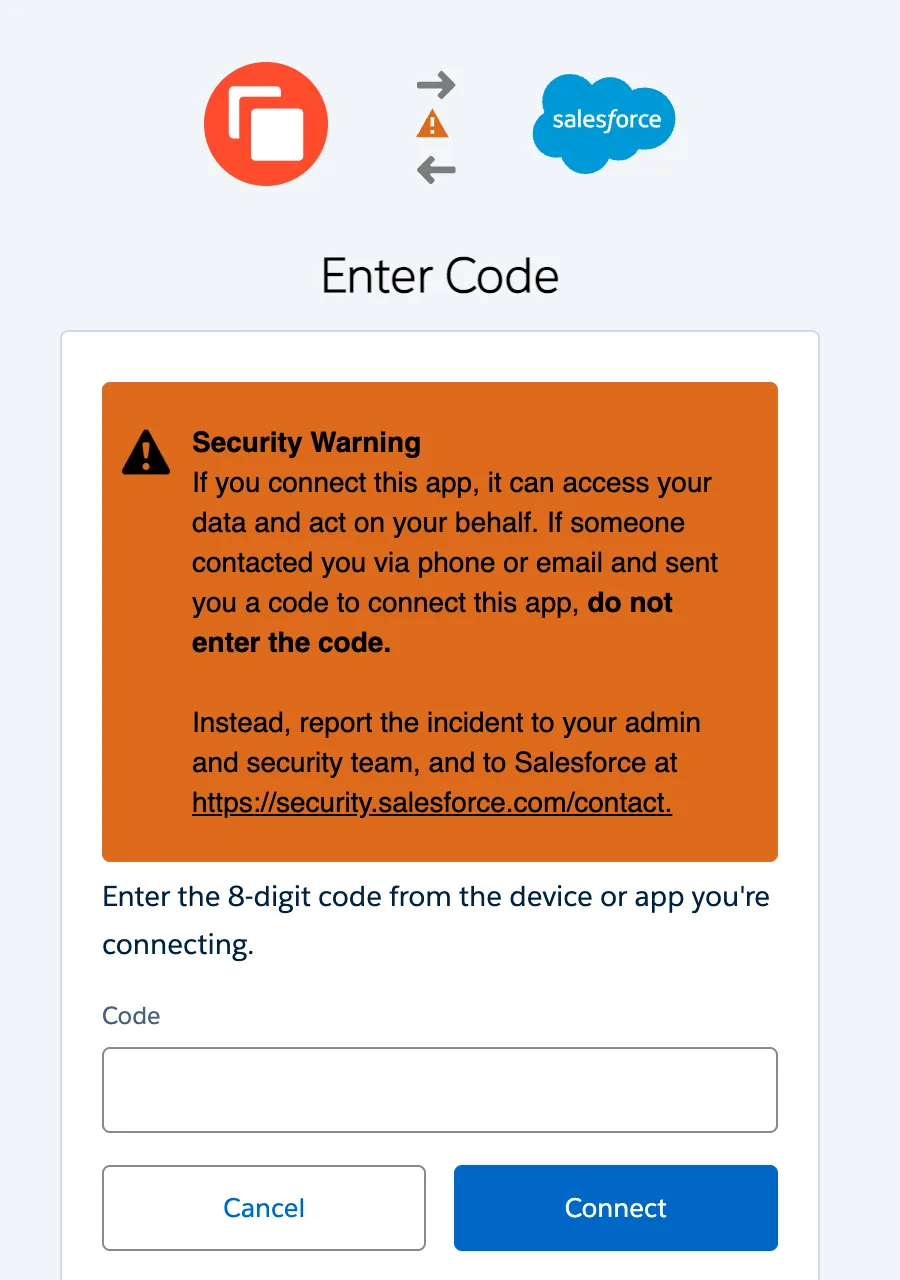
The page warns users before they type a code (Salesforce, a Developer Edition org, screenshot, November 2026). Full size
Tip. Read the warning on the Enter Code page: “If someone contacted you via phone or email and sent you a code to connect this app, do not enter the code.” That’s the way the device flow gets abused: someone starts the flow on their own device and talks a user into approving it. The page tells your users what to do.
- Type the
user_codeand select Connect. - Salesforce asks Priya to log in. Select Log in with IdP org, and log in at the identity provider as Priya.
Watch out. Priya has no password in this org: she logs in through the identity provider. In the lab test, her identity provider username typed into this org’s form gave “Please check your username and password.” Use the button.
-
On Allow Access?, read what the app asks for, then select Allow.
You should see You’re Connected: “Command-line tool is now authorized to access your data on your behalf.”
Tip. Allow Access? listed Access the identity URL service as well as the two scopes you chose. Salesforce adds it: the token can always answer “who am I?”.
Step 5: Poll, as the device
Section titled “Step 5: Poll, as the device”curl -s -X POST "$B/services/oauth2/token" --data-urlencode grant_type=device --data-urlencode "client_id=$CKEY" --data-urlencode "code=$DC"If you run it before Priya approves, you should see, in the lab test:
{"error":"authorization_pending","error_description":"the user has not yet approved access"}Wait at least the interval and ask again. After she approves, you should see "scope":"refresh_token api", an access_token, a refresh_token, and an id ending in Priya’s user ID. Put the two tokens in variables:
AT=paste-the-access_token-hereRT=paste-the-refresh_token-hereTip. A device code works once. In the lab test, polling again with the same code after the tokens came back answered
invalid_grant, “token exchange failed”.
Step 6: Call the API, as her
Section titled “Step 6: Call the API, as her”curl -s "$B/services/data/v68.0/query?q=SELECT+Name,Owner.Name+FROM+Account+LIMIT+3" -H "Authorization: Bearer $AT"You should see Example Account (lab) from chapter 8. The token acts as Priya: whatever she can’t see, it can’t either. Look at the id in step 5’s answer: it’s her user ID, not yours.
Step 7: Take it back
Section titled “Step 7: Take it back”-
Revoke the refresh token:
Terminal window curl -s -o /dev/null -w "%{http_code}\n" -X POST "$B/services/oauth2/revoke" --data-urlencode "token=$RT"You should see
200. -
Run step 6’s query again with the access token.
You should see
"Session expired or invalid": revoking the refresh token revoked the access token it gave out, too. -
Try to get a new access token with the revoked refresh token:
Terminal window curl -s -X POST "$B/services/oauth2/token" --data-urlencode grant_type=refresh_token --data-urlencode "client_id=$CKEY" --data-urlencode "refresh_token=$RT"You should see
invalid_grant, “expired access/refresh token”.
Priya can also take it back herself: Allow Access? said “To revoke access at any time, go to your personal settings”.
Step 8: Watch state come back (the web server flow)
Section titled “Step 8: Watch state come back (the web server flow)”Module 2 says the app sends a state value and checks it comes back unchanged. This app can’t show it: the device flow turned its other flows off. Chapter 8’s Reporting tool can. It needs nothing ticked for this: OAuth on and a callback URL are enough.
Watch out. Enable Authorization Code and Credentials Flow, in Flow Enablement, isn’t the web server flow: it’s a different flow, where the app collects the username and password itself. Leave it off. The web server flow worked in the lab test with nothing ticked.
-
The app requires PKCE (it’s one of the locked boxes from chapter 8), so make a code verifier and its challenge:
Terminal window V=$(openssl rand -base64 48 | tr '+/' '-_' | tr -d '=\n'); C=$(printf %s "$V" | openssl dgst -sha256 -binary | openssl base64 | tr '+/' '-_' | tr -d '=\n') -
Build the address, with the Reporting tool’s key from chapter 8 (
$KEY; if it’s gone,readit again as in chapter 8, step 6), and open it:Terminal window echo "$B/services/oauth2/authorize?response_type=code&client_id=$KEY&redirect_uri=https://localhost/callback&scope=api&state=lab-burger-42&code_challenge=$C&code_challenge_method=S256"Copy the line it prints into a private window. Log in as Priya through Log in with IdP org, and select Allow.
-
You should see “This site can’t be reached”: nothing runs on
localhost. That’s fine. Look at the address bar:https://localhost/callback?code=…&state=lab-burger-42. Thestatecame back exactly as you sent it. -
To finish the round trip, copy the
code(everything betweencode=and&state; change%3Dat its end to=), and trade it for a token:Terminal window curl -s -X POST "$B/services/oauth2/token" --data-urlencode grant_type=authorization_code --data-urlencode "code=PASTE-THE-CODE" --data-urlencode "client_id=$KEY" --data-urlencode redirect_uri=https://localhost/callback --data-urlencode "code_verifier=$V"You should see an
access_tokenand Priya’sid. Run it a second time:invalid_grant. A code, like a device code, works once. -
Revoke the token (step 7, 1, with this
access_token), and clear your variables:Terminal window unset CKEY DC AT RT V C
Check your lab
Section titled “Check your lab”- Command-line tool exists, API Name
Command_line_tool, with only the device flow. - The device got its codes with the key alone, no secret.
- Priya typed the code, signed in through the identity provider, and allowed it.
- The poll said
authorization_pendingbefore, and gave tokens after. - The query ran as Priya.
- After revoking the refresh token, the access token failed too.
-
statecame back unchanged in step 8, and the Reporting tool still has only client credentials ticked.
If something went wrong
Section titled “If something went wrong”From the lab test, November 2026:
- “Failed to create an External Client App… API Name…”. Replace the hyphen in the API Name (step 2).
- “Please check your username and password” as Priya. Use Log in with IdP org (step 4).
authorization_pending. Priya hasn’t selected Allow yet; wait theintervaland poll again.- The code expired. Ask for new codes (step 3); each pair lasts about 10 minutes.
invalid_grant, “token exchange failed”. The device code was already used (step 5).invalid_grant, “unexpected code verifier” in step 8. The code was already used, or$Visn’t the verifier you made the challenge from.
Keep or clean up
Section titled “Keep or clean up”Keep both apps. Later chapters may use them. The tokens are revoked.
What you just proved
Section titled “What you just proved”A tool with no web page and no secret got a token for a person, and the person never typed a password into it: she typed a short code into Salesforce, on a screen she trusts, and allowed it. The token acted as her, not as you, and one revoke took back both the refresh token and what it had given out. And the browser flow sent your state back untouched, which is how an app knows the answer is to its own question.
Next lab: chapter 11, The Golden Pass, by Hand. Chapter 10’s lab comes in a later release.