Hybrids with Today's Tools, and the Quick-Start Lab
Dette innholdet er ikke tilgjengelig på ditt språk.
Module 6 of 6 in the chapter Data Connectivity and Virtualization, chapter 19 of the Integration Architect course. Each module stands on its own. Previous: A Component That Reads Live · Next chapter: Data 360 and the Connected Enterprise (coming soon)
The question this module answers: Most real designs copy part of the data and reach the rest. How do you build that hybrid with today’s tools, and how do you try Salesforce Connect yourself?
This Became Synchronized, and This Became Virtualized
Section titled “This Became Synchronized, and This Became Virtualized”Here’s a design I’ve built more than once. A customer had years of orders and order items outside Salesforce, far too many items to load. So we virtualized: external objects for orders and items, on the account page.
Then the business asked for something external objects can’t give. When an order arrives, notify the account owner. When an order is late, start a flow. And the order object wasn’t in Salesforce, so there were no flows, no automations and no automatic notifications on it.
So we split it. The orders came into Salesforce as a custom object, kept in step with the source, because they were few enough and Salesforce had to act on them. The order items stayed outside, through Salesforce Connect, because people only looked at them. In the words I used in class: this became synchronized, and this became virtualized.
That’s the hybrid. Copy what Salesforce acts on. Reach what people only look at. Data Architect chapter 14 makes the same decision from the data side, on Steve Trucking’s archive (Copy the Part You Need). This module is how you build it.
Rebuilt With Today’s Tools
Section titled “Rebuilt With Today’s Tools”When we built that, the copy was done with Heroku Connect, which kept a Heroku database and a Salesforce object in step. Heroku Connect still runs, but since February 2026 Heroku has been on a sustaining engineering model, not adding features (chapter 17 module 6). So for a new design, here’s how I’d build each half today.
The copy side, for the records Salesforce acts on:
- The source sends its changes to the integration layer, as events or on a schedule (chapter 11, chapter 18).
- The layer upserts them into a custom object in Salesforce, by the source’s own key as an External ID, so a resend is an update, not a duplicate (chapter 10).
- If Salesforce edits them too, decide which system wins for each field, and send Salesforce’s changes back the same way.
The virtual side, for what people only look at:
- Salesforce Connect, with whichever adapter reaches the source (module 3).
- Or a component that reads live, if the data doesn’t fit a table (module 5).
The two halves meet on the screen. The account page shows the synced orders as ordinary records, and each order shows its items from outside.
The Keys Hold It Together
Section titled “The Keys Hold It Together”In class I say you’ll need some kind of data sync to bring in the primary keys. That’s the part a hybrid can’t skip.
An order item outside Salesforce points to its order by the source’s order number. For Salesforce to put that item under the right order, the synced order has to carry the same number, in a field marked External ID and Unique. Then the external order items relate to it with an indirect lookup: an external child pointing to a Salesforce parent through that unique field (module 1).
So the copy side doesn’t just bring the orders. It brings the key every virtual row will use to find its parent. If an order’s key is missing or wrong, its items vanish from its page, with no error.
Seed It, Then Check It Every Night
Section titled “Seed It, Then Check It Every Night”The copy side has two more jobs that are easy to forget.
Seed it. On day one, the copy is empty. Events and schedules only carry changes from now on. So before go-live, there’s a bulk load of every order Salesforce needs, keys and all. In class I put it this way: you’ll add one mechanism to send changes and another to virtualize, but you’re going to need to do a bulk data load to seed the data.
Check it. Changes get lost. A message fails, a retry gives up, a key gets mistyped at the source. So run a nightly or weekly comparison: count and compare the orders on both sides, and fix what’s drifted (chapter 14). It’s the same reason to catch anything that went wrong, one transaction in a million, before a user finds it.
The Active and the Archive
Section titled “The Active and the Archive”The same split works across time instead of across objects. I’ve seen it with cases: the active ones kept in Salesforce, where agents work them; the closed ones, years of them, archived outside and shown through Salesforce Connect. Agents work the active cases with everything Salesforce offers, and can still see the old ones on the account. Data Architect chapter 14 builds that on Steve Trucking, with completed deliveries archived to Snowflake and read back through the SQL adapter (Copy, Virtualize or Federate).
The Lab: Quick Start: Salesforce Connect
Section titled “The Lab: Quick Start: Salesforce Connect”Now try it. The Trailhead project I teach from is Quick Start: Salesforce Connect: “Integrate external data into your org in real-time. No code required.” It takes about twenty minutes, in a Trailhead Playground (Quick Start: Salesforce Connect (opens in a new tab), Trailhead, checked 2026-11-21). Follow the project’s own steps; here’s what to watch for in each.
-
Install the Schema Package. It adds a customer ID field to Account and fills it in. There’s a button to set the customer IDs, and you can press it only once. If you miss it, the later steps don’t work. This is the “data sync to bring in the primary keys”, done for you.
-
Create an External Data Source and External Objects. An OData 2.0 data source pointing at the project’s sample endpoint. Press Validate and Sync and watch Salesforce ask it what it’s got (module 2). Pick the orders and order details.
One thing we hit when we ran these steps in our own Developer Edition org (November 2026): Order wouldn’t sync. OrderDetail synced; Order failed twice with Salesforce’s “unexpected error”.
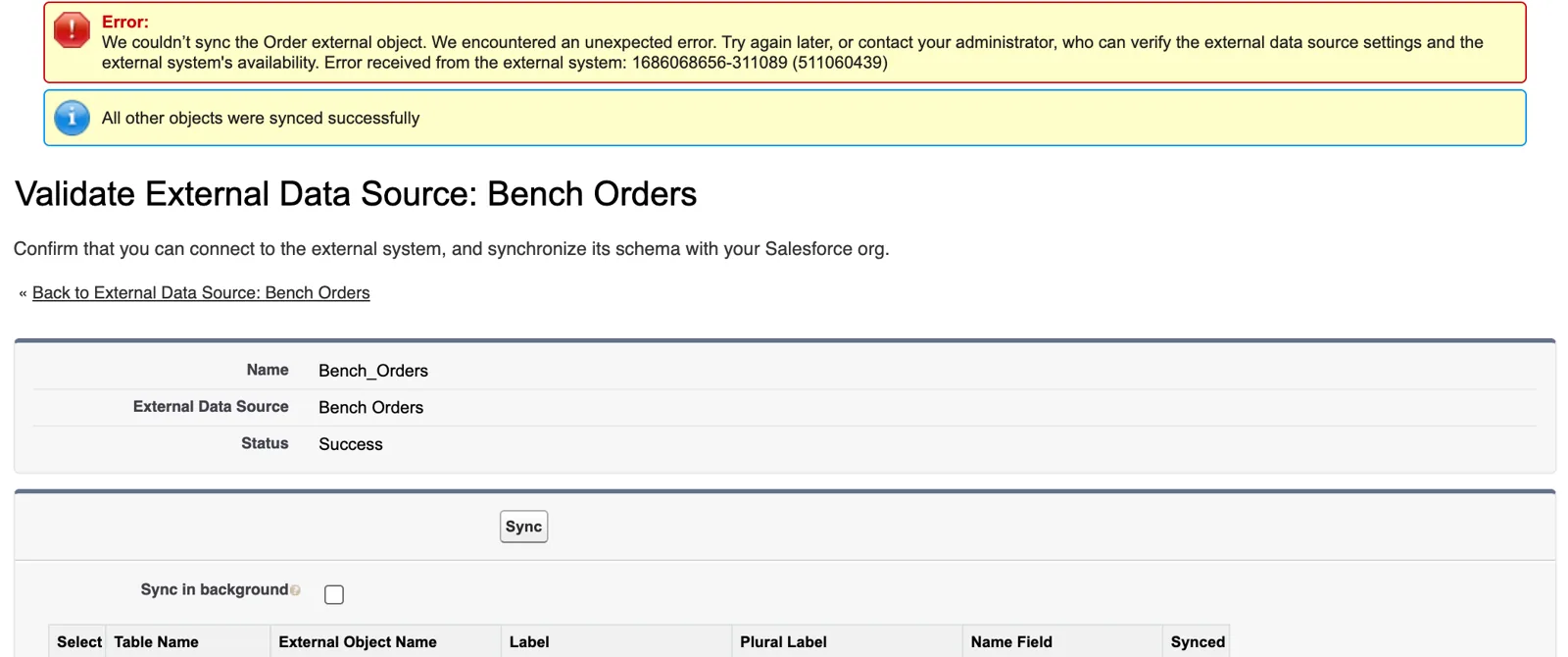
The sync error on Order (Salesforce, Setup in a Developer Edition org, screenshot, November 2026). Full size
We changed only its External Object Name, to BenchOrder, and it synced at once, with the orders readable straight away. Our guess is a clash with Salesforce’s own standard Order object; your Trailhead Playground may not hit it at all. If it does, give the external object another name and carry on.
-
Create an Indirect Lookup Relationship. Orders to accounts, through the customer ID from step 1. Open an account and see its orders, none of them stored in Salesforce.
-
Create an External Lookup Relationship. Order details to orders, both external.
When you’re done, open an order and ask yourself the module’s question: which of these would the business want to act on? That’s the part you’d copy.
Test knowledge. Expect scenarios where some external data needs automation or reporting and the rest is only viewed: the answer combines a synchronized copy for what Salesforce acts on with virtualization for the rest. Know that an indirect lookup relates external records to Salesforce records through a unique External ID field, so the synchronized records must carry the source’s key.
What an Architect Decides Here
Section titled “What an Architect Decides Here”- The split: which records Salesforce acts on (copy) and which people only view (reach).
- The copy side’s mechanism, with today’s tools, and who wins when both sides edit.
- The keys: the source’s key on every copied parent, External ID and Unique, so the virtual children find it.
- Seeding and checking: the day-one load, and the nightly or weekly comparison.
- Where Heroku Connect still runs, and when it moves.
Explore
Section titled “Explore”- Quick Start: Salesforce Connect (opens in a new tab), Trailhead (checked 2026-11-26): the lab.
- Copy, Virtualize or Federate: Data Architect chapter 14, the split as a data decision.
- Salesforce Legacy You’ll Still Meet: chapter 17, Heroku Connect today.